Introduction
Jenkins Shared Libraries let teams reuse Pipeline code across many jobs. A common library layout places simple custom steps in the vars/ directory. A Pipeline can then load the library and call those steps like normal Pipeline functions.
In this lab, you will prepare a local shared library with vars/sayHello.groovy, register it as a Global Pipeline Library from the Jenkins dashboard, create a Pipeline job that calls sayHello, and verify the output in Jenkins.
Prepare a Shared Library Repository
In this step, you will prepare a local Git repository for a Jenkins Shared Library. The vars/ directory is special: each .groovy file in it becomes a Pipeline step with the same name.
Run this command to create vars/sayHello.groovy inside the Jenkins container:
docker exec jenkins bash -lc '
set -e
rm -rf /var/jenkins_home/shared-lib-src /var/jenkins_home/shared-lib.git
mkdir -p /var/jenkins_home/shared-lib-src/vars
cd /var/jenkins_home/shared-lib-src
git init -b main
git config user.email "jenkins@example.com"
git config user.name "Jenkins Shared Library"
cat > vars/sayHello.groovy <<'"'"'EOF'"'"'
def call(String name = "LabEx") {
    echo "Shared library says hello to ${name}"
}
EOF
git add vars/sayHello.groovy
git commit -m "Add sayHello shared library step"
'
Now publish the repository as a local bare Git repository and expose it through git://localhost/shared-lib.git:
docker exec jenkins bash -lc '
set -e
cd /var/jenkins_home/shared-lib-src
git init --bare --initial-branch=main /var/jenkins_home/shared-lib.git
git remote add origin /var/jenkins_home/shared-lib.git
git push origin main
touch /var/jenkins_home/shared-lib.git/git-daemon-export-ok
if [ -f /tmp/shared-lib-git-daemon.pid ]; then
  kill "$(cat /tmp/shared-lib-git-daemon.pid)" 2>/dev/null || true
  rm -f /tmp/shared-lib-git-daemon.pid
fi
git daemon --reuseaddr --base-path=/var/jenkins_home --export-all --detach --pid-file=/tmp/shared-lib-git-daemon.pid /var/jenkins_home
'
Record the repository branch that Jenkins will use:
docker exec jenkins git ls-remote git://localhost/shared-lib.git refs/heads/main | tee /home/labex/project/shared-library-repository.txt
The output should include refs/heads/main.
Register a Global Pipeline Library
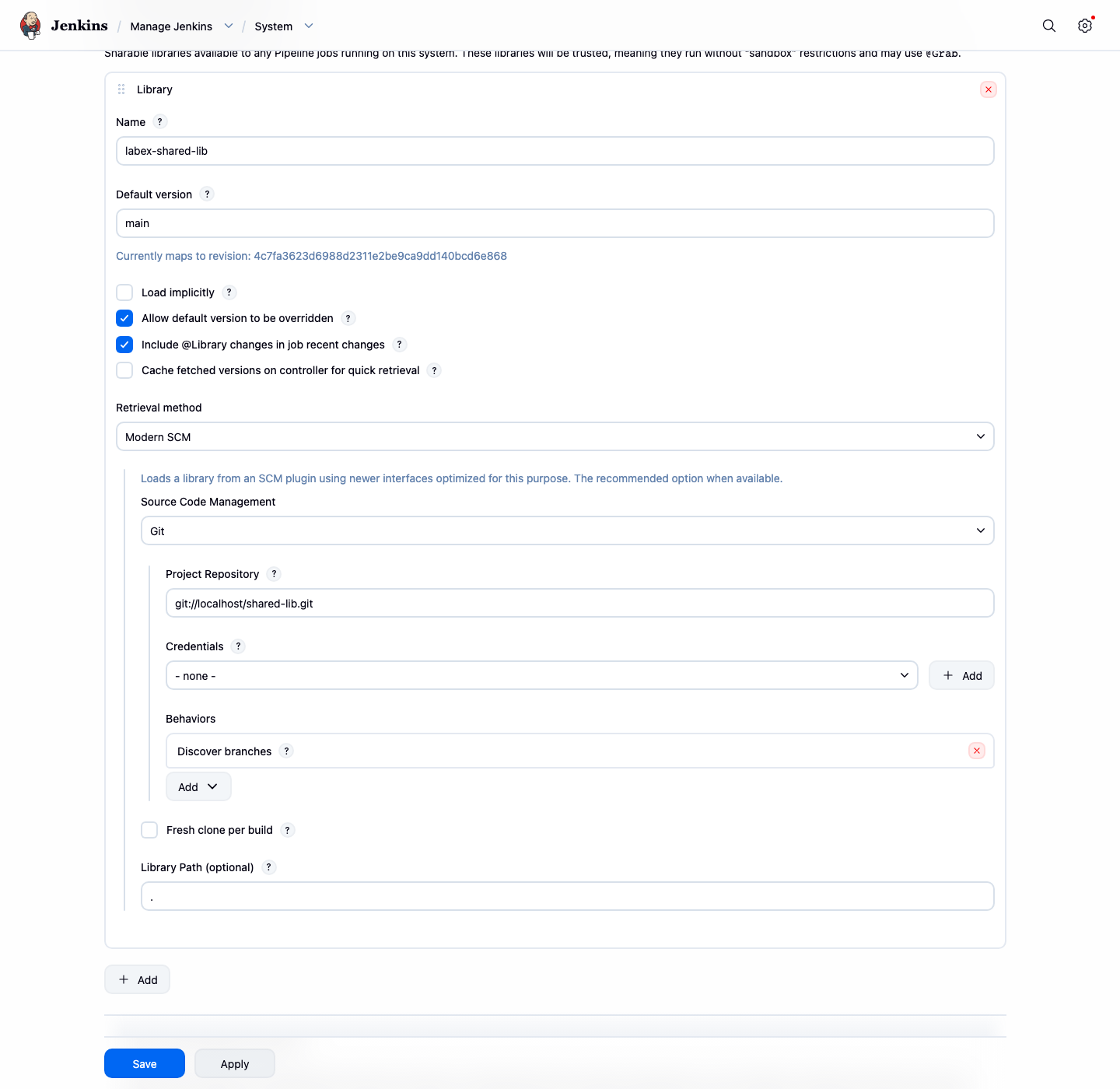
In this step, you will register the repository as a Jenkins Global Pipeline Library named labex-shared-lib. A Pipeline can load this name with @Library.
Open the Desktop interface. Firefox opens Jenkins automatically. If it does not, open http://localhost:8080.
From the Jenkins dashboard:
Click Manage Jenkins, then click System.
Scroll to Global Trusted Pipeline Libraries or Global Pipeline Libraries. Click Add.
Fill in the library with these values:
Name:labex-shared-libDefault version:main- Check
Allow default version to be overridden - Leave
Load implicitlyunchecked Retrieval method:Modern SCMSource Code Management:GitProject Repository:git://localhost/shared-lib.gitCredentials:- none -
Click Save.
Run this command to record the saved library configuration:
docker exec jenkins sh -lc "grep -n -E '<name>labex-shared-lib</name>|git://localhost/shared-lib.git|<defaultVersion>main</defaultVersion>' /var/jenkins_home/org.jenkinsci.plugins.workflow.libs.GlobalLibraries.xml" | tee /home/labex/project/shared-library-config-lines.txt
Create a Pipeline that Loads the Library
In this step, you will create a Pipeline job named shared-library-demo. The Pipeline loads labex-shared-lib and calls the custom sayHello('LabEx') step from vars/sayHello.groovy.
From the Jenkins dashboard:
Click New Item, enter shared-library-demo, select Pipeline, then click OK.
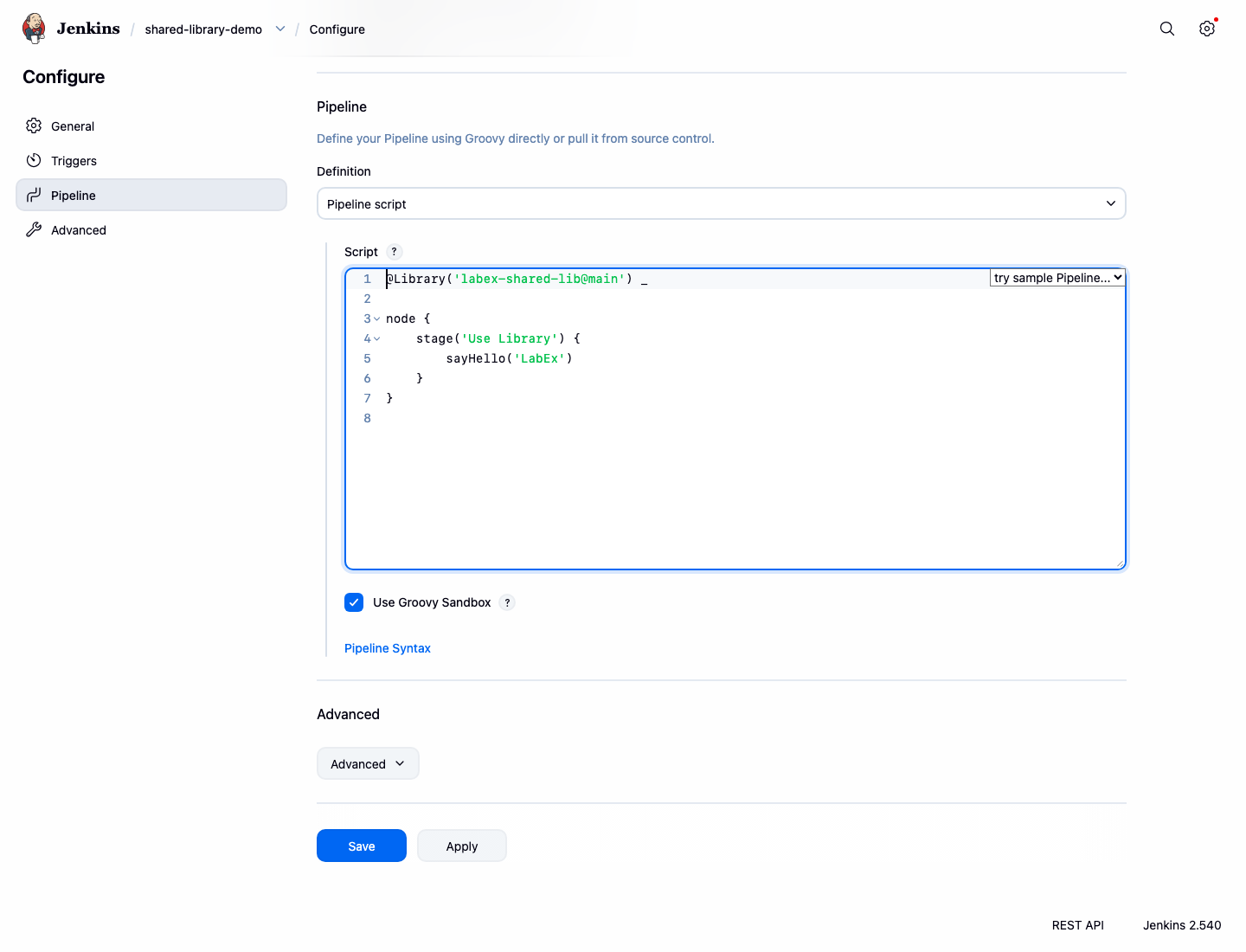
Scroll to the Pipeline section. Keep Definition as Pipeline script.
Enter this script:
@Library('labex-shared-lib@main') _

node {
    stage('Use Library') {
        sayHello('LabEx')
    }
}
Click Save.
Run this command to record the saved Pipeline script:
docker exec jenkins sh -lc "grep -n -E '@Library|sayHello' /var/jenkins_home/jobs/shared-library-demo/config.xml" | tee /home/labex/project/shared-library-job-config.txt
Run the Shared Library Pipeline
In this step, you will run the Pipeline job. Jenkins will fetch the shared library from the local Git repository, load vars/sayHello.groovy, and execute the custom step.
On the shared-library-demo job page, click Build Now.
When build #1 appears in the build history, wait until it finishes. A successful build means Jenkins loaded the library and ran the Pipeline script.
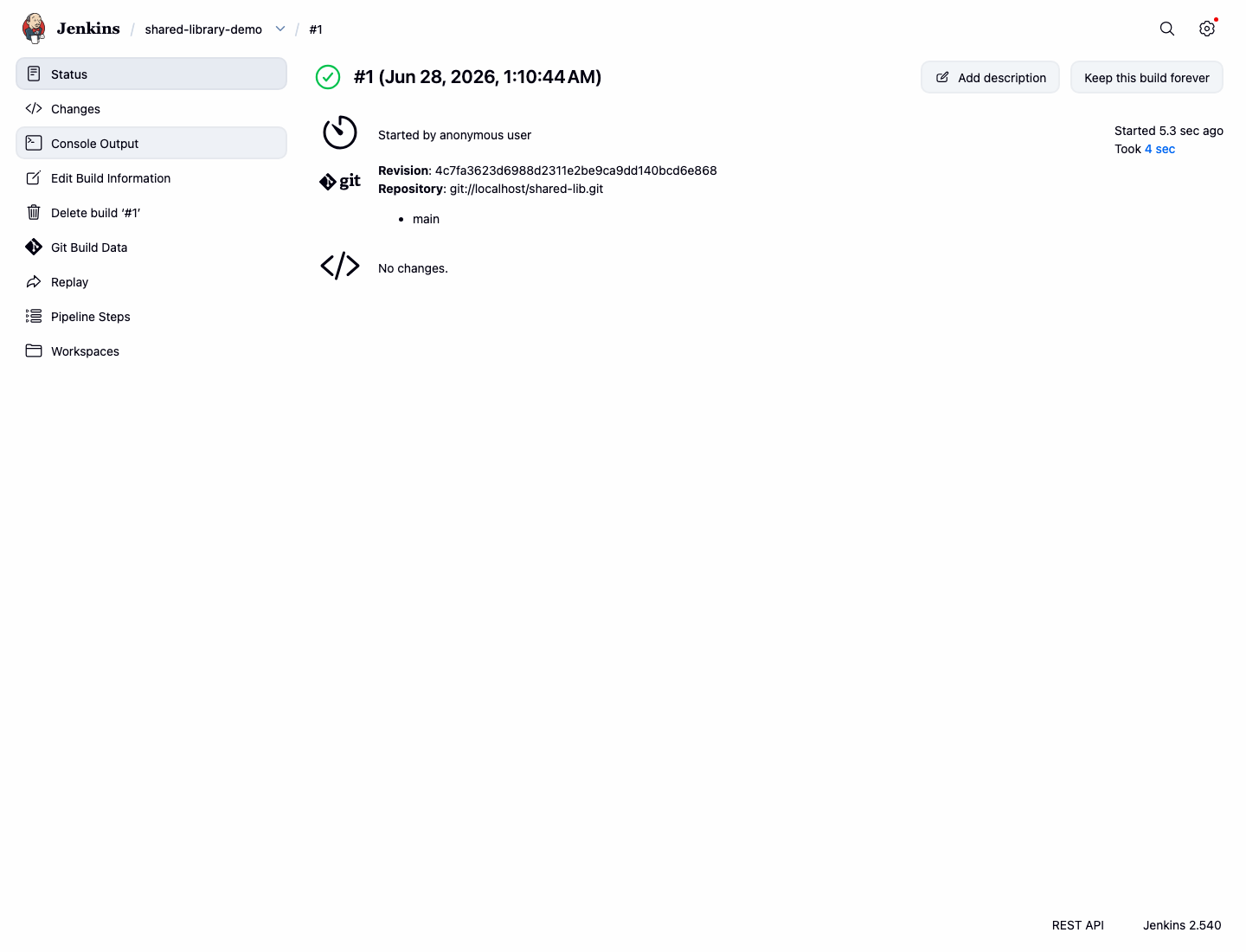
Run this command to save the build result:
curl -fsS http://localhost:8080/job/shared-library-demo/1/api/json | tr ',' '\n' | grep '"result":"SUCCESS"' | tee /home/labex/project/shared-library-build-result.txt
Inspect the Shared Library Output
In this step, you will inspect the Jenkins console output. The key evidence is the line printed by sayHello.groovy.
Open build #1, then click Console Output.
The console should show Jenkins loading labex-shared-lib and printing:
Shared library says hello to LabEx
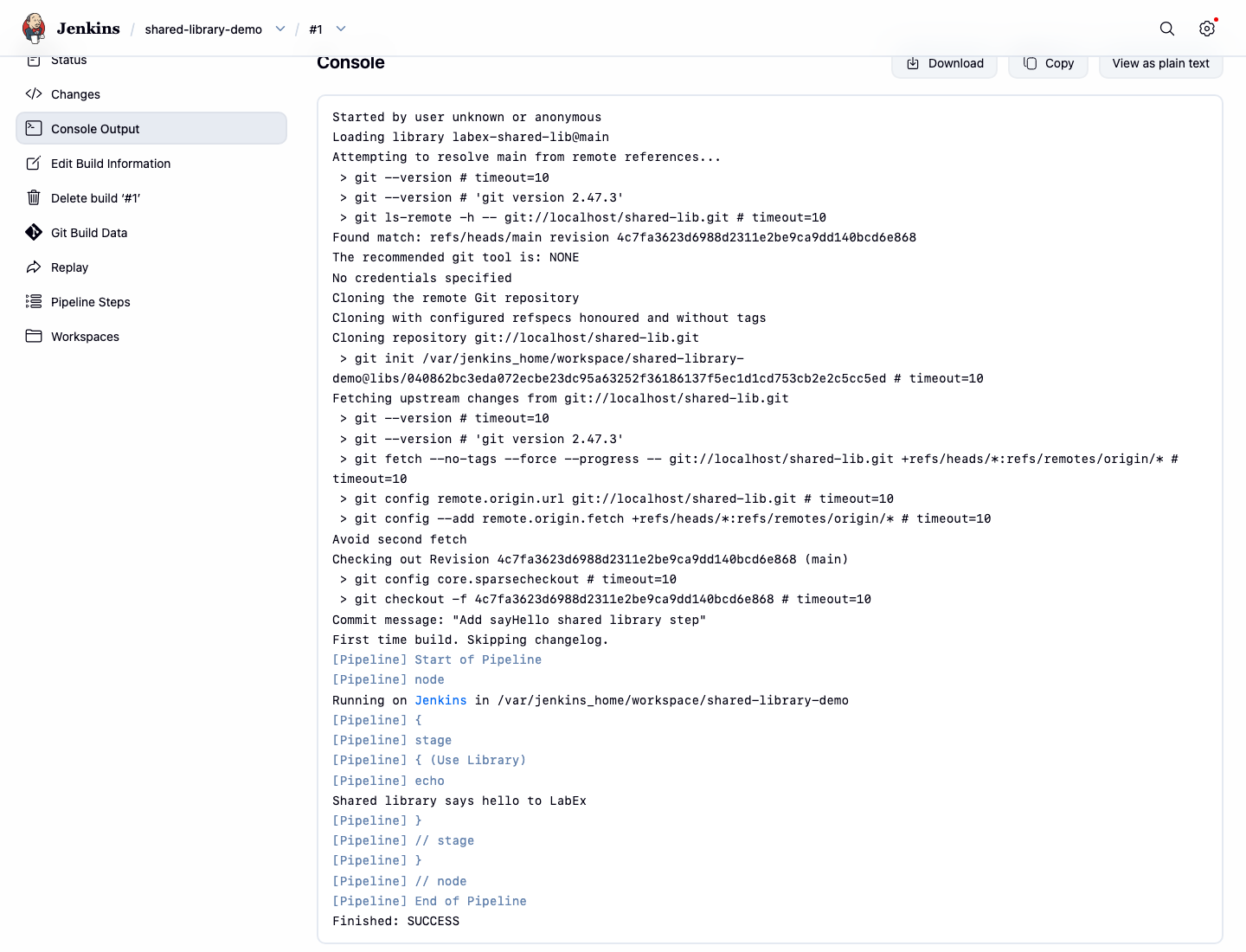
Run this command to save the same console evidence:
curl -fsS http://localhost:8080/job/shared-library-demo/1/consoleText | grep 'Shared library says hello to LabEx' | tee /home/labex/project/shared-library-console-lines.txt
Summary
You prepared a Jenkins Shared Library repository, registered it as a Global Pipeline Library from the dashboard, created a Pipeline job that loaded the library, and verified that a custom vars/ step ran successfully in the Jenkins console output.