Introduction
In the previous lab, our robot assistant automatically logged into a warehouse. But where did it get the password?
In real automation, workflows often need sensitive data such as API keys, passwords, or tokens. You must never hard-code these values into repository files.
GitHub provides Secrets as a protected storage mechanism for sensitive values used by workflows. This is a core CI/CD security practice because pipelines often need privileged access.
This is one of the most important boundaries in automation security. Pipelines need credentials, but those credentials should be injected at runtime from protected storage rather than committed into version control.
In this lab, you will:
- Create a secret password in the vault.
- Teach the robot how to retrieve it.
- Prove that even if the robot tries to print the password, GitHub will censor it.
Prerequisites
We will continue using the github-actions-basics repository.
Create a Secret
Let's imagine our application needs to connect to a database. We need to store the database password safely.
We will create a secret named DB_PASSWORD.
- Open your
github-actions-basicsrepository on GitHub. - Click on the Settings tab.
- In the left sidebar, look for the Secrets and variables menu item and click to expand it.
- Select Actions.
- Click the green button that says New repository secret.
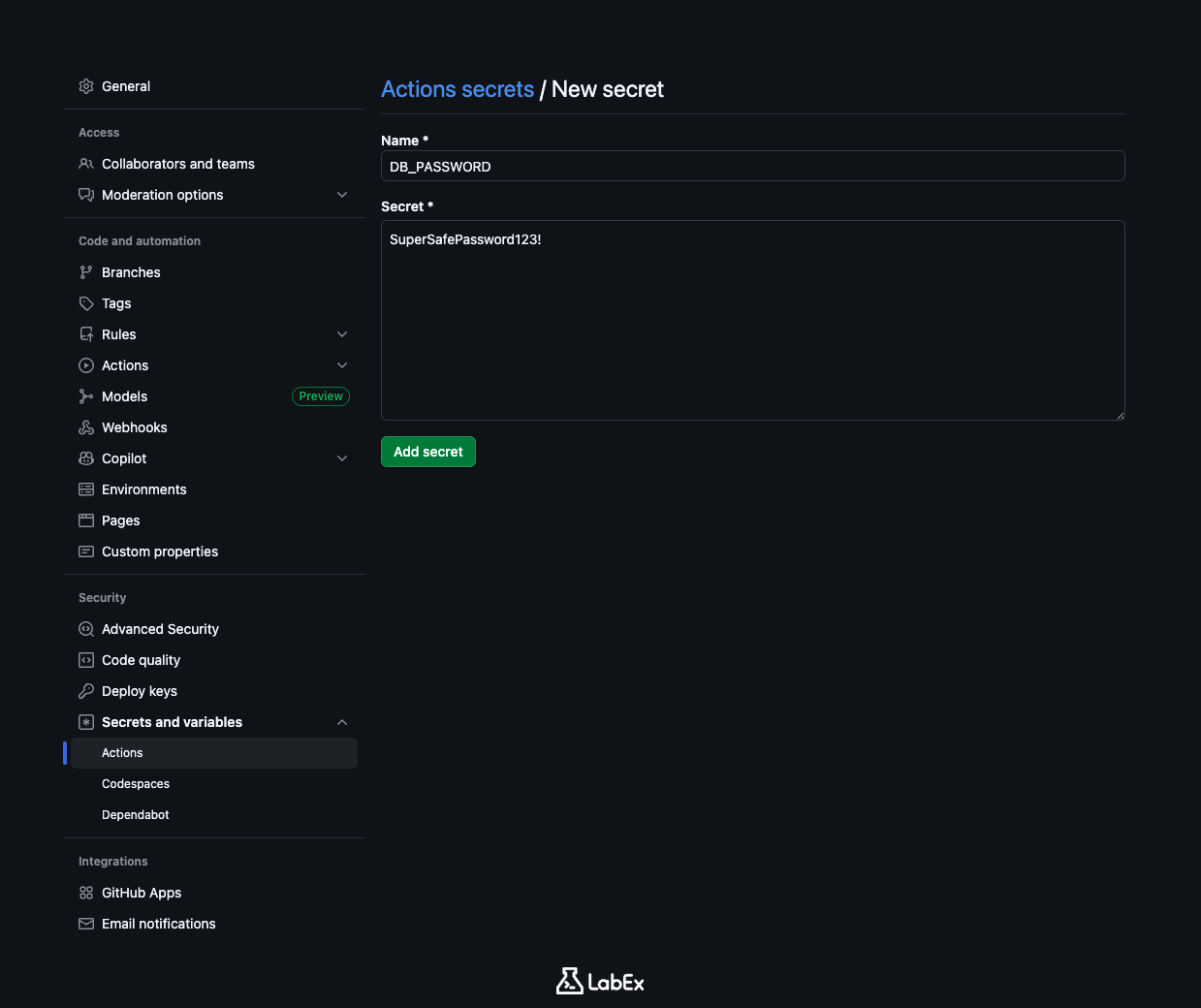
You will see a simple form:
- Name: Enter
DB_PASSWORD. (It is standard practice to use ALL CAPS for secret names). - Secret: Enter
SuperSafePassword123!.
Click Add secret.
You should now see DB_PASSWORD listed. Notice that you cannot see the value anymore. Once a secret is saved, it is locked away forever. You can update it or delete it, but you (and no one else) can ever view it again.
Use the Secret
Now that the password is in the safe, let's write a workflow to use it.
The important pattern here is indirection: the workflow references a secret by name, and GitHub resolves the value securely during execution.
In your workflow file, you can access any secret using the syntax ${{ secrets.YOUR_SECRET_NAME }}.
Navigate to your project directory.
cd ~/project
git clone https://github.com/your-username/github-actions-basics.git
cd github-actions-basics
Note: Replace your-username with your actual GitHub username.
Create a new workflow file named security-test.yml inside the .github/workflows folder.
touch .github/workflows/security-test.yml
Open it with nano.
nano .github/workflows/security-test.yml
Add the following content:
name: Security Test

on: [push]

jobs:
  test-secret:
    runs-on: ubuntu-latest
    steps:
      - name: Try to print secret
        env:
          MY_PASSWORD: ${{ secrets.DB_PASSWORD }}
        run: echo "The password is $MY_PASSWORD"
Here, we are doing something interesting. We are moving the secret from the GitHub Vault into an Environment Variable named MY_PASSWORD. Then, we try to print it using echo.
Wait! Isn't printing a password to the log a terrible idea? Yes, it is! But we are doing this to demonstrate a powerful security feature of GitHub Actions.
Save and exit nano.
Verify Masking
Let's run this workflow and see what happens when we try to leak a secret.
Commit and push your changes.
git add .
git commit -m "Test secret masking"
git push
Go to the Actions of your repository on GitHub.
- Click on the "Security Test" workflow run.
- Click on the
test-secretjob. - Expand the "Try to print secret" step.
Look at the output. You should see something like this:
The password is ***
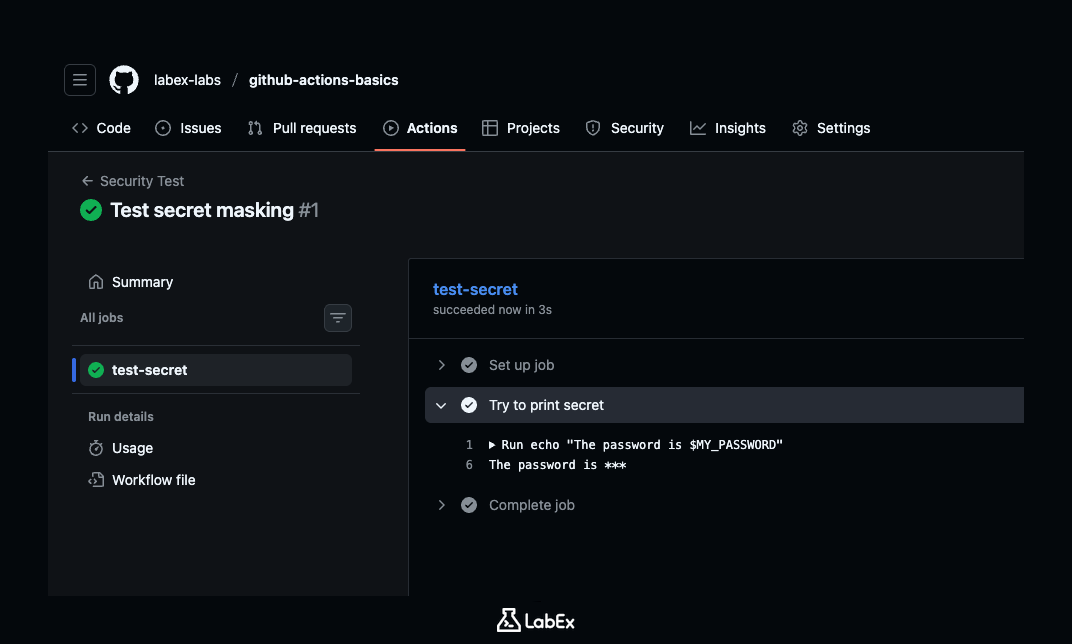
GitHub Actions automatically recognized that the value of $MY_PASSWORD came from a secret. Before printing anything to the log, it scans for that sensitive value and replaces it with ***.
Masking reduces the damage from accidental disclosure in logs, but it is still better practice not to print secrets at all. Security features are a safety net, not an excuse for careless handling.
This "Masking" feature protects you. Even if you accidentally try to print a secret, or if a tool you are using is too verbose, GitHub catches it and scrubs the sensitive data from the logs.
A Note on GITHUB_TOKEN: Remember the ${{ secrets.GITHUB_TOKEN }} we used in the previous lab? That works exactly the same way. It is a secret that GitHub creates automatically for every run, and its value is also masked in the logs.
Summary
In this lab, you learned the essentials of security in automation.
- Vault: You used GitHub Secrets to store sensitive data like passwords.
- Access: You used
${{ secrets.NAME }}to give your robot key-card access to that data. - Masking: You verified that GitHub automatically redacts secrets from logs (
***) to prevent accidental leaks.
You now have a secure, automated pipeline. In the final lab, we will tackle the ultimate goal of DevOps: Continuous Deployment. We will learn how to make your robot deploy your code to a live server!