Introduction
Field Notes has twenty licensed garden photographs and needs a small gallery that staff can download. You will first try one group, then run all four groups with a Kubernetes Job. The final group contains only two photographs; it still needs its own successful completion index.
You should already recognize Pods, Deployments, Services, labels, simple YAML, and basic terminal paths. Jobs, completion indexes, this shared volume, and the editing commands used here are introduced below. The cluster, processor image, original photographs, website, and storage are prepared. You do not need to write Python, build an image, or have a cloud account.
Use Workspace for commands and Gallery for the website. Both entries use one training VM. Keep the supplied files under starter/ and inputs/, the source photographs, reference, processor, services, and storage unchanged. The 45-minute duration is an author estimate that includes reading and ordinary mistakes.
Try One Group First
In this step, compare a normal finished example with its source, then use a one-index Job to process a separate sample.
Open Gallery. The home page labels its large photograph Source collection · licensed garden photographs: it is an input, not work you have completed. Select See the reference. The Thumbnail is a supplied 320 × 220 JPEG; the Licensed source copy retains its original proportions. Cropping explains why their edges differ. Select Gallery in the page navigation. It initially has 0 of 20 images available.
Switch to Workspace. This terminal starts at /home/labex/project/photo-gallery. pwd prints that working directory:
pwd
If you have moved elsewhere, return with cd /home/labex/project/photo-gallery. All relative file names below start there. Files persist in this VM, but another lab starts with its own independent files and cluster resources.
A Deployment keeps a service running. A Job instead runs Pods until a finite piece of work is complete. Our supplied worker processes one group of photographs and exits. In an Indexed Job, Kubernetes gives each required completion a number starting at zero. The worker reads its native JOB_COMPLETION_INDEX value and chooses the corresponding group. You configure the Job rather than writing the worker.
Read the supplied sample manifest. cat displays a file without changing it:
cat starter/sample-job.yaml
Its important fields are completionMode: Indexed, completions: 1, and parallelism: 1. They request index 0 only, with one desired concurrent worker. restartPolicy: Never means a failed container stays failed in its Pod; the Job policy decides whether another Pod is needed. backoffLimit: 0 means no retry in this healthy-source exercise, and activeDeadlineSeconds: 180 bounds the Job's active lifetime. The other fields connect the prepared image, input plan, and output volume; leave them unchanged.
A PersistentVolumeClaim, or PVC, requests persistent storage. The prepared gallery-output PVC keeps files after a worker exits. Here its ReadWriteOnce volume can be mounted by several Pods on the same node. That does not promise shared writing across several nodes. The sample writes a separate sample directory, so it cannot silently fill the final gallery.
Apply the sample. apply -f reads the named YAML file; -n selects the namespace, which groups this project's Kubernetes resources:
kubectl apply -n photo-workshop -f starter/sample-job.yaml
Wait for the Job's native Complete condition. --timeout=180s limits how long this command waits; it does not change the Job deadline:
kubectl wait -n photo-workshop --for=condition=Complete job/gallery-sample --timeout=180s
Expected ending: job.batch/gallery-sample condition met. A timeout alone does not prove failure: inspect the Job and its logs using the commands taught in Step 3 before deciding what to change. Do not rerun setup or delete the supplied resources.
Switch to Gallery, select Sample, and confirm 6 of 6 images available. Open Windmill garden, compare its thumbnail and source, and select Back to sample. Select Gallery in the page navigation: the final collection is still empty. This distinction prevents a successful practice run from being mistaken for the full delivery.
Plan Every Completion Index
In this step, turn the input grouping into a saved Job manifest. Nothing in this step starts the final work yet.
Switch to Workspace, starting at /home/labex/project/photo-gallery. Read the complete input mapping:
cat inputs/groups.txt
There are four lines, Index 0 through Index 3. The first three contain six photographs each; index 3 contains photo-19 and photo-20. completions counts groups, not photographs: this delivery needs 4 successful indexes, not 20 and not 3.
Read the staff brief:
cat inputs/brief.txt
It allows requested parallelism from 1 through 2. We will request 2 so two groups can make progress together. Kubernetes can run fewer Pods while resources are unavailable; requested parallelism is not an absolute limit on every process during retries or termination. This project uses one small prepared node rather than a distributed processing platform.
Copy the prepared final-job template to your editable file. cp copies a file; it leaves the source under starter/ intact:
cp starter/gallery-job.yaml gallery-job.yaml
If cp reports No such file or directory, check pwd, return to the directory above, and repeat the same copy with the exact file name. Do not create an empty replacement template.
Use sed to change two literal field values in the copied file. -i edits that file in place. Each expression has the form s/old/new/: replace the old text with the new text. Single quotes make the shell pass the expression literally. These exact fields each occur once in this supplied template:
sed -i 's/completions: 1/completions: 4/' gallery-job.yaml
sed -i 's/parallelism: 1/parallelism: 2/' gallery-job.yaml
Read the saved result before applying it:
cat gallery-job.yaml
Confirm metadata.name: gallery-batch, completionMode: Indexed, completions: 4, and parallelism: 2. Keep the prepared processor image, command, environment, mounts, resource settings, no-retry policy, and 180-second deadline. Equivalent YAML formatting or a different new final Job name is acceptable; the saved file must describe the Job you actually run.
A mistyped replacement can exit successfully without matching anything, so reading the result matters. If you have not applied the file yet, recover by copying the original template again and repeating the two edits. After applying a Job, avoid re-copying a conflicting name: Job task templates are generally immutable, so prepare a new Job name for a different attempt.
Run the Complete Batch
In this step, apply your saved Job and connect its native completion evidence to real worker Pods.
In Workspace, at /home/labex/project/photo-gallery, apply the saved file:
kubectl apply -n photo-workshop -f gallery-job.yaml
Wait for all required indexes:
kubectl wait -n photo-workshop --for=condition=Complete job/gallery-batch --timeout=180s
Read the native Job summary:
kubectl get job gallery-batch -n photo-workshop
The completed Job should show 4/4 completions. describe adds details and events:
kubectl describe job gallery-batch -n photo-workshop
Look for Completion Mode: Indexed and Completed Indexes: 0-3. A range includes both ends, so this covers all four groups, including the short final group. Completion evidence alone does not establish correct image contents; you will inspect and download those next.
List only Pods belonging to this Job. -l selects by a label. -L adds a column showing another label, here the completion index:
kubectl get pods -n photo-workshop -l batch.kubernetes.io/job-name=gallery-batch -L batch.kubernetes.io/job-completion-index
Expect completed Pods for indexes 0, 1, 2, and 3. Completed in this table corresponds to the Pod's successful phase. Read their actual worker output. --all-pods=true includes the Job's Pods, and --prefix=true identifies which Pod produced each line:
kubectl logs -n photo-workshop job/gallery-batch --all-pods=true --prefix=true
Each worker names its assigned photographs and reports 320 x 220 outputs. Index 3 should finish two photographs. These logs help explain what happened; the actual files, their source relationships, and successful owned Pods are also checked.
If waiting times out, use describe and the same Pod/log commands to distinguish an unfinished workload from a failed one. An unknown Job name usually means the file was not applied or its name differs: read gallery-job.yaml and use that actual name. Do not erase completed Pods or the sample. The next guided lab teaches recovery from a deliberate temporary source failure.
Hand Over Real Images
In this step, inspect the complete website and save both usable delivery files.
Switch to Gallery, select Gallery in the page navigation, and refresh. Confirm 20 of 20 images available. Open Blue and yellow flowers (photo-20), from the short final group. Compare the thumbnail with its own source; it must not be a repeated copy of another flower. Select Download thumbnail, then Back to gallery.
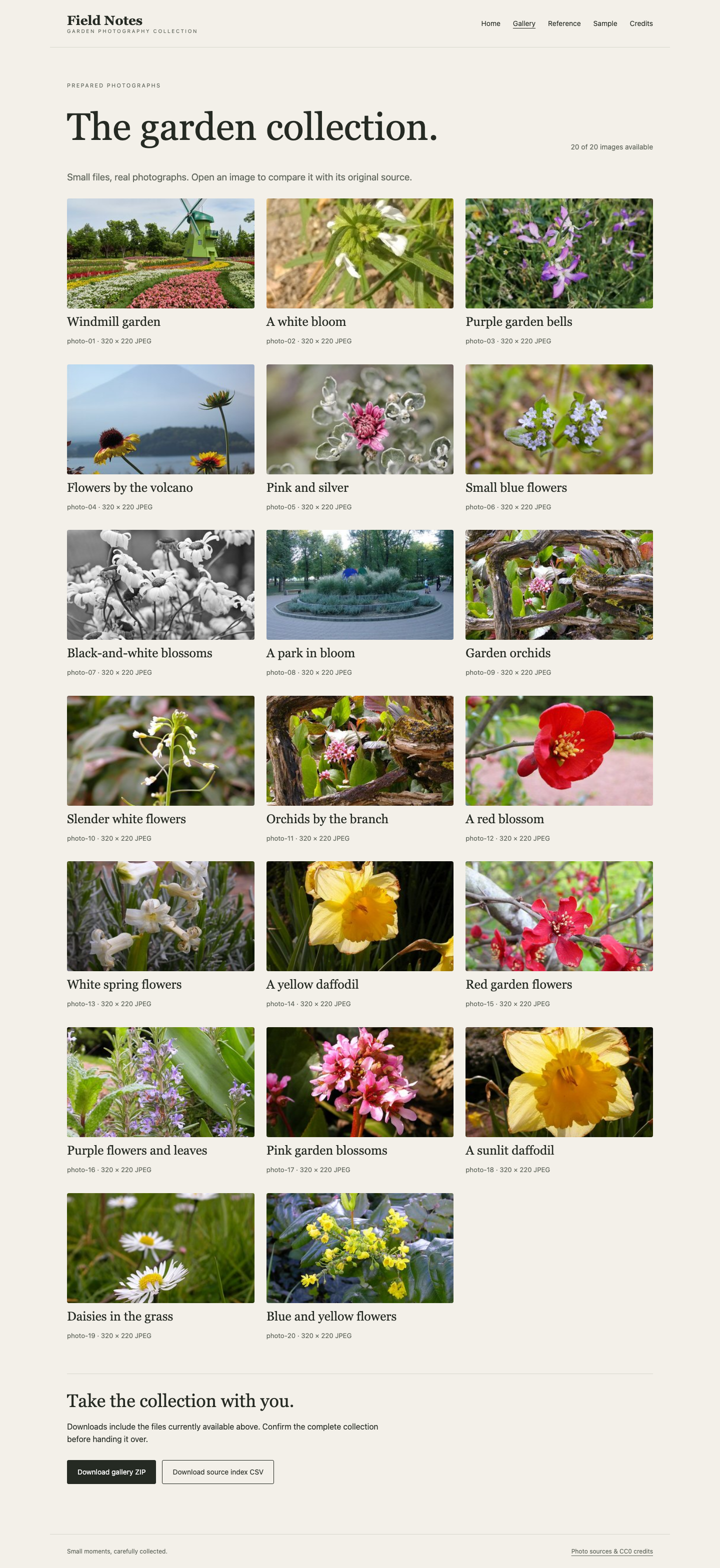
The final gallery contains twenty distinct prepared photographs, including the two images in the short final group. The download actions are below the collection.
At Take the collection with you, select Download source index CSV and Download gallery ZIP. The CSV associates each output with its source hash, thumbnail hash, creator, and source page. The ZIP contains index.csv and the actual JPEGs under photos/. The page reports files actually available; it does not regenerate missing work from the originals. An incomplete collection can still be downloaded, so verify the complete result before handing it over.
Select Reference in the page navigation and confirm the original supplied example still works. Select Credits to see the creators and Wikimedia Commons source links. The photographs are CC0 licensed fixtures, not photographs taken by LabEx.
Switch to Workspace, at /home/labex/project/photo-gallery. Save the same real downloads here. curl requests a URL; --fail returns an error for an HTTP failure, --silent --show-error hides the progress meter while keeping errors, and -o names the output file. The port 8091 reaches the prepared gallery Service from this VM:
curl --fail --silent --show-error http://127.0.0.1:8091/download/index.csv -o gallery-index.csv
curl --fail --silent --show-error http://127.0.0.1:8091/download/gallery.zip -o gallery.zip
Browser downloads are saved by the browser; these two commands save the copies required in the VM workspace. If a request fails, inspect the website and repeat the request after resolving the problem. Do not edit a received index to hide missing images.
Display the header and first two rows. head -n 3 reads the first three lines:
head -n 3 gallery-index.csv
The header begins id,title,source_file,thumbnail,width,height. Each row maps one photograph to its own photos/photo-NN.jpg, with dimensions 320,220 and its actual source credit.
List the archive without extracting it. python3 -m zipfile runs Python's standard ZIP utility; -l lists members:
python3 -m zipfile -l gallery.zip
Find index.csv and all twenty JPEG paths, including photos/photo-20.jpg. Names or counts alone cannot prove image correctness, so the functional checks also decode actual JPEGs and compare each with its own source-derived result. Keep gallery-job.yaml, both downloads, the sample, completed Pods, source files, reference, and prepared services available.
Summary
You delivered a real photo gallery with an Indexed Job. You mapped photographs to completion indexes, bounded requested parallelism, checked native Pod and Job evidence, and handed over actual images with a source index. The sample and reference remained separate from the final work.