Introduction
Pine & Path is preparing a garden walk. One editor asks for a later start; another then changes the meeting point. Jenkins can prepare and publish either notice, but an older run waiting for approval could overwrite the newer announcement after it has already reached visitors.
You will see that overwrite happen, then change the Pipeline so a new run automatically takes the place of an older waiting run. Your result is a real visitor notice and a downloadable seven-file pack, with its route, schedule and notes all matching the latest request.
Prerequisites are basic Jenkins page navigation and recognition of a short Declarative Pipeline. Parameters, approval pauses and the concurrency setting are explained here. Jenkins, two controller executors, the notice tools and the local Notice Desk are prepared. You do not install software or write the website. Both interfaces run on one training VM; this is a controlled local publisher, not a production deployment platform. The duration is an author estimate, not a measured beginner time.
Observe a Late Approval Overwriting a Notice
In this step, you will publish the latest notice, then observe an older waiting run overwrite it. Start in Notice Desk. Keep this interface open; switching interfaces does not restart a build or reset the notice.
Inspect the normal visitor experience
The first event is the garden walk. Choose its View notice link. The provided notice starts at 10:00 at Community Gate. Open Open the route and inspect the three stops. Use the browser's Back action to return to the notice. Open Read visitor notes, read the meeting instructions, then use Back again. Schedule table is a CSV file: a plain table whose fields are separated by commas. Notice details is JSON: labelled values describing the same event. Preparation record identifies how this pack was prepared. At this point it honestly says PROVIDED BASELINE; setup has not run the Jenkins job for you.
Use the browser's Back action to return to the Notice Desk home page. Choose Download notice pack for the garden walk and save the ZIP archive. A ZIP keeps several files together. Extract the whole archive to a new folder using your computer's archive tool, then open its index.html. Keep all seven neighboring files together. The route, stylesheet, schedule, notes, JSON and preparation record are real local files; moving only index.html will break its neighboring links. Your browser may open a CSV/text file or download it; either behavior is suitable for reading the saved bytes.
Return to the Notice Desk home page. Inspect the separate Seed Swap notice and its download. It starts at 11:00 at Potting Shed and must remain unchanged. The upcoming editor requests concern only the garden walk.
Choose Read the editor requests. The earlier request uses UPDATE value later-start: 10:30, still Community Gate. The latest request is new-meeting-point: keep 10:30, meet at Glasshouse Gate. Here, “latest” means the later editor request, not whichever build happens to finish last.
Read the prepared Pipeline
Switch to Jenkins. Open publish-walk-notice, then Configure. Find the Pipeline section and its Script editor. This is a Declarative Pipeline: the outer pipeline { ... } block describes the work, and matching braces group its settings and stages.
The job uses agent any, which allocates an executor and a workspace on an available prepared node. An executor is a Jenkins slot for running work; a workspace is a run's working directory. This training controller has two executors, so two runs of this job can overlap. They have separate working directories, but publish to the same garden notice.
The parameters block defines values chosen for each build. choice offers the two editor requests as UPDATE. booleanParam makes HOLD_FOR_REVIEW a checkbox: checked means true, unchecked means false. params.HOLD_FOR_REVIEW reads that run's chosen value. A when condition runs its stage only when the expression is true.
The three stages have distinct purposes:
- Prepare notice clears the run's workspace with
deleteDir(), calls the provided preparation program withsh, and archivesnotice-pack.zip.archiveArtifactskeeps that exact file with the native build.fingerprint: truerecords its content identity and associated build. Preparing and archiving do not change the visitor notice. - Review notice uses
inputto pause a checked run before publication. Its Proceed link permits the next stage; Abort cancels that run. This is an intentional pause, not a connection failure. - Publish notice sends the prepared pack to the local Notice Desk. The
post { always { ... } }block clears the workspace when the run finishes, including interruption. Native archived files remain available after workspace cleanup.
The supplied preparation and publication programs read the actual build's parameters and archive. Keep these programs, all stages, the review condition, fingerprinting and both cleanup operations. You will change only how overlapping runs are handled in the next step. For now, leave the Script unchanged. Choose Save to return to the job.
Start an older run and leave it waiting
On the publish-walk-notice job page, choose Build with Parameters. Select later-start for UPDATE and check HOLD_FOR_REVIEW by clicking its label or checkbox. Choose Build once.
Open the newly started run in Build History; on an untouched job this is #1. Open Console Output. Wait for Release this selected notice? with Proceed and Abort links. Keep it waiting. The console has already reported preparation and archiving. The job's shared visitor notice is still the baseline because Publish notice has not run.
Use the publish-walk-notice breadcrumb at the top to return to the job page. This navigates within Jenkins; it is different from switching to the Notice Desk interface. Record the older run number so you can return to its waiting console.
Choose Build with Parameters again. This time select new-meeting-point and leave HOLD_FOR_REVIEW unchecked. Choose Build once. Open this new run's Console Output and wait for Finished: SUCCESS. On an untouched job this is #2.
Switch to Notice Desk and reload its home page. Open the garden notice: 10:30 and Glasshouse Gate should now appear. Open its route and visitor notes and confirm the same meeting point. The latest editor request is genuinely published.
Continue the older run
Switch back to Jenkins. Return to the job, open the recorded older run and its Console Output, then choose its Proceed link. Wait for Finished: SUCCESS. If you have a stale console open, reload that run's console before choosing the link; do not start another build just to refresh a page.
Switch to Notice Desk, reload, and inspect the garden notice again. It now says 10:30 at Community Gate. This is the expected failure: the older run finished later and overwrote the newer request. Both Jenkins runs succeeded, but the business result became stale.
Download this current pack into a different folder. Its publication.txt names the older Jenkins run; its route, schedule and notes agree with that older request. Return to Jenkins and open that older build's Build Artifacts link to download its native notice-pack.zip. The Notice Desk delivered that actual prepared archive, rather than silently generating another notice.
If a run is waiting unexpectedly, inspect its chosen Parameters and console. You can choose Abort on its input prompt to cancel an accidental waiting run, then start the intended parameters again. Keep all build history. A failure message before the prompt is different from the expected approval pause; read its console and return to Configure to restore the supplied stages if you accidentally edited them.
Self-check: you have retained both genuine successful builds, the earlier run's real approval, and the stale visitor result. The separate Seed Swap notice and download still work. Later repairs will not erase this evidence.
Let New Runs Replace Waiting Old Runs
In this step, you will stop an old approval from overwriting the latest request. Start in Jenkins on the publish-walk-notice job page.
Add the same-job overlap policy
A Pipeline's options block controls run behavior. disableConcurrentBuilds() by itself makes new runs wait in a queue until the current run finishes. That would leave the older approval in control. The setting abortPrevious: true instead interrupts an older run when a newer run of this same job starts. true is a Boolean value, not quoted text. The colon passes this named option to the setting.
Choose Configure, find Pipeline → Script, and insert the following line directly after agent any, inside the outer pipeline block and before parameters:
options { disableConcurrentBuilds(abortPrevious: true) }
The beginning should now read:
pipeline {
    agent any
    options { disableConcurrentBuilds(abortPrevious: true) }
    parameters {
This small excerpt shows placement; do not replace the entire Script with the excerpt. Retain the existing parameters, stages, archiving and cleanup. Choose Save. Saving changes future runs; you must run a new pair to demonstrate its effect.
Observe automatic supersession
On the job page, choose Build with Parameters, select later-start, check HOLD_FOR_REVIEW, and choose Build. Open the new older run's Console Output and wait for the real Proceed / Abort prompt. On an untouched walkthrough this is #3. Leave it waiting; do not manually abort or proceed with it.
Return to the job with its breadcrumb. Choose Build with Parameters, select new-meeting-point, leave HOLD_FOR_REVIEW unchecked, then choose Build. Open this newer run's console and wait for Finished: SUCCESS. On an untouched walkthrough this is #4.
Open the older waiting run's console and reload it. On the prepared Jenkins version, the run is NOT_BUILT, with Superseded by #... naming the newer run. The old Publish notice stage was skipped and the cleanup still ran. A grey status alone is not enough: read the supersession cause and compare the newer build number. The old input is no longer awaiting your approval. The historical console can still display its earlier Proceed/Abort text; do not use those old links after supersession.
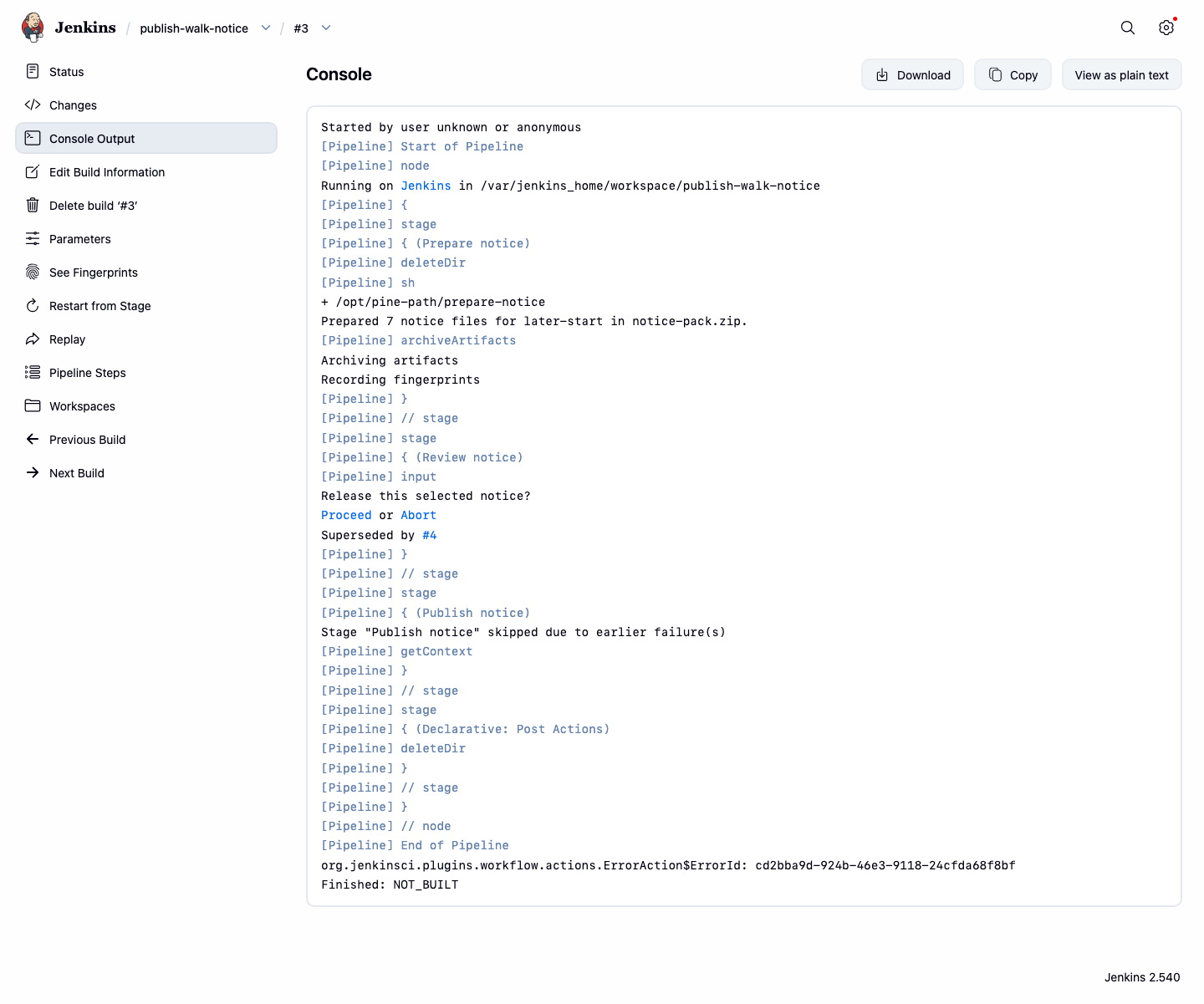
Read Superseded by #... and the skipped publication stage, then compare the final NOT_BUILT result.
NOT_BUILT here does not mean that no work happened. The older run prepared and archived its pack before the pause. Open its Build Artifacts and confirm notice-pack.zip is still downloadable. What the policy prevented was the later publication of that stale pack. Both runs' workspace cleanup leaves these archived files intact.
Switch to Notice Desk, reload and open the garden notice. It must show 10:30 at Glasshouse Gate. Read the route, notes and schedule.
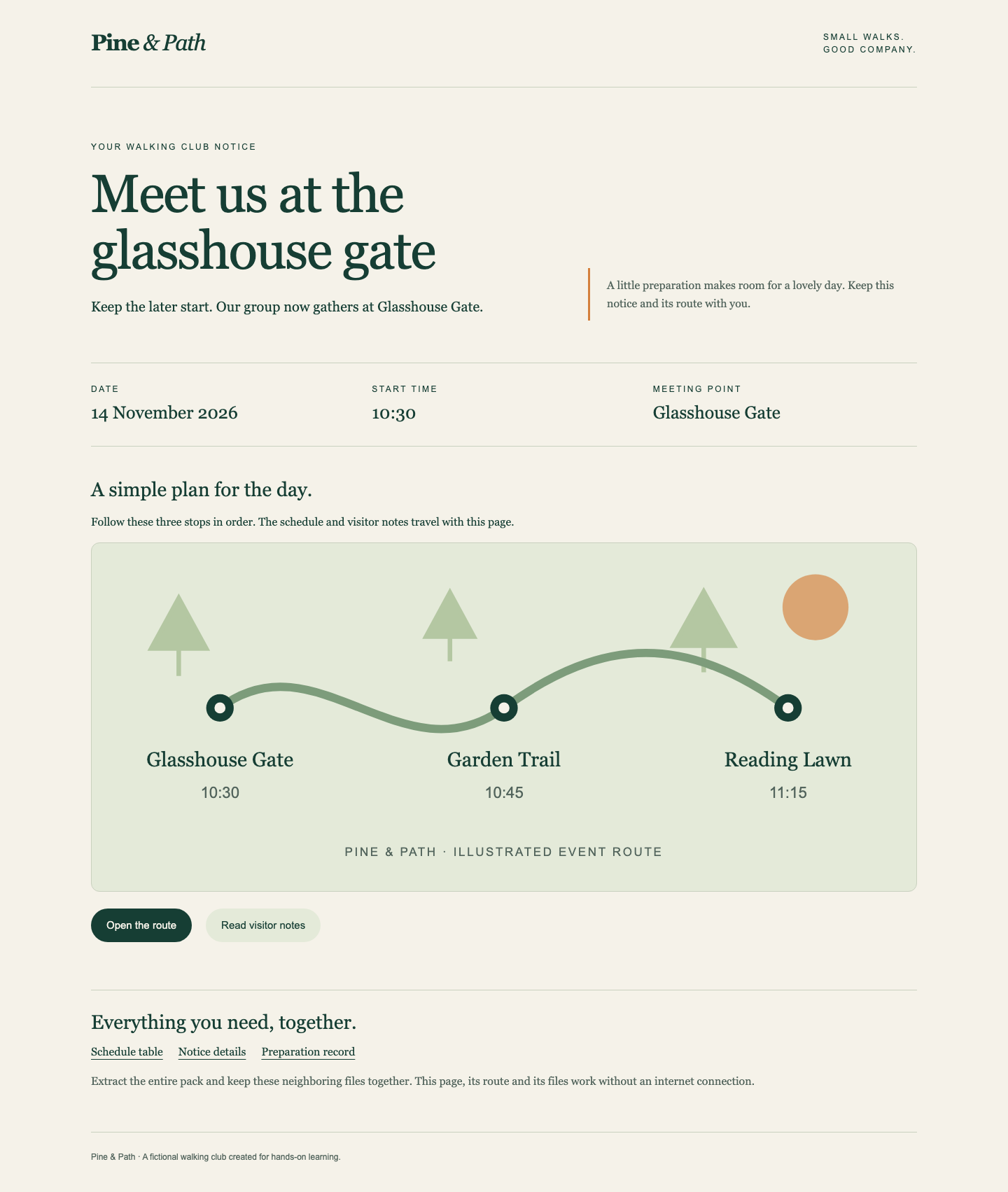
Check 10:30, Glasshouse Gate, and the route’s first stop together. Return to the home page and verify that Seed Swap still starts at 11:00 at Potting Shed.
Practice cancelling an accidental approval pause
Switch to Jenkins. Start one more later-start build with HOLD_FOR_REVIEW checked. Wait for its console input prompt, then choose Abort. This is a deliberate manual cancellation, which finishes ABORTED. It is different from the automatic supersession you already observed and does not replace that evidence. The live notice stays at Glasshouse Gate because this run never published.
Start a final new-meeting-point build with HOLD_FOR_REVIEW unchecked and wait for SUCCESS. This is the recovery action if you accidentally pause or cancel the wrong request: inspect the editor page, select the latest request, and build it without a hold. Keep the older runs; deleting history would remove evidence of the policy's behavior.
If saving a Script produces FAILURE with a syntax message, check brace pairing and ensure the options line is inside pipeline, not inside stages or a stage's steps. Correct it in Configure, save, and start the intended pair again. Do not reset the VM or modify the supplied tools. Extra failed attempts can remain in history.
Keep and inspect the final deliverable
Switch to Notice Desk. Reload, then download the garden notice pack. Save it into a new folder instead of mixing files from earlier downloads. Extract the whole ZIP and open index.html. Confirm Glasshouse Gate, 10:30, the illustrated route and all three stops. Open Read visitor notes, Schedule table, Notice details and Preparation record. The CSV and JSON must agree with the page; publication.txt names the final successful Jenkins job and build. The full folder works locally without Jenkins or the Notice Desk. Use the browser's Back action between local file views.
In Jenkins, open the corresponding successful build and Build Artifacts, then download notice-pack.zip. Its seven extracted files must match the Notice Desk download. Native Jenkins archives document what a build prepared; the Notice Desk shows what was actually published.
Self-check: the saved policy is active, a genuine newer run automatically superseded an older run paused at input, and visitors receive the latest request's real files. The paused/newer pair must have run this saved Script. Your newest completed run must itself be a successful latest publication; after an erroneous or skipped publication, restore the Script and rerun. If you change its behavior again, demonstrate a new paused/newer pair. All build history, previous archives, preparation/review/publication/cleanup behavior and the unrelated event remain intact.
This setting affects overlap in one job. It cannot undo a publication that happened before interruption, coordinate different jobs, or make every production deployment safe to abort. Here, the older run pauses before its single publication step, which makes the boundary clear.
Summary
You connected a real visitor result to Jenkins run behavior. You reproduced an older approval overwriting a newer notice, then used disableConcurrentBuilds(abortPrevious: true) to make new runs interrupt older waiting runs of the same job. You distinguished preparation from publication, native supersession from manual cancellation, and archived files from workspace files.
Your final product is the latest garden notice with a matching offline route, schedule and notes. The preserved history shows why its successful build means the intended update actually reached visitors.