Introduction
Fieldnote is preparing the Northline Print Fair. Exhibitors sign in to collect their own booth kit: an arrival time, delivery point and packing list. A first Hydra test seems to find several usable logins. Some of those findings are actually error pages. Your job is to separate genuine authentication from a misleading response, then collect the assigned exhibitor's complete kit.
You need only basic terminal input, paths and tab switching. Hydra and the local portal are prepared. You will learn the form fields, matching conditions and cookie handling before using them. Workstation is your terminal; Exhibitor Portal is the website. These are two interfaces to one isolated training container, not two hosts. All accounts and business data are synthetic. Test only the declared practice form and the assigned account with the supplied candidates. Do not change the server, accounts or documents.
The estimated 55 minutes includes reading and ordinary errors; it has not been timed with beginners. Your deliverables will be a reusable form argument, an original Hydra result and the authenticated booth kit—not a written report.
See What a Real Login Opens
In this step, open a known working preview account and connect it to its own booth details. A successful HTTP request means the server sent a response; successful authentication means the server accepted an identity. Those are different facts.
Open the Exhibitor Portal tab. Select Start at the practice desk, then Practice sign-in. Enter exhibitor ID preview and password Preview24, then select Sign in. The result says Signed in as preview. Select Open your workspace. Its booth is DEMO, and the packing note identifies it as a practice document. This is the normal business flow; this preview kit is not your final assignment. Select Sign out, then the Practice desk navigation link.
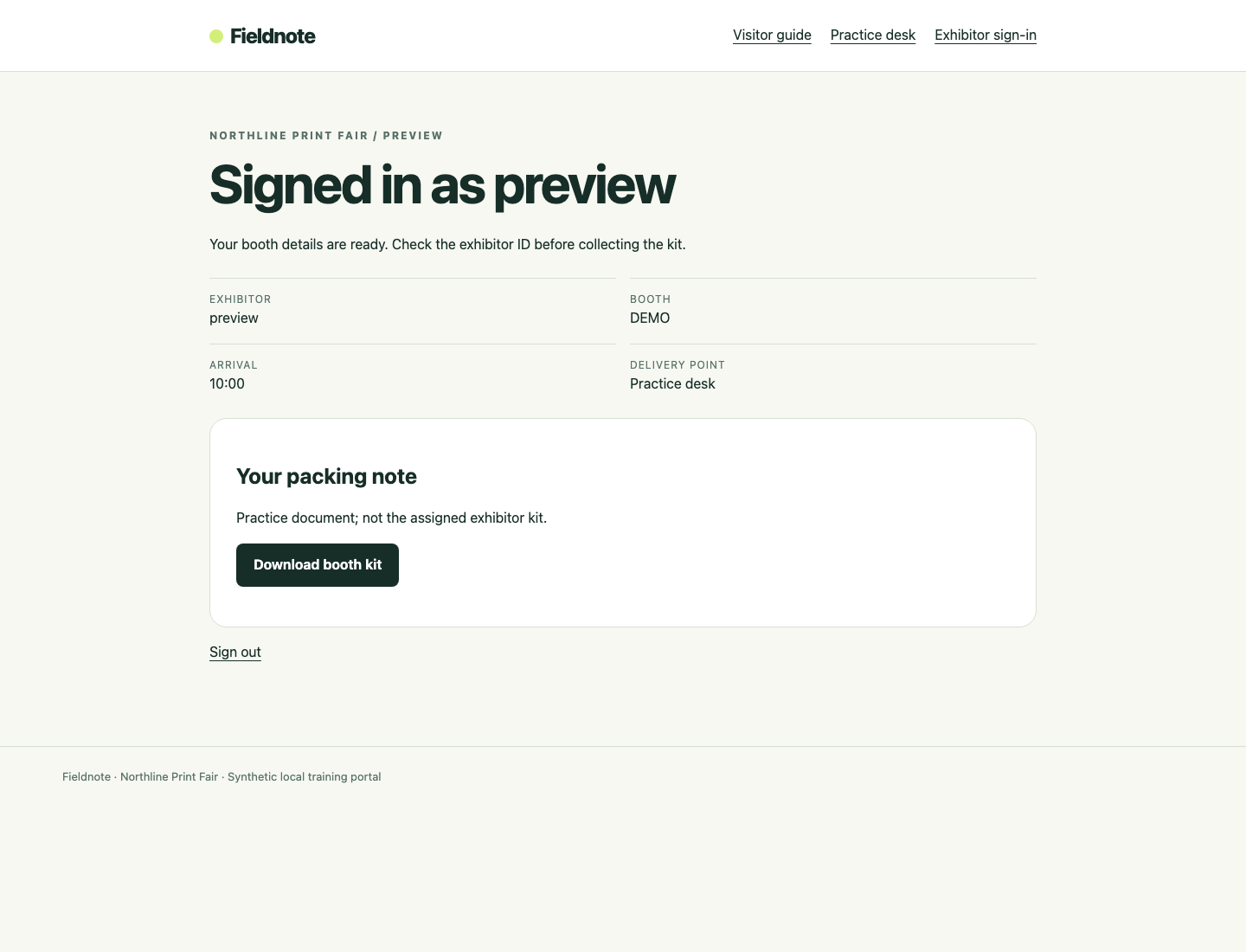
The exhibitor ID and booth identify this as the preview document; the download button alone is not proof that it is your assigned kit.
Switch to Workstation. Commands in this lab start in /home/labex/project/login-review. The interface enters that directory automatically; pwd prints the current directory so you can check it:
pwd
Expect /home/labex/project/login-review. If you are elsewhere, cd changes directories:
cd /home/labex/project/login-review
The practice sign-in form sends a POST request to /practice/login. A POST carries named fields in its request body. Here the names are username and password; & separates them. curl sends a request from the terminal, independently of the browser. In the next command, --data supplies the fields, -s hides the progress meter, -o saves the response body, and -w prints the HTTP status. The single quotes keep spaces, & and %{http_code} together for curl rather than letting the shell interpret them.
Send one intentionally wrong password:
curl -s -o wrong.html -w 'HTTP %{http_code}
' --data 'username=preview&password=Wrong24' http://127.0.0.1:8080/practice/login
The output is HTTP 200. It means the application returned a page. It does not mean the password worked. wrong.html holds that page. grep searches text; its -o option prints only the matching text, so you need not read the surrounding HTML markup:
grep -o 'Incorrect password' wrong.html
Expect Incorrect password. The same HTTP status can accompany a real success or a rejected login. In this lesson, a normal password typo is recoverable: correct the value and submit again. A connection error means the request did not reach the service; check 127.0.0.1, port 8080 and the declared path before interpreting any login result. Do not reset the VM to fix a typo.
Reproduce a Misleading Finding
In this step, run a deliberately defective classification rule on four small practice pairs. This is a demonstration of a bad test, not a reliable audit.
Stay in Workstation. cat displays a file. The prepared pair list contains complete username:password pairs, one per line:
cat practice-pairs.txt
preview:Wrong24
retired:Wrong24
offline:Wrong24
preview:Preview24
retired is a synthetic unavailable-account sample. offline is a controlled service-error sample; the practice handler returns HTTP 503 without creating a session. It is not an upstream service outage or a real exhibitor. The last pair is the known working preview login. Keep this tiny allowed set; do not expand it into arbitrary username/password combinations.
Hydra's http-post-form module sends each pair to a form. Its argument has three colon-separated parts: the POST path, the fields and a response condition. ^USER^ and ^PASS^ are Hydra placeholders. F= means “treat a response containing this pattern as failure.” Any other response may be classified as success. This command deliberately recognizes only Incorrect password, leaving other failure types uncovered.
The options are -I to ignore an old restore prompt in this workspace, -C for paired candidates, -s for the port, -t 1 for one worker, -o for the result filename and -b json for JSON output. The quoted final argument stays one argument even though it contains spaces and &.
hydra -I -C practice-pairs.txt -s 8080 -t 1 -o misleading.json -b json 127.0.0.1 http-post-form '/practice/login:username=^USER^&password=^PASS^:F=Incorrect password'
To read JSON without writing a program, use Python's built-in json.tool formatter. python3 -m runs an installed module:
python3 -m json.tool misleading.json
Read the results list. The known working preview pair appears, but an unavailable-account or service-error pair can also appear. A finding is a claim made by the condition, not proof of an authenticated workspace. The top-level success: true describes Hydra's execution, not whether every reported password is valid. Do not use this misleading file as your final audit result.
If Hydra reports a syntax or connection error, compare the complete quoted argument and port with the command above, correct the typo, and rerun this bounded practice test. A failed connection is neither a working password nor a valid negative result.
Calibrate Against Known Responses
In this step, save a reusable condition that accepts real success and rejects all three known non-success cases. Stay in Workstation. First inspect the other responses using the same request format.
The unavailable-account request intentionally returns HTTP 200:
curl -s -o retired.html -w 'HTTP %{http_code}
' --data 'username=retired&password=Wrong24' http://127.0.0.1:8080/practice/login
grep -o 'Sign-in unavailable' retired.html
The controlled service-error request intentionally returns HTTP 503. There is no valid session, even though its page lacks Incorrect password:
curl -s -o offline.html -w 'HTTP %{http_code}
' --data 'username=offline&password=Wrong24' http://127.0.0.1:8080/practice/login
grep -o 'Service unavailable' offline.html
Now obtain the known positive response. This curl request has its own session, separate from the browser:
curl -s -o preview.html --data 'username=preview&password=Preview24' http://127.0.0.1:8080/practice/login
grep -o 'Signed in as preview' preview.html
Signed in as identifies the authenticated result here. Welcome occurs on failure pages too, so it cannot distinguish authentication. Hydra's S= selects a positive pattern: a response must contain it to count as success. Check the installed module help using -U; it explains the module's path, fields and condition syntax:
hydra -U http-post-form
Save the complete practice argument. cat > calibration.txt writes text to a file; > replaces that file if it already exists. A here-document supplies multiple lines until the closing EOF line. Quoting 'EOF' keeps its body literal. Put the closing marker on a line by itself, with no spaces before it:
cat > calibration.txt <<'EOF'
/practice/login:username=^USER^&password=^PASS^:S=Signed in as
EOF
A shell variable stores text for reuse in this terminal. $(cat calibration.txt) reads the file; form= stores the result without spaces around =. Quoting "$form" later preserves its spaces as one argument. This variable belongs to the current terminal session; after reconnecting, rerun the assignment.
form=$(cat calibration.txt)
hydra -I -C practice-pairs.txt -s 8080 -t 1 -o calibration.json -b json 127.0.0.1 http-post-form "$form"
python3 -m json.tool calibration.json
Only preview:Preview24 should be reported. The wrong password, unavailable account and HTTP 503 are not authenticated. Calibration must include the known positive too: a condition that rejects everything is also wrong. A sufficiently broad failure pattern can be equivalent to this positive pattern; you are not required to use a particular spelling of S=. The saved argument is tested against each known response independently, rather than accepted merely because it contains a keyword.
Collect the Assigned Exhibitor Kit
In this step, apply the calibrated method to the assigned exhibitor, then independently authenticate and collect its actual business document.
Open Exhibitor Portal, then Exhibitor sign-in and View your review assignment. The assigned account is papertrail; its POST path is /signin. Only the three passwords in candidates.txt are permitted. The practice account belongs to a different form. Switch to Workstation and read the candidates:
cat candidates.txt
Save a second reusable argument with the assigned path and the same form fields and condition:
cat > form.txt <<'EOF'
/signin:username=^USER^&password=^PASS^:S=Signed in as
EOF
form=$(cat form.txt)
Unlike -C, -l papertrail supplies one fixed username, and -P candidates.txt supplies its allowed passwords. Run the small assigned audit and save a new original JSON result:
hydra -I -l papertrail -P candidates.txt -s 8080 -t 1 -o findings.json -b json 127.0.0.1 http-post-form "$form"
python3 -m json.tool findings.json
The single genuine finding identifies papertrail with password InkPaper7. This conclusion applies only to the declared account and candidate set; it is not a claim that the whole site is secure.
Switch to Exhibitor Portal. Select Exhibitor sign-in, enter the discovered pair and select Sign in, then Open your workspace. Check papertrail, booth N-14, arrival 09:15 and North loading door. Select Download booth kit to see the genuine browser download. That file belongs to your browser's download location; it does not automatically appear inside the training container.
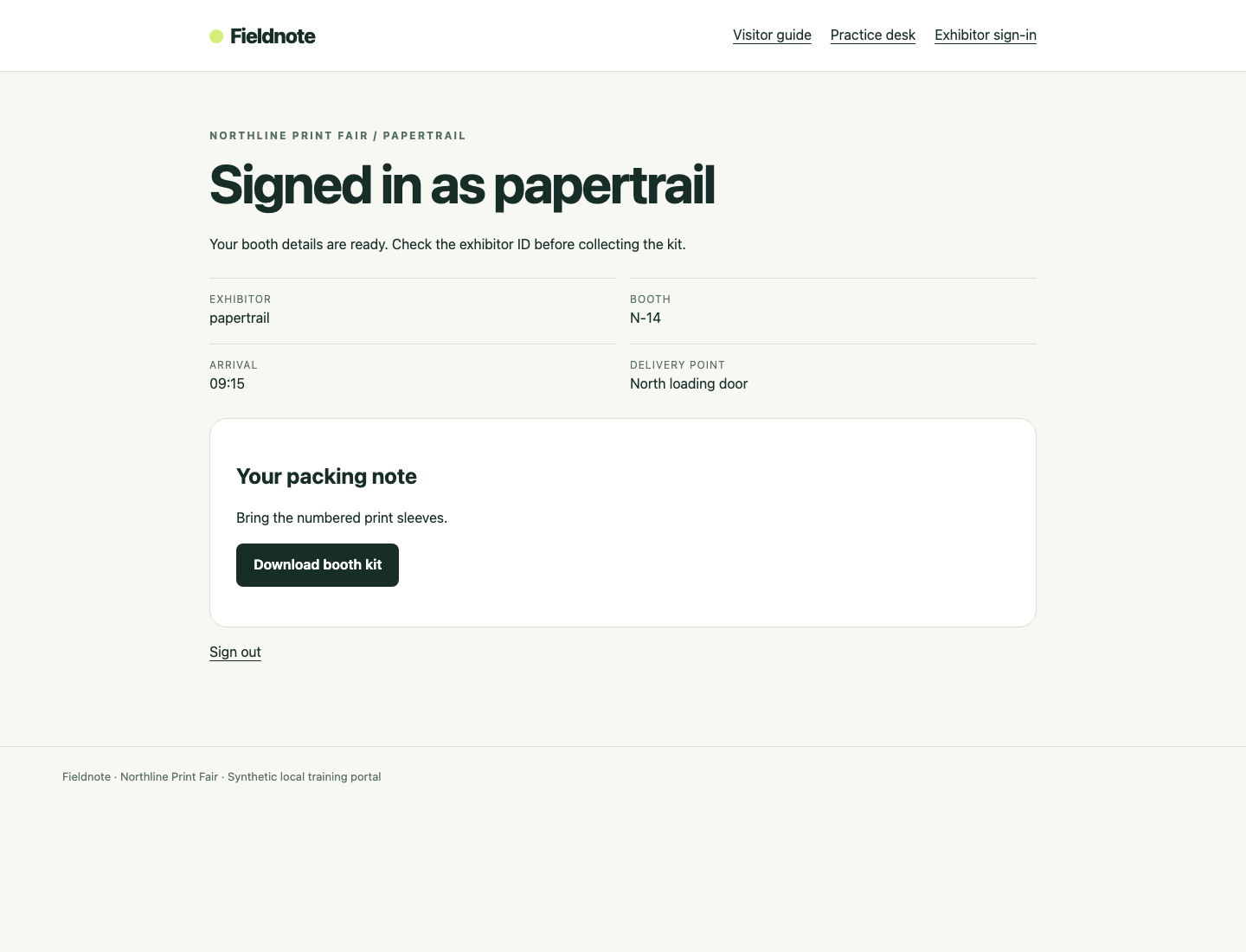
Check the exhibitor and booth fields above the packing note before using this download.
Switch back to Workstation to save the required VM copy. A cookie is a server-issued session identifier. -c exhibitor.cookies saves the cookies received by this terminal login. This cookie jar belongs to curl; the browser and Hydra do not automatically share it. The response body goes to signin.html:
curl -s -c exhibitor.cookies -o signin.html --data 'username=papertrail&password=InkPaper7' http://127.0.0.1:8080/signin
Read the authenticated download with the same jar. -b sends its cookies. -f makes an HTTP refusal return a nonzero status instead of silently saving an error page as a kit:
curl -f -s -b exhibitor.cookies http://127.0.0.1:8080/kit.json -o booth-kit.json
A 403 or curl exit status 22 means this client has no accepted session. Check the username, password, form path and cookie filename, rerun the login command, then repeat the download. A 404 means the path is wrong. These errors are recoverable; do not replace the kit with a copied preview file.
python3 -m json.tool booth-kit.json
Check the exhibitor, booth and arrival against the page. The complete kit also includes three print racks, two table covers and the note about numbered print sleeves. File existence or a matching exhibitor name alone does not prove the whole document is correct.
Finally open Visitor guide in Exhibitor Portal. The public arrival information must still be available. You have changed only your own files and sessions, preserving the service, accounts and business data. Your final deliverables are form.txt, findings.json and booth-kit.json in the workspace. The checks observe existing login/download facts and test the saved argument in a separate disposable service; they do not fill in missing work on the live portal.
Summary
You compared real authenticated workspaces with wrong-password, unavailable-account and service-error responses. You reproduced a Hydra false positive, calibrated a reusable form condition against both positive and negative samples, then verified the assigned identity and collected its complete kit using a separate cookie session. HTTP 200, an execution-success flag or a generic Welcome message cannot independently establish authentication.