



Introduction
Still & Spoke runs small Saturday pottery workshops. Its studio page is ready, but the signup form needs visible labels, native input checks, a conditional seating note and a layout that works with a keyboard on a narrow screen. You will make a real local booking, not just display a success message. A separate Study form provides a complete example before you change your work.
You need basic HTML elements, CSS selectors and layout, and JavaScript objects, functions, DOM selection and events. This lab introduces label associations, browser form constraints, accessible descriptions, conditional required, visible focus and the small responsive rules used here. A prepared submission handler and local API handle requests in this first lab; the next lab builds that handler. All people and addresses are synthetic; no email or payment is sent. This is a practical usability exercise, not a full accessibility certification. The 50-minute duration is an author estimate including reading and ordinary mistakes.
Use Workspace for the commands and Studio for the website. Your editable files are /home/labex/project/stillspoke/form.html, validity.js and form.css. Preserve the other files, the prepared API, capacity rules and existing visitors. Each lab starts independently. The prepared server places the exact contents of form.html into the branded page shell: it does not fill in missing labels or regenerate your work. Wait for a refreshed page to finish loading before using its form. Website labels remain English in every document language.
Give Each Control a Visible Name
In this step, use the completed example with the keyboard, then connect every control in your work page to its visible label and instructions.
In Studio, choose the page link Study form. This navigates within the website; it does not switch a LabEx Tab. The example has its own API and database, so it cannot complete your work or take your work-page seats. Press Tab until Your name receives a visible outline. Type Example Guest, press Tab, and type sample@example.test. Press Tab to Session, press C to select Clay, slowly / 10:00, and read the selected title before continuing. This native select supports typing the beginning of an option. Press Tab to the assistance checkbox, Tab to the optional note, and Tab to Reserve my place. Press Enter once. Wait for Submission result to show Reserved for Example Guest and a server-issued Confirmation SS-…. The passive sending message disappears. The result section receives focus so you can find the completed result.
The example below shows the separately headed result and its real confirmation. Your issued number will differ.
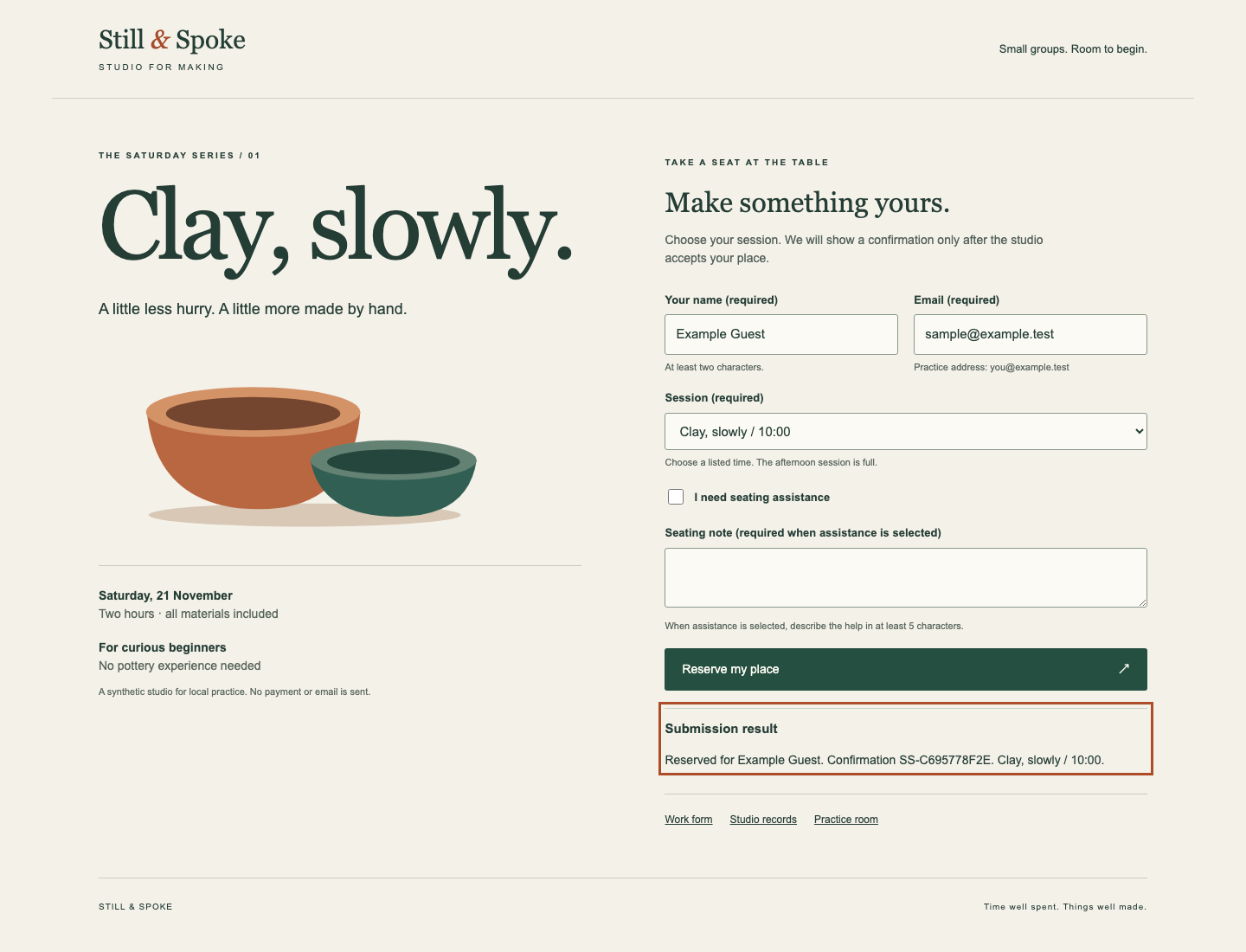
Choose Studio records on the example page. Find the same name, address, readable time and confirmation number. This page reads accepted records, not the text of your browser result. Choose Back to signup, then the Work form link to return to your own page. Your page is still incomplete and has no new work booking; the example result does not count.
Switch to Workspace. cd changes the current directory for this terminal; the absolute path starts at /. pwd prints that directory. These commands make the edit destination explicit:
cd /home/labex/project/stillspoke
pwd
Expected output:
/home/labex/project/stillspoke
The form's name values are the API keys: name, email, session, support and note. An HTML id identifies one element within the page. A label's for value refers to its input's id, so clicking the visible label or reading it with assistive technology identifies the control. Here Your name uses for="person", while the submitted key is name; those two attributes have different jobs. Wrapping the checkbox inside its label provides an implicit association. autocomplete="name" and autocomplete="email" identify the kind of information a browser may offer to fill; they do not submit data by themselves. Placeholder text disappears while typing and does not replace a visible label.
required rejects an empty value before a request is sent. type="email" asks the browser to reject malformed email syntax; it does not prove an address belongs to someone. minlength="2" requires at least two characters in the name. The empty first option makes choosing a real session necessary. An option's value is its stable server identity; its visible title is for people. Do not infer that relationship from option position.
aria-describedby contains space-separated IDs. It connects each field to its persistent help and an initially empty error paragraph. The help explains the rule before a failure; the error will add a reason after a server refusal. Use clear text as well as colour. aria-hidden="true" hides only the decorative arrow from assistive technology. ↗ is an HTML numeric character reference: its ASCII source renders as the arrow in the browser. The Sending paragraph has role="status" for passive announcements. The result section's aria-labelledby refers to its heading ID to give the section a name. Its initial hidden attribute keeps an empty result out of view until there is something to show. The separate result section has tabindex="-1": scripts can focus it without adding an extra stop to ordinary Tab order. We do not focus a status announcement.
The following command replaces only form.html. cat writes the following text; > replaces this named file. The quoted HTML after << starts a here-document: everything up to the final line containing only HTML is literal file content. Quoting the marker prevents the shell from interpreting characters inside the HTML. Paste the whole block, including its final marker. A shell prompt means the write has finished; there is no separate Save key. Do not paste Markdown backticks. This same editing pattern is used for the small JavaScript and CSS files later.
cd /home/labex/project/stillspoke
cat > form.html <<'HTML'
<form id="signup">
<div class="pair">
<div class="field">
<label for="person">Your name (required)</label>
<input id="person" name="name" required minlength="2" autocomplete="name"
aria-describedby="name-help name-error">
<small id="name-help">At least two characters.</small>
<p class="error" id="name-error"></p>
</div>
<div class="field">
<label for="email">Email (required)</label>
<input id="email" name="email" type="email" required autocomplete="email"
aria-describedby="email-help email-error">
<small id="email-help">Practice address: you@example.test</small>
<p class="error" id="email-error"></p>
</div>
</div>
<div class="field">
<label for="session">Session (required)</label>
<select id="session" name="session" required aria-describedby="session-help session-error">
<option value="">Choose a time</option>
<option value="clay-morning">Clay, slowly / 10:00</option>
<option value="clay-afternoon">Clay, slowly / 14:00</option>
</select>
<small id="session-help">Choose a listed time. The afternoon session is full.</small>
<p class="error" id="session-error"></p>
</div>
<label class="check"><input type="checkbox" name="support"> I need seating assistance</label>
<div class="field">
<label for="note">Seating note (required when assistance is selected)</label>
<textarea id="note" name="note" rows="2" aria-describedby="note-help note-error"></textarea>
<small id="note-help">When assistance is selected, describe the help in at least 5 characters.</small>
<p class="error" id="note-error"></p>
</div>
<button type="submit">Reserve my place <span aria-hidden="true">↗</span></button>
<p id="progress" role="status"></p>
<section id="result" aria-labelledby="result-heading" tabindex="-1" hidden>
<h3 id="result-heading">Submission result</h3>
<p id="message"></p>
</section>
</form>
HTML
Return to Studio and refresh the work page. Read the labels even after typing. Click Email to see focus move to its input, then press Tab to continue in document order. With the form empty, activate Reserve my place: the browser should focus Your name and explain that it is required. Type one character and try again to observe the name-length rule. Use a name such as Morgan Vale; type not-an-email to see the different email-format refusal. These are native validation messages, not HTTP 422 responses: the browser has not sent a booking request. Fix a value by selecting its text with Ctrl+A or Cmd+A while that field is focused and typing the replacement. Do not reset the VM for a spelling mistake.
At this point the assistance note is still optional even when the checkbox is selected. That is the next specific behaviour to add. The page is also not yet styled for narrow screens. Self-check: all five controls have visible, associated labels, help stays visible, and empty required values cannot be submitted.
Make the Seating Note Follow the Checkbox
In this step, make the note required only when a visitor asks for seating assistance, while retaining anything they have typed.
A checkbox exposes a Boolean checked value: true when selected and false otherwise. An input or textarea exposes a required property matching its HTML constraint. STUDIO is a prepared configuration object loaded by scenario.js; its noteMin is 5 for this workshop. Read that number rather than treating every future workshop as identical. This configuration supplies scenario data; it does not implement your conditional rule.
querySelector returns the first element matching a CSS selector; [name="support"] and [name="note"] match those attributes. We select the controls by their API name. The function updates two native constraints whenever the checkbox changes. In condition ? first : second, the conditional operator chooses first when the condition is true and second otherwise. The note therefore has a minimum length of five when assistance is requested and zero when it is not. Calling updateNote() once also initializes the correct state on page load. The change listener runs it again after a visitor toggles the checkbox. We change constraints, not .value, so unchecking the box does not erase a draft.
In Workspace, replace validity.js. The JS marker works like the HTML marker you used in the previous step:
cd /home/labex/project/stillspoke
cat > validity.js <<'JS'
const support = document.querySelector('[name="support"]');
const note = document.querySelector('[name="note"]');
function updateNote() {
  note.required = support.checked;
  note.minLength = support.checked ? STUDIO.noteMin : 0;
}
support.addEventListener('change', updateNote);
updateNote();
JS
Return to Studio and refresh the work page. Use Tab to fill a two-character-or-longer name, a syntactically valid address such as morgan@example.test, and Clay, slowly / 10:00. Use Space on I need seating assistance to select it. Leave the note empty and activate Reserve my place. The browser should now focus Seating note and ask for its value. Enter near, leave the note with Tab, and try submitting again: four characters are shorter than the required five. A minlength constraint applies to user-entered text; this exercise types it normally rather than assigning it from a script.
Return to the checkbox with Shift+Tab as needed and press Space to clear it. The note is now optional, and the word near remains. Select assistance again and replace the note with A seat near the entrance. Keep these inputs for the next step; refreshing will discard unsent form input, but changing LabEx Tabs leaves this browser page open.
If the checkbox seems to do nothing, return to Workspace and display the exact saved file:
cd /home/labex/project/stillspoke
cat validity.js
Compare it with the short block above, including the spelling checked and the final updateNote();. Replace the file with the complete block if necessary, then refresh Studio. A missing script or JavaScript typo is different from the browser rejecting an empty note; do not claim the native constraint is working just because nothing was booked. Self-check: the checkbox changes requiredness, short typed notes are refused only when selected, and existing note text is retained.
Keep the Form Readable and Its Focus Visible
In this step, finish the form layout, complete one real work-page booking and read the corresponding accepted record.
A two-column form needs room to collapse. CSS Grid's 1fr 1fr gives the name and email equal shares; min-width: 0 permits fields to shrink. At a maximum viewport width of 800 pixels, the media query changes that pair to one column. width: 100% with box-sizing: border-box includes padding and borders inside the available width. The selector input:not([type="checkbox"]) excludes checkboxes from this full-width input rule; they keep their own small square control. Text remains available without hover. The prepared page shell already stacks the story above the form on a small screen; these rules make your form fit inside it.
:focus-visible provides a visible outline for keyboard focus. The colour is not the only signal: required text, error words and the outline's shape matter too. Equivalent clear focus borders or shadows are also valid; removing every indication of focus is not. [aria-invalid="true"] styles a server-marked invalid field; .error:empty hides only an empty error paragraph, not a label or needed explanation. overflow-wrap: anywhere lets a long confirmation or synthetic address wrap. The reduced-motion preference avoids adding smooth movement for people who request less animation; this form needs no animation.
In Workspace, replace form.css:
cd /home/labex/project/stillspoke
cat > form.css <<'CSS'
form { margin-top: 28px; }
.pair { display: grid; grid-template-columns: 1fr 1fr; gap: 18px; }
.field { min-width: 0; margin-bottom: 18px; }
label { display: block; margin-bottom: 7px; font-size: 13px; font-weight: bold; }
input:not([type="checkbox"]), select, textarea {
  width: 100%; box-sizing: border-box; padding: 11px 12px;
  border: 1px solid #89988a; border-radius: 3px;
  font: inherit; font-size: 15px; color: #243d35; background: #fcfaf5;
}
small { display: block; margin-top: 6px; font-size: 11px; color: #56645a; }
.check { display: flex; gap: 9px; align-items: center; margin: 20px 0; }
.check input { width: 18px; height: 18px; accent-color: #244c3d; }
button {
  padding: 14px 20px; border: 0; border-radius: 3px;
  font: inherit; font-size: 14px; color: #fffdf6; background: #254f41; cursor: pointer;
}
button[type="submit"] { width: 100%; display: flex; justify-content: space-between; }
button:disabled { background: #5b6c5e; cursor: wait; }
:focus-visible { outline: 3px solid #ad4d28; outline-offset: 4px; }
[aria-invalid="true"] { border: 2px solid #9d3327; }
.error { color: #963024; font-size: 12px; margin: 5px 0; }
.error:empty { display: none; }
#progress, #message { font-size: 14px; overflow-wrap: anywhere; }
#result { margin-top: 20px; border-top: 1px solid #c9cebf; padding-top: 12px; }
#result h3 { font-size: 15px; margin: 0 0 8px; }
#records article { border-top: 1px solid #c9cebf; overflow-wrap: anywhere; padding: 12px 0; }
@media (max-width: 800px) { .pair { grid-template-columns: 1fr; gap: 0; } }
@media (prefers-reduced-motion: reduce) { * { scroll-behavior: auto !important; } }
CSS
Return to Studio, refresh and use the work form. Enter Morgan Vale, morgan@example.test, choose Clay, slowly / 10:00 with C, select assistance with Space, and enter A seat near the entrance. Press Tab to the submit button and Enter once. Wait for the prepared handler to show the real confirmation. This first lab supplies that handler; you have implemented the form semantics, constraints and styling around it. The next lab explains and builds its request and feedback logic.
Choose Studio records and find the same name, email, time and confirmation number. Keep Existing Visitor and Avery Reed. Their records are independent of your new booking, and clearing them to make room is outside the task. The server, not a disabled frontend button, enforces capacity. Choose Back to signup afterward. The saved booking persists in this lab even if a refresh clears unsent fields.
Narrow the browser or Studio pane to about 390 pixels and also inspect a tablet-sized width near 768 pixels. The form should have no horizontal scrolling, labels and help should remain visible, and the name/email pair should stack. Use Tab through the controls: every focused control needs a visible indicator. Restore a wider pane and confirm that the pair can use two columns. Do not hide a difficult field to make the layout fit.
If the page still looks like the old layout, ensure you wrote form.css in /home/labex/project/stillspoke, not base.css, and refresh the page. A wrong path does not require a VM reset. Self-check: a visitor can read and operate the whole form on narrow and wide screens, the real work booking appears in records, and existing visitors remain. The lab check reads your live records and exercises an unchanged copy of your files in temporary isolated data; it never submits your live form for you.
Summary
You connected visible labels, native constraints and help to real form controls, made the seating note conditional without losing input, and built a responsive layout with visible keyboard focus. You used a separate example, then completed a genuine work-page booking and matched its confirmation to accepted records. The next independent lab builds the request and feedback handler.