



Introduction
Welcome to the HTML Text Formatting lab! In this hands-on session, you will learn how to structure and format text on a web page using fundamental HTML tags. Properly formatted text is crucial for creating readable, accessible, and well-organized web content.
You will work with a single HTML file, index.html, and learn to use the following tags:
<h1>: For main headings.<p>: For paragraphs.<strong>: To give text strong importance, typically displayed as bold.<em>: To emphasize text, typically displayed as italic.<br>: To insert a line break.
Throughout the lab, you can see your changes live by saving the file and viewing it in the "Web 8080" tab in your workspace.
Add h1 heading tag for main title
In this step, you will add a main title to your web page. In HTML, headings are defined with <h1> to <h6> tags. <h1> defines the most important heading and is typically used for the main title of a page.
First, open the index.html file located in the ~/project directory using the file explorer on the left side of the WebIDE.
Now, add an <h1> tag inside the <body> section of your index.html file. Replace the comment <!-- Content will be added here --> with the following line of code:
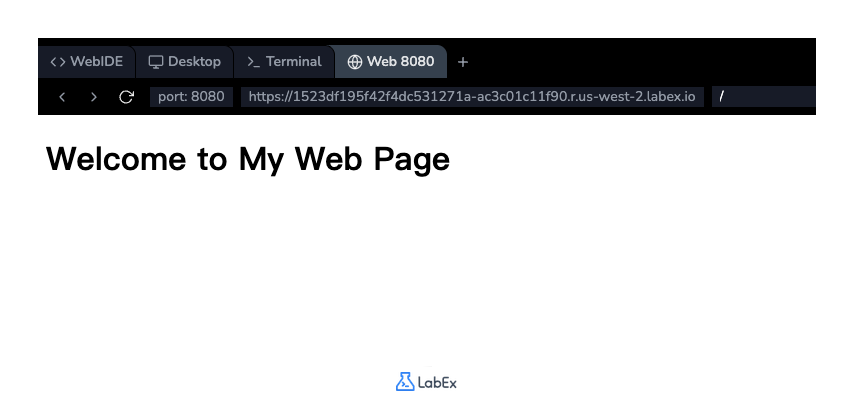
<h1>Welcome to My Web Page</h1>
Your <body> section should now look like this:
<body>
  <h1>Welcome to My Web Page</h1>
</body>
After adding the code, save the file (Ctrl+S or Cmd+S). To see the result, click on the "Web 8080" tab at the top of the interface. You should see your heading displayed on the page.
Insert p tag for paragraph text
In this step, you will add a paragraph of text below your heading. The <p> tag is used to define a paragraph in HTML. Browsers automatically add some white space (a margin) before and after a paragraph.
In the index.html file, add a new line after your <h1> tag and insert the following <p> tag:
<p>
  This is a paragraph of text. It contains some introductory information about
  this page. HTML is great for structuring content, and this paragraph is an
  example of that. It also contains some important information.
</p>
Your <body> section should now contain both the heading and the new paragraph:
<body>
  <h1>Welcome to My Web Page</h1>
  <p>
    This is a paragraph of text. It contains some introductory information about
    this page. HTML is great for structuring content, and this paragraph is an
    example of that. It also contains some important information.
  </p>
</body>
Save the index.html file and refresh the "Web 8080" tab to see the newly added paragraph displayed below the heading.
Use strong tag for bold text
In this step, you will learn how to make text appear bold. The <strong> tag is used to indicate that the text has strong importance, seriousness, or urgency. Browsers typically render the content inside a <strong> tag as bold.
Let's modify the paragraph you added in the previous step to highlight the phrase "important information". Wrap this phrase with <strong> and </strong> tags.
Modify the <p> tag in your index.html file to look like this:
<p>
  This is a paragraph of text. It contains some introductory information about
  this page. HTML is great for structuring content, and this paragraph is an
  example of that. It also contains some <strong>important information</strong>.
</p>
The complete <body> of your file should now be:
<body>
  <h1>Welcome to My Web Page</h1>
  <p>
    This is a paragraph of text. It contains some introductory information about
    this page. HTML is great for structuring content, and this paragraph is an
    example of that. It also contains some
    <strong>important information</strong>.
  </p>
</body>
Save the file and check the "Web 8080" tab. You will notice that the text "important information" is now bold.
Apply em tag for italic text
In this step, you will learn how to emphasize text, which is typically displayed in italics. The <em> tag (short for "emphasis") is used for this purpose. It indicates that the enclosed text should be stressed or emphasized.
Let's add a new paragraph that includes some emphasized text. Add the following code below your existing paragraph in index.html:
<p>
  You can also use other tags to format text. For example, the em tag is used
  for <em>emphasized</em> text.
</p>
Your <body> section should now look like this:
<body>
  <h1>Welcome to My Web Page</h1>
  <p>
    This is a paragraph of text. It contains some introductory information about
    this page. HTML is great for structuring content, and this paragraph is an
    example of that. It also contains some
    <strong>important information</strong>.
  </p>
  <p>
    You can also use other tags to format text. For example, the em tag is used
    for <em>emphasized</em> text.
  </p>
</body>
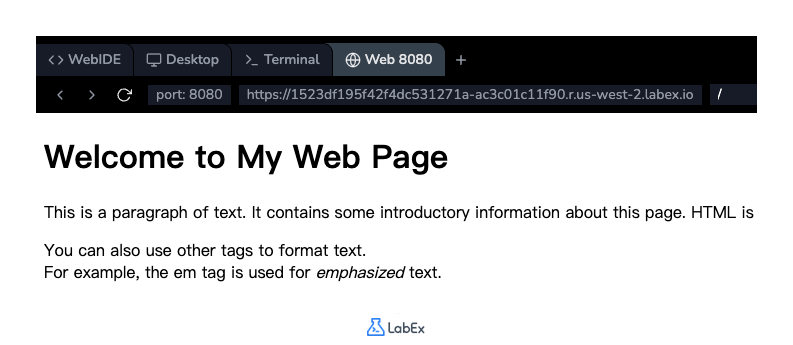
Save the file and view the "Web 8080" tab. You will see a new paragraph, and the word "emphasized" will be in italics.
Insert br tag for line breaks
In this step, you will learn how to force a line break within a block of text. The <br> tag inserts a single line break. It is an empty tag, which means it has no closing tag.
Let's add a line break in the middle of the second paragraph you created. This is useful when you want to start a new line without starting a new paragraph.
Modify the second <p> tag in your index.html file to include a <br> tag:
<p>
  You can also use other tags to format text. <br />For example, the em tag is
  used for <em>emphasized</em> text.
</p>
Your final <body> content should be:
<body>
  <h1>Welcome to My Web Page</h1>
  <p>
    This is a paragraph of text. It contains some introductory information about
    this page. HTML is great for structuring content, and this paragraph is an
    example of that. It also contains some
    <strong>important information</strong>.
  </p>
  <p>
    You can also use other tags to format text. <br />For example, the em tag is
    used for <em>emphasized</em> text.
  </p>
</body>
Save the file and refresh the "Web 8080" tab. You will see that the second paragraph is now split into two lines.
Summary
Congratulations on completing the lab! You have successfully learned the fundamentals of HTML text formatting.
In this lab, you practiced using:
<h1>to create a main heading.<p>to structure content into paragraphs.<strong>to give text strong importance (bold).<em>to emphasize text (italic).<br>to insert line breaks.
These tags are the essential building blocks for creating well-structured and readable content on any web page. Keep practicing and exploring other HTML tags to enhance your web development skills.


