Introduction
STILL STUDIO runs small clay workshops. Guests choose a workshop, reserve a place, and see their name on the guest list. The team wants to try a Garden Room session without taking places from Riverside Room's real guest list. You will give the same application its own staging environment: a clearly marked trial website with separate booking data.
Basic terminal familiarity is enough. Docker Compose, configuration, paths, ports and data volumes are introduced here. The application and its image are supplied; you do not write application code or install tools. All bookings are synthetic. No email, payment, external account or real personal information is used.
Use Live Bookings for the prepared website on port 8081, Preview Bookings for your staging website on port 8082, and Workstation for commands. Preview Bookings is unavailable until you start it in step 2. This unit starts independently.
Meet the Business and Configure the Preview
In this step, you will use the normal booking journey, then prepare a separate set of configuration values. Start in Live Bookings.
Reserve a Place in the Normal Service
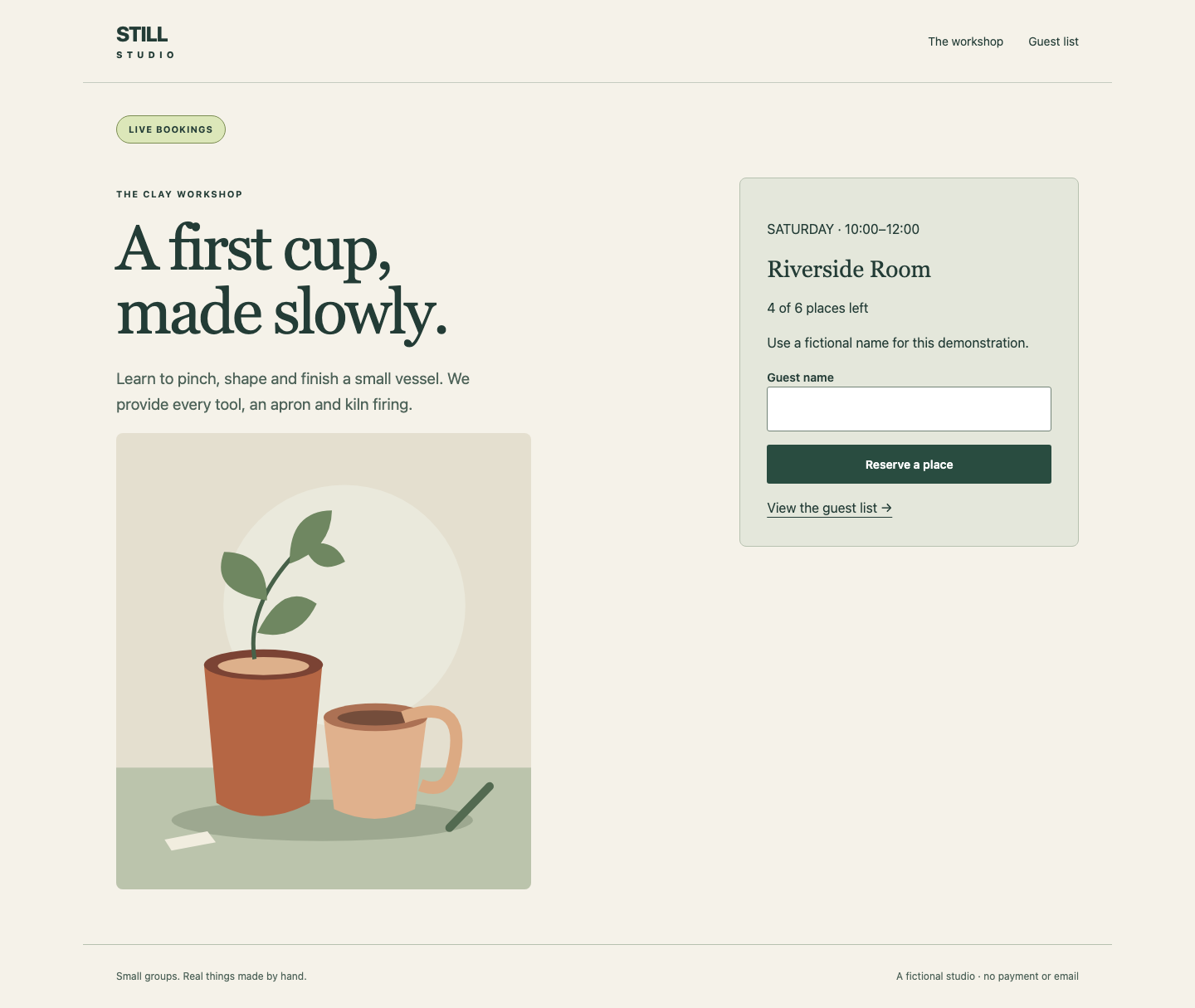
The homepage introduces the clay workshop and shows LIVE BOOKINGS, Riverside Room, and 4 of 6 places left. Select Explore the clay workshop. The workshop page describes the session and contains a Guest name field. Enter the fictional name Live guest, then select Reserve a place.
The browser opens Guest list with Maria, Jun, and Live guest. The remaining count is now 3 of 6 places left. This is a real database write, not a decorative success message. Select STILL STUDIO to return home. Keep all three bookings.
If you accidentally submit the same name twice, the site explains that it is already booked; no second booking is added. If you mistype your own name, open Guest list, select Cancel beside only your mistaken booking, and reserve again with Live guest. Never cancel Maria or Jun, or clear a whole list to fix one typo.
Read the Configuration Boundary
Switch to Workstation, already in /home/labex/project/booking. A path identifies a file or directory. pwd prints your current directory and ls lists its contents:
pwd
/home/labex/project/booking
ls
You should see compose.yaml and live.env. cat prints a text file:
cat live.env
PORT=8081
APP_ENV=live
VENUE=Riverside Room
CAPACITY=6
DATA_VOLUME=still-live-data
Configuration supplies choices to an application without changing its code. These KEY=value lines select the published port, environment badge, venue, capacity and data volume. VENUE changes the actual workshop location shown throughout the site. CAPACITY limits accepted reservations, rather than just changing a label.
Docker runs an application in a container created from a saved image. Both websites will use the supplied still-booking:1 image. Each container receives its own environment variables when it is created. A named volume stores the database outside the replaceable container. Different containers can share a volume, so a different container name alone does not isolate their records.
The prepared resources are:
| Resource | Purpose |
|---|---|
still-live-data |
Live database, with Maria and Jun's original reservations |
still-trial-data |
Empty database resource reserved for this preview |
The volume name chooses real storage. Never select the live volume for trial bookings.
Understand the Small Compose File
Docker Compose describes related containers in a YAML file. YAML uses indentation to group settings; keep the supplied spacing and use spaces rather than tabs. Read the supplied file:
cat compose.yaml
Under services, booking uses still-booking:1. The environment section passes values to the application. ${VENUE} means Compose substitutes the value named VENUE before creating the container. An environment file is input to that substitution; it does not automatically change an already running process.
ports maps ${PORT}:8000: the number before the colon is the lab instance's published port; 8000 is where the app listens inside its container. The two websites need different published ports.
The service mounts booking-data at /data, where this application stores its database. The top-level volume entry resolves that alias to ${DATA_VOLUME}. external: true means the volume already exists and Compose must use that exact resource. A project name groups Compose containers; it does not rename an explicitly selected external volume.
Write and Resolve the Preview Values
Keep live.env unchanged. Create preview.env with the values below. cat > preview.env replaces that file. The quoted ENV begins a here-document: paste the entire block, including its final ENV on its own line. The quotes preserve the text literally.
cat > preview.env <<'ENV'
PORT=8082
APP_ENV=staging
VENUE=Garden Room
CAPACITY=3
DATA_VOLUME=still-trial-data
ENV
A port identifies a network service. Here port 8082 belongs to Preview Bookings; 8081 remains Live Bookings. APP_ENV=staging enables the conspicuous test badge. It does not by itself choose separate storage: that is the role of DATA_VOLUME.
--env-file preview.env tells Compose which values to substitute. -p still-preview selects the project. config prints the resolved configuration without starting or changing containers:
docker compose --env-file preview.env -p still-preview config
Find APP_ENV: staging, VENUE: Garden Room, capacity 3, published port 8082 and volume name still-trial-data. Formatting varies by Compose version. The resolved values, rather than a green command exit alone, are the evidence.
If Compose reports a missing variable or file, check pwd and cat preview.env, correct its spelling by rerunning the complete here-document, then repeat config. If your shell already exported a variable such as VENUE, its value can override the file. unset VENUE removes that shell override; apply the same method only to a conflicting key you intentionally exported. Do not start the preview until the resolved values are correct.
Start the Preview and Test Its Real Capacity
In this step, you will start the staging copy and prove that its reservations use a separate list. Begin in Workstation.
Start the Configured Application
up creates or updates the project's containers. -d keeps them running in the background while the terminal remains available:
docker compose --env-file preview.env -p still-preview up -d
The output names the created container. ps shows the project's actual state and published port:
docker compose --env-file preview.env -p still-preview ps
Look for a running booking service and port 8082 connected to 8000. If startup fails, logs prints the application's messages:
docker compose --env-file preview.env -p still-preview logs
An unavailable external volume usually means the resource name was misspelled; correct preview.env, rerun config, then up -d. Do not create a replacement volume to conceal a wrong target. A port conflict usually means you selected the live port; preserve 8081 and use 8082 for this preview.
Make a Trial Reservation
Switch to Preview Bookings and reload it if needed. The homepage must show STAGING · TEST BOOKINGS ONLY, Garden Room, and 3 of 3 places left. Select Explore the clay workshop, enter Trial guest, and select Reserve a place. Guest list now shows only Trial guest, with 2 of 3 places left.
Switch to Live Bookings, select Guest list, and reload. It must still show Maria, Jun and Live guest, with 3 of 6 places left. If trial data appears here, stop making trial reservations. In Workstation, correct the preview volume, apply up -d, then cancel only your identifiable trial record from the live list. Keep all legitimate live bookings. Open Preview Bookings and create Trial guest there after isolation is corrected.
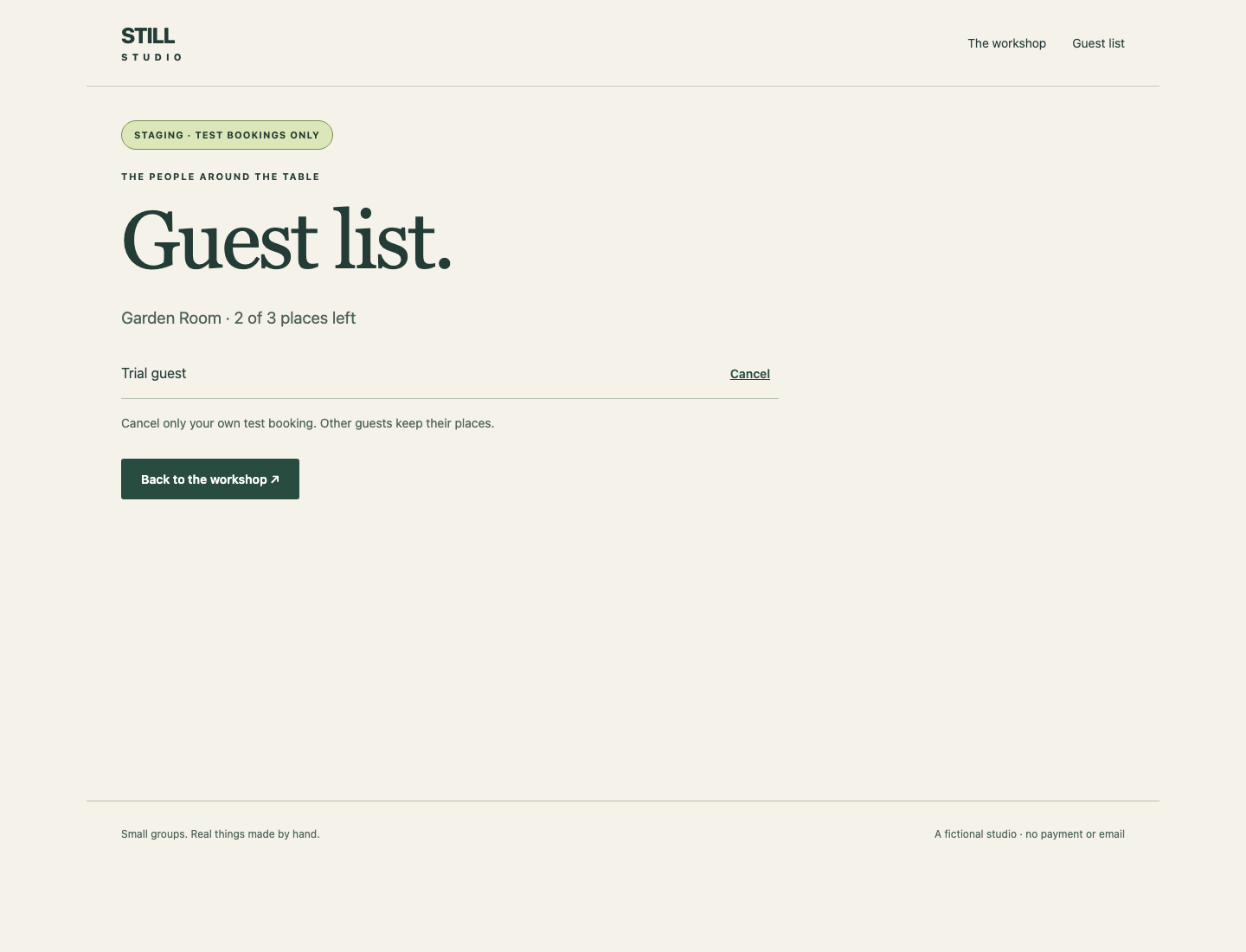
This comparison matters more than the badge. A staging label with a shared database would still consume real places.
Exercise the Smaller Capacity
Stay in Preview Bookings. Follow Back to the workshop and reserve Capacity A. Return to the workshop again and reserve Capacity B. The list now has three guests and 0 of 3 places left.
Try one more reservation, Overflow guest. The page should say Every place is taken. and No booking was added. Follow View the guest list: Overflow guest must be absent. The smaller capacity changed application behavior.
Cancel only Capacity A and Capacity B, keeping Trial guest. The preview returns to 2 of 3 places left. If you mistype a name, cancel that particular test record and repeat it; clearing the database is unnecessary. Return to Live Bookings and confirm the live list and its remaining places have not changed.
Compare Machine-Readable Results
Switch to Workstation. HTTP is the browser's request-and-response protocol. curl sends a request; -sS hides progress but displays connection errors. The address 127.0.0.1 means this lab instance when used in Workstation. A URL combines the protocol, address, port and resource path. /api/info returns the actual configuration and database list as JSON, a structured text format. No database query language is needed.
curl -sS http://127.0.0.1:8081/api/info
Read live, Riverside Room, capacity 6, remaining 3, and the three live names. IDs may vary.
curl -sS http://127.0.0.1:8082/api/info
Read staging, Garden Room, capacity 3, remaining 2, and only Trial guest. These are different endpoints, not two labels on the same list.
Replace the Preview Without Losing Its Bookings
In this step, you will replace the preview container and confirm that its separate data survives. Begin in Workstation.
Check the Actual Storage Mount
ps -q prints just the project's container ID. docker inspect reads a container's actual settings. --format selects one field; the quoted template converts its mounts to JSON. The $(...) shell expression runs the inner command and inserts its output as the container argument:
docker inspect $(docker compose --env-file preview.env -p still-preview ps -q booking) --format '{{json .Mounts}}'
Find a mount with type volume, name still-trial-data and destination /data. A different project name would not protect live data if this mount named still-live-data.
Recreate Only the Preview Container
--force-recreate tells up to replace the container even when its configuration has not changed. Mounted named volumes remain. This also demonstrates how configuration reaches a new process; editing an environment file alone would not update a running container.
docker compose --env-file preview.env -p still-preview up -d --force-recreate
Wait for ps to show the running service:
docker compose --env-file preview.env -p still-preview ps
Switch to Preview Bookings and reload Guest list. Trial guest must remain in Garden Room, with 2 of 3 places left. Switch to Live Bookings and reload its guest list. Maria, Jun and Live guest must remain in Riverside Room, with 3 of 6 places left. Neither container replacement nor a test reservation should clear the other environment.
Do not use volume deletion or down -v as a recovery method. If the preview cannot start, use the same project's logs, correct its values and apply up -d again. The prepared live environment is outside your change scope.
Check Pages and Responses Together
In Preview Bookings, select STILL STUDIO, open the workshop, then open Guest list. The local illustration, details and navigation must still work. A successful homepage alone is not the complete booking service.
Switch to Workstation. HTTP status 200 means a successful response; 404 means the requested path does not exist. -o /dev/null discards the response body; -w prints the quoted format. %{http_code} is the HTTP status and \n ends its output line:
curl -sS -o /dev/null -w '%{http_code}\n' http://127.0.0.1:8082/bookings
Expect 200, and confirm the correct list in the browser. A 200 containing the wrong page is not success.
curl -sS -o /dev/null -w '%{http_code}\n' http://127.0.0.1:8081/workshop
Expect 200: the live workshop remains available. A connection failure is different from an HTTP error response; inspect ps and logs if no server answers. You now have one application image, two independently configured processes and two separate durable guest lists. This is single-instance training isolation, not a security boundary against an administrator with Docker access.
Summary
You configured and started a staging copy of the same booking app, selected a separate named volume, tested its real capacity, and compared both guest lists. Recreating the preview preserved its reservation while the live service kept its original guests. A different label or Compose project was useful organization; the actual data target established the isolation.