Introduction
A report service needs to read configuration and write documents, but its current configuration mount also permits writes. You are the maintainer reducing this unnecessary access without breaking report generation.
You will first generate a normal report, then protect its input mount and recreate only the report container. Basic terminal familiarity is enough; Docker, mount syntax, and editing are introduced before use.
Generate a Normal Report
In this step, run the report service's normal business task before changing its permissions. Harbor Books uses a small service to total orders and produce a document. All customers and numbers are synthetic training fixtures.
Select the Maintenance tab in the lab interface to begin this step.
Use the Maintenance terminal. It is a Linux host maintenance role with Docker management access. Docker starts application processes in containers: each sees its own filesystem and process list, while sharing the host kernel. A container is not another VM. You manage only report-renderer and the files in /home/labex/project/report-desk.
The terminal starts in that directory. pwd prints your current directory:
Switch to the Maintenance tab before running the following command.
pwd
It should show /home/labex/project/report-desk. If you changed directories, return with cd /home/labex/project/report-desk.
The application listens on port 8090. A port identifies a service; localhost here means this maintenance host, where Docker forwards that port to the container. curl sends an HTTP request, -X POST selects an action request, and -fsS shows errors while keeping successful output concise. Request the baseline document:
curl -fsS -X POST http://localhost:8090/render/baseline
{"saved": "/output/baseline.json", "total": 37, "uid": 0}
The service read its input and saved a real file. cat displays a file; the host sees the container's /output as its local output directory:
cat output/baseline.json
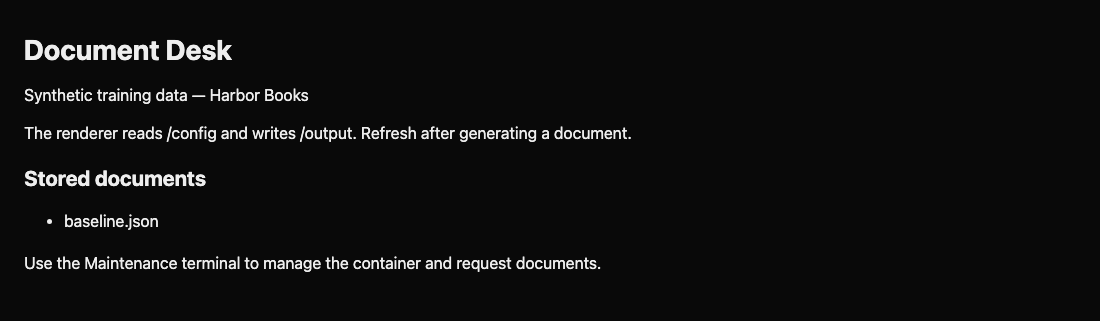
Find Report for Harbor Books: 37 orders. Other fields record input identity and the running service instance. Switch to the Document Desk tab and refresh: baseline.json appears under Stored documents. This page lists actual files; it does not certify permission safety.
Protect the Input Declaration
In this step, map the input and output paths, demonstrate an unnecessary write, and edit the launch declaration. A bind mount connects a host directory to a path inside a container. It is writable unless explicitly restricted.
Select the Maintenance tab in the lab interface to begin this step.
cat launch.sh shows the prepared Bash launch script:
Switch to the Maintenance tab before running the following command.
cat launch.sh
A backslash continues a command onto the next line. sudo runs Docker management with host administrator permission; it does not determine the application's user. docker run -d starts a container in the background, --name identifies it, --user 0:0 selects user/group IDs, and -p 8090:8090 forwards host port to container port. The last argument is the prepared application image, c12-renderer:1.
Each --mount has comma-separated fields: type=bind connects a host path, src is that host path, and dst is the container path.
| Host directory | Container directory | Needed access |
|---|---|---|
report-desk/config |
/config |
Read batch and template |
report-desk/output |
/output |
Write generated documents |
The configuration includes probe.txt, a disposable sample containing no business data. docker exec runs a command inside the named running container. touch updates that sample's timestamp; this is deliberately unnecessary application access:
sudo docker exec report-renderer touch /config/probe.txt
No output means it worked. This demonstrates a writable configuration mount without damaging the batch or template. Protecting the host launch declaration changes what Docker creates next; editing a file inside the current container cannot change its mount mode.
Use nano, a terminal editor, to change the declaration:
nano launch.sh
Move with the arrow keys. On the line ending dst=/config, append ,readonly immediately after /config, before the space and backslash. Keep the /output mount writable. Save with Ctrl+O, Enter, then exit with Ctrl+X. The configuration mount line should now be:
--mount type=bind,src=/home/labex/project/report-desk/config,dst=/config,readonly \
Display cat launch.sh again to catch a missing comma or backslash. Reopen nano launch.sh to fix typos. The running container still has its old mount; the next step replaces it.
Apply and Test the Mount Boundary
In this step, replace only the report container and prove that denied input writes coexist with working output. Docker does not update an existing container just because its launch script changed.
Select the Maintenance tab in the lab interface to begin this step.
docker rm -f stops and removes the named container. Its bind-mounted host directories survive. bash launch.sh runs the declaration you edited:
Switch to the Maintenance tab before running the following command.
sudo docker rm -f report-renderer
bash launch.sh
The second command prints a new container ID. Allow a moment for startup. If it reports a syntax or mount error, use nano launch.sh to repair the shown line, remove any newly created report-renderer with the same removal command, and run the script again. Do not delete the host data directories.
docker inspect reads actual container settings. --format selects a field; keep the single quotes so the shell passes the braces unchanged:
sudo docker inspect report-renderer --format '{{json .Mounts}}'
Find "Destination":"/config" with "RW":false, and /output with "RW":true. RW means read/write. Confirm the real boundary with the same disposable sample:
sudo docker exec report-renderer touch /config/probe.txt
touch: /config/probe.txt: Read-only file system
This nonzero exit is expected. The terminal remains usable; continue with the next command. A connection error or missing container is different and means you need to repair/restart the launch script.
Request a new document from the recreated service:
curl -fsS -X POST http://localhost:8090/render/final
{"saved": "/output/final.json", "total": 37, "uid": 0}
cat output/final.json
The document still says Report for Harbor Books: 37 orders. Switch to the Document Desk tab and refresh the page to see final.json. The service can read its inputs and write its outputs while the configuration mount rejects writes. It still runs as root; the next independent lab addresses that separate permission.
Summary
You generated a real report, mapped host and container paths, changed the input mount to read-only, and recreated the service. Actual mount inspection and a denied write confirmed the protection, while a new report confirmed normal output still worked.