Introduction
Form & Field is preparing its next shop collection. You have a photograph of ceramic cups and transparent brand artwork. Produce smaller web images while keeping the originals and the transparent background intact. The finished files must remain editable by your ordinary user after the processing containers disappear.
Docker and a prepared ImageMagick tool image are ready. You need basic terminal and path familiarity; Docker, bind mounts, image options, and the shell syntax are introduced before use. You will not install software on the workstation or write image-processing code. The shop is fictional; the photograph is CC0 and the brand artwork is original teaching material.
Use Workstation for commands and Photo Desk to inspect and download actual images. This lab is independent of the course challenge. Allow about 55 minutes, including reading and ordinary mistakes; this is an author estimate.
Process One Small Sample
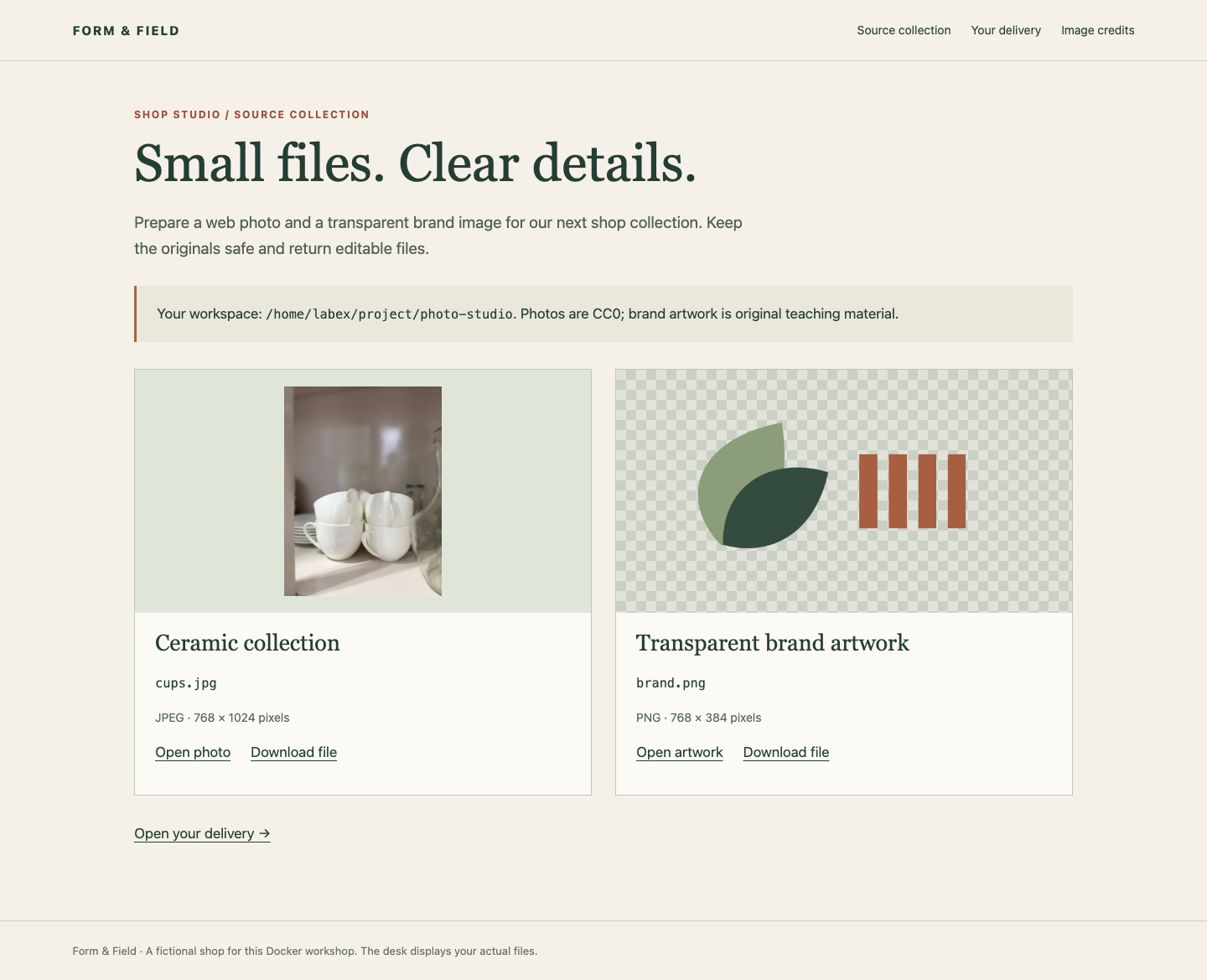
In this step, you will make a real smaller photograph using a short-lived container. Begin in Photo Desk, on Source collection. Open the photo, return with Back to collection, then open the brand artwork. The checker pattern behind the artwork shows transparent pixels; it is not part of the image. Return to the collection.
Switch to Workstation. It starts in /home/labex/project/photo-studio. pwd prints your current directory and ls lists its entries. If you leave this directory, use the following cd command to return; cd changes the shell's current directory.
cd /home/labex/project/photo-studio
ls
The prepared source, samples, and web directories have different jobs: originals, a practice result, and the final delivery. Keep reference.jpg unchanged; it is a separate sample, not your output.
An image packages a program and its dependencies. A container runs that image as a process. Here dk01-photo-tools:1 contains ImageMagick's convert program. The :1 identifies the prepared image version; it is not a container name. docker run creates and starts a container. --rm removes that container after its process exits. Arguments after this image name go to convert.
First ask the tool for its version. -version is an ImageMagick option, not a Docker option:
docker run --rm dk01-photo-tools:1 -version
Expect ImageMagick 6.9.11-60 within the output. The program runs inside the container; this does not install convert on Workstation.
Connect the Input and Output
A container has its own filesystem paths. A bind mount makes one workstation directory available at a container path. For this sample, connect these directories:
| Workstation directory | Container path | Access |
|---|---|---|
source in the current directory |
/input |
Read-only |
samples in the current directory |
/output |
Read and write |
The workstation directory is the mount src; the container path is its dst. type=bind selects this kind of mount. readonly protects the input from writes through that mount. Each --mount describes one connection. Output written to /output reaches samples and survives container deletion.
Files also have numeric owners. id -u prints your user ID, and id -g prints your group ID:
id -u
id -g
Use your actual values rather than assuming they are 1000. In the next command, $(...) runs the command inside the parentheses and inserts its output. --user "$(id -u):$(id -g)" therefore runs the tool as your numeric user and group. $PWD expands to the current directory's full path. Double quotes keep a mount description together even if its path contains spaces.
For ImageMagick, -resize '320x320>' fits the photograph within 320 by 320 pixels while preserving proportions. The > means shrink only. Single quotes pass it to ImageMagick instead of letting the shell interpret it as output redirection. A backslash at the end of a line continues the same command on the next line; copy the whole block.
docker run --rm --user "$(id -u):$(id -g)" \
  --mount "type=bind,src=$PWD/source,dst=/input,readonly" \
  --mount "type=bind,src=$PWD/samples,dst=/output" \
  dk01-photo-tools:1 /input/cups.jpg -resize '320x320>' /output/sample.jpg
Success normally prints nothing. ls -l shows the resulting file and its owner:
ls -l samples/sample.jpg
A regular file owned by labex is the useful result. The container has already been removed by --rm, but the mounted output remains. If a source directory is misspelled, Docker reports an invalid mount rather than creating a valid photo. Read pwd and ls source, correct the path, and run the same block again. Do not use sudo or change directory permissions to hide a path error.
Deliver the Photo and Transparent Artwork
In this step, you will create the final pair of web images. Begin in Photo Desk and select Your delivery. It lists the required formats and limits but initially has no images. Missing results remain missing: this page never borrows an original to fill a gap.
The cups photograph must be a JPEG within 640 by 640 pixels, keeping its proportions. The brand artwork must be a PNG within 256 by 256 pixels, retaining transparency. Use the largest proportional size within each box, without enlarging an already smaller input. A bounding box is a maximum, not a square crop. The portrait photo becomes 480 by 640; the wide artwork becomes 256 by 128.
Switch to Workstation. Reuse the same input mount, user identity and tool. Change only the output mount to web, the resize limit, and the output name:
docker run --rm --user "$(id -u):$(id -g)" \
  --mount "type=bind,src=$PWD/source,dst=/input,readonly" \
  --mount "type=bind,src=$PWD/web,dst=/output" \
  dk01-photo-tools:1 /input/cups.jpg -resize '640x640>' /output/cups.jpg
Now process the transparent artwork. PNG supports transparency; JPEG does not. Keeping a PNG extension alone is insufficient if the image has already been flattened onto a background. This command preserves the original transparent pixels:
docker run --rm --user "$(id -u):$(id -g)" \
  --mount "type=bind,src=$PWD/source,dst=/input,readonly" \
  --mount "type=bind,src=$PWD/web,dst=/output" \
  dk01-photo-tools:1 /input/brand.png -resize '256x256>' /output/brand.png
Switch to Photo Desk, reload Your delivery, and open each result. Read the displayed dimensions and inspect the photograph's proportions. Behind the brand image, the checker pattern should still show through. Use Download file for each result, then Back to collection. The download is the file in your web directory.
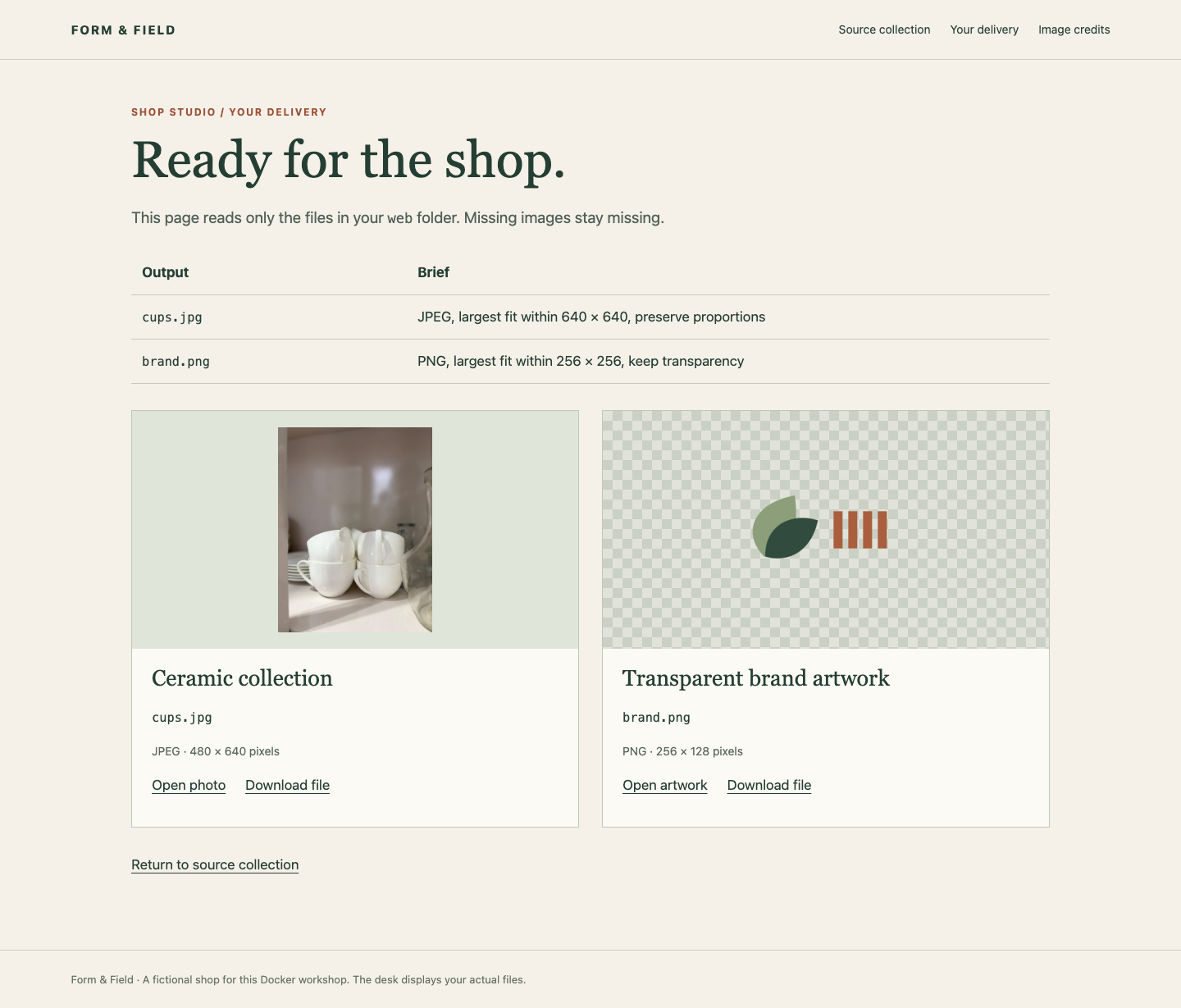
The desk is a reader, not a processor or grader. A visible image alone does not prove the originals are unchanged or your recipe can work in another folder. If an image is missing, return to Workstation, check the input/output paths, and rerun the matching command. A missing-file page is different from a failed connection to the whole desk.
Keep a Portable Processing Recipe
In this step, you will save the two working Docker commands so another copy of the studio folder can process its own originals. Begin in Workstation, in /home/labex/project/photo-studio.
A shell script is a text file containing commands. bash run-photos.sh asks Bash to run them in order. The following here-document writes the lines between RECIPE markers into a file: cat supplies the text, > saves it, and <<'RECIPE' marks a literal text block. Quoting the first marker prevents $PWD and $(id ...) from expanding while you save the file. They must expand later, when someone runs it in their own folder. The closing marker stands alone.
set -e stops the script when a tool command fails, so a later command cannot hide an earlier failure. Save this complete recipe:
cat > run-photos.sh <<'RECIPE'
#!/bin/bash
set -e
docker run --rm --user "$(id -u):$(id -g)" \
  --mount "type=bind,src=$PWD/source,dst=/input,readonly" \
  --mount "type=bind,src=$PWD/web,dst=/output" \
  dk01-photo-tools:1 /input/cups.jpg -resize '640x640>' /output/cups.jpg
docker run --rm --user "$(id -u):$(id -g)" \
  --mount "type=bind,src=$PWD/source,dst=/input,readonly" \
  --mount "type=bind,src=$PWD/web,dst=/output" \
  dk01-photo-tools:1 /input/brand.png -resize '256x256>' /output/brand.png
RECIPE
cat without redirection displays a file. Read the saved recipe; it should still contain literal $PWD and the id substitutions:
cat run-photos.sh
Run it from this studio directory. It deliberately updates the same two derived files; it must never rewrite the originals:
bash run-photos.sh
The reusable contract is a folder containing source, web, and this recipe. It must also process another compatible set of images with the same filenames when that folder is copied elsewhere, including a folder name with spaces. Smaller originals must keep their original dimensions instead of being enlarged. Use ordinary docker run on PATH, no sudo, fixed numeric UID, absolute workstation path, source edits, or additional host mounts. Container destinations may differ if the same safe input/output relationship works. You do not need executable permission because you invoke the file through Bash.
Finally, demonstrate ordinary file use. cp copies a file; mv renames or moves it. Both commands below act only on your derived sample copy:
cp web/cups.jpg samples/shop-preview.jpg
mv samples/shop-preview.jpg samples/ready.jpg
ls -l samples/ready.jpg
These commands need no administrator access. Keep only the two requested files in web; samples belong in samples. A folder full of plausible filenames is insufficient: the checks decode the actual images and exercise the unchanged recipe on separate compatible inputs. They do not regenerate your delivery.
Switch to Photo Desk, reload Your delivery, open both outputs once more and return to the collection. The files still exist after every processing container has disappeared. Preserve the supplied source files and reference.jpg.
Summary
You used a Docker image as a disposable photo tool, mapped separate input and output directories, protected originals with a read-only mount, and ran the tool under your actual UID/GID. Your real JPEG and transparent PNG remain editable after container removal. The saved recipe can process compatible inputs in a moved studio folder without installing the tool on the workstation.