Introduction
LITTLE HOUR has a complete café menu, and its weekend pop-up needs the same website. A homepage alone is not enough: customers also need drink details, prices, local illustrations, and opening hours. Your job is to deliver that whole experience inside a Docker image.
You will package the supplied files, run your image, then start a fresh container from it and check the actual website. You do not write application code or install Docker. Basic terminal familiarity is enough; Docker, paths, ports, and the commands are explained as you use them. The café, products, prices, and addresses are synthetic.
Use Workstation for terminal commands, Reference Menu for the supplied design, Your Menu for your running container, and Topology for the environment map. Your Menu becomes usable after you start the container in step 2; it may be unavailable before then. Each unit starts independently.
Build a Complete Menu Image
In this step, you will understand what the café needs and build an image that contains its complete customer website. Begin in Reference Menu.
Meet the Customer Experience
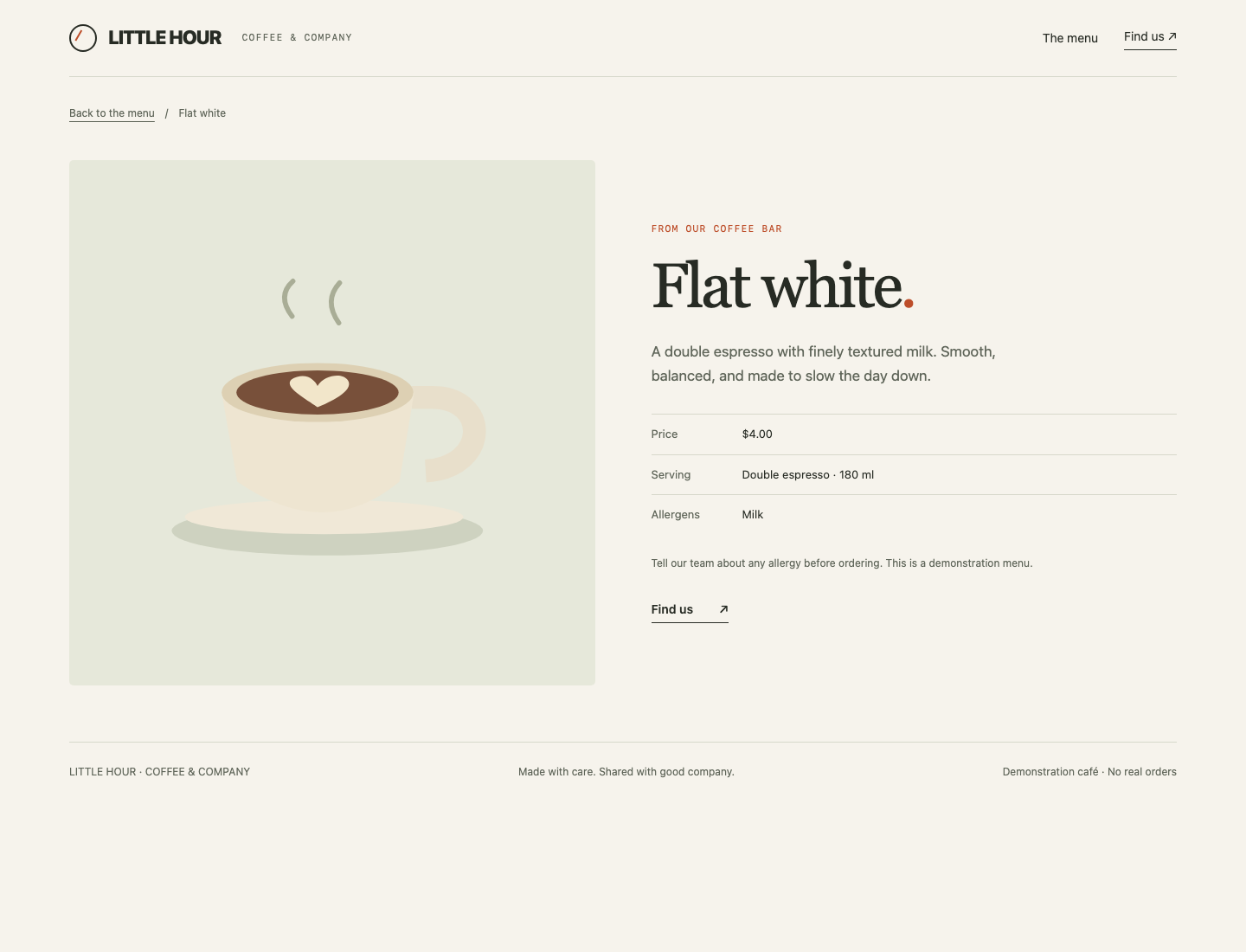
The homepage introduces LITTLE HOUR. Under A few good favourites, open Flat white. Its details show $4.00, its serving, and allergen information. Follow Find us to read opening hours, then select LITTLE HOUR to return home. These links and illustrations are part of the delivery, not optional decoration.
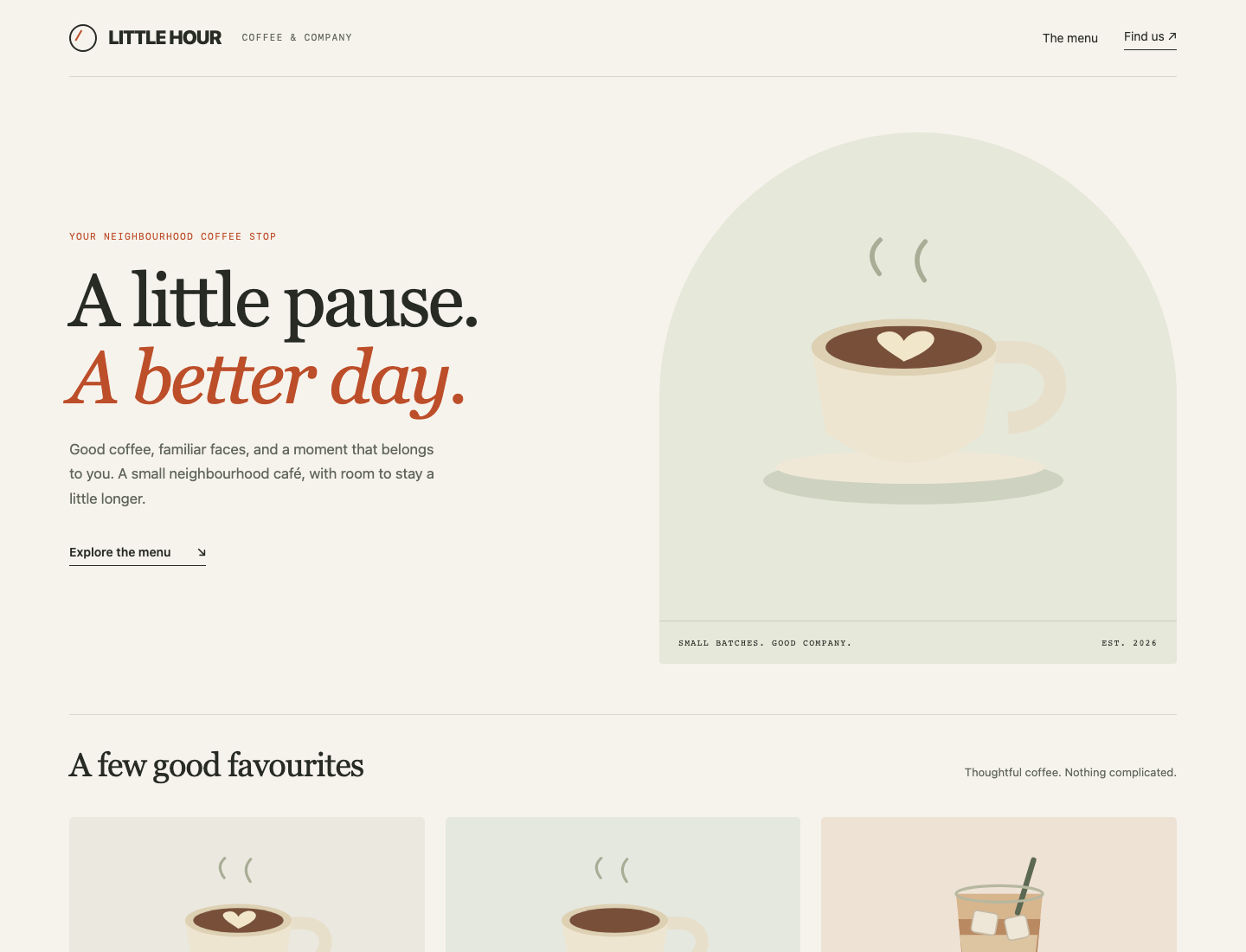
The reference is prepared for you on port 8082. It will stay available even when your own container is stopped, so do not use it as proof that you have delivered the site.
Find the Files You Must Deliver
Switch to Workstation. This terminal starts in /home/labex/project/cafe-menu. pwd prints the current directory; ls lists the names inside it:
pwd
/home/labex/project/cafe-menu
ls
You should find menu, brand, and notes. menu/ contains the customer pages; brand/ contains their stylesheet and illustrations. notes/ is author material and must not become part of the public menu. Keep the supplied files unchanged.
An address on the website is a URL path. The server maps /menu/flat-white.html to a file beneath its public directory. The outer menu/ source folder contains an inner menu/ directory for those detail pages. Inspect both source groups:
ls menu
ls brand
The pages include index.html, visit.html, 404.html, and the detail directory. The brand files include site.css and three .svg illustrations. SVG is an image format. The pages expect all brand files under /assets/ on the running website.
Write the Packaging Recipe
Docker runs programs in containers. An image is the saved package used to create a container; a container is a running or stopped instance of that image. Docker is already installed here. A prepared image named menu-base:1 includes Nginx, the web server, and its missing-page configuration. Its public directory is /usr/share/nginx/html/. It does not contain your café menu.
A Dockerfile describes how to build your image. FROM selects the base image. COPY copies supplied files into the image: its first path is a source relative to the build directory, and its second path is a destination inside the image. Copying a directory's contents to the correct destination preserves the pages' existing links. It does not connect the running container to your source directory.
You will use two explicit copies: pages into the public directory, and brand files into its assets/ directory. This leaves author notes out. The Nginx base already defines the server's startup command; you do not need to add one.
cat > Dockerfile replaces that named file with the following text. The quoted DOCKERFILE starts a here-document: paste the entire block, including its final DOCKERFILE on its own line. Quoting keeps the contents literal. Run this in Workstation:
cat > Dockerfile <<'DOCKERFILE'
FROM menu-base:1
COPY menu/ /usr/share/nginx/html/
COPY brand/ /usr/share/nginx/html/assets/
DOCKERFILE
cat can also print a file. Read the saved recipe and compare both destinations before building:
cat Dockerfile
Build the Saved Image
docker build reads the recipe and creates an image. -t gives it a name and tag; here little-hour-menu is the name and 1 is our chosen version label. The final dot means the current directory is the build context, the files Docker can use while building. A tag is a convenient label, not proof of complete content.
docker build -t little-hour-menu:1 .
Build output varies by Docker version. The command should finish successfully and identify little-hour-menu:1. If a COPY fails, check pwd, the source names, and your saved Dockerfile, correct the recipe, and run the same build again. Do not replace the provided pages or copy the entire project to hide a path mistake.
You now have a saved delivery image. No menu container is running yet.
Publish the Image as a Running Menu
In this step, you will create your own running container and open its website. Begin in Workstation.
Connect a Container to a Website Port
Nginx listens on port 80 inside the container. A port identifies a network service. We will publish it on port 8081 of this lab instance so the Your Menu tab can reach it. This does not change the reference website on port 8082.
docker run creates and starts a container. -d runs it in the background, allowing the terminal to remain available. --name cafe-menu assigns a name you can use later. -p 8081:80 maps the lab's port 8081 to the container's port 80. The last argument selects the image you built. No source directory or volume is mounted:
docker run -d --name cafe-menu -p 8081:80 little-hour-menu:1
The long output is the new container's ID. It changes between runs. An ID alone does not prove that the application remains running. docker ps lists running containers:
docker ps
Find cafe-menu, image little-hour-menu:1, and a mapping that includes 8081->80/tcp. Other training containers may appear too; leave them alone.
If the name is already in use, do not start many copies with different names. Use docker ps to find your running container and continue if it is the correct one. If it exited or has the wrong mapping, docker logs cafe-menu displays its server messages. To replace only your static-menu container, docker rm -f cafe-menu stops and removes that named container. It leaves your image and source files available.
After correcting a recipe or port mistake, rebuild when needed and repeat the original docker run command. Use this removal command only when replacement is needed; it is not a command to run after every successful start.
Open Your Own Delivery
Switch to Your Menu. If you opened it before starting the container, reload it now. You should see LITTLE HOUR with its full layout and illustrations. This page comes from port 8081, not the supplied Reference Menu.
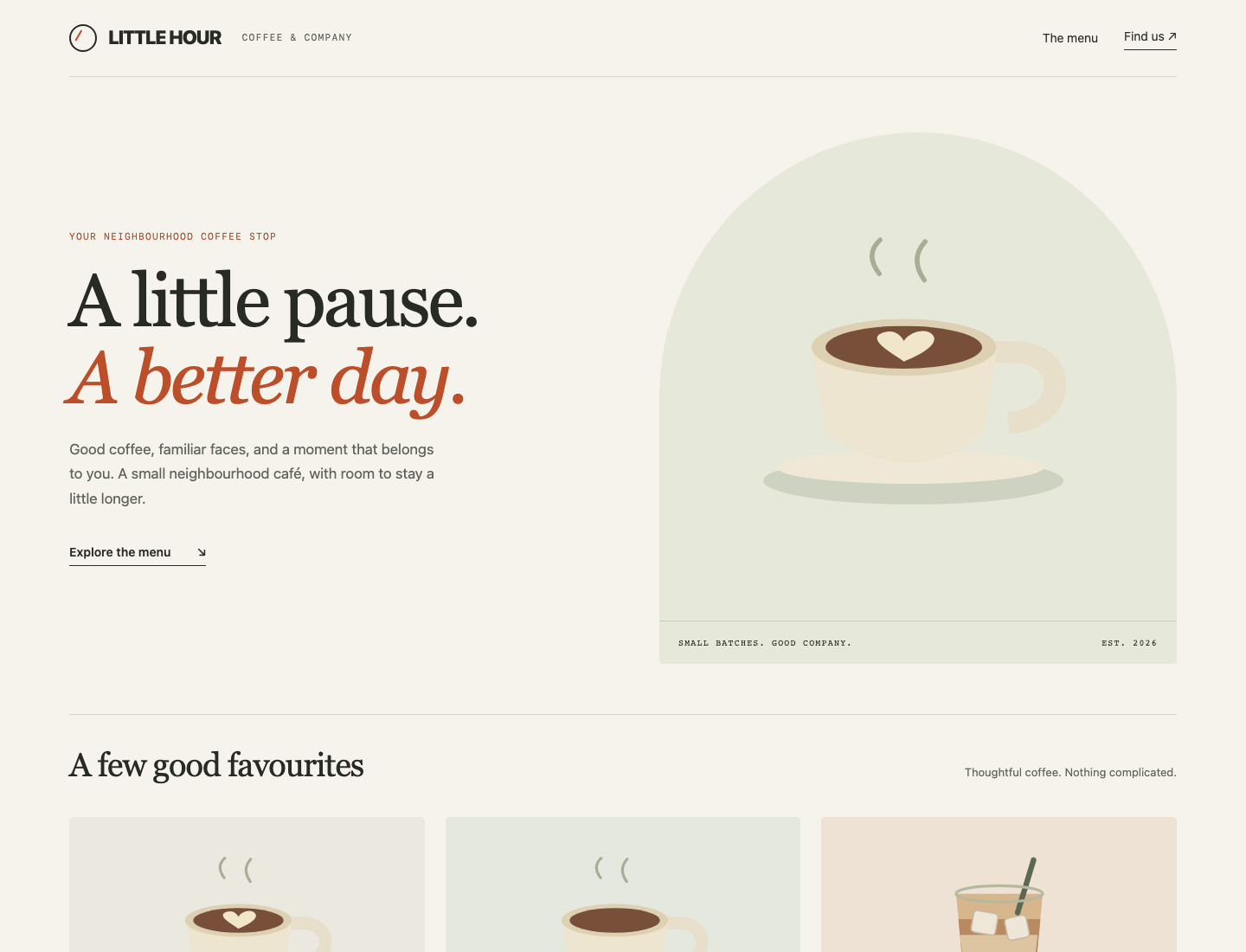
Open Flat white under A few good favourites. The detail page should have its illustration, price, serving and allergen information. Follow Find us, confirm the hours, and select LITTLE HOUR to return home within this same tab. A text-only homepage or broken illustration is not a complete delivery.
Switch to Topology. It can now show Menu homepage reachable. That is a narrow observation, not an acceptance verdict for all pages. Next you will check delivery independence and the remaining customer paths.
Check a Fresh Container and the Whole Website
In this step, you will start a fresh instance of your image and verify the complete customer experience without depending on the author directory. Begin in Workstation.
Separate the Image from Its Container
Your image remains saved when a container is removed. This site has no customer submissions or database, so replacing this particular container does not discard business data. This distinction would matter for a stateful application.
Remove only cafe-menu, using the replacement command from step 2:
docker rm -f cafe-menu
Start a fresh instance with the same published port:
docker run -d --name cafe-menu -p 8081:80 little-hour-menu:1
It prints a different container ID. You did not rerun the build or mount your author directory: the new instance uses the files already packaged in the image.
docker inspect displays a container's actual configuration. --format selects one field instead of printing the whole object. The quoted template below turns its mount list into JSON:
docker inspect cafe-menu --format '{{json .Mounts}}'
[]
The empty list means there are no host-directory or volume mounts. In this exercise that is the desired evidence: source files do not secretly fill gaps in the delivery. Mounts have valid uses in other situations; this task specifically requires a self-contained static menu.
Test the Real Customer Paths
Switch to Your Menu and reload. Select each of the three favourites in turn. Flat white costs $4.00, Espresso costs $3.00, and Iced oat latte costs $4.75. Each detail must display the correct picture and information. Use LITTLE HOUR to return home after each one. Follow Find us and confirm weekday hours 08:00–17:00. Stay within Your Menu; checking Reference Menu would test a different server.
Switch to Workstation. HTTP is the request-and-response protocol your browser uses. A successful response has status 200; 404 means the requested resource was not found. A connection failure is different: no working server response was received.
curl sends a request. -sS hides progress but shows connection errors. -o /dev/null discards the response body. -w prints the quoted format: %{http_code} is the status and \n ends the line. The address 127.0.0.1 means this lab instance when used in Workstation; do not run these requests from your own computer's terminal.
curl -sS -o /dev/null -w '%{http_code}\n' http://127.0.0.1:8081/menu/flat-white.html
It should print 200. The browser checks above also established that the content and illustration were correct; a 200 containing the wrong page would not be sufficient.
Author notes must not be public. Request their possible URL:
curl -sS -o /dev/null -w '%{http_code}\n' http://127.0.0.1:8081/notes/launch-notes.txt
Expect 404. That is intentional success for the packaging boundary. Curl still exits normally because we did not ask it to fail on HTTP error responses. Stopping the whole site would not satisfy the working-menu checks.
Switch back to Your Menu and select LITTLE HOUR to return home. The normal menu must still work after the rejected notes request. You have checked both complete customer content and an appropriate response to something that was never part of the delivery.
Summary
You built a complete static-menu image, published its server port, and started a fresh container without source mounts. You checked real customer pages, pictures and visit information, while keeping author notes outside the public site. The next independent challenge applies these packaging decisions to a bakery with a different source layout.