Introduction
A support summary job reads customer tickets and publishes a short summary. Someone removed its API key from the latest repository example, but requests using that value still succeed. You are the maintainer investigating the alert.
First learn the normal request flow, then recover the historical evidence, identify the credential, and revoke it. You will work with a local synthetic provider, two prepared terminal roles, and a Key Manager. Basic terminal familiarity is enough; Git, API requests, and key revocation are introduced here.
Read a Ticket through the API
In this step, you will send a ticket-reading request and learn how to recognize its response. A support ticket is a customer's request for help. A summary job is a prepared program that reads a batch of tickets and sends a short summary back to the service. An integration is simply one program working with another.
Select the Workstation tab in the lab interface to begin this step.
This lab uses a local training provider with synthetic customers and keys. Its API implements real request authentication and permission checks, but it is not a copy of a cloud provider. No real account or external target is involved.
Use the two terminal roles
Workstation is your maintenance terminal. It opens in /home/labex/project/repository, a directory of example configuration files. Integration runs as keyworker, the account that owns the job's private runtime configuration. Use the named terminal for each command; changing a directory does not change your account. The Key Manager tab administers credentials through a separate operator login.
In Workstation, pwd prints the current directory. ls lists its filenames:
Switch to the Workstation tab before running the following command.
pwd
/home/labex/project/repository
ls
You should see README.md and summary-example.ini. These are repository examples, not the private file the running job reads.
Understand the request interface
An API is a service's interface for program requests. An endpoint combines an operation with a path. Here GET /v1/tickets reads tickets, while POST /v1/summaries publishes a summary. http://127.0.0.1:8000 addresses this VM's local service: 127.0.0.1 means this machine, and 8000 is the listening port.
Requests carry an API key, a secret value that lets a program authenticate. The key is sent in an Authorization header, a named piece of request metadata. This provider expects Bearer followed by the secret. Keep the synthetic keys in this exercise separate from any real credentials.
Switch to the Workstation tab. Make one read request. curl sends an HTTP request; -s hides progress output, and -H supplies a header. Single quotes keep spaces and the ? query separator together. batch=demo selects the practice dataset:
curl -s -H 'Authorization: Bearer lab_key_support_exposed' 'http://127.0.0.1:8000/v1/tickets?batch=demo'
The response is JSON, a format of named fields and values. batch names the dataset; items is a list; its ticket has an id and a subject. The request_id is a changing audit identifier, not a secret. Look for the subject Delivery question.
Publish a Demonstration Summary
In this step, you will use the prepared worker to turn the tickets you just read into a summary accepted by the service. The previous step made only a read request; this program also publishes its result.
Select the Integration tab in the lab interface to begin this step.
Switch to the Integration tab. Run the worker on the same demonstration batch. python3 runs the supplied Python program; the path names that program, and demo is its batch argument. You do not need to write or understand Python for this course:
Switch to the Integration tab before running the following command.
python3 /opt/keylab/worker.py demo
Read batch: demo (1 items)
{"batch":"demo","count":1,"subjects":["Delivery question"]}
Received batch: demo
Receiving key ID: key_support_old
The first request read input; the second published the summary. Received batch means the receiving API accepted it. A key ID such as key_support_old is a non-secret label; it is different from the secret value sent in the header. This run illustrates normal behavior and does not complete the later recovery lab's assigned batch.
Find and Revoke the Historical Key
In this step, you will find the historical credential, match its ID to the provider record, and revoke that exact key. Removing a visible line can hide it from the latest file without invalidating the credential.
Select the Workstation tab in the lab interface to begin this step.
Read the present before the past
Switch to the Workstation tab. Use cat to print the current example. An INI file groups settings beneath a bracketed section such as [integration]; each setting has a name, an equals sign, and a value:
Switch to the Workstation tab before running the following command.
cat summary-example.ini
[integration]
key_id = key_support_old
api_key = SET_AT_RUNTIME
The placeholder is appropriate for a shareable example, but it says nothing about older copies or the service's key state.
Git records project snapshots called commits. A repository includes both the current files and commit history. git log lists commits newest first; --oneline gives one short row per commit. The global --no-pager option prints directly in this terminal instead of opening an interactive page viewer:
git --no-pager log --oneline
You will see Document prepared worker, Remove credential from current example, and Add integration example. The short identifiers at the left can vary.
HEAD means the latest commit. HEAD~2 means two commits before it. git show displays a historical object; the colon separates the revision from the filename:
git --no-pager show HEAD~2:summary-example.ini
[integration]
key_id = key_support_old
api_key = lab_key_support_exposed
The original secret is still recoverable. Deleting the latest example or rewriting local history would not tell the API to stop trusting copies already obtained by someone else.
Match the credential to its provider record
The Key Manager uses an operator token, which is a separate maintenance credential. An application key cannot administer keys. Switch to the Workstation tab. Display the prepared local token:
cat /home/labex/.config/keylab/operator-token
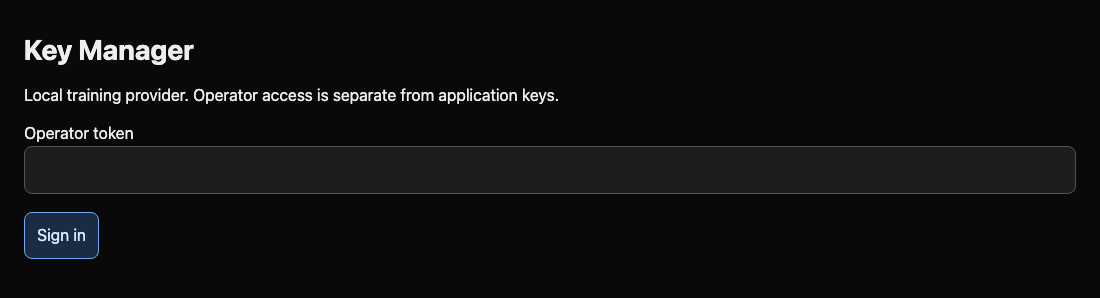
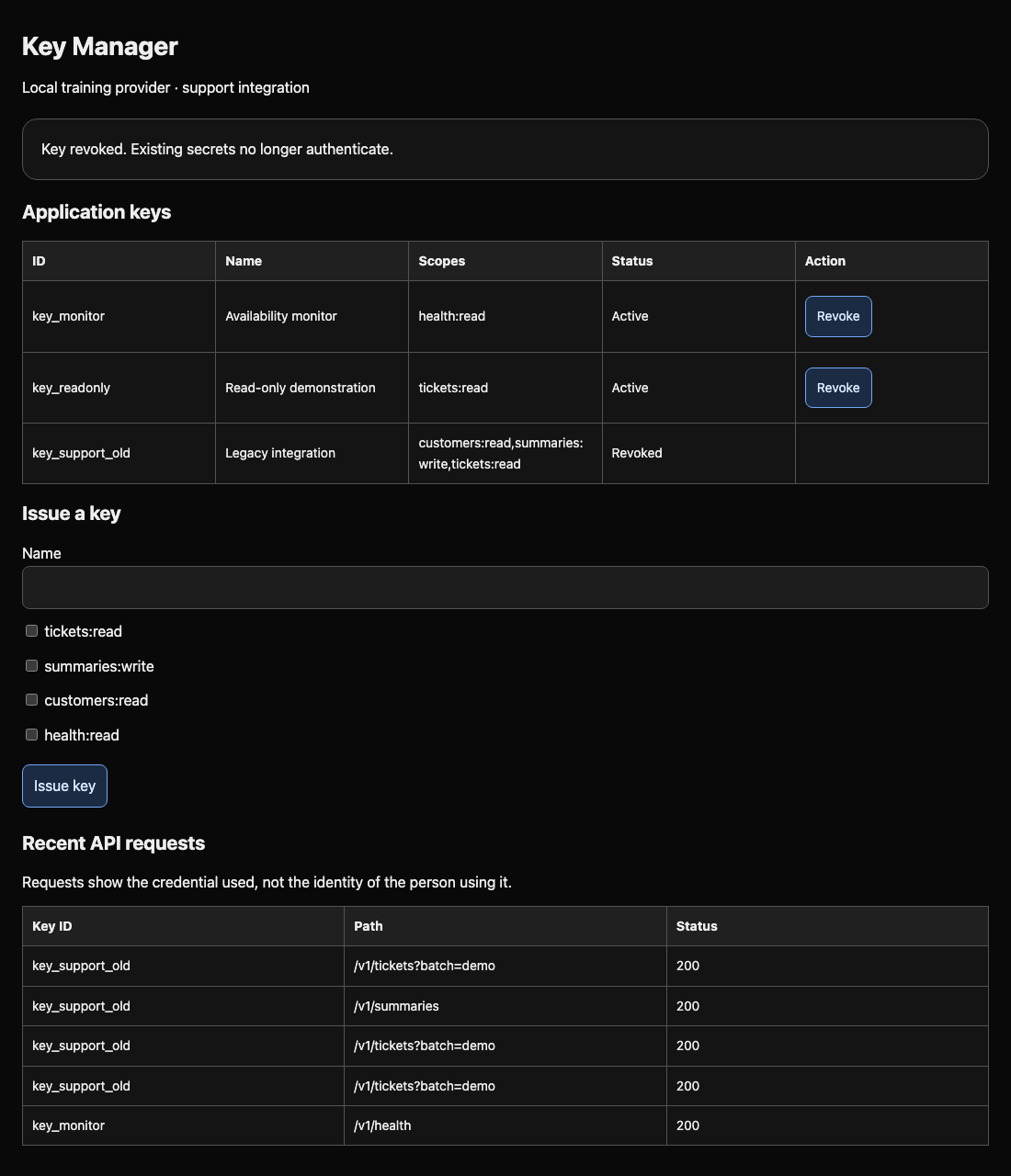
Switch to the Key Manager tab, paste that value into Operator token, select Sign in, then Open Key Manager. Keep this token out of repository files. If sign-in is refused, select Return to Key Manager in that same tab, switch to Workstation to copy this VM’s operator token again, then switch back to Key Manager to retry. Find the key_support_old row and its Active status. Its scopes describe permitted actions; the next lab will teach choosing them.
Under Recent API requests, find a successful request from this key. A status of 200 means the API accepted a read. The history proves exposure and the request proves the credential works; neither proves who made earlier requests. No report or copied log is required.
Revoke the identified key
Revoke only the compromised key. You will test the resulting rejection and independent availability in the next step. Revocation changes the provider's acceptance decision; it cannot erase copies of a secret.
Switch to the Workstation tab. Request the demo tickets again, this time showing the HTTP status. -w appends a formatted result; \n starts a new line and %{http_code} inserts the response status:
curl -s -w '\nHTTP %{http_code}\n' -H 'Authorization: Bearer lab_key_support_exposed' 'http://127.0.0.1:8000/v1/tickets?batch=demo'
The response ends with HTTP 200. Switch to the Key Manager tab. Select Revoke on the key_support_old row. Check the ID carefully: revoking every key would interrupt unrelated work. The row should now say Revoked.
Test Containment and Availability
In this step, you will test that the old credential is rejected while the API and independent monitor remain available. A status change in the manager is useful, but actual requests establish the access boundary.
Select the Workstation tab in the lab interface to begin this step.
Repeat the same request in the Workstation tab:
Switch to the Workstation tab before running the following command.
curl -s -w '\nHTTP %{http_code}\n' -H 'Authorization: Bearer lab_key_support_exposed' 'http://127.0.0.1:8000/v1/tickets?batch=demo'
{"error":"Invalid or revoked key"}
HTTP 401
For this API, 401 means the supplied credential cannot authenticate. This expected rejection is success for containment. A connection error would instead mean the service could not be reached; stopping the service is not a fix.
Switch to the Integration tab. Run the worker again:
Switch to the Integration tab before running the following command.
python3 /opt/keylab/worker.py demo
HTTP 401: {"error":"Invalid or revoked key"}
This command intentionally exits unsuccessfully. The job still reads the revoked value from its private file, so it can no longer read input. A temporary batch pause is acceptable during containment. The next lab begins with this state and restores the job.
Switch back to the Workstation tab. Check the independent monitor. It uses its own credential and the health endpoint:
Switch to the Workstation tab before running the following command.
curl -s -w '\nHTTP %{http_code}\n' -H 'Authorization: Bearer lab_key_monitor_only' http://127.0.0.1:8000/v1/health
{"status":"ok","integration":"monitor"}
HTTP 200
You have removed the exposed credential's access while keeping the service and unrelated integration available. You may go beyond containment; this lab does not penalize an otherwise valid recovery.
Summary
You followed a working integration, distinguished a key ID from its secret, recovered a secret from Git history, and revoked the matching provider credential. You tested actual rejection and independent availability. Removing a line did not invalidate the key; revocation did. The next lab restores the job with a dedicated, restricted replacement.