Introduction
A support team has deployed a help site, but its clients refuse the HTTPS connection. HTTPS uses TLS to encrypt traffic and to prove which server answered. Encryption alone does not establish identity: a client must also recognize the requested name and trust the certificate's issuer.
You will repair synthetic training certificates on a real Nginx server. Basic terminal familiarity is enough; certificate inspection and service configuration are introduced here. The Client and Server tabs are separate sessions and directories on one VM, not separate computers. Nginx runs in a prepared container. The optional HTTPS Monitor shows live inner TLS probes; the browser's own lock icon describes a separate outer connection.
Retrieve a Trusted Reference
In this step, retrieve a working service document before comparing the broken help site. A hostname identifies the requested service. All training names end in .lab.test and are local to this exercise.
Select the Client tab in the lab interface to begin this step.
Use the Client tab. curl fetches a URL. --cacert root.crt trusts the supplied certificate authority (CA), an organization that signs certificates. This lab CA is a training trust anchor, not a public authority. --resolve maps one name and port to an IP address while preserving that name for TLS and HTTP. 127.0.0.1 means this VM; port 8443 reaches the prepared Nginx service. --noproxy '*' makes the request directly; quotes keep the shell from expanding *. --fail rejects HTTP errors and --output saves the actual service document for later use.
Switch to the Client tab before running the following command.
curl --noproxy '*' --fail --cacert root.crt --resolve status.lab.test:8443:127.0.0.1 --output reference.txt https://status.lab.test:8443/
cat displays a file's contents:
cat reference.txt
status service: training content available
This download is a real reference document, not a report. Now request the intended help hostname. This command is expected to fail and return you to the prompt; continue afterward.
curl --noproxy '*' --cacert root.crt --resolve help.lab.test:8443:127.0.0.1 https://help.lab.test:8443/
curl: (60) SSL: no alternative certificate subject name matches target host name 'help.lab.test'
...
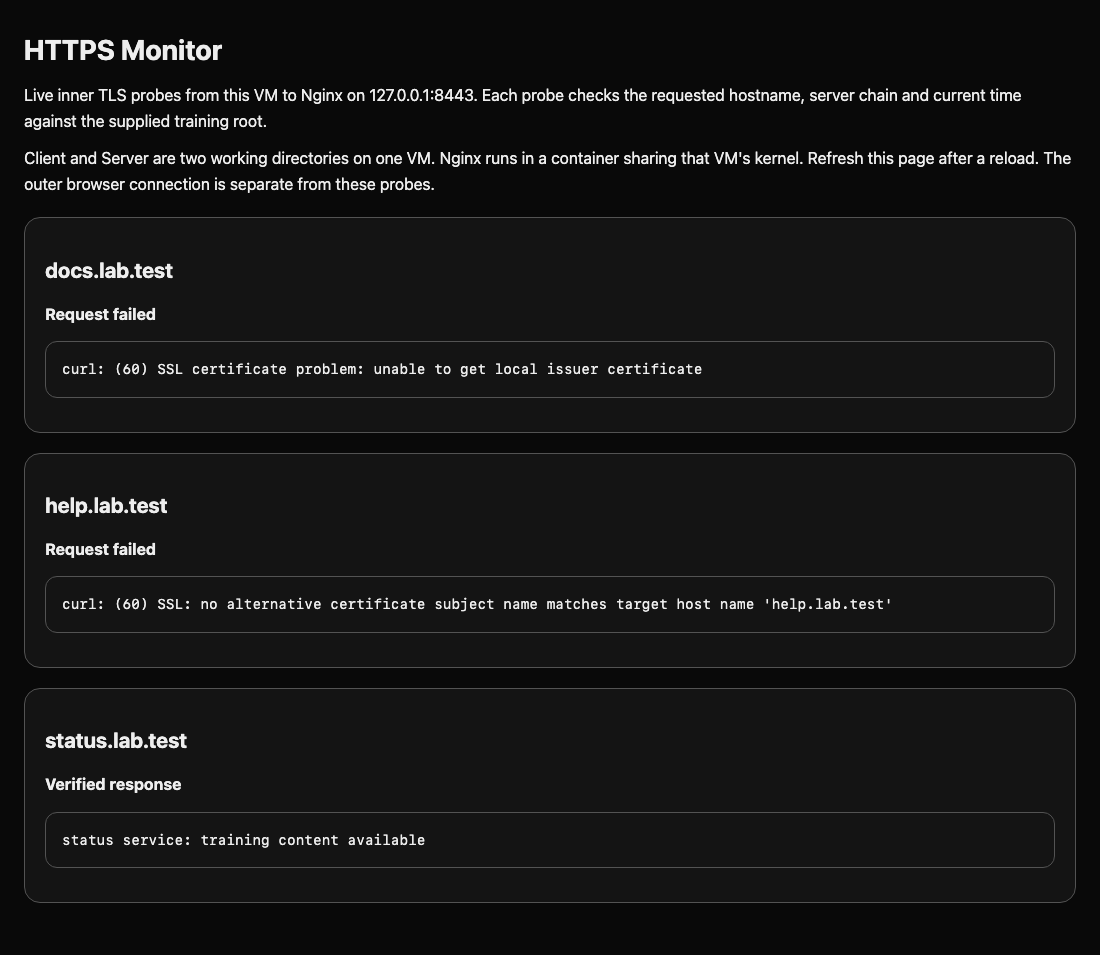
The reference worked with the same CA and address. This error specifically points to a name mismatch, not a stopped server. Keep the intended hostname: changing the URL would test a different identity. Switch to the HTTPS Monitor tab to see its independent live probes: the reference succeeds while the help and docs requests fail. This Web page is a monitor; run the following terminal work only after selecting the named terminal tab.
Inspect and Assemble the Certificate Chain
In this step, compare the served identity with a prepared certificate and build a usable server bundle. A certificate contains a public key and identity information. Its matching private key stays on the server. Never paste a private key into a report or send it to clients.
Select the Client tab in the lab interface to begin this step.
Switch to the Client tab. Inspect the certificate actually served. openssl s_client opens a TLS connection; -connect supplies the address and -servername sends the requested hostname through Server Name Indication (SNI), allowing one Nginx listener to host several sites. < /dev/null ends interactive input. 2>/dev/null hides connection diagnostics for this inspection only. The pipe | sends the certificate to openssl x509; -noout suppresses the encoded certificate, while the remaining options show selected fields. This inspection does not itself prove trust.
Switch to the Client tab before running the following command.
openssl s_client -connect 127.0.0.1:8443 -servername help.lab.test </dev/null 2>/dev/null | openssl x509 -noout -subject -issuer -dates -ext subjectAltName
subject=CN = legacy.lab.test
issuer=CN = LabEx Training Issuing CA
notBefore=...
notAfter=...
X509v3 Subject Alternative Name:
    DNS:legacy.lab.test
The subject alternative name (SAN) lists accepted hostnames. issuer identifies the signer; the dates bound validity. Setup generates fresh certificates for this VM: leaf certificates last 365 days. A valid date cannot compensate for the wrong name.
Switch to the Server tab. openssl x509 -in reads a local certificate instead of a network response:
Switch to the Server tab before running the following command.
openssl x509 -in certs/help.crt -noout -subject -issuer -dates -ext subjectAltName
Its SAN is DNS:help.lab.test, matching the request. Here is the intended relationship:
| Item | Role |
|---|---|
help.crt and help.key |
Help site's certificate and matching private key |
docs.crt and docs.key |
Documentation site's certificate and matching private key |
issuing.crt |
Intermediate CA that signed both sites |
../client/root.crt |
Client's trusted root CA |
The chain runs site certificate → intermediate CA → trusted root CA. Nginx should send the leaf first, followed by the intermediate. The root is already trusted by the client and need not be sent. Build that public bundle with cat; > writes its output to a file, replacing any previous contents. The private key is not part of this bundle.
cat certs/help.crt certs/issuing.crt > certs/help-fullchain.pem
openssl verify checks the bundle against the specified trusted root. -untrusted supplies intermediate certificates as possible links, not as extra trusted roots; -verify_hostname checks the intended name.
openssl verify -CAfile ../client/root.crt -untrusted certs/help-fullchain.pem -verify_hostname help.lab.test certs/help-fullchain.pem
certs/help-fullchain.pem: OK
If this fails, check the input file order and spelling, then repeat the cat command. This validates the prepared bundle; the running server still needs to use it.
Apply the Help Site Identity
In this step, make Nginx serve the correct identity while keeping the status site working. Switch to the Server tab. Display the configuration with cat:
Select the Server tab in the lab interface to begin this step.
Switch to the Server tab before running the following command.
cat conf/help.conf
server_name selects the site. ssl_certificate names the public chain; ssl_certificate_key names its private key. Paths beginning /tls/ are inside the prepared Nginx container and correspond to certs/ in this directory. The return 200 line supplies the actual training help content. Keep the listener, name and response unchanged.
Open the file with the nano text editor:
nano conf/help.conf
Use arrow keys to find the two TLS directives. Replace only those two lines with:
    ssl_certificate /tls/help-fullchain.pem;
    ssl_certificate_key /tls/help.key;
Semicolons end Nginx directives. Save with Ctrl+O, press Enter, then exit with Ctrl+X. If a path is mistyped, reopen the same file and correct it.
sudo runs a command with administrative privilege. docker exec https-edge executes the following command in the prepared service container. nginx -t tests the configuration without applying it:
sudo docker exec https-edge nginx -t
Look for syntax is ok and test is successful. If testing fails, fix the named file/line before continuing. nginx -s reload asks the running service to load the tested configuration:
sudo docker exec https-edge nginx -s reload
Switch to the Client tab and repeat the intended request. A reload may need a moment; retry the same request if it still sees the old certificate.
Switch to the Client tab before running the following command.
curl --noproxy '*' --fail --cacert root.crt --resolve help.lab.test:8443:127.0.0.1 https://help.lab.test:8443/
help service: training content available
Also preserve the reference site's normal operation:
curl --noproxy '*' --fail --cacert root.crt --resolve status.lab.test:8443:127.0.0.1 https://status.lab.test:8443/
This success checks the live hostname, chain and validity dates before accepting the help response. Merely editing an unused certificate file would not produce it.
Repair a Missing Intermediate
In this step, distinguish an incomplete chain from the name mismatch you already repaired. Stay in Client and request the prepared documentation site. This failure is intentional:
Select the Client tab in the lab interface to begin this step.
Switch to the Client tab before running the following command.
curl --noproxy '*' --cacert root.crt --resolve docs.lab.test:8443:127.0.0.1 https://docs.lab.test:8443/
curl: (60) SSL certificate problem: unable to get local issuer certificate
...
Both failures use exit code 60; read the accompanying explanation. Inspect the served certificate with the same command shape:
openssl s_client -connect 127.0.0.1:8443 -servername docs.lab.test </dev/null 2>/dev/null | openssl x509 -noout -subject -issuer -dates -ext subjectAltName
This time the SAN is DNS:docs.lab.test. The name is correct, but Nginx sends only the leaf, leaving the client unable to link its issuer to the root.
For one controlled comparison, -k skips certificate verification. It reveals that content can be fetched while trust is still broken:
curl --noproxy '*' -k --resolve docs.lab.test:8443:127.0.0.1 https://docs.lab.test:8443/
Seeing docs service: training content available here is not a repair. Switch back to the Server tab, inspect the active file, then open it:
Switch to the Server tab before running the following command.
cat conf/docs.conf
nano conf/docs.conf
A prepared docs-fullchain.pem already contains the leaf and intermediate in order. Replace only the ssl_certificate line:
ssl_certificate /tls/docs-fullchain.pem;
Keep /tls/docs.key as the private key. Save and exit as before, then test and reload:
sudo docker exec https-edge nginx -t
sudo docker exec https-edge nginx -s reload
Switch to the Client tab. Request all three intended names without -k. The loop sets host to each listed value; $host inserts that value, and double quotes keep each resulting argument together.
Switch to the Client tab before running the following command.
for host in help docs status; do
  curl --noproxy '*' --fail --cacert root.crt --resolve "$host.lab.test:8443:127.0.0.1" "https://$host.lab.test:8443/"
done
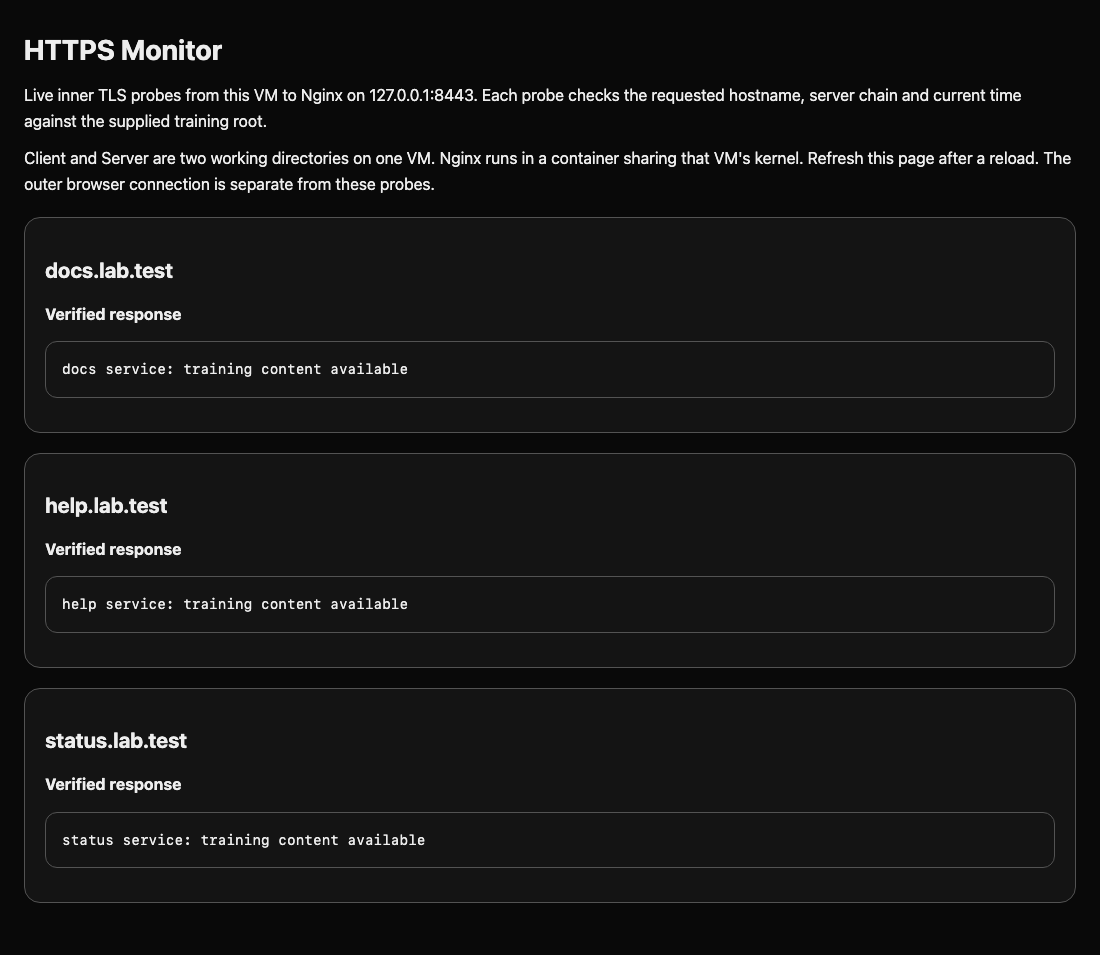
Expect the three corresponding service responses. You may switch to the HTTPS Monitor tab and refresh the page to compare its independent live probes. If a probe fails, switch back to the Server tab to correct the appropriate configuration, test it, and reload Nginx. Then switch to the Client tab to repeat the verified requests; do not change the client trust root or intended hostnames. In real deployments, obtain approved certificates through your organization's issuance process; this exercise supplies synthetic candidates so you can focus on diagnosis.
Summary
You retrieved a trusted reference, inspected live certificate names and issuers, assembled a leaf/intermediate bundle, and applied it through a tested Nginx reload. You repaired both a name mismatch and an incomplete chain while preserving normal service. The next challenge combines those decisions for a different portal.