Introduction
The anonymous leak is closed in this fresh environment, but the portal still uses the storage administrator's credentials. It can do much more than read its assigned statement. You will create a dedicated identity, give it only the required object reads, and switch the application to it.
Use Storage Admin for account and policy changes, Portal App for the application's private credential file, and Document Portal for real application requests. The synthetic fixtures run on local VersityGW 1.10.0 with built-in user principals, not full AWS IAM. The environment starts independently of the previous lab.
Create a Dedicated Portal Identity
In this step, replace dependence on an administrator with a separate application identity.
Select the Document Portal tab in the lab interface to begin this step.
Switch to the Document Portal tab, click Open assigned document, and observe Identity: storage-admin. The statement works, but administrator privileges are unnecessary. An identity names the caller; its secret key lets a client sign requests proving that identity. Authentication proves who called; authorization decides what that caller may do.
Switch to the Storage Admin tab. Load this VM's administrator credentials:
Switch to the Storage Admin tab before running the following command.
source admin.env
VersityGW includes an administrative client. -a selects an access-key name, -s its secret, and -er the endpoint. Before create-user, these options identify the administrator. After it, they define the new account. The user role has no administrative bypass. Create the synthetic account:
/opt/c14/versitygw admin -a storage-admin -s storage-admin-secret -er http://127.0.0.1:7070 create-user -a portal-reader -s portal-reader-secret -r user
Success has no error. If the account already exists after a repeated command, continue using the existing account. Never give it admin or make it the bucket owner: those permissions bypass the intended narrow policy.
Test its authentication on public help. Prefix assignments select credentials for just this command:
AWS_ACCESS_KEY_ID=portal-reader AWS_SECRET_ACCESS_KEY=portal-reader-secret aws --endpoint-url http://127.0.0.1:7070 s3api get-object --bucket documents --key public/help.txt help.txt
Object metadata confirms an authenticated request. Public help is allowed for everyone; this does not yet authorize internal statement reads. InvalidAccessKeyId indicates a missing user and SignatureDoesNotMatch a wrong secret; neither is an authorization result.
Grant Only the Required Prefix Reads
In this step, authorize the dedicated identity without granting write or unrelated read access.
Select the Storage Admin tab in the lab interface to begin this step.
The portal needs portal/statement.txt; its allowed area is portal/. A prefix matches the beginning of an object key. portal/* does not include finance/budget.txt. Reading uses s3:GetObject; uploading and deleting use different actions, s3:PutObject and s3:DeleteObject. Avoid s3:*, which includes all operations.
Read the effective policy in Storage Admin:
Switch to the Storage Admin tab before running the following command.
aws --endpoint-url http://127.0.0.1:7070 s3api get-bucket-policy --bucket documents --query Policy --output text
Only the public help allow exists. Open the local copy:
nano policy.json
Replace it with the following complete JSON. Keep the public statement and add a separate allow for the named reader. These built-in VersityGW principals are user names; AWS principal formats differ.
{
  "Version": "2012-10-17",
  "Statement": [
    {"Effect": "Allow", "Principal": "*", "Action": "s3:GetObject", "Resource": "arn:aws:s3:::documents/public/*"},
    {"Effect": "Allow", "Principal": "portal-reader", "Action": "s3:GetObject", "Resource": "arn:aws:s3:::documents/portal/*"}
  ]
}
In nano, save with Ctrl+O, Enter, then Ctrl+X. Apply the file using file://:
aws --endpoint-url http://127.0.0.1:7070 s3api put-bucket-policy --bucket documents --policy file://policy.json
No output means success; syntax errors leave the previous effective policy in place. Correct and reapply if needed. Test the allowed read:
AWS_ACCESS_KEY_ID=portal-reader AWS_SECRET_ACCESS_KEY=portal-reader-secret aws --endpoint-url http://127.0.0.1:7070 s3api get-object --bucket documents --key portal/statement.txt statement.txt
Now test an unrelated read. The expected AccessDenied is intentional; continue after it:
AWS_ACCESS_KEY_ID=portal-reader AWS_SECRET_ACCESS_KEY=portal-reader-secret aws --endpoint-url http://127.0.0.1:7070 s3api get-object --bucket documents --key finance/budget.txt budget.txt
The checkpoint also tests real write and delete requests in disposable equivalent storage, preserving the live documents. An invalid identity would fail its positive read control, so a broken login cannot masquerade as least privilege.
Switch the Application Credentials
In this step, make the actual portal use the dedicated identity.
Select the Portal App tab in the lab interface to begin this step.
Switch to the Portal App tab. This separate local account owns the private application configuration, without the Storage Admin shell's credentials. Read its current file:
Switch to the Portal App tab before running the following command.
cat credentials.json
The fields access_key and secret_key currently identify storage-admin. Edit the file:
nano credentials.json
Use the dedicated synthetic credentials:
{
  "access_key": "portal-reader",
  "secret_key": "portal-reader-secret"
}
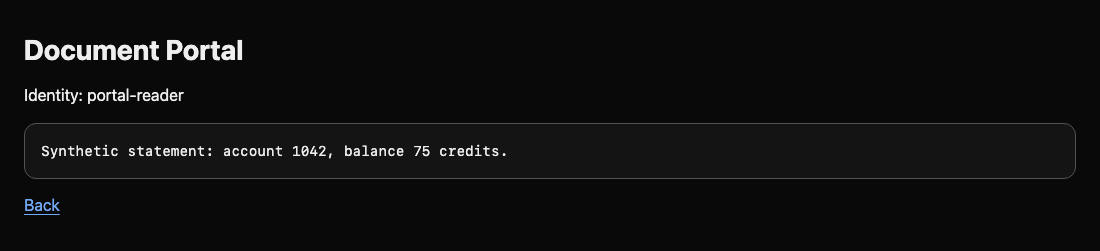
Save with Ctrl+O, Enter, then Ctrl+X. The portal reads this file on each request; no restart is needed. Switch back to the Document Portal tab, click Open assigned document or reload it. Expect Identity: portal-reader and the original statement. If the portal reports it cannot read, fix the JSON or credentials, then check the policy in Storage Admin.
Finally, switch to the Storage Admin tab. Test an anonymous internal request and public help. -sS shows errors without the meter; -w adds the response code:
Switch to the Storage Admin tab before running the following command.
curl -sS -w '\nHTTP %{http_code}\n' http://127.0.0.1:7070/documents/portal/statement.txt
Expect AccessDenied and HTTP 403.
curl -sS http://127.0.0.1:7070/documents/public/help.txt
Expect the original help text. The application identity and anonymous access are separate boundaries; securing one does not automatically secure the other.
Summary
You created a plain application identity, allowed only the required prefix reads, and moved the working portal away from administrator credentials. You verified authentication, authorization, public access, and application availability separately.