Introduction
A shop imports product pictures from a prepared catalog. Your browser asks an application to fetch an image; that application has network access the shopper does not have. You will trace the real request, then inspect a harmless internal status record to understand server-side request forgery (SSRF).
Use only the supplied training URLs. All organizations and internal data are synthetic. Basic terminal familiarity is enough: HTTP, URL fields, network roles, and redirects are explained here. Containers provide separate network namespaces while sharing one instance kernel.
Import an Ordinary Product Image
In this step, import a real image and identify the server that fetched it. Switch to the Image Importer tab. Its form sends a URL to App, the server running the image feature. A URL is an address: http is the protocol (scheme), catalog.test is the hostname, 8000 is the listening port, and /leaf.png is the resource path.
Select the Image Importer tab in the lab interface to begin this step.
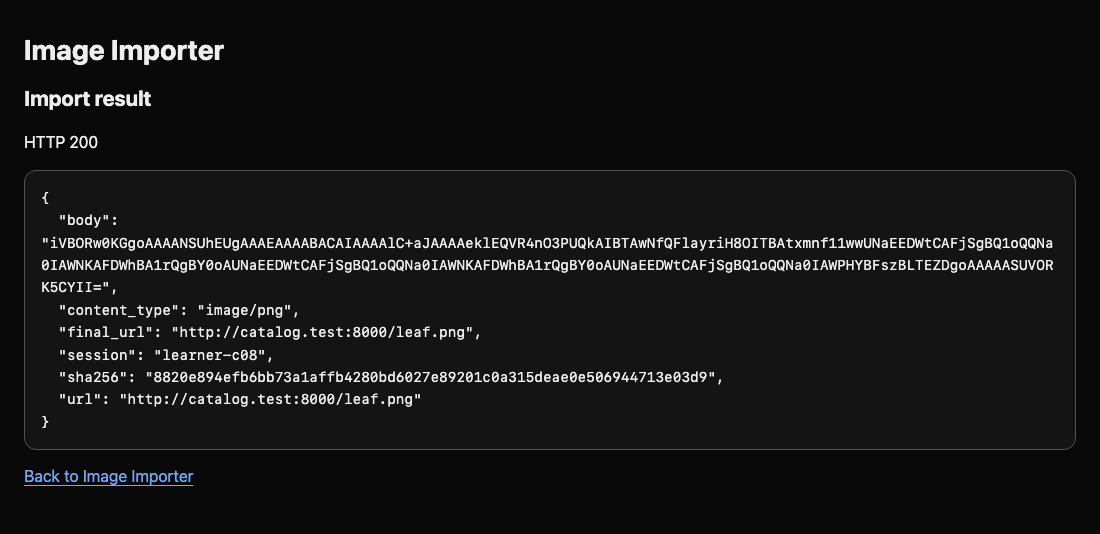
Keep Image URL set to http://catalog.test:8000/leaf.png and Import slot set to normal. Click Import image. The Import result page shows the real HTTP status and a JSON object, a response made of named fields. Look for content_type: image/png and a hash, a fingerprint of the fetched bytes. The body field holds encoded image bytes; you do not need to edit or decode that field.
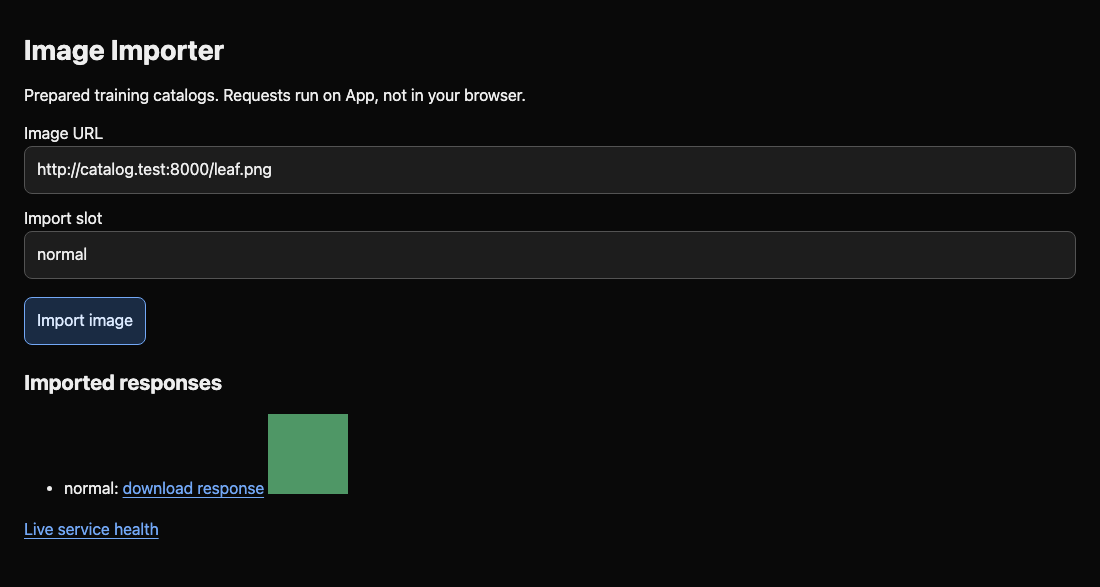
Select Back to Image Importer in the same tab (or use the browser Back button), then refresh the page. A green image should now appear under Imported responses. If it does not, check the URL and slot spelling and submit again.
Switch to the Workstation tab. This terminal is a client container. The prepared imagectl.py program sends requests to App; python3 runs that program. show normal reads the existing import without fetching again:
Switch to the Workstation tab before running the following command.
python3 imagectl.py show normal
Look for HTTP 200, session: learner-c08, and PNG image content. HTTP is a request/response protocol; status 200 means the request succeeded. Now read Catalog's genuine request records:
python3 imagectl.py requests
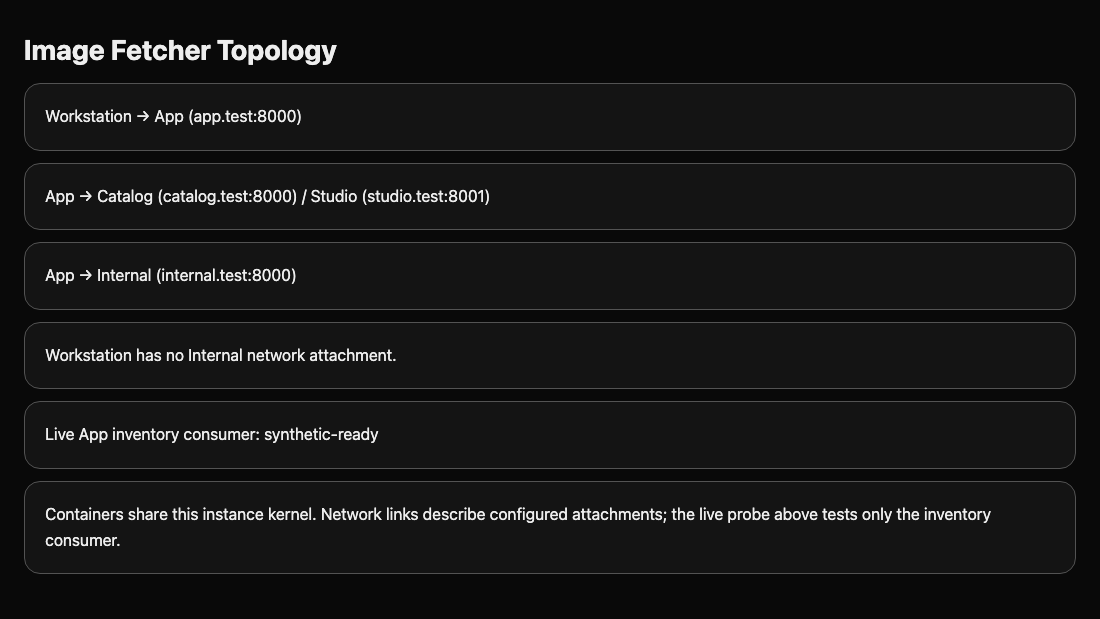
Each record includes a client address and requested path. Catalog saw App's catalog-network address, not Workstation or your browser. App made the outbound request. The varying address is evidence from the service, not a fixed address to memorize. Switch to the Topology tab to compare the configured network attachments and the live internal-consumer health probe.
Compare Client and Server Reachability
In this step, retrieve only the prepared internal inventory status through App. An internal service is reachable on a network reserved for the application's components. Workstation belongs to the front network; App also belongs to the internal network. localhost always means the environment running the command: Workstation's loopback is not App's loopback.
Select the Workstation tab in the lab interface to begin this step.
Try a direct request from Workstation. The helper prints expected failures without stopping the shell:
Switch to the Workstation tab before running the following command.
python3 imagectl.py direct http://internal.test:8000/status
Expect UNREACHABLE from Workstation. This hostname is not available in that container. The networks also isolate the underlying address; this is not merely a missing name. Now ask App to fetch that same resource. fetch performs an import, and the final argument names the stored response slot:
python3 imagectl.py fetch http://internal.test:8000/status internal
Expect HTTP 200 and a JSON body with service: inventory, status: synthetic-ready, and a varying training_id. Read the imported response again:
python3 imagectl.py show internal
The record belongs to learner-c08. This is SSRF: an input controlled by a client causes a server to use its own network access. Nothing has given Workstation a new network attachment. If you see no import, repeat the fetch with the internal slot; only the current VM's synthetic record is relevant.
Follow the Catalog Redirect
In this step, discover why checking only the first destination can be insufficient. A redirect is an HTTP response that tells a client to request another URL. Our Catalog's /redirect route returns status 302 with a Location pointing to the same synthetic inventory service. The vulnerable App follows it automatically.
Select the Workstation tab in the lab interface to begin this step.
In the Workstation tab, import that prepared route into a separate slot:
Switch to the Workstation tab before running the following command.
python3 imagectl.py fetch http://catalog.test:8000/redirect redirect
The response's url names Catalog, but final_url names Internal. Its body is the current synthetic inventory status, not an image. Inspect the saved response and Catalog's log:
python3 imagectl.py show redirect
python3 imagectl.py requests
Catalog logged /redirect; App then used its other network to fetch Internal. A trusted starting host does not make a later destination trusted. The next lab starts independently and repairs these two decisions: which destinations to contact and whether to follow redirects. This controlled exercise does not test hostile DNS changes, arbitrary internet image sources, or alternative address encodings.
Summary
You imported a genuine image, compared client and server reachability, and inspected a real redirected response. The internal data was synthetic; the network requests were real.