Introduction
Imagine you are writing a book with a large team. Every time someone submits a new chapter, you need to check for spelling errors and plot holes. Doing this manually is exhausting.
In software development, we solve this with continuous integration (CI). CI automatically checks changes early, usually by installing dependencies, running tests, and validating the project after each update.
The key idea is fast feedback. Problems are easier to fix when they are caught immediately after a change rather than days later.
That speed is why CI is usually the first automation layer teams build. It protects the main branch by turning every push into an automatic quality check.
In this lab, you will build this safety net for a simple Node.js application. You will:
- Create a small application that does basic math.
- Write a test to prove the math is correct.
- Configure GitHub Actions to run this test automatically every time you push code.
- Intentionally break the code to see how the safety net catches the error.
Prerequisites
This lab builds upon the previous one. We will continue using the github-actions-basics repository you created.
Prepare the Node.js Project
First, we need some code to test. We will create a tiny Node.js application. If you aren't a programmer, don't worry—we will provide all the code you need.
Navigate to the project directory. Since this is a new lab environment, we need to download our repository again.
cd ~/project
git clone https://github.com/your-username/github-actions-basics.git
cd github-actions-basics
Note: Remember to replace your-username with your actual GitHub username.
We need to create three files to simulate a real project. We will use the cat command, which is a quick way to create files with content directly from the command line.
1. The "Recipe" (package.json)
This file tells the computer what our project is and what tools it needs. We are telling it that our project depends on a testing tool called jest.
cat > package.json << EOF
{
  "name": "ci-demo",
  "version": "1.0.0",
  "scripts": {
    "test": "jest"
  },
  "dependencies": {
    "jest": "^29.7.0"
  }
}
EOF
2. The "Food" (index.js)
This is our actual application code. It's a simple function that adds two numbers together.
cat > index.js << EOF
function sum(a, b) {
  return a + b;
}
module.exports = sum;
EOF
3. The "Taste Test" (index.test.js)
This is our automated test. It asserts that if we add 1 and 2, the result must be 3.
cat > index.test.js << EOF
const sum = require('./index');

test('adds 1 + 2 to equal 3', () => {
  expect(sum(1, 2)).toBe(3);
});
EOF
Now that we have created our files, we need to save them to GitHub. Run the standard Git commands to upload your work.
git add .
git commit -m "Add Node.js project files"
git push
You might be asked to sign in to GitHub again. Use your Username and Personal Access Token (PAT) as before.
Create the CI Workflow
Now we need to tell our robot assistant how to test this code. We will create a new workflow file named ci.yml in the standard .github/workflows folder.
touch .github/workflows/ci.yml
Open this file in the nano editor.
nano .github/workflows/ci.yml
Add the following configuration. We will explain the new parts below.
name: Node.js CI

on: [push]

jobs:
  build:
    runs-on: ubuntu-latest

    steps:
      - name: Checkout code
        uses: actions/checkout@v4

      - name: Setup Node.js
        uses: actions/setup-node@v3
        with:
          node-version: 16
Here, we are introducing a powerful new keyword: uses.
This is an important GitHub Actions pattern. Instead of writing every shell step manually, workflows often compose reusable actions that package common tasks such as checkout, language setup, or artifact upload.
Think of uses as downloading a skill into the robot's brain. Instead of writing complex scripts from scratch, we can use pre-made actions created by others.
actions/checkout@v4: This standard action tells the robot to "Go download my code." Without this, the robot would have an empty workspace.actions/setup-node@v3: This installs Node.js on the runner. We also pass a specific version (16) to ensure consistency.
Save and exit the editor (Ctrl+X, Y, Enter).
Add Install and Test Steps
We have the code (checkout) and the tools (Node.js). Now we need to actually run the test.
In the Node.js world, there are two standard commands for this:
npm install: Downloads all the dependencies listed in yourpackage.json(like thejesttesting tool).npm test: Runs the test script defined in yourpackage.json.
Together, these steps model the heart of CI: prepare the environment, install dependencies, and validate the code in a clean runner before accepting the change as healthy.
Let's add these steps to our workflow. Open .github/workflows/ci.yml again.
nano .github/workflows/ci.yml
Append these two steps to the end of the file. Ensure the indentation aligns with the previous steps.
- name: Install dependencies
  run: npm install

- name: Run tests
  run: npm test
Your complete file should look like this:
name: Node.js CI

on: [push]

jobs:
  build:
    runs-on: ubuntu-latest

    steps:
      - name: Checkout code
        uses: actions/checkout@v4

      - name: Setup Node.js
        uses: actions/setup-node@v3
        with:
          node-version: 16

      - name: Install dependencies
        run: npm install

      - name: Run tests
        run: npm test
Save and exit the editor.
Now, activate your safety net by pushing this file to GitHub.
git add .
git commit -m "Add CI pipeline"
git push
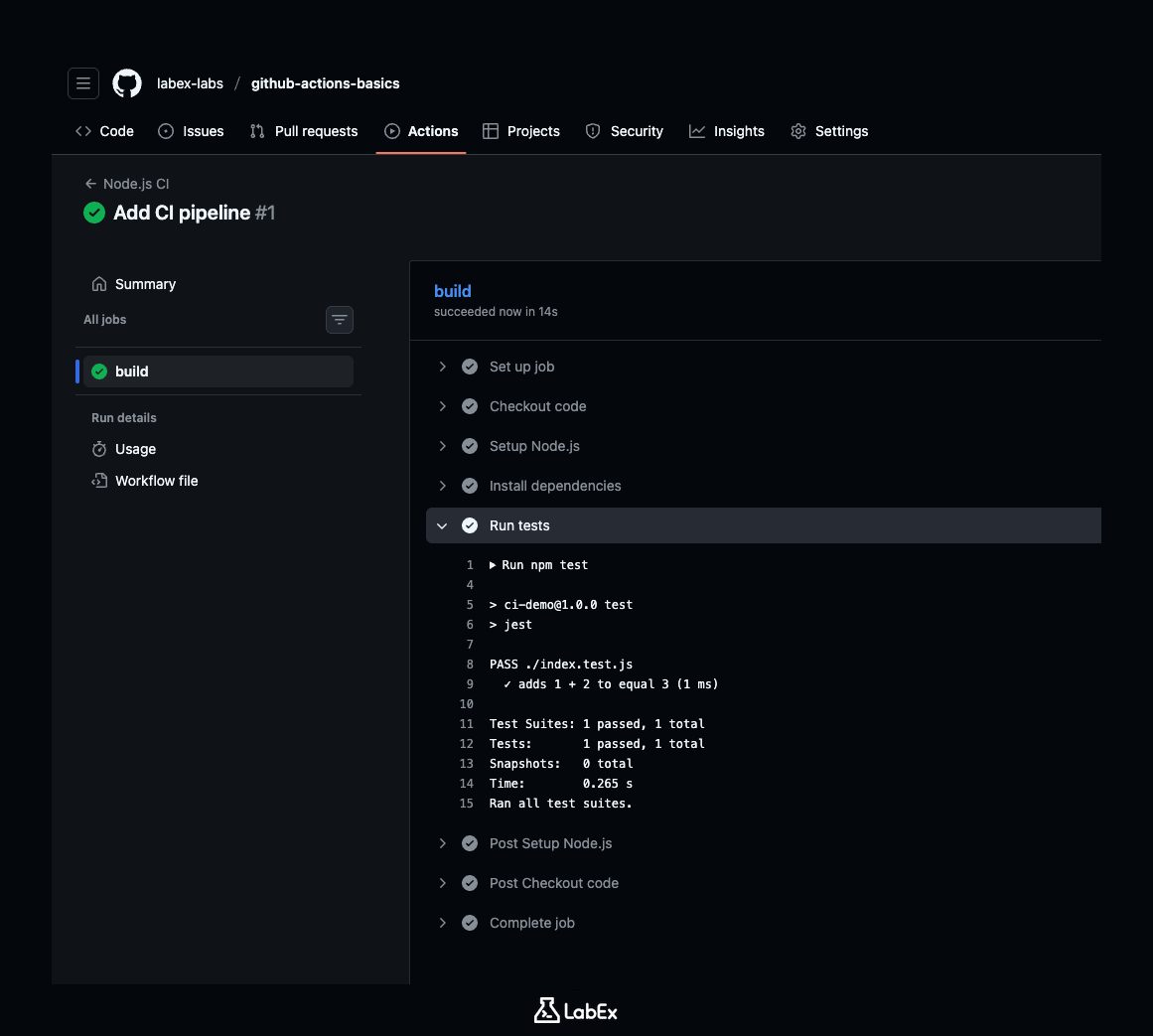
Go to your repository on GitHub and click the Actions tab. You should see a new workflow named "Node.js CI" running. When it finishes, you will see a green checkmark. This means your code works!
Break the Build
A safety net is only useful if it catches you when you fall. Let's intentionally "break" our code to see the CI system in action.
We will edit our test file to basically lie. We will claim that 1 + 2 should equal 4.
Open index.test.js with nano.
nano index.test.js
Change the test expectation from 3 to 4.
const sum = require("./index");

test("adds 1 + 2 to equal 3", () => {
  expect(sum(1, 2)).toBe(4); // CHANGED 3 to 4
});
Save and exit. Now commit and push this "bug".
git add .
git commit -m "Intentionally break the test"
git push
Switch back to the Actions tab on GitHub immediately. Watch the new workflow run.
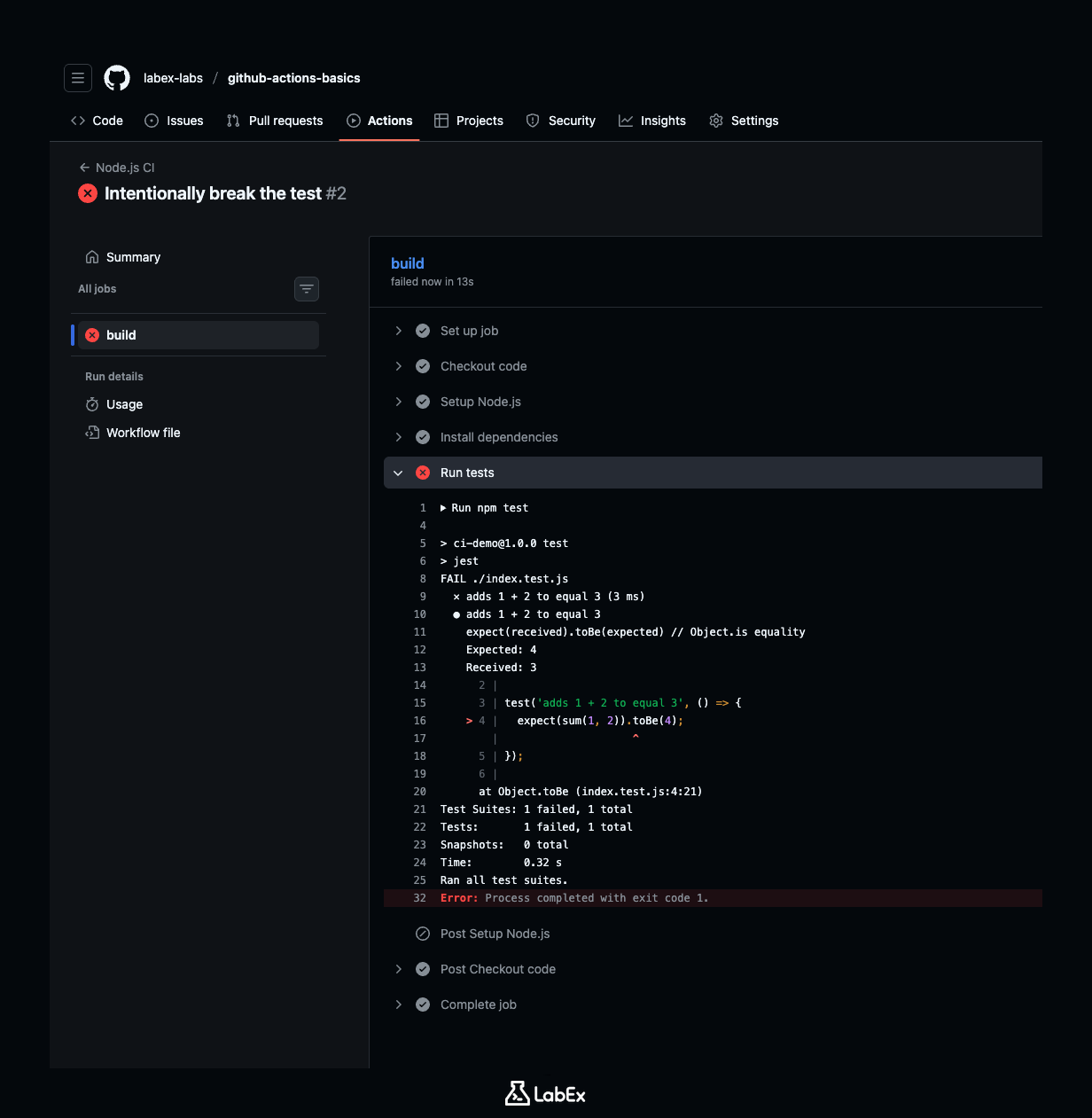
Within moments, the run should fail. You will see a Red X icon next to the commit. This is the CI system screaming "Stop! Something is wrong!"
Click on the failed run, then click on the build job. Expand the Run tests step to see the error log:
Error: expect(received).toBe(expected) // Object.is equality

Expected: 4
Received: 3
This simple Red X saves developers countless hours by catching bugs the moment they happen, rather than days or weeks later.
Summary
In this lab, you created a professional-grade Continuous Integration pipeline.
You learned:
- How to define a project "Recipe" with
package.json. - How to use the
useskeyword to install powerful tools likeactions/checkoutandactions/setup-node. - How to automate testing so every code change is verified by a robot.
- The importance of the "Red X" as a safety net for your code.
Next, we will learn how to take working code and package it up for the world to see!