Introduction
A backup is useful only if it can recover the application data. You will export a small D1 database to SQL, rebuild a second disposable database from the exported file, and compare data and constraints while leaving the original unchanged.
This lab starts independently with two synthetic tickets and uses at most two D1 databases. The backup stays in your LabEx VM; no object-storage account or bucket is part of the workflow.
Use your own learning account and a fresh VM. Setup first prepares Node.js 22.22.0, then runs npm install for project-local Wrangler 4.131.1 and any assessment dependencies under /home/labex/project/ticket-database. Direct dependency versions are pinned; the installation creates its own lockfile. No cloud login or assessed database work runs in setup. On a personal machine, install the same Wrangler version with npm install --save-dev wrangler@4.131.1 in your project.
This exercise uses small synthetic records within the D1 Free allowances. Existing account usage counts toward those allowances. No purchased domain is needed. Keep this VM until resource deletion and logout have both been checked.
Authorize this VM and select the account
In this step, you connect this fresh terminal to your own learning account. A Dashboard login alone does not authorize the VM. D1 permission allows database creation, SQL changes and deletion. Review the actual consent page, including Background Access, before authorizing.
Open the prepared project and inspect the pinned CLI:
cd /home/labex/project/ticket-database
npx wrangler --version
Expect 4.131.1. Start device authorization; --device displays a browser code, and --browser=false leaves the browser choice to you:
npx wrangler login --device --browser=false --scopes account:read user:read d1:write
Open the displayed URL in your browser, enter the current code, confirm your learning account and the permissions, and authorize. Wait for the terminal to confirm success. Never paste passwords or tokens into project files.
npx wrangler whoami --json
Check loggedIn: true, then read the account name and id, even when only one account is listed. Copy the intended ID into the configuration below. The following shell variable uses 6 random bytes (12 hexadecimal characters) to avoid colliding with other learners. A here-document writes the JSON between JSON lines; $RUN expands inside it.
The backslash before $schema keeps that JSON key literal; $RUN still expands to this run’s unique name.
RUN=labex-c04-d06-$(openssl rand -hex 6)
cat > wrangler.jsonc <<JSON
{
  "\$schema": "./node_modules/wrangler/config-schema.json",
  "name": "$RUN",
  "account_id": "YOUR_ACCOUNT_ID",
  "main": "src/index.js",
  "compatibility_date": "2026-09-15",
  "workers_dev": true,
  "preview_urls": false
}
JSON
Replace YOUR_ACCOUNT_ID before running the block. Keep this terminal open so RUN remains available. name identifies this run; account_id selects the account for cloud operations. The file is ordinary JSON, which is also valid JSONC. No Worker is deployed by writing it.
Prepare the database to preserve
In this step, you create a small original database. Setup supplies the ticket schema; your work is to export and rebuild it, including its constraints, without changing the original.
Create a disposable cloud database. --binding DB gives application code a short name, --update-config records its real name and UUID in wrangler.jsonc, and --use-remote=false keeps development local:
npx wrangler d1 create "$RUN-db" --binding DB --update-config --use-remote=false
Read the created name and ID, then inspect the saved binding:
cat wrangler.jsonc
The DB entry must name this run's database. A binding is a configured connection between code and a resource. Its UUID identifies the cloud database, while --local uses a separate SQLite database in this VM. Always include either --local or --remote in SQL commands.
cat schema.sql
npx wrangler d1 execute DB --remote --file schema.sql
Read the source data and schema before exporting:
npx wrangler d1 execute DB --remote --command "SELECT id, subject, status, source FROM tickets ORDER BY id; SELECT sql FROM sqlite_master WHERE type = 'table' AND name = 'tickets';"
There are two tickets. Record what you expect: ID 1 is Cannot sign in, open; ID 2 is Invoice copy, closed. Both have source seed. The schema contains a primary key, required values and a status constraint.
Export a complete SQL backup
In this step, you create a portable SQL file. An export describes the table definitions and data as SQL; importing that file can rebuild a database elsewhere. This is different from D1 Time Travel, which restores history in place.
--remote selects the cloud source and --output names the file written in this VM. Keep both schema and data by omitting --no-schema and --no-data:
npx wrangler d1 export DB --remote --output backup.sql
Confirm the exact source database if prompted. Inspect the small exported file:
cat backup.sql
Look for CREATE TABLE and the ticket INSERT statements. Export formatting, column quoting and internal statements can differ from the original handwritten SQL. Successful download alone is not proof of recoverability; the next step tests the artifact by rebuilding it. This file contains synthetic data only. Keep it in the VM; no R2 bucket is required.
Rebuild a separate database
In this step, you restore into a second, empty database, leaving the original untouched. A separate target gives you a way to compare the recovered data before changing an application binding.
Create a second resource with binding REBUILT. The config update adds it alongside DB:
npx wrangler d1 create "$RUN-copy" --binding REBUILT --update-config --use-remote=false
cat wrangler.jsonc
Check that the two bindings have different database UUIDs and the expected -db and -copy names. Import only into REBUILT:
npx wrangler d1 execute REBUILT --remote --file backup.sql
This executes the exported SQL against the new cloud target. Confirm that target at the prompt. Query it:
npx wrangler d1 execute REBUILT --remote --command "SELECT id, subject, status, source FROM tickets ORDER BY id; PRAGMA table_info(tickets);"
The rows and column definitions must match the original. Test one restored constraint using an invalid insert:
npx wrangler d1 execute REBUILT --remote --command "INSERT INTO tickets (id, subject, status, source) VALUES (3, 'Invalid', 'lost', 'probe');"
Expect CHECK constraint failed. The intentional failure must not add a third row. Read both databases again:
npx wrangler d1 execute DB --remote --command "SELECT id, subject, status, source FROM tickets ORDER BY id;"
npx wrangler d1 execute REBUILT --remote --command "SELECT id, subject, status, source FROM tickets ORDER BY id;"
Both still have exactly the two original rows. Open the two exact resource names in Dashboard for a read-only checkpoint; verify their distinct IDs before inspecting the rebuilt table. Never overwrite a different database to test recovery.
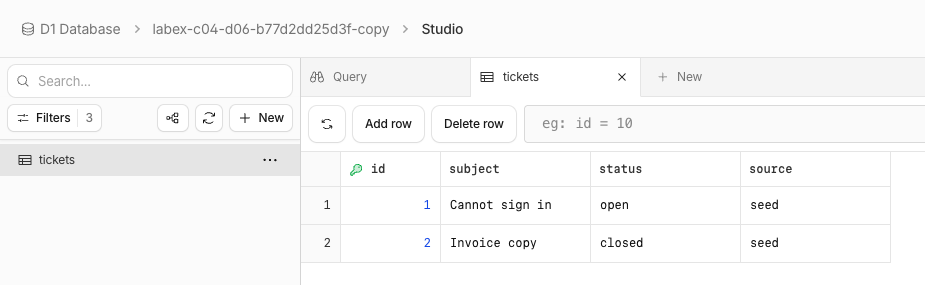
This example shows the two restored tickets in the -copy database. The generated name identifies this example run; your resource names and UUIDs will differ. The screenshot confirms visible rows only. The CLI export and import commands and the independent checks above establish the rebuild, matching schema, and preserved constraints.
Delete the disposable resources
In this step, you remove only this lab's resources while the VM is still authorized. Finish all functional checks first. Keep configuration until deletion verification is complete.
npx wrangler d1 delete REBUILT
npx wrangler d1 delete DB
Inspect the prompt and confirm only this run's database. Then list databases:
npx wrangler d1 list --json
Both recorded database names and UUIDs must be absent from a successful response. Other resources may remain. An authentication or network error is inconclusive: resolve access and repeat the read before continuing. Run this step's verification while still logged in.
End this VM authorization
In this step, you end the authorization only after the independent deletion check passes. Logout removes this VM's stored Wrangler authorization; closing a VM alone is not cloud cleanup.
npx wrangler logout
npx wrangler whoami --json
Expect loggedIn: false. This unauthenticated query can exit nonzero; that is expected only when the structured response explicitly says you are logged out. Complete verification, then close the lab environment.
Summary
You practiced export and rebuild a database. You checked observable database results, kept the selected account and local state explicit, and removed the disposable resources before logging out.