Introduction
In the previous lab, you learned about "Quality Control" (CI). Now, we move to the next step: packaging.
Think of software like a product in a factory. After it passes all the quality tests, it needs to be put into a box, sealed, and labeled before it can be shipped to customers. In the software world, this "box" is often a Docker Container.
We call this packaged output an artifact. Once built, artifacts need to be stored in a registry so later stages, such as deployment, can retrieve the exact same build.
That reproducibility is the key idea. Deployment should consume a known build product, not rebuild code differently on every target machine.
GitHub provides a registry called GitHub Container Registry (GHCR).
In this lab, you will teach your robot assistant to:
- Pack your application into a Docker container.
- Label it with a version tag.
- Ship (push) it to the GitHub warehouse automatically.
Prerequisites
We will continue using the github-actions-basics repository.
Create a Dockerfile
Before the robot can pack your application, it needs instructions. In Docker, these instructions are written in a special file called a Dockerfile.
Navigate to the project directory.
cd ~/project
git clone https://github.com/your-username/github-actions-basics.git
cd github-actions-basics
Note: Replace your-username with your actual GitHub username.
Create a file named Dockerfile (capital 'D', no extension) with the following content.
cat > Dockerfile << EOF
FROM node:16-alpine
WORKDIR /app
COPY package*.json ./
RUN npm install
COPY . .
CMD ["node", "index.js"]
EOF
Here is exactly what this packing list tells the robot to do:
FROM node:16-alpine: Start with a lightweight base system that already has Node.js installed.WORKDIR /app: Create a working folder inside the box.COPY ...: Copy our project files into the box.RUN npm install: Install the necessary dependencies inside the box.CMD ...: When someone opens (runs) this box, start the application.
Now, add this file to your repository and push it to GitHub.
git add Dockerfile
git commit -m "Add Dockerfile"
git push
Create the Publish Workflow
Now we will create a new workflow to handle the packing and shipping. We'll call it docker-publish.yml.
Create the file:
touch .github/workflows/docker-publish.yml
Open it with nano.
nano .github/workflows/docker-publish.yml
Add the following setup. We are introducing a new concept called permissions.
name: Docker Publish

on:
  push:
    branches: ["master", "main"]

permissions:
  contents: read
  packages: write

jobs:
  build-and-push:
    runs-on: ubuntu-latest
    steps:
      - name: Checkout code
        uses: actions/checkout@v4
Why do we need permissions?
By default, the robot has limited access for security reasons. Since we want the robot to upload things to your GitHub account (the "packages" section), we must explicitly give it a key to the warehouse. That is what packages: write does.
This is a good example of least privilege in pipeline design. Workflows should receive only the permissions needed for the job they perform.
Save and exit nano (Ctrl+X, Y, Enter).
Add Build and Push Steps
Now we verify the most exciting part: the actual build and push.
We will use two official tools (actions) from Docker:
docker/login-action: To sign in to the warehouse.docker/build-push-action: To build the box and ship it.
This stage bridges CI and delivery. After tests pass, the pipeline creates a versioned artifact that other systems can later deploy without rebuilding from source.
Open .github/workflows/docker-publish.yml again.
nano .github/workflows/docker-publish.yml
Append the following steps to the build-and-push job:
- name: Log in to the Container registry
  uses: docker/login-action@v2
  with:
    registry: ghcr.io
    username: ${{ github.actor }}
    password: ${{ secrets.GITHUB_TOKEN }}

- name: Build and push Docker image
  uses: docker/build-push-action@v4
  with:
    context: .
    push: true
    tags: ghcr.io/${{ github.repository }}/app:latest
Understanding the Magic Variables:
ghcr.io: This is the address of GitHub's "warehouse".${{ github.actor }}: This is a variable that automatically fills in your GitHub username.${{ secrets.GITHUB_TOKEN }}: This is a special, temporary password that GitHub creates for the robot. You don't need to do anything—it just works! This token allows the robot to log in securely without you typing your password.tags: This creates the label for your box. It follows the format:Warehouse Address / Your Name / Repo Name / App Name : Version.
Save and exit nano.
Now, push this workflow to GitHub to start the process.
git add .
git commit -m "Add Docker publishing workflow"
git push
Verify the Artifact
Your robot is now hard at work. It is setting up a server, logging in, building your container, and uploading it.
- Go to your repository on GitHub.
- Click the Actions tab.
- Click on the "Docker Publish" workflow run.
- Watch the steps turn green.
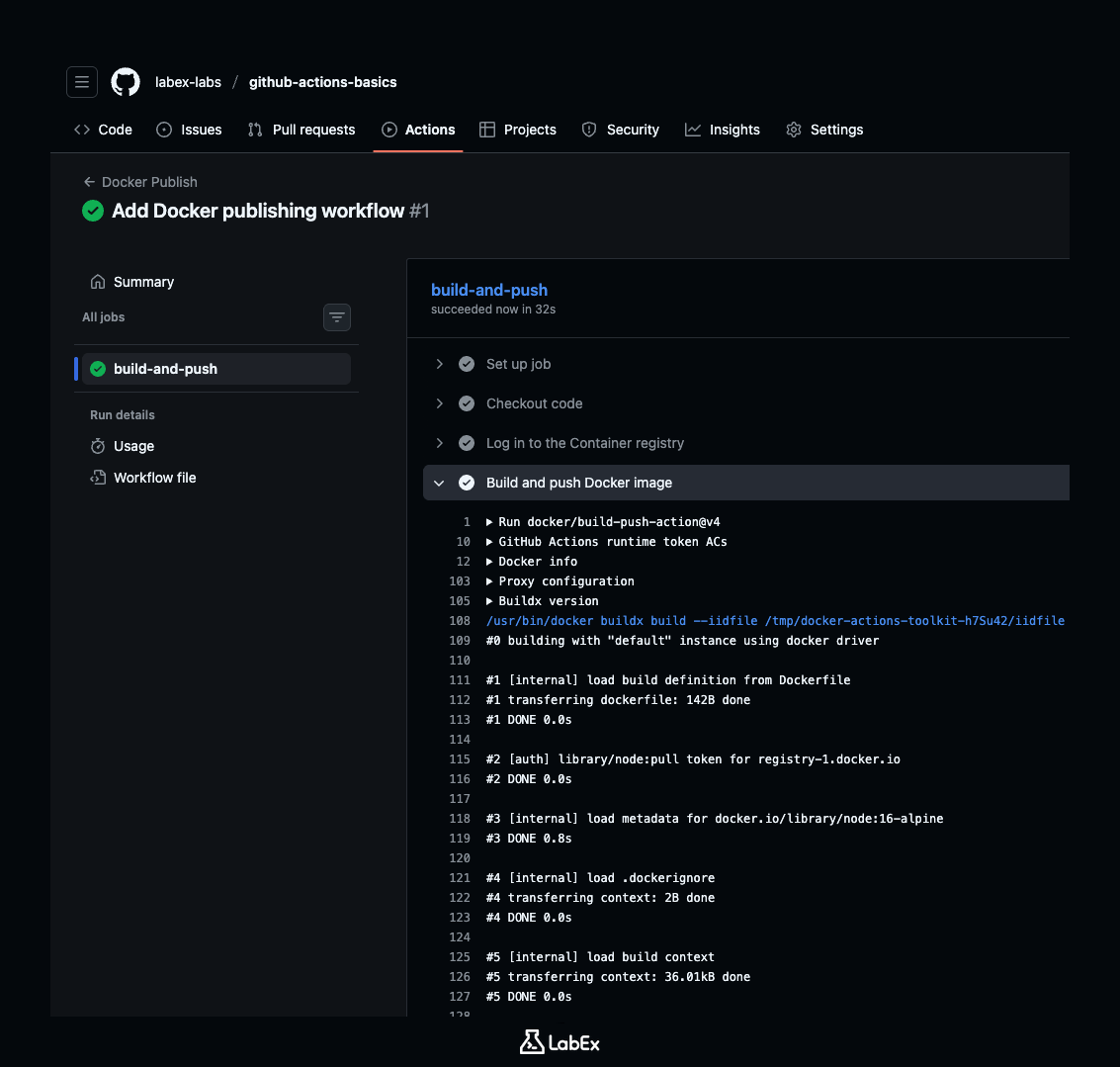
Once the "Build and push Docker image" step finishes successfully, your package is in the warehouse. Let's go see it.
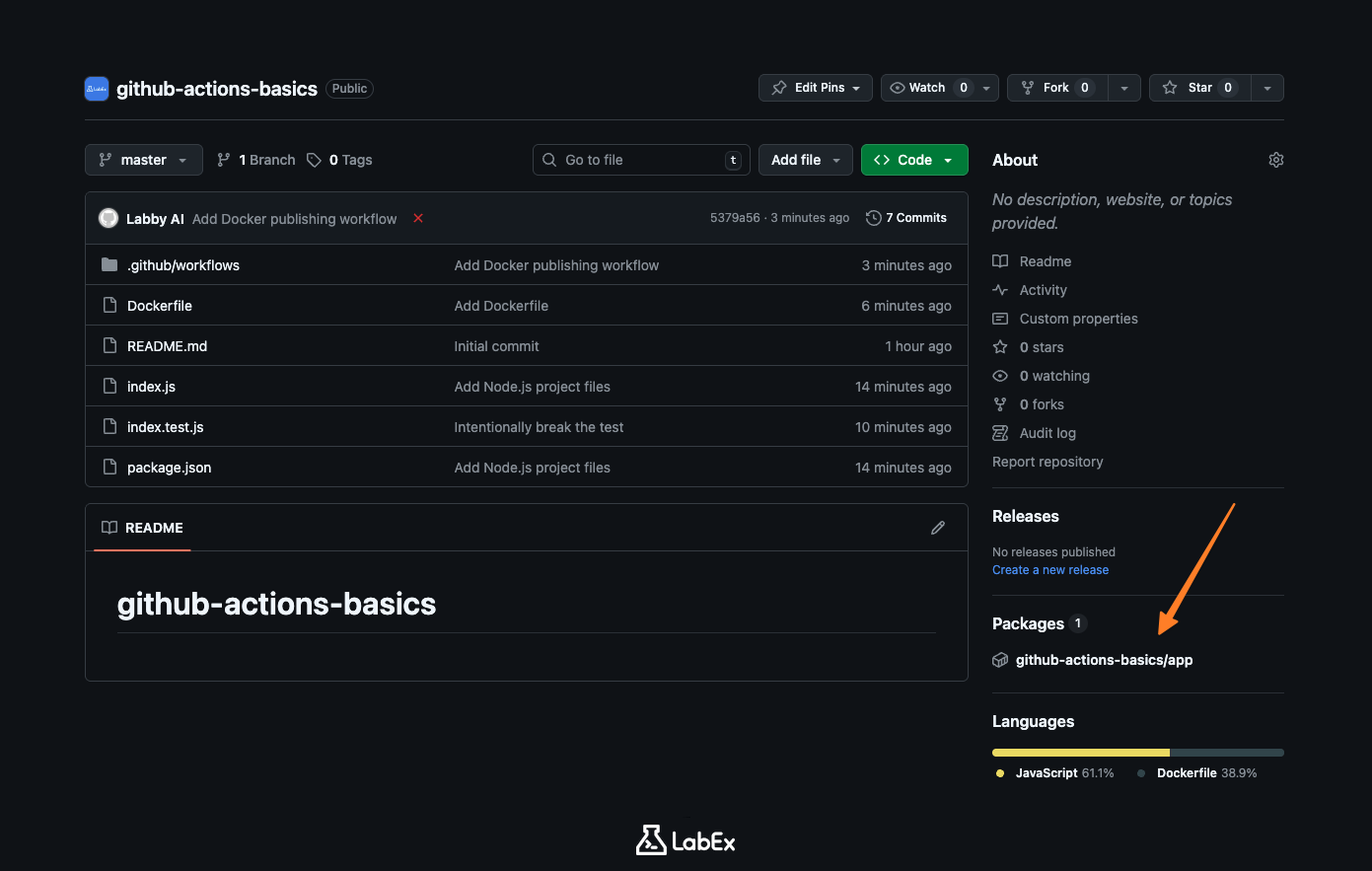
- Navigate to the main page of your repository (the Code tab).
- Look at the right-hand sidebar. You should see a section titled Packages.
- You will see a new package listed there!
Click on the package name to see its details. This is your finished artifact. Anyone with access to your repository (or the public, if your repo is public) can now download and run your application using this image.
Summary
In this lab, you built a complete delivery pipeline.
You learned:
- Packaging: How to write a
Dockerfileto put your app in a container. - Permissions: How to give your workflow write access to your packages.
- Warehousing: How to use GitHub Container Registry (GHCR) to store your images.
- Automation: How to build and ship your code automatically using standard actions.
Your robot assistant can now Check your code (CI) and Ship your code (Artifacts). In the next lab, we will look at how to handle sensitive information like passwords securely.