Introduction
An application normally follows rules written directly in its code. Artificial intelligence (AI) inference adds a different kind of operation: your application sends input to a trained model, and the model generates a result. The instruction and context sent to the model are called a prompt. Generated wording can vary between requests, so a reliable application controls the input and checks the result instead of expecting one exact sentence.
Cloudflare Workers AI lets a Worker run supported AI models through Cloudflare's platform. A Worker is application code that responds to requests on Cloudflare's network. An AI binding is the configured connection that makes Workers AI available to that code as env.AI; it avoids putting a separate provider API key in the project.
In this lab, a support application needs a short summary of a ticket before an agent opens the full description. You will configure an AI binding, implement a POST /summaries endpoint, reject unsuitable input before it consumes inference, test the same Worker locally, deploy it, and inspect the real Worker and AI activity in the Cloudflare Dashboard. The lab uses @cf/meta/llama-3.3-70b-instruct-fp8-fast, a Cloudflare-hosted model available through the standard Workers AI free allocation. The response wording is not graded; the application contract is.
Before starting this course, complete Connect LabEx to Your Cloudflare Account. It teaches the LabEx VM terminal, device authorization, account confirmation and saving the actual account ID. You should also know how a small JavaScript Worker handles an HTTP request. No machine-learning knowledge is assumed.
Workers AI currently gives Workers Free accounts a shared daily allocation of 10,000 Neurons, Cloudflare's unit for model compute. This lab keeps prompts and output small and does not require a paid plan, but other activity on the same account uses the same allocation. Review the current Llama 3.3 model page and Workers AI pricing before starting. If the daily allocation has already been used, inference fails until the limit resets; do not create repeated calls to work around it. Local Workers AI development also uses the cloud model and counts toward the allocation—it is not an offline simulation.
Setup installs Node.js 22.22.0 and project-local Wrangler 4.132.0 in /home/labex/project/ticket-summary. It also supplies deterministic tests that imitate the AI response without making model calls. No login, plan change, deployment or inference runs in setup. Keep this VM open until the disposable Worker is deleted and logout is verified.
Authorize the VM and Select an Account
In this step, you will connect this fresh LabEx VM to your Cloudflare learning account and create a unique Worker configuration. A browser session in the Dashboard does not automatically authorize terminal commands in the VM.
Enter the prepared project and confirm the pinned Wrangler version:
cd /home/labex/project/ticket-summary
npx wrangler --version
Expect 4.132.0. Start device authorization with only the permissions this lab needs. workers_scripts:write covers deploying, reading and deleting the disposable Worker. ai:write allows the Worker to invoke Workers AI. Wrangler 4.132.0 also checks KV binding references while deleting a Worker, so workers_kv:write lets that cleanup check finish even though this lab creates no KV namespace. Account and user read access let you confirm the intended account.
npx wrangler login --device --browser=false --scopes account:read user:read workers_scripts:write workers_kv:write ai:write
Open the displayed link in your browser, enter the current device code, inspect the permissions and select your learning account. Background Access may also appear because Wrangler must keep working after the browser flow. Authorize only after the account and permission list match this lab, then return to the terminal and wait for success.
npx wrangler whoami --json
Confirm loggedIn: true, then read the name and id for the account you intend to use—even if only one account is listed. The name helps prevent using the wrong account; the ID is the stable value Wrangler saves in configuration.
Generate a unique Worker name. openssl rand -hex 6 creates 12 random hexadecimal characters, and $(...) inserts them into the shell variable.
RUN="labex-c07-a01-$(openssl rand -hex 6)"
printf '%s\n' "$RUN"
Copy the selected account ID into the configuration below by replacing YOUR_ACCOUNT_ID. A here-document writes the lines between the two JSON markers into wrangler.jsonc. The unquoted marker allows $RUN to expand, while the backslash keeps the $schema key literal.
cat > wrangler.jsonc <<JSON
{
  "\$schema": "./node_modules/wrangler/config-schema.json",
  "name": "$RUN",
  "account_id": "YOUR_ACCOUNT_ID",
  "main": "src/index.js",
  "compatibility_date": "2026-09-16",
  "compatibility_flags": ["nodejs_compat"],
  "workers_dev": true,
  "preview_urls": false,
  "observability": {
    "enabled": true,
    "head_sampling_rate": 1
  },
  "ai": {
    "binding": "AI",
    "remote": true
  }
}
JSON
compatibility_date fixes the runtime behavior tested by this lab. observability keeps invocation and application logs for the later Dashboard checkpoint. Writing the file does not deploy a Worker or make a model call.
Inspect the Workers AI Binding
In this step, you will turn the configuration into a typed description of the Worker's environment and connect the binding name to the code you will write next.
A binding is a named capability supplied by the Workers runtime. The AI name in wrangler.jsonc means the Worker will use env.AI to run models. There is no API token in the source: Cloudflare connects the deployed Worker to the selected account. The remote: true setting matters during wrangler dev because model inference always happens on Cloudflare, even while the request handler itself runs from this VM.
Generate the environment type description from the project configuration:
npx wrangler types
Wrangler creates worker-configuration.d.ts. Search for the generated Env entry rather than reading the whole file:
grep -A4 'interface __BaseEnv_Env' worker-configuration.d.ts
The output includes an AI binding similar to:
interface __BaseEnv_Env {
    AI: Ai;
}
Wrangler places generated bindings in a base interface and then extends it with Env. The AI: Ai line is the useful consistency check: changing the binding name in the configuration and forgetting to update the code would otherwise cause a deployment that fails at runtime. Regenerate types whenever bindings change. A full deployment dry run later will validate both this configuration and the Worker bundle together.
Build a Bounded Summary Endpoint
In this step, you will implement the request boundary and the model call. A language model is good at generating a compact explanation, but it should not decide whether any arbitrary request is safe to process. Ordinary application code must reject the wrong content type, malformed JSON, missing details and oversized input before inference.
The endpoint will send two messages to the model. A system message defines the model's role and response constraint. A user message contains the synthetic ticket. Models read and generate tokens, small text pieces that may be a word, part of a word or punctuation. max_tokens limits generated output, while the application separately limits incoming characters. These are different controls: one bounds what you send, and the other bounds what the model can generate. temperature controls how much variation the model may use; the low value here favors a steady summary without promising identical wording.
Create the Worker entrypoint:
cat > src/index.js <<'JS'
const MODEL = "@cf/meta/llama-3.3-70b-instruct-fp8-fast";
const MAX_DETAILS = 2000;

function json(data, status = 200) {
  return Response.json(data, { status });
}

async function readTicket(request) {
  const contentType = request.headers.get("content-type") || "";
  if (!contentType.toLowerCase().includes("application/json")) {
    return { error: json({ error: "json_required" }, 415) };
  }

  const raw = await request.text();
  if (raw.length > 4096) {
    return { error: json({ error: "ticket_too_large" }, 413) };
  }

  let body;
  try {
    body = JSON.parse(raw);
  } catch {
    return { error: json({ error: "invalid_json" }, 400) };
  }

  const subject = typeof body?.subject === "string" ? body.subject.trim() : "";
  const details = typeof body?.details === "string" ? body.details.trim() : "";
  if (!details) {
    return { error: json({ error: "invalid_ticket" }, 400) };
  }
  if (subject.length > 120 || details.length > MAX_DETAILS) {
    return { error: json({ error: "ticket_too_large" }, 413) };
  }
  return { ticket: { subject, details } };
}

async function summarize(request, env) {
  const requestId = crypto.randomUUID();
  const parsed = await readTicket(request);
  if (parsed.error) return parsed.error;

  try {
    const result = await env.AI.run(MODEL, {
      messages: [
        {
          role: "system",
          content: "Summarize this support ticket in one plain sentence. Do not invent facts."
        },
        {
          role: "user",
          content: `Subject: ${parsed.ticket.subject || "(none)"}\nDetails: ${parsed.ticket.details}`
        }
      ],
      max_tokens: 120,
      temperature: 0.2
    });

    const summary = result.response?.trim();
    if (!summary) throw new Error("empty model response");

    console.log(JSON.stringify({
      event: "ticket_summarized",
      requestId,
      model: MODEL,
      inputCharacters: parsed.ticket.details.length,
      totalTokens: result.usage?.total_tokens ?? null
    }));

    return json({ summary, model: MODEL, requestId });
  } catch (error) {
    console.error(JSON.stringify({
      event: "ticket_summary_failed",
      requestId,
      model: MODEL,
      reason: error instanceof Error ? error.message : "unknown"
    }));
    return json({ error: "model_unavailable", requestId }, 502);
  }
}

export default {
  async fetch(request, env) {
    const url = new URL(request.url);
    if (request.method === "GET" && url.pathname === "/health") {
      return json({ status: "ok" });
    }
    if (request.method === "POST" && url.pathname === "/summaries") {
      return summarize(request, env);
    }
    return json({ error: "not_found" }, 404);
  }
};
JS
Each request receives a random request ID that appears in both the response and the log, so one request can be traced without logging its ticket. The code logs that ID, the model choice and counts, but not the ticket text. This makes later observability—records that help you understand what the Worker did—useful without copying customer content into monitoring data. It also validates the response string returned by this exact model instead of assuming that every Workers AI model returns the same object.
Run the supplied deterministic tests. They replace env.AI with a small fixture, so these tests do not consume model usage:
node --test test/worker.test.mjs
Expect four passing tests. Then ask Wrangler to build the Worker without deploying it:
npx wrangler deploy --dry-run
The tests prove input and output contracts with controlled model data. The dry run proves Wrangler can bundle the real Worker. Neither proves that the model is currently available or that this account still has daily free allocation; you will test that next with one real request.
Run One Local Inference
In this step, you will run the request handler from the VM while its AI binding calls the real Cloudflare-hosted model. This is called local development, but only the Worker process is local—the inference is remote and metered.
Start Wrangler on port 8787 in the background. > saves logs in a file, 2>&1 sends errors to the same file, and & returns the terminal prompt while the server continues running. Saving $! records the process ID for cleanup.
npx wrangler dev --port 8787 > .labex/dev.log 2>&1 &
echo $! > .labex/dev.pid
Wait until the health route responds:
for attempt in $(seq 1 30); do
  if curl --silent --fail http://127.0.0.1:8787/health; then
    break
  fi
  sleep 1
done
The health response should be {"status":"ok"} and does not call the model. Now send one small synthetic ticket. --data makes this a POST request, while the header tells the Worker to parse JSON.
curl --silent --show-error http://127.0.0.1:8787/summaries \
  --header 'Content-Type: application/json' \
  --data '{"subject":"Invoice upload fails","details":"After signing in, the customer selects a PDF invoice. The upload stops before completion and no confirmation appears."}' | jq
Expect a nonempty summary, the exact model ID and a run-specific requestId. Your sentence may differ from this example:
{
  "summary": "The customer cannot complete a PDF invoice upload after signing in.",
  "model": "@cf/meta/llama-3.3-70b-instruct-fp8-fast",
  "requestId": "..."
}
Prove that invalid input is rejected by ordinary code before inference:
curl --silent --show-error --write-out '\nHTTP %{http_code}\n' \
  http://127.0.0.1:8787/summaries \
  --header 'Content-Type: application/json' \
  --data '{"details":""}'
Expect {"error":"invalid_ticket"} and HTTP 400. The application does not send this request to the model. If the valid request reports model_unavailable, inspect .labex/dev.log; exhausted free allocation, model capacity or an authorization error is not evidence that the endpoint contract passed.
Deploy and Inspect the AI Worker
In this step, you will stop the local process, deploy the same code to Cloudflare and connect command-line evidence to visible Dashboard state.
Stop only the saved development process and wait for it to exit:
kill "$(cat .labex/dev.pid)"
wait "$(cat .labex/dev.pid)" 2>/dev/null || true
Deploy the Worker:
npx wrangler deploy
Wrangler prints the public workers.dev URL. Save that exact URL, replacing the example value below:
WORKER_URL="https://YOUR_WORKER_URL"
Send a new synthetic ticket to the deployed endpoint:
curl --silent --show-error "$WORKER_URL/summaries" \
  --header 'Content-Type: application/json' \
  --data '{"subject":"Password reset loop","details":"The customer opens the reset email, chooses a new password, and returns to the sign-in page, but the old password remains active."}' | jq
The generated sentence can differ, but model must identify Llama 3.3 and requestId must be present. This proves the public Worker reached its configured AI binding.
Open the Cloudflare Dashboard and go to Workers & Pages → Overview → your labex-c07-a01-... Worker → Settings → Bindings. Find the AI Workers AI binding. This is the visible connection between wrangler.jsonc and env.AI in the code.
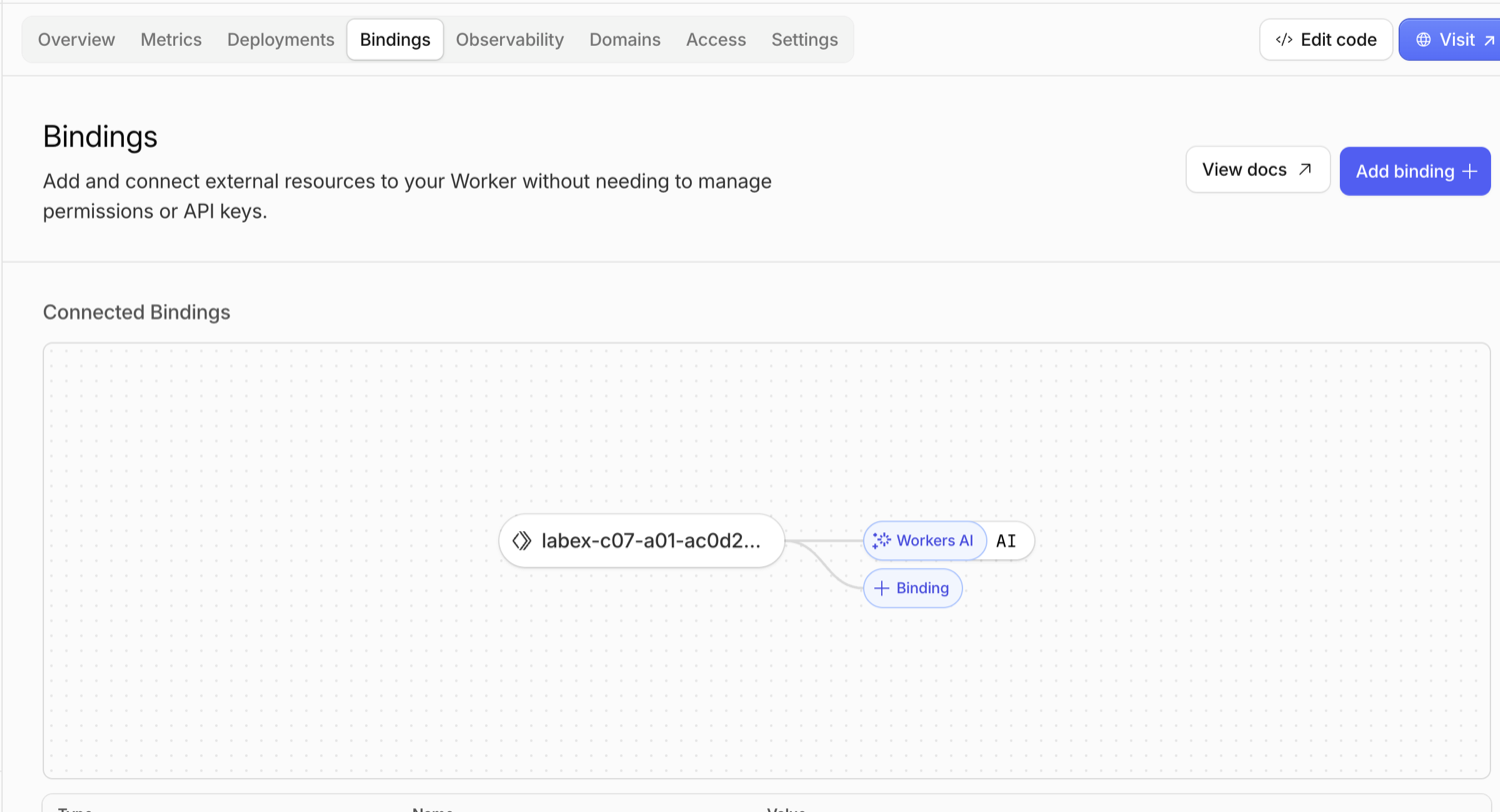
The example shows the binding name AI, matching the name used by env.AI. Your disposable Worker name will be different.
Next open Observability → Logs for the same Worker. Find a recent successful invocation and expand the structured ticket_summarized log. Match its request ID with the deployed response. The log should show the model and counts without showing the ticket text. If saved logs have not arrived yet, use Real-time logs, send one additional small synthetic request, and inspect that invocation instead.
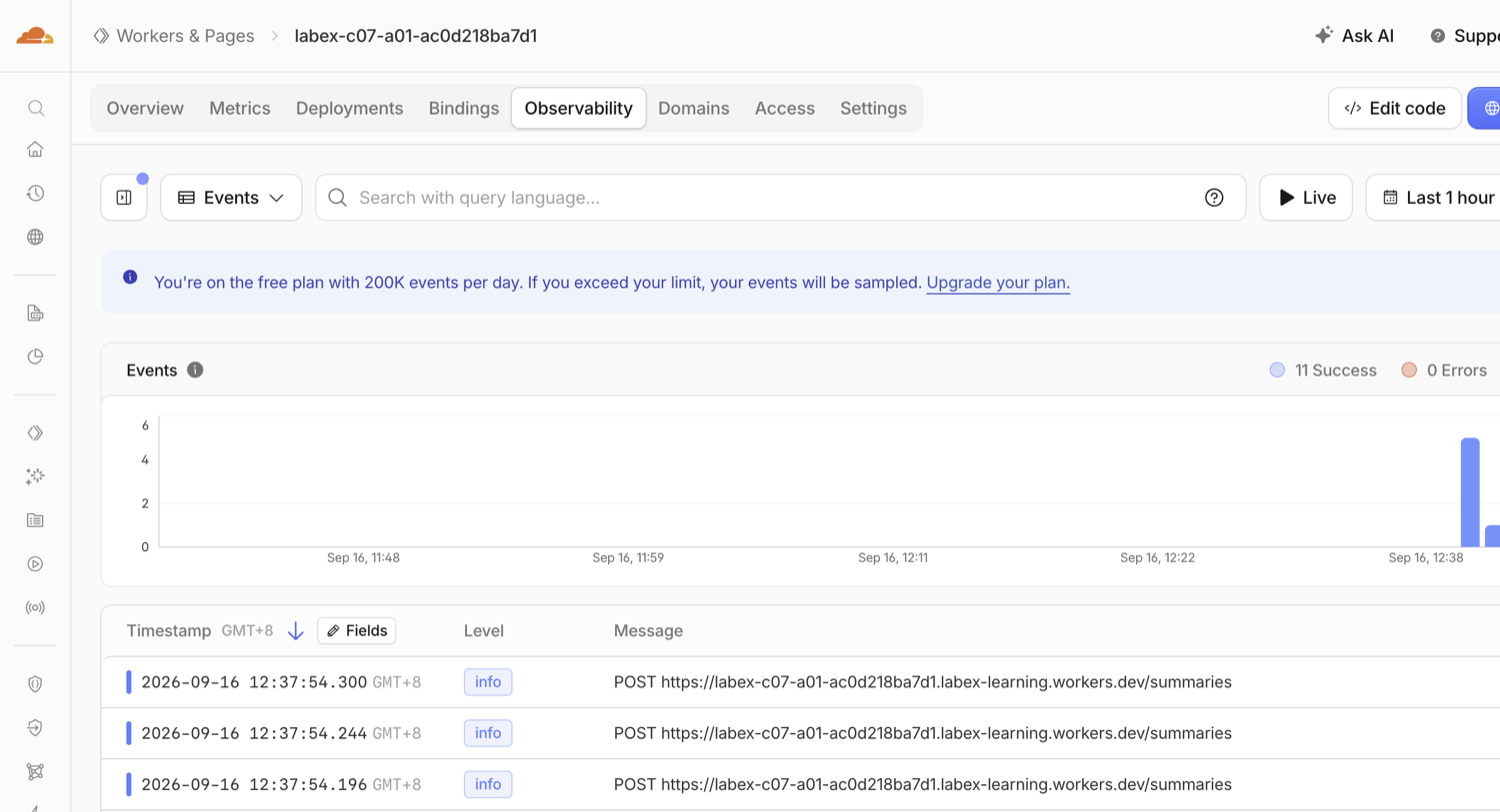
The overview first confirms that requests reached the Worker without errors. Opening one request reveals the structured application event:
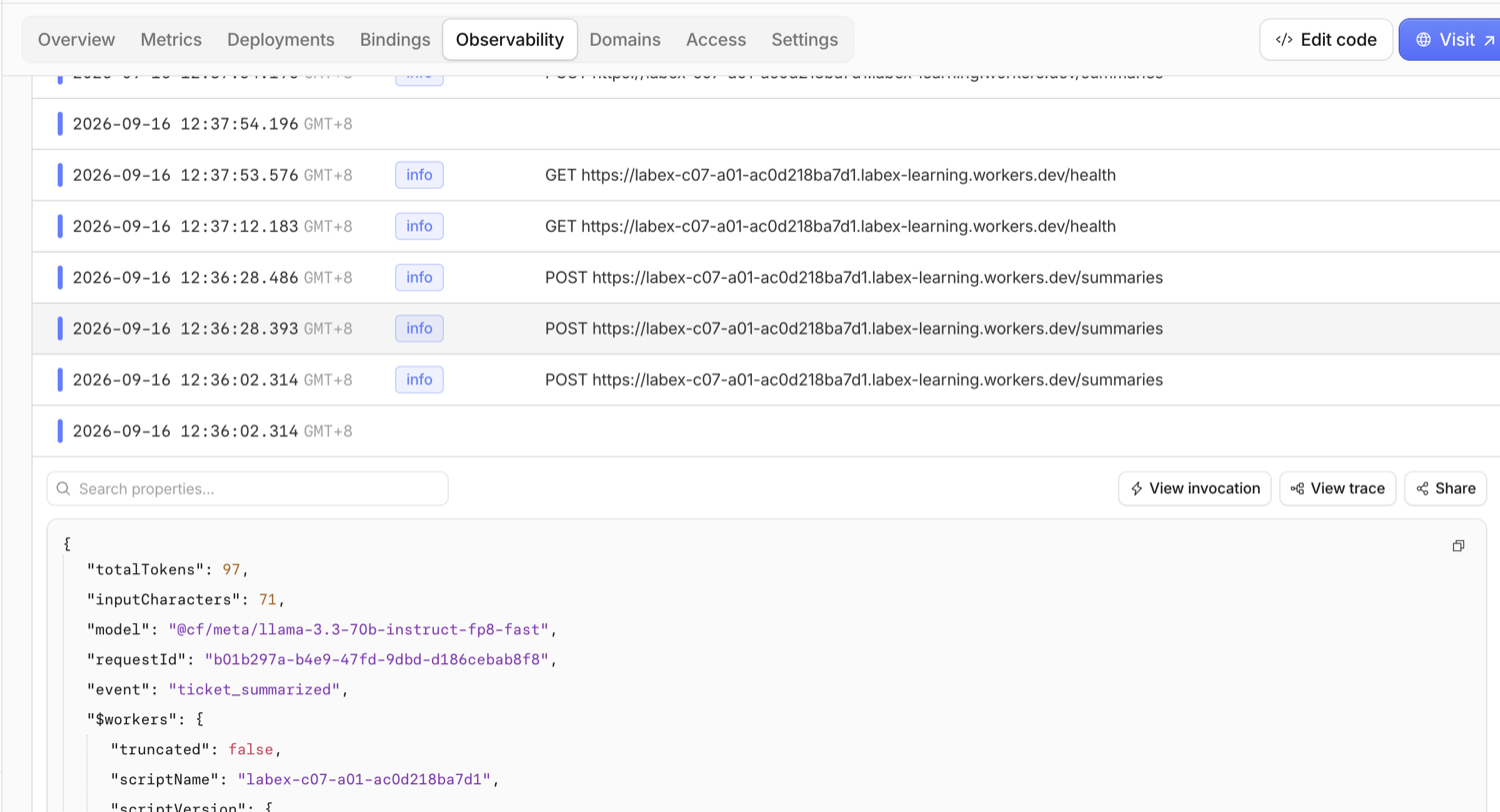
Notice that the log contains operational facts such as the model, token count and request ID, but not the subject or details from the support ticket. This is the privacy boundary created by the logging code you wrote.
Finally open Workers AI from the Developer Platform navigation and inspect the usage view. Look for recent model activity or Neuron usage associated with this bounded test. Usage data can arrive later than the request; an empty immediate chart is inconclusive and should not be “fixed” by generating repeated inference calls.
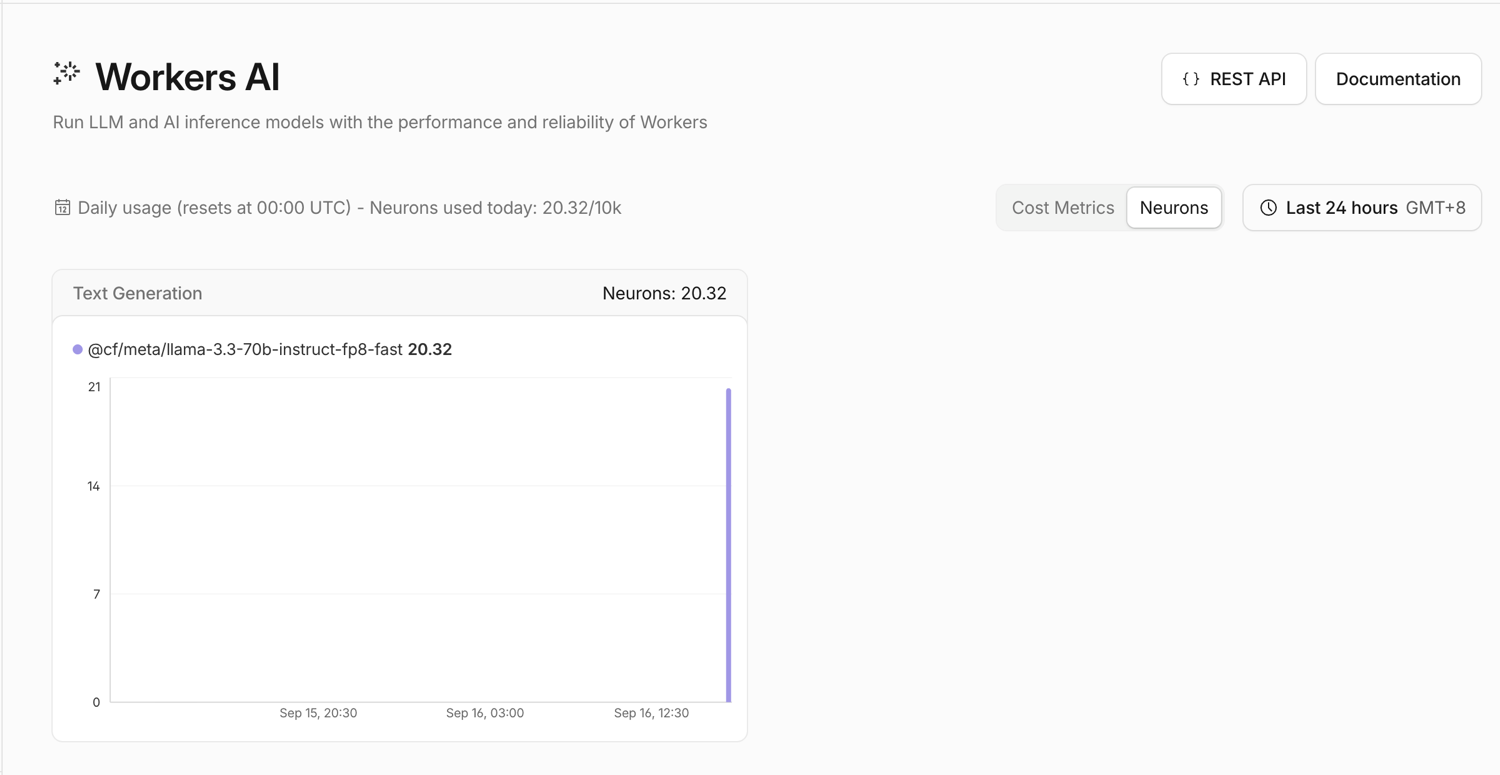
Here 20.32/10k means this acceptance run consumed only a small part of that account's daily Free allocation. Your total includes any other Workers AI activity on your learning account, so it will not match the screenshot.
The Dashboard screenshots in this lab show example values from one disposable acceptance run. Your Worker name, request ID, timestamps, token counts and usage totals will differ.
Remove the Worker and Log Out
In this step, you will remove the disposable cloud application and then revoke this VM's Wrangler session. Deleting the Worker stops its public endpoint. It does not change your Workers plan or erase account-level usage records.
Delete the Worker named in wrangler.jsonc:
npx wrangler delete
Confirm the deletion when Wrangler displays this lab's unique name. Do not delete any other application. In the Dashboard, return to Workers & Pages → Overview and confirm that the exact labex-c07-a01-... Worker is absent. Historical logs or usage can remain after the script is deleted.
Wrangler checks whether another Worker depends on this one before finishing. That is why the earlier login included KV cleanup access even though your application did not use KV; a successful deletion should return to the prompt without an authentication error.
Run the deletion check while the VM is still authorized:
python3 .labex/verify.py deleted
Only after it reports PASS: deleted, remove the stored authorization:
npx wrangler logout
npx wrangler whoami --json
The final output must report loggedIn: false. A network error is not proof of logout.
Summary
You connected a Worker to a Cloudflare-hosted model through an AI binding, bounded input and generated output, tested deterministic behavior before spending model usage, exercised real inference locally and after deployment, and connected the response to Dashboard binding, log and usage evidence. You also removed the disposable Worker and logged the fresh VM out safely.