Introduction
A website can remember display choices such as a dark theme or preferred language. These settings are often read on every visit but changed only occasionally, which makes them a useful example for Workers KV. Instead of storing one word as a feature flag, you will store JSON: text that groups named fields into one value. Your Worker will turn that text back into usable settings.
In this lab, Alice and Bob are fictional account labels, not real users. You will give them different preferences and make missing or damaged entries return a sensible default. You will also attach metadata, a small description stored alongside a value, to identify a setting's revision. Revision numbers help explain which data was read; they do not guarantee that every location sees the newest value immediately.
Complete Create a Feature Flag Store first. This lab starts in a fresh VM at /home/labex/project/account-preferences, with Node.js 22.22.0 and project-local Wrangler 4.131.1 already installed. You will create a new Worker and namespace in your learning account, using the same account-read, Worker-write and KV-write permissions. Only synthetic display settings are exposed by the public demo; the URL account label is not authentication. No paid upgrade or purchased domain is needed for this small exercise. Finish resource cleanup before leaving the VM.
Connect a Preference Namespace
In this step, you will connect an independent namespace for sample account preferences. A namespace groups this service's values; the PREFERENCES binding gives your Worker a stable name for accessing it. This fresh VM reuses your account knowledge, not the namespace or authorization from the previous lab.
Enter the prepared project:
cd /home/labex/project/account-preferences
Generate a unique name once. openssl rand -hex 6 prints a random suffix; $(...) inserts it into the name. The shell variable keeps that name available for the following commands in this terminal.
WORKER_NAME="labex-prefs-$(openssl rand -hex 6)"
printf '%s\n' "$WORKER_NAME"
Authorize this VM. In addition to reading your account identity, Workers Scripts Write allows deployment and deletion, and Workers KV Write allows managing this lab's namespace and keys.
npx wrangler login --device --browser=false --scopes account:read user:read workers_scripts:write workers_kv:write
Open the displayed device link in your browser, enter the current code, review the requested permissions and learning account, and authorize Wrangler. Background access may also appear on the consent page. Return to the terminal and wait for login to finish.
Expand Developer Platform to review Workers Scripts Write and Workers KV Storage Write. These are the same resource-management permissions introduced in Create a Feature Flag Store.
npx wrangler whoami --json
Confirm loggedIn: true and the learning account's name, even if only one account is listed. Copy that account's id. Save it in the configuration below, replacing YOUR_ACCOUNT_ID before running the command. The cat here-document writes everything between the two JSON lines into a file; > replaces the file. The unquoted delimiter lets the shell insert $WORKER_NAME.
cat > wrangler.jsonc <<JSON
{
  "name": "$WORKER_NAME",
  "main": "src/index.js",
  "compatibility_date": "2026-07-30",
  "account_id": "YOUR_ACCOUNT_ID",
  "workers_dev": true
}
JSON
Create a namespace in that account. Its title shares the Worker's unique name so you can recognize the pair later. --update-config=false leaves the binding edit visible to you instead of changing the file automatically.
npx wrangler kv namespace create "$WORKER_NAME-preferences" --update-config=false
The output includes the new namespace ID. Copy it, then replace YOUR_ACCOUNT_ID and YOUR_NAMESPACE_ID in this complete configuration. The PREFERENCES binding name is chosen for your code; the ID identifies the real Cloudflare resource.
cat > wrangler.jsonc <<JSON
{
  "name": "$WORKER_NAME",
  "main": "src/index.js",
  "compatibility_date": "2026-07-30",
  "account_id": "YOUR_ACCOUNT_ID",
  "workers_dev": true,
  "kv_namespaces": [
    { "binding": "PREFERENCES", "id": "YOUR_NAMESPACE_ID" }
  ]
}
JSON
npx wrangler kv namespace list
Find this lab's namespace title and compare its ID with the file. Other namespaces can be present; leave them alone. This configuration records which account and resource later commands should use. A binding is a reference to a namespace, not a copy of its data.
Store JSON Values and Revision Metadata
In this step, you will prepare a small dataset that includes ordinary settings and two realistic data mistakes. JSON uses double quotes for field names and strings. Single quotes around the command argument keep the shell from interpreting those JSON quotes.
Write the local entries. Alice prefers dark mode and English; Bob prefers light mode and French. --metadata attaches a separate JSON object to the key. Here its revision number is a label for the saved version, not a security decision or an automatic update counter.
npx wrangler kv key put account:alice '{"theme":"dark","language":"en"}' --binding PREFERENCES --local --metadata '{"revision":7}'
npx wrangler kv key put account:bob '{"theme":"light","language":"fr"}' --binding PREFERENCES --local --metadata '{"revision":8}'
npx wrangler kv key put account:broken 'not-json' --binding PREFERENCES --local
npx wrangler kv key put account:invalid '{"theme":"neon","language":"en"}' --binding PREFERENCES --local
account:broken contains text that cannot be parsed as JSON. account:invalid is valid JSON but names a theme the application does not support. Keeping both cases helps you distinguish parsing—reading the text's structure—from validation—checking whether its fields make sense for the application. Do not create an entry for Charlie; that will test the missing-key path.
npx wrangler kv key list --binding PREFERENCES --local
Find four key names. Alice and Bob should have revision metadata of 7 and 8. The other two entries have no metadata. Listing shows names and metadata; it does not show every value.
npx wrangler kv key get account:alice --binding PREFERENCES --local --text
Expect {"theme":"dark","language":"en"}. The command reads the value alone, so the revision is not part of this JSON text.
Now write the same four synthetic fixtures to this lab's cloud namespace. These explicit remote commands are separate operations: local writes are never an upload to Cloudflare.
npx wrangler kv key put account:alice '{"theme":"dark","language":"en"}' --binding PREFERENCES --remote --metadata '{"revision":7}'
npx wrangler kv key put account:bob '{"theme":"light","language":"fr"}' --binding PREFERENCES --remote --metadata '{"revision":8}'
npx wrangler kv key put account:broken 'not-json' --binding PREFERENCES --remote
npx wrangler kv key put account:invalid '{"theme":"neon","language":"en"}' --binding PREFERENCES --remote
npx wrangler kv key list --binding PREFERENCES --remote
Confirm the same four key names and their revision metadata. These are disposable demonstration records. Leave unrelated namespaces unchanged.
Read Preferences with Safe Defaults
In this step, you will write a handler that retrieves the value and metadata together. getWithMetadata() returns an object with value and metadata fields. A missing key has a null value. Metadata can also be null, even when a value exists.
Write this handler. The quoted JS here-document preserves the code exactly. The route accepts a short lowercase account label and builds a distinct key such as account:alice; it never stores a previous request's account in a global variable.
cat > src/index.js <<'JS'
function fallback(account, source) {
  return Response.json({
    account, theme: "light", language: "en", source, revision: null
  });
}

export default {
  async fetch(request, env) {
    const match = new URL(request.url).pathname.match(/^\/preferences\/([a-z]{1,20})$/);
    if (!match) return new Response("Not found", { status: 404 });
    const account = match[1];
    let entry;
    try {
      entry = await env.PREFERENCES.getWithMetadata(`account:${account}`, "text");
    } catch {
      return Response.json({ error: "Preferences temporarily unavailable" }, { status: 503 });
    }
    if (entry.value === null) return fallback(account, "missing");

    let preferences;
    try {
      preferences = JSON.parse(entry.value);
    } catch {
      return fallback(account, "invalid");
    }
    if (!preferences || typeof preferences !== "object" || Array.isArray(preferences) ||
        !["light", "dark"].includes(preferences.theme) ||
        !["en", "fr"].includes(preferences.language)) {
      return fallback(account, "invalid");
    }
    const revision = Number.isInteger(entry.metadata?.revision) && entry.metadata.revision > 0
      ? entry.metadata.revision : null;
    return Response.json({
      account, theme: preferences.theme, language: preferences.language,
      source: "stored", revision
    });
  }
};
JS
The first try/catch handles an unavailable KV read with HTTP 503, meaning the service is temporarily unavailable. It does not pretend the account is missing. Reading as "text" then parsing in a separate try/catch lets you identify damaged JSON without confusing it with a storage failure. Reading with the "json" option can parse automatically, but this lesson separates the two operations so their failure paths are visible.
Both missing and invalid preferences fall back to light mode and English. The source field explains why the fallback was used. For a valid value, the response uses only the supported theme and language fields. entry.metadata?.revision safely handles missing metadata; a positive integer revision is displayed, otherwise it is null. These defaults keep optional display choices usable; they are not suitable substitutes for authentication or permissions.
Start the local Worker, save its process ID, and wait for the ready message:
npx wrangler dev --local --ip 0.0.0.0 --port 8080 > local.log 2>&1 &
DEV_PID=$!
cat local.log
The background process keeps the terminal free; local.log contains its output. Repeat the log command if startup is not finished. Request each case:
curl -i http://127.0.0.1:8080/preferences/alice
curl -i http://127.0.0.1:8080/preferences/bob
curl -i http://127.0.0.1:8080/preferences/charlie
curl -i http://127.0.0.1:8080/preferences/broken
curl -i http://127.0.0.1:8080/preferences/invalid
All five should return HTTP 200 with JSON. Check the differences:
| Account | Theme | Language | Source | Revision |
|---|---|---|---|---|
| alice | dark | en | stored | 7 |
| bob | light | fr | stored | 8 |
| charlie | light | en | missing | null |
| broken | light | en | invalid | null |
| invalid | light | en | invalid | null |
For example, Alice's body is {"account":"alice","theme":"dark","language":"en","source":"stored","revision":7}. Request Alice again after Bob: the settings should still belong to Alice. Leave the local server running until cleanup.
Verify the Deployed Preference Service
In this step, you will run the same cases against the cloud namespace. The independent cloud check verifies the selected account, deployed namespace binding, stored records and actual HTTP responses.
npx wrangler deploy
Confirm the generated Worker name and PREFERENCES binding in the output. Copy the deployed public address into the variable below, replacing the example:
WORKER_URL="https://YOUR_WORKER.YOUR_SUBDOMAIN.workers.dev"
curl -i "$WORKER_URL/preferences/alice"
curl -i "$WORKER_URL/preferences/bob"
curl -i "$WORKER_URL/preferences/charlie"
curl -i "$WORKER_URL/preferences/broken"
curl -i "$WORKER_URL/preferences/invalid"
Compare all five responses with the local table. Alice and Bob must retain their own preferences and revision metadata; Charlie and the two damaged records must use the explained defaults. If a recently written entry is not visible yet, allow time for KV propagation and retry. A public hostname may also need time after its first deployment. Do not count a connection error as a fallback response.
In the Dashboard, select the learning account, open Storage & databases → Workers KV, and find this lab's labex-prefs-...-preferences namespace. Select KV Pairs, inspect the four records, and click View beside account:alice to compare its JSON value with the terminal output. This view shows keys and values; use the earlier Wrangler key list and the API response to compare revision metadata. Your unique namespace name and IDs will differ from the example.
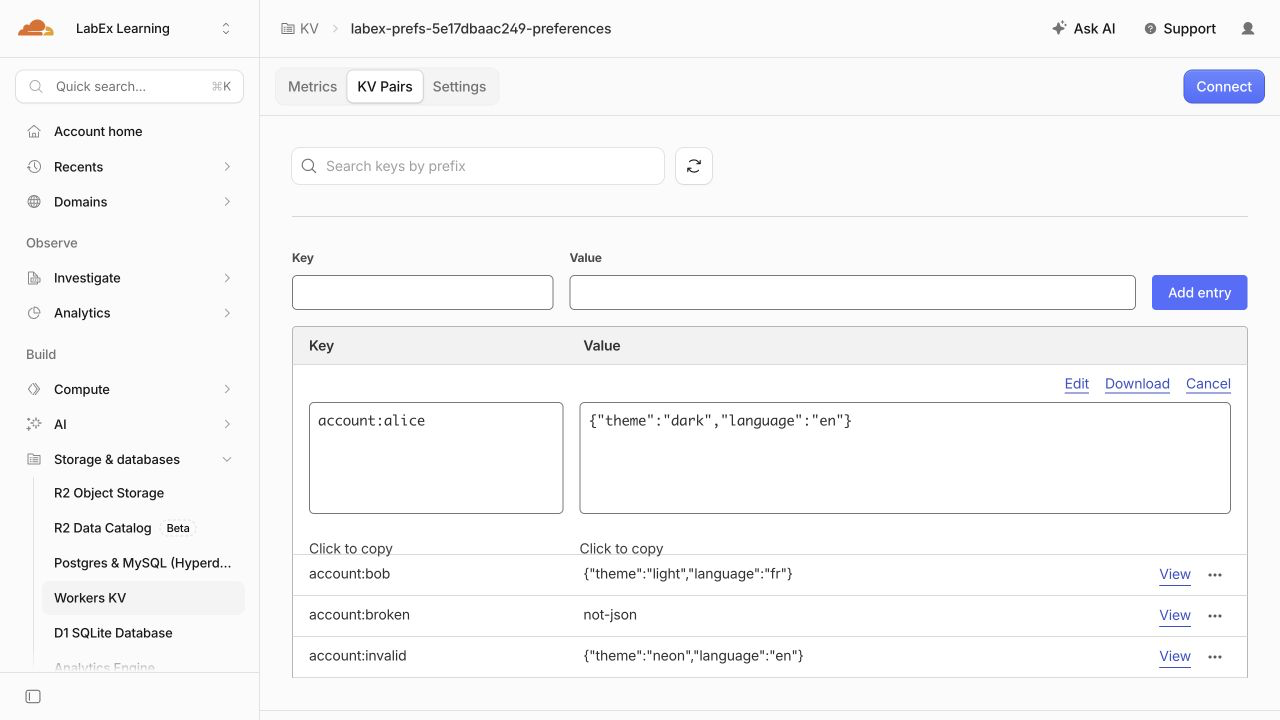
The public endpoint is only a synthetic display-settings demo. A real private preference service would identify its caller before deciding which account key they can access.
Delete the Disposable Cloud Resources
In this step, you will remove both resources while Wrangler is still authorized. A namespace can outlive its Worker, so deleting the application alone does not clean up its data.
Stop the local development process started in this terminal:
kill "$DEV_PID"
Inspect your saved resource references before deleting anything:
cat wrangler.jsonc
Confirm the labex-prefs-... Worker name and the PREFERENCES namespace ID. Delete the Worker selected by this configuration:
npx wrangler delete
If prompted, check that the displayed name matches this lab and confirm with y. Then delete only the namespace referenced by PREFERENCES:
npx wrangler kv namespace delete --binding PREFERENCES
Review the namespace in any confirmation prompt before accepting. Keep wrangler.jsonc intact so the independent check can identify the resources that should be absent.
npx wrangler kv namespace list
This lab's namespace should be absent; unrelated namespaces should remain. Refresh the Dashboard lists to confirm the lab's Worker and namespace have disappeared. A failed request or an expired login does not prove deletion. Run this step's check before logging out so it can inspect an authorized inventory.
End the VM Authorization
In this step, you will disconnect Wrangler after the cleanup check has passed. Logging out ends this VM's saved Wrangler authorization; it does not delete cloud resources or sign you out of your ordinary Dashboard browser session.
npx wrangler logout
npx wrangler whoami --json
Confirm that the structured result reports "loggedIn": false. This unauthenticated command may finish with a nonzero exit status, which is expected here. If there is only a connection error and no explicit authentication state, retry when the connection works.
The remaining local files and local KV state belong to this disposable VM. They are separate from the cloud resources you already deleted. You can now finish the lab.
Summary
You stored structured preferences and revision metadata in Workers KV, then read them through a Worker binding. You kept Alice and Bob's settings separate and made missing, malformed and unsupported values produce explained defaults. You also distinguished a storage failure from an absent record instead of hiding both behind the same response.
After comparing local and cloud responses, you removed the disposable Worker and namespace and logged out. Next, you will give temporary notices an application deadline and a KV expiration.