Introduction
A new release can leave an application's health page working while breaking the feature people actually use. Rollback restores an earlier version so you can recover service before preparing a better fix. In this lab, you will deploy a known-good availability API, introduce a controlled faulty release, and restore the original version. You will check both the public response and the version serving it, then bring local source back into agreement.
You should already understand local Wrangler development, account authorization and deployment. Start in this fresh VM with your own learning account; no earlier VM or Worker is reused. Setup installs Node.js 22.22.0 and project-local Wrangler 4.131.1 and supplies two tiny synthetic handler fixtures. No domain, storage service or secret is needed. You perform every deployment and cleanup action yourself.
A version is a saved snapshot of code and configuration that does not change after creation. A deployment chooses which version receives requests, also called traffic. Rolling back creates a new deployment of an existing version; it does not rewrite your local source or restore data in bound resources. See the official versions overview.
Prepare a Known-Good Release
In this step, prepare a known-good entrypoint and confirm its behavior locally. The supplied fixtures keep your attention on release operations. The good handler returns available=true; the faulty handler retains health but returns 503 for the business route.
cd /home/labex/project/release-recovery
cat versions/good.js
diff -u versions/good.js versions/faulty.js
The diff exits 1 because the files differ; this is expected. Only availability and its HTTP status change. Copying the good fixture selects the source file named by the configuration.
cp versions/good.js src/index.js
Generate a unique name with Node's standard crypto API. The unquoted EOF delimiter below expands the shell variable into JSON; the file contains no comments so standard JSON readers can inspect it too.
WORKER_NAME="labex-release-$(node -p "require('node:crypto').randomBytes(6).toString('hex')")"
cat > wrangler.jsonc <<EOF
{
  "name": "$WORKER_NAME",
  "main": "src/index.js",
  "compatibility_date": "2026-07-30",
  "workers_dev": true,
  "preview_urls": false,
  "version_metadata": {"binding": "RELEASE"}
}
EOF
Metadata describes the running code rather than its business data. The version metadata binding supplies the runtime version ID and tag, letting you identify which release produced a response instead of guessing from its behavior. Local development uses local metadata; only deployed metadata identifies a cloud version. This binding is documented here.
Start the local server in the background with & and redirect its output to dev.log. Wait for Ready before making requests.
npx wrangler dev --ip 0.0.0.0 --port 8080 > dev.log 2>&1 &
cat dev.log
curl -i http://127.0.0.1:8080/health
curl -i http://127.0.0.1:8080/api/availability
Both routes should return 200; availability is true. Local version/tag values may be development placeholders. Use verification before stopping the dev job in the next step.
Deploy and Record the Good Version
In this step, deploy the known-good source to your learning account and record its actual version. Stop the local job, substituting its current number if needed.
jobs
kill %1
npx wrangler login --device --browser=false --scopes account:read user:read workers_scripts:write workers_tail:read
Open the printed device link in your browser, enter its code and authorize the intended learning account. Keep credentials in the login flow. Read the standard account output and confirm the name even if only one account is listed.
npx wrangler whoami --json
Replace YOUR_ACCOUNT_ID below with that account's actual ID. This standard Node command updates the explicit project configuration; the account is not selected through a temporary environment variable.
node -e 'const fs=require("node:fs");const p="wrangler.jsonc";const c=JSON.parse(fs.readFileSync(p));c.account_id="YOUR_ACCOUNT_ID";fs.writeFileSync(p,JSON.stringify(c,null,2)+"\n");'
cat wrangler.jsonc
The tag is a readable label; the version UUID is the precise identity. A deploy uploads a version and directs traffic to it. The message describes the purpose of the version.
npx wrangler deploy --tag good --message "Known-good availability"
Copy the printed workers.dev URL and Current Version ID into the following commands. These are example placeholders, not fixed shared resources. If this account has no workers.dev subdomain, follow the initial setup from Deploy Your First Cloudflare Worker, then repeat deployment.
APP_URL="https://YOUR_WORKER.YOUR_SUBDOMAIN.workers.dev"
printf '%s\n' "YOUR_GOOD_VERSION_ID" > good-version.txt
curl -i "$APP_URL/api/availability"
npx wrangler deployments status
npx wrangler versions list
Expect 200, available=true, tag=good and the recorded version UUID in the response. The active deployment must assign it 100% of traffic. Open this exact Worker in Dashboard and inspect Deployments to connect the CLI version and active deployment with the visible resource. If the response still shows an earlier state immediately after a deployment, wait five seconds and repeat the reads for at most one minute; do not change code to conceal a propagation delay. Run verification after the observations agree.
Observe the Faulty Release
In this step, reproduce a controlled release regression in this disposable Worker. A healthy liveness endpoint does not guarantee that its business route works. Replace the entrypoint with the faulty fixture and publish a distinct tagged version.
cp versions/faulty.js src/index.js
npx wrangler deploy --tag faulty --message "Demonstrate availability regression"
Save this deployment's new Current Version ID, not the good ID. Inspect both routes and current deployment.
printf '%s\n' "YOUR_FAULTY_VERSION_ID" > faulty-version.txt
curl -i "$APP_URL/health"
curl -i "$APP_URL/api/availability"
npx wrangler deployments status
npx wrangler versions list
Health remains 200. Availability now returns 503, available=false and tag=faulty. Its runtime UUID must match the new active version, with 100% traffic. The 503 is the intended defect for this step, not a reason to skip verification. Apply the same bounded response recheck if propagation is still in progress. The independent check requires the fault to be observable before recovery.
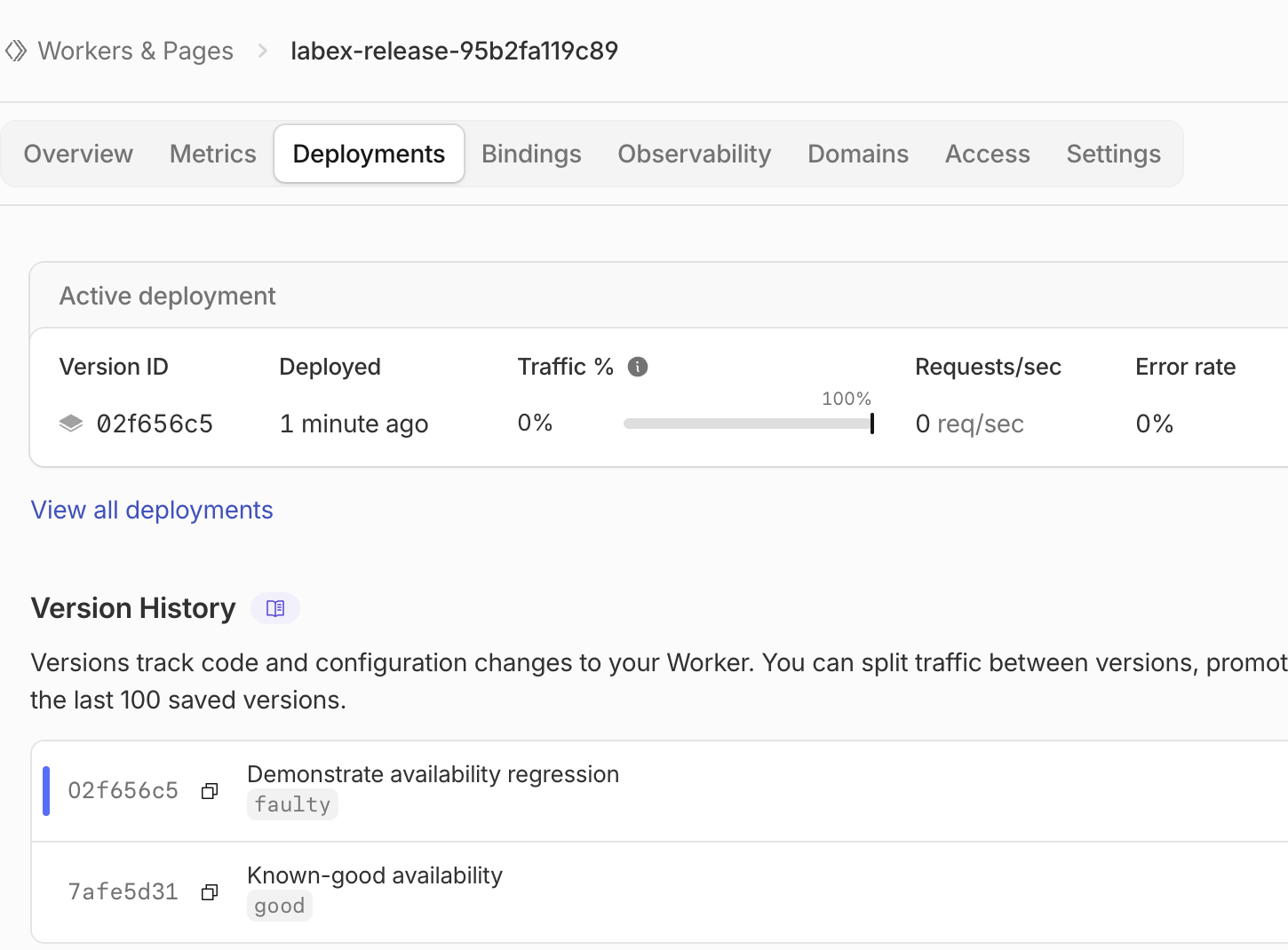
In Compute → Workers & Pages, open your exact Worker and select Deployments. Compare the ID under Active deployment with the row tagged faulty in Version History. The screenshot uses shortened example UUIDs; use your full saved UUIDs in commands. The good version remains in history even while the faulty version is active. Use wrangler deployments status above to confirm the configured 100% traffic allocation; the zero-valued activity figures in this quiet screenshot do not prove the business route is healthy.
Roll Back and Reconcile Local Source
In this step, you will restore the exact known-good version. A version is a saved application snapshot; a deployment selects the version that receives traffic. Rollback changes that selection, so recovery can reuse a version already stored in Cloudflare. Read the saved IDs and inspect the good version before changing traffic. The shell command substitution reads its UUID from the file; it does not upload a new version.
cat good-version.txt faulty-version.txt
npx wrangler versions view "$(cat good-version.txt)"
Confirm the good tag, intended Worker/account and UUID. Rollback directs 100% of this disposable Worker's traffic to that version. The message records the reason for recovery. Run the command only after checking the target.
npx wrangler rollback "$(cat good-version.txt)" --message "Restore known-good availability"
When Wrangler asks for the optional message, press Enter to accept Restore known-good availability. Read the displayed good UUID and 100% traffic target; at the matching confirmation press the single key y. Wait for the successful rollback message before continuing.
npx wrangler deployments status
curl -i "$APP_URL/api/availability"
The new deployment should use the original good version UUID; it need not have the original deployment ID. Availability returns 200 and true again. Refresh Dashboard's Deployments tab and compare the active UUID. Use the same one-minute bounded response recheck if needed.
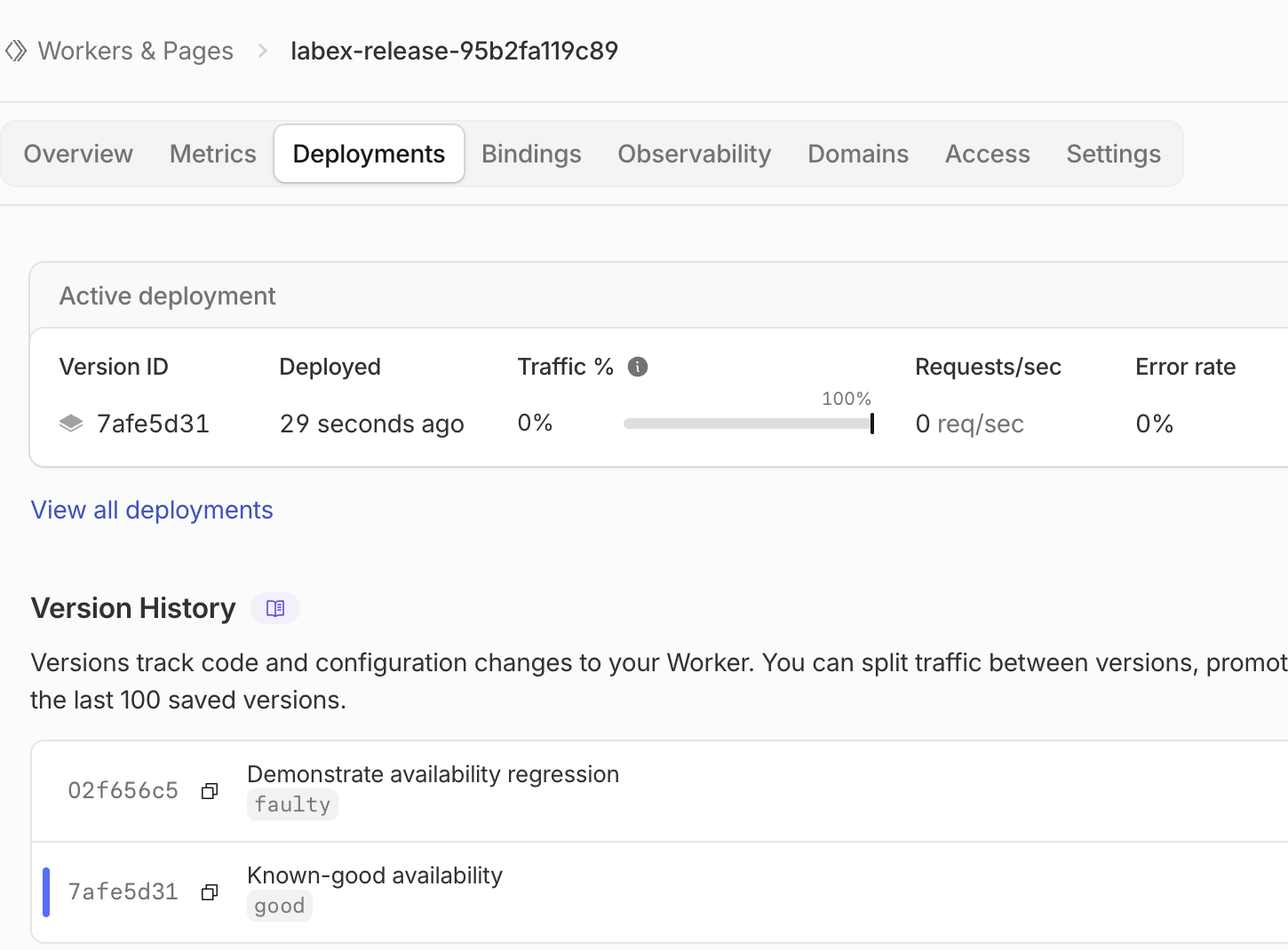
In this example, Active deployment has returned to 7afe5d31, the same shortened ID as the original good version. The active marker in Version History has moved to that row, and the faulty version is still listed. Match these relationships using your own IDs; do not copy the example values. This page identifies the selected version, while the availability response confirms the repaired behavior.
Rollback leaves local source unchanged. Restore the good fixture locally so a later ordinary deploy cannot accidentally reintroduce the known fault. Dry-run bundles that local source without uploading it.
cp versions/good.js src/index.js
npx wrangler deploy --dry-run
Run verification: it compares the real runtime UUID and tag with the current 100% deployment and checks the prior faulty deployment remains in history. A locally written success file is insufficient.
Rollback does not undo writes to a database, queue or external API, and bound resource changes can make older versions incompatible. This lab has no such resources. In a real incident, assess those boundaries before recovery. The rollback documentation explains restrictions and the retained version window.
Remove the Release Test Worker
In this step, remove the disposable Worker while authorization is still available. Confirm its exact name/account before deletion.
cat wrangler.jsonc
npx wrangler delete
At the matching name prompt press the single key y. The pinned Wrangler can report a legacy KV cleanup authentication error after deleting the Worker. Do not grant broader scopes or assume any error proves deletion. Refresh Dashboard and run verification: a successful authenticated inventory must show this Worker absent. Preserve the learning account, subdomain and unrelated resources.
Disconnect the VM
In this step, disconnect this VM after deletion has passed. Logging out alone would not remove a deployed Worker.
npx wrangler logout
npx wrangler whoami --json
Expect loggedIn=false; the structured command may exit nonzero because you are now unauthenticated. Run the final verification. Your browser login and learning account remain available for future independent labs.
Summary
You compared Worker versions with active deployments, observed a business-route regression despite healthy liveness, and restored the selected good version. Runtime metadata connected actual responses to the 100% deployment. You also restored local source, verified cloud cleanup and disconnected the VM.