Introduction
A maintenance banner should disappear when its announcement window ends. Leaving it visible can make visitors think an old outage is still happening. You will build a Worker that reads a notice from KV and decides whether it should still be displayed.
There are two separate deadlines. An application deadline tells your code when to stop showing the message. A KV expiration tells the storage service when to remove the entry. You will keep a deliberately old reference record in storage to prove that your application can hide expired content even while the data still exists. Then you will observe a second record expire automatically from cloud KV.
Complete Serve Account Preferences first. This independent VM has Node.js 22.22.0 and project-local Wrangler 4.131.1 installed in /home/labex/project/temporary-notices. Use your own learning account and the same account-read, Worker-write and KV-write permissions. You will create one disposable Worker and namespace, use only synthetic messages, and clean up before logging out. The small exercise needs no purchased domain or paid upgrade. Allow about five minutes for the timed observation, in addition to writing and testing the handler.
Connect a Notice Namespace
In this step, you will connect a fresh namespace for temporary notices. Use a separate namespace and unique Worker name so that experimenting with expiration cannot remove another application's data. The NOTICES binding will connect your handler to this resource.
Enter the prepared project:
cd /home/labex/project/temporary-notices
Generate a unique name once. openssl rand -hex 6 prints a random suffix; $(...) inserts it into the name. The shell variable keeps that name available for the following commands in this terminal.
WORKER_NAME="labex-notices-$(openssl rand -hex 6)"
printf '%s\n' "$WORKER_NAME"
Authorize this VM. In addition to reading your account identity, Workers Scripts Write allows deployment and deletion, and Workers KV Write allows managing this lab's namespace and keys.
npx wrangler login --device --browser=false --scopes account:read user:read workers_scripts:write workers_kv:write
Open the displayed device link in your browser, enter the current code, review the requested permissions and learning account, and authorize Wrangler. Background access may also appear on the consent page. Return to the terminal and wait for login to finish.
Review the same Worker and KV write permissions introduced in Create a Feature Flag Store. Confirm your learning account before authorizing.
npx wrangler whoami --json
Confirm loggedIn: true and the learning account's name, even if only one account is listed. Copy that account's id. Save it in the configuration below, replacing YOUR_ACCOUNT_ID before running the command. The cat here-document writes everything between the two JSON lines into a file; > replaces the file. The unquoted delimiter lets the shell insert $WORKER_NAME.
cat > wrangler.jsonc <<JSON
{
  "name": "$WORKER_NAME",
  "main": "src/index.js",
  "compatibility_date": "2026-07-30",
  "account_id": "YOUR_ACCOUNT_ID",
  "workers_dev": true
}
JSON
Create a namespace in that account. Its title shares the Worker's unique name so you can recognize the pair later. --update-config=false leaves the binding edit visible to you instead of changing the file automatically.
npx wrangler kv namespace create "$WORKER_NAME-notices" --update-config=false
The output includes the new namespace ID. Copy it, then replace YOUR_ACCOUNT_ID and YOUR_NAMESPACE_ID in this complete configuration. The NOTICES binding name is chosen for your code; the ID identifies the real Cloudflare resource.
cat > wrangler.jsonc <<JSON
{
  "name": "$WORKER_NAME",
  "main": "src/index.js",
  "compatibility_date": "2026-07-30",
  "account_id": "YOUR_ACCOUNT_ID",
  "workers_dev": true,
  "kv_namespaces": [
    { "binding": "NOTICES", "id": "YOUR_NAMESPACE_ID" }
  ]
}
JSON
npx wrangler kv namespace list
Find this lab's namespace title and compare its ID with the file. Other namespaces can be present; leave them alone. This configuration records which account and resource later commands should use. A binding is a reference to a namespace, not a copy of its data.
Hide an Old Notice Before Deleting Its Data
In this step, you will separate display behavior from storage cleanup. A timestamp is a number representing a point in time. Here displayUntil uses Unix seconds, counted from the beginning of 1970 in UTC. Date.now() returns milliseconds, so the handler divides by 1000 before comparing them. Comparing the same unit avoids a common deadline bug.
Write the handler with this quoted here-document:
cat > src/index.js <<'JS'
export default {
  async fetch(request, env) {
    const url = new URL(request.url);
    const key = url.searchParams.get("key") ?? "notice:maintenance";
    if (url.pathname !== "/notice" || !/^notice:[a-z]{1,20}$/.test(key)) {
      return new Response("Not found", { status: 404 });
    }
    let entry;
    try {
      entry = await env.NOTICES.getWithMetadata(key, "text");
    } catch {
      return Response.json({ error: "Notice storage unavailable" }, { status: 503 });
    }
    if (entry.value === null) {
      return Response.json({ visible: false, reason: "missing" });
    }
    let notice;
    try {
      notice = JSON.parse(entry.value);
    } catch {
      return Response.json({ visible: false, reason: "invalid" });
    }
    if (!notice || typeof notice.message !== "string" || !notice.message.trim() ||
        !Number.isSafeInteger(notice.displayUntil) || notice.displayUntil <= 0) {
      return Response.json({ visible: false, reason: "invalid" });
    }
    if (Math.floor(Date.now() / 1000) >= notice.displayUntil) {
      return Response.json({ visible: false, reason: "expired" });
    }
    return Response.json({
      visible: true, message: notice.message,
      kind: entry.metadata?.kind === "maintenance" ? "maintenance" : "general"
    });
  }
};
JS
The key query parameter selects a synthetic notice; without it, the handler uses notice:maintenance. The application hides missing, malformed and expired notices with an explained JSON response. A KV read failure returns 503 instead of pretending the notice is missing. The metadata field kind labels the notice; missing or unexpected metadata falls back to general.
The deadline comparison uses >=: the notice is hidden at the deadline, not one second afterward. This check runs on each request. A web page that has already displayed a banner would also need to refresh or remove it with its own timer; a Worker response cannot change an already rendered page by itself.
Save a deliberately old reference notice locally. The deadline 1 is a known instant in 1970, so this record is already expired from the application's perspective. We deliberately omit a KV expiration so the record remains available for inspection.
npx wrangler kv key put notice:reference '{"message":"Old maintenance notice","displayUntil":1}' --binding NOTICES --local --metadata '{"kind":"maintenance"}'
npx wrangler dev --local --ip 0.0.0.0 --port 8080 > local.log 2>&1 &
DEV_PID=$!
cat local.log
The background server writes output to local.log. Repeat the log command until it reports readiness on port 8080. Now request the old reference:
curl -i 'http://127.0.0.1:8080/notice?key=notice:reference'
Expect HTTP 200 and {"visible":false,"reason":"expired"}. The quotes keep the question mark in the URL from being treated as shell filename syntax. Prove that the entry still exists:
npx wrangler kv key get notice:reference --binding NOTICES --local --text
The JSON is still present. Your code, rather than automatic deletion, prevented the old notice from being displayed. A missing key should also be safe:
curl -i 'http://127.0.0.1:8080/notice?key=notice:missing'
Expect {"visible":false,"reason":"missing"}. Leave the local server running until cleanup.
Publish a Notice with Two Deadlines
In this step, you will publish the Worker first, then start a short cloud notice window. Preparing the endpoint before starting the clock gives you time to inspect the live result.
Create the same non-expiring reference in the remote namespace:
npx wrangler kv key put notice:reference '{"message":"Old maintenance notice","displayUntil":1}' --binding NOTICES --remote --metadata '{"kind":"maintenance"}'
npx wrangler deploy
Confirm the generated Worker name and NOTICES binding, then save the actual public URL from the output:
WORKER_URL="https://YOUR_WORKER.YOUR_SUBDOMAIN.workers.dev"
curl -i "$WORKER_URL/notice?key=notice:reference"
Expect the old reference to be hidden as expired. If the hostname is not ready, wait and retry before starting the timed part. Do not request the default maintenance key yet: reads of missing KV keys can also be cached.
Read the remaining instructions before running the next commands. date +%s returns the VM's current Unix time; $((...)) does shell arithmetic. We will stop displaying the notice after three minutes, then ask KV to remove it one minute later.
DISPLAY_UNTIL=$(($(date +%s) + 180))
KV_EXPIRES=$((DISPLAY_UNTIL + 60))
Write the actual application payload. The unquoted JSON delimiter inserts the numeric deadline into the file:
cat > notice.json <<JSON
{"message":"Maintenance starts soon","displayUntil":$DISPLAY_UNTIL}
JSON
--path reads the value from that file. --expiration sets an absolute KV expiration in Unix seconds; --metadata adds the notice category alongside the value.
npx wrangler kv key put notice:maintenance --path notice.json --binding NOTICES --remote --expiration "$KV_EXPIRES" --metadata '{"kind":"maintenance"}'
KV also supports a relative TTL (time to live), expressed as seconds from the write. Wrangler calls that option --ttl; the binding API calls it expirationTtl. Both relative and absolute expiration must be at least 60 seconds in the future. Here we use an absolute expiration so you can compare the two deadlines directly. See KV expiration options.
npx wrangler kv key list --binding NOTICES --remote
Find notice:maintenance, its expiration, and its kind metadata. The reference has no KV expiration. Now read the live message:
curl -i "$WORKER_URL/notice"
Expect HTTP 200 and {"visible":true,"message":"Maintenance starts soon","kind":"maintenance"}. Run this step's check now, before the display window closes. It checks the actual cloud value, metadata, KV expiration, binding and live response. A saved timestamp alone is not proof that the notice was stored.
If you miss the window, repeat the two time assignments, rewrite notice.json, and repeat the remote put with fresh deadlines. Do not rapidly repeat writes. A previously cached read may take time to reflect the replacement; allow for that and repeat the active check. Continue only after it passes.
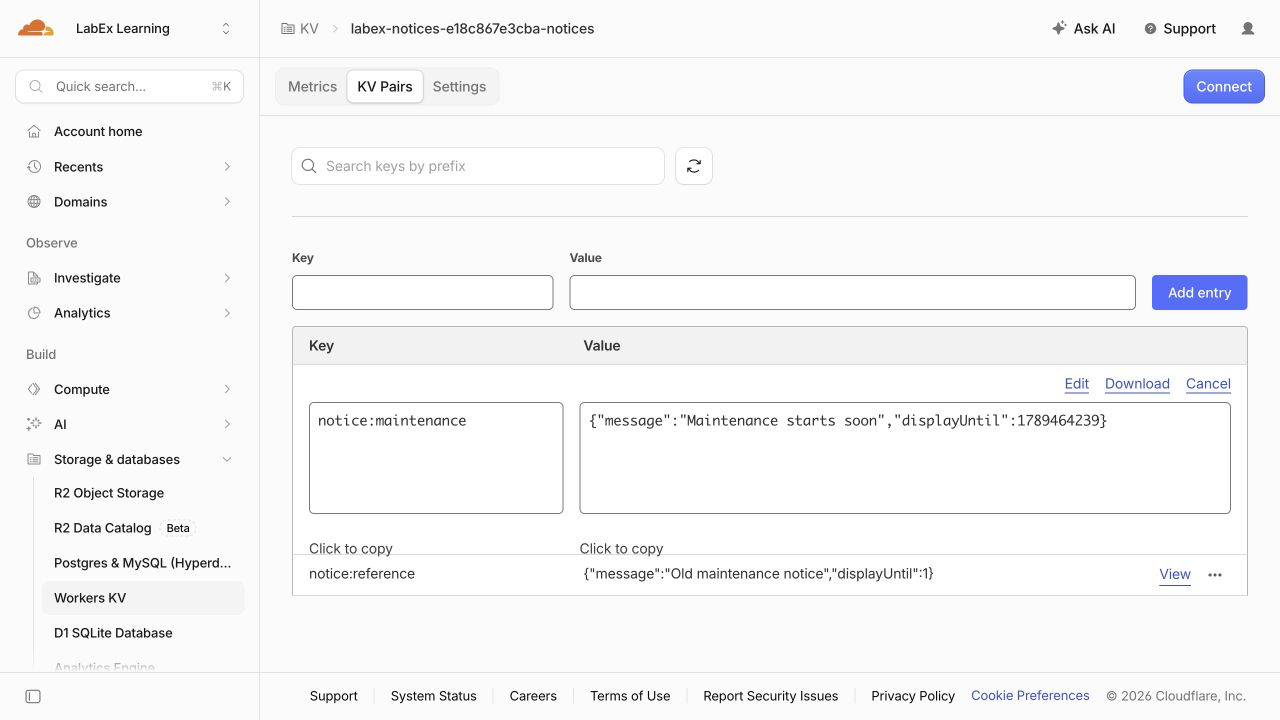
After the active check passes, open Storage & databases → Workers KV in the Dashboard for the same learning account and select this lab's namespace. Choose KV Pairs and click View beside notice:maintenance to inspect its message and displayUntil value. Use the CLI key list to inspect KV expiration and metadata; this Dashboard view shows the stored value. Keep the checkpoint read-only: time continues to pass while you inspect it. If the key has already expired, continue with the next step instead of recreating it just for this view. The screenshot's unique name and timestamp are examples, not values to copy.
Observe Hidden Content and Automatic Expiration
In this step, you will observe the two deadlines without manually deleting the maintenance key. Keep notice.json unchanged so you can compare the original payload with the result.
Print both planned times and the current time:
printf 'displayUntil=%s
KV expiration=%s
now=%s
' "$DISPLAY_UNTIL" "$KV_EXPIRES" "$(date +%s)"
Wait until the current time reaches displayUntil. These commands calculate only the remaining delay. If the deadline has already passed, the conditional skips sleeping. sleep takes seconds; if prevents a negative delay from being passed to it.
WAIT_SECONDS=$((DISPLAY_UNTIL - $(date +%s) + 1))
if [ "$WAIT_SECONDS" -gt 0 ]; then sleep "$WAIT_SECONDS"; fi
curl -i "$WORKER_URL/notice"
The message must no longer be visible. Before KV expiration, expect {"visible":false,"reason":"expired"}. If you return after KV has already expired the key, reason may be missing; both prevent display. The retained reference remains a direct check of application deadline behavior:
curl -i "$WORKER_URL/notice?key=notice:reference"
npx wrangler kv key get notice:reference --binding NOTICES --remote --text
The endpoint hides the reference as expired, while the KV read still returns its old JSON. This demonstrates why the application deadline is useful even when stored data remains available.
Now wait for the KV expiration time:
WAIT_SECONDS=$((KV_EXPIRES - $(date +%s) + 1))
if [ "$WAIT_SECONDS" -gt 0 ]; then sleep "$WAIT_SECONDS"; fi
npx wrangler kv key list --binding NOTICES --remote
curl -i "$WORKER_URL/notice"
The list should retain only notice:reference; the default endpoint should return {"visible":false,"reason":"missing"}. Do not run a delete command for the maintenance key: this observation is about automatic expiration. If the entry remains visible, retry the read-only checks at 15-second intervals for up to two minutes. That is an exercise observation window, not a guarantee about exact deletion timing. If it has not converged, report the inconclusive result rather than claiming success. An authorization or network error does not prove absence.
KV expiration and the read cache are different concepts. The expiration applies even when a longer read-cache duration was requested. However, changes to stored configuration can propagate with delay, so a new deadline written after an earlier read is not an immediate global scheduling guarantee. This lab checks the deadline contained in the record actually read by the handler.
Delete the Disposable Cloud Resources
In this step, you will remove both resources while Wrangler is still authorized. A namespace can outlive its Worker, so deleting the application alone does not clean up its data.
Stop the local development process started in this terminal:
kill "$DEV_PID"
Inspect your saved resource references before deleting anything:
cat wrangler.jsonc
Confirm the labex-notices-... Worker name and the NOTICES namespace ID. Delete the Worker selected by this configuration:
npx wrangler delete
If prompted, check that the displayed name matches this lab and confirm with y. Then delete only the namespace referenced by NOTICES. This removes the retained reference record too:
npx wrangler kv namespace delete --binding NOTICES
Review the namespace in any confirmation prompt before accepting. Keep wrangler.jsonc intact so the independent check can identify the resources that should be absent.
npx wrangler kv namespace list
This lab's namespace should be absent; unrelated namespaces should remain. Refresh the Dashboard lists to confirm the lab's Worker and namespace have disappeared. A failed request or an expired login does not prove deletion. Run this step's check before logging out so it can inspect an authorized inventory.
End the VM Authorization
In this step, you will disconnect Wrangler after the cleanup check has passed. Logging out ends this VM's saved Wrangler authorization; it does not delete cloud resources or sign you out of your ordinary Dashboard browser session.
npx wrangler logout
npx wrangler whoami --json
Confirm that the structured result reports "loggedIn": false. This unauthenticated command may finish with a nonzero exit status, which is expected here. If there is only a connection error and no explicit authentication state, retry when the connection works.
The remaining local files and local KV state belong to this disposable VM. They are separate from the cloud resources you already deleted. You can now finish the lab.
Summary
You built a notice reader that checks a display deadline on every request, handles missing and invalid data safely, and reads a category from KV metadata. A retained old record proved that hiding content does not require deleting it first. A second record demonstrated KV expiration with an absolute timestamp and a separate automatic-removal check.
You distinguished a display deadline, a storage expiration and read-cache behavior, then deleted the disposable resources and logged out. Next, you will import and maintain a small redirect catalog in KV.