Introduction
A support team needs records it can filter and update without losing which ticket is which. Cloudflare D1 is a managed database that stores related information in tables and accepts SQL, a language for describing the data you want. A table resembles a spreadsheet: each row is one ticket, and named columns hold its fields.
Before starting this course, complete Connect LabEx to Your Cloudflare Account. It teaches the LabEx VM terminal, device authorization, account confirmation and saving the actual account ID. Direct-entry learners must take that lab first. You should also understand a small JavaScript Worker; no SQL knowledge is assumed here.
You will create a database, define rules for valid tickets, and distinguish local practice records from cloud records. This lab needs one disposable D1 database and no deployed Worker.
Use your own learning account and a fresh VM. Setup first prepares Node.js 22.22.0, then runs npm install for project-local Wrangler 4.131.1 and any assessment dependencies under /home/labex/project/ticket-database. Direct dependency versions are pinned; the installation creates its own lockfile. No cloud login or assessed database work runs in setup. On a personal machine, install the same Wrangler version with npm install --save-dev wrangler@4.131.1 in your project.
This exercise uses small synthetic records within the D1 Free allowances. Existing account usage counts toward those allowances. No purchased domain is needed. Keep this VM until resource deletion and logout have both been checked.
Authorize this VM and select the account
In this step, you connect this fresh terminal to your own learning account. A Dashboard login alone does not authorize the VM. D1 permission allows database creation, SQL changes and deletion. Review the actual consent page, including Background Access, before authorizing.
Open the prepared project and inspect the pinned CLI:
cd /home/labex/project/ticket-database
npx wrangler --version
Expect 4.131.1. Start device authorization; --device displays a browser code, and --browser=false leaves the browser choice to you:
npx wrangler login --device --browser=false --scopes account:read user:read d1:write
Open the displayed URL in your browser, enter the current code, confirm your learning account and the permissions, and authorize. Wait for the terminal to confirm success. Never paste passwords or tokens into project files.
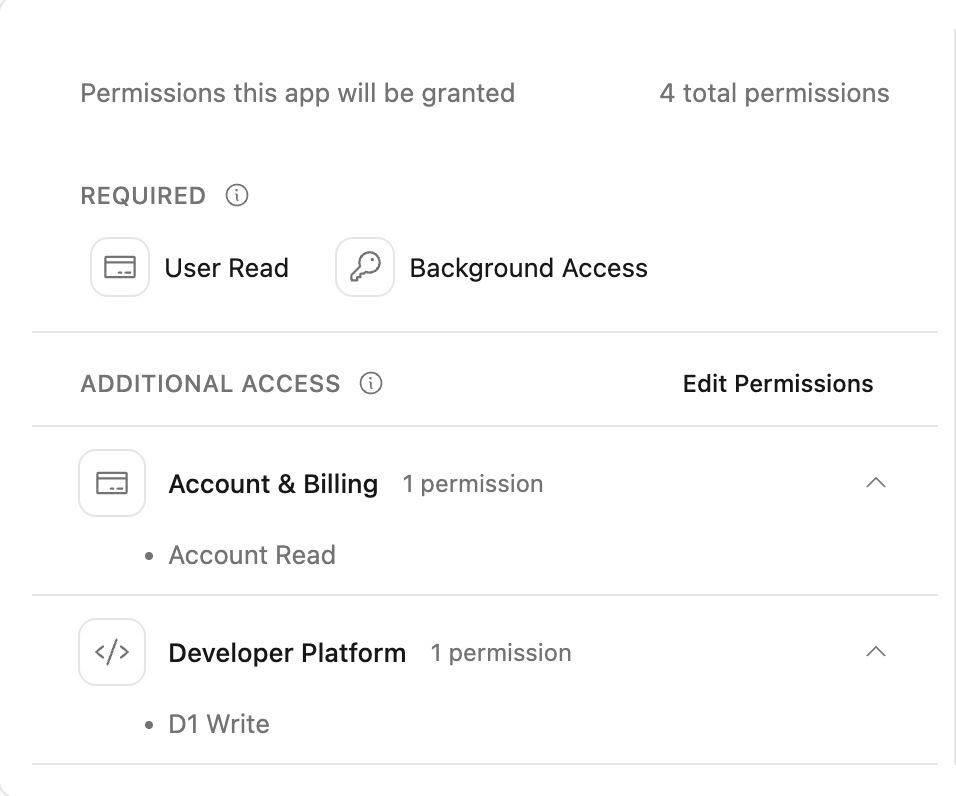
This example shows D1 Write alongside account access and the required background access. Confirm your own selected learning account before authorizing.
npx wrangler whoami --json
Check loggedIn: true, then read the account name and id, even when only one account is listed. Copy the intended ID into the configuration below. The following shell variable uses 6 random bytes (12 hexadecimal characters) to avoid colliding with other learners. A here-document writes the JSON between JSON lines; $RUN expands inside it.
The backslash before $schema keeps that JSON key literal; $RUN still expands to this run’s unique name.
RUN=labex-c04-d01-$(openssl rand -hex 6)
cat > wrangler.jsonc <<JSON
{
  "\$schema": "./node_modules/wrangler/config-schema.json",
  "name": "$RUN",
  "account_id": "YOUR_ACCOUNT_ID",
  "main": "src/index.js",
  "compatibility_date": "2026-09-15",
  "workers_dev": true,
  "preview_urls": false
}
JSON
Replace YOUR_ACCOUNT_ID before running the block. Keep this terminal open so RUN remains available. name identifies this run; account_id selects the account for cloud operations. The file is ordinary JSON, which is also valid JSONC. No Worker is deployed by writing it.
Create a local ticket table
In this step, you define a schema: the columns and rules the database enforces. First create the cloud container and its binding, but keep the first SQL changes local.
Create a disposable cloud database. --binding DB gives application code a short name, --update-config records its real name and UUID in wrangler.jsonc, and --use-remote=false keeps development local:
npx wrangler d1 create "$RUN-db" --binding DB --update-config --use-remote=false
Read the created name and ID, then inspect the saved binding:
cat wrangler.jsonc
The DB entry must name this run's database. A binding is a configured connection between code and a resource. Its UUID identifies the cloud database, while --local uses a separate SQLite database in this VM. Always include either --local or --remote in SQL commands.
CREATE TABLE defines a table. INTEGER PRIMARY KEY gives every row a unique numeric identity. TEXT stores strings. NOT NULL forbids missing values, and CHECK rejects values outside the rule. DEFAULT supplies a value when an insert omits that field. These checks help prevent incomplete tickets.
Write the schema and two synthetic rows to a SQL file. The quoted SQL marker keeps the shell from interpreting the contents. SQL statements end in semicolons. INSERT INTO pairs its column names with the values in each row:
cat > schema.sql <<'SQL'
CREATE TABLE tickets (
  id INTEGER PRIMARY KEY,
  subject TEXT NOT NULL CHECK(length(trim(subject)) > 0),
  status TEXT NOT NULL DEFAULT 'open' CHECK(status IN ('open','closed')),
  source TEXT NOT NULL
);
INSERT INTO tickets (id, subject, status, source) VALUES
  (1, 'Cannot sign in', 'open', 'seed'),
  (2, 'Invoice copy', 'closed', 'seed');
SQL
Apply the file to the local database only:
npx wrangler d1 execute DB --local --file schema.sql
A successful command reports execution on the local database. It does not establish that any remote table exists. Inspect column definitions using SQLite's PRAGMA table_info:
npx wrangler d1 execute DB --local --command "PRAGMA table_info(tickets);"
Expect id, subject, status, and source. The pk field identifies the primary key, while notnull records required values.
Filter, update and remove local rows
In this step, you practice basic SQL and leave a local-only marker. SELECT chooses columns, FROM identifies a table, WHERE filters matching rows, and ORDER BY makes their order predictable.
npx wrangler d1 execute DB --local --command "SELECT id, subject FROM tickets WHERE status = 'open' ORDER BY id;"
The result is ticket 1, Cannot sign in. SQL strings use single quotes inside the command's double quotes. Add a local practice ticket:
npx wrangler d1 execute DB --local --command "INSERT INTO tickets (id, subject, source) VALUES (3, 'Local rehearsal', 'local');"
UPDATE changes matching rows. Always read the WHERE condition before execution: omitting it would change every row.
npx wrangler d1 execute DB --local --command "UPDATE tickets SET status = 'closed' WHERE id = 3;"
Try an invalid status to see the constraint protect the data:
npx wrangler d1 execute DB --local --command "UPDATE tickets SET status = 'lost' WHERE id = 3;"
This command is intentionally unsuccessful. Expect a CHECK constraint failed message, not an authentication or network failure. The row remains closed. Create and then delete one throwaway row; DELETE removes only rows matching its predicate:
npx wrangler d1 execute DB --local --command "INSERT INTO tickets (id, subject, source) VALUES (4, 'Temporary', 'local'); DELETE FROM tickets WHERE id = 4;"
Read the remaining rows:
npx wrangler d1 execute DB --local --command "SELECT id, subject, status, source FROM tickets ORDER BY id;"
Expect IDs 1, 2 and 3; ticket 3 is closed with source local. Ticket 4 is absent. The failed update must not have changed the valid row.
Seed and inspect the remote database
In this step, you apply the same schema to the cloud database and prove that local edits did not follow it automatically. --remote sends these SQL statements to the database UUID in your selected account.
npx wrangler d1 execute DB --remote --file schema.sql
If prompted, confirm only this lab database. Add a remote-only row with the same ID as the local practice row but different data:
npx wrangler d1 execute DB --remote --command "INSERT INTO tickets (id, subject, source) VALUES (3, 'Cloud inbox', 'remote');"
Read both destinations explicitly:
npx wrangler d1 execute DB --remote --command "SELECT id, subject, status, source FROM tickets ORDER BY id;"
npx wrangler d1 execute DB --local --command "SELECT id, subject, status, source FROM tickets ORDER BY id;"
Remote ticket 3 is Cloud inbox, open, remote; local ticket 3 remains Local rehearsal, closed, local. This difference is the evidence that you chose the intended target.
In Cloudflare Dashboard, select the same account and open Storage & databases → D1 SQLite Database. Find this run's exact database name and open its detail page. Compare its database ID with wrangler.jsonc. Use its read-only table view, if available, to inspect tickets. Do not create or edit records there. The SQL responses above establish row contents; a delayed Metrics count does not.
Run this step's verification before deleting the database.
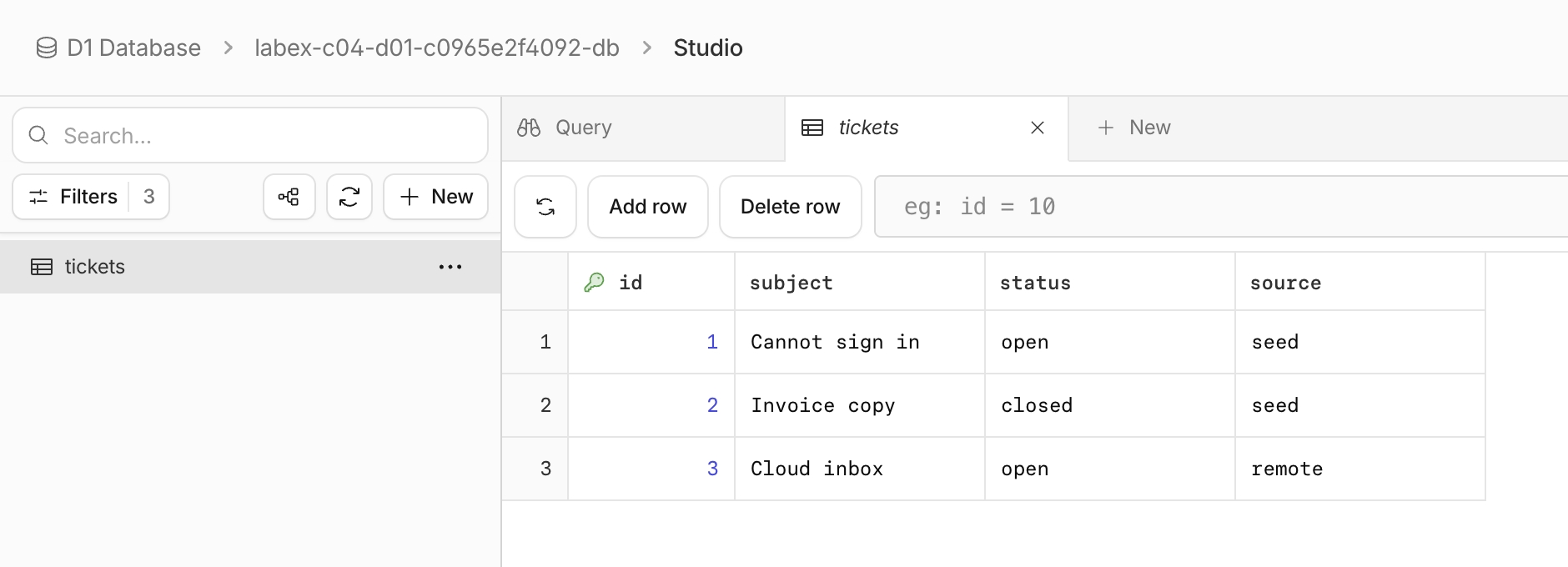
Open Explore Data, then select tickets in Studio. Inspect the rows without editing them. In this example, the random database name belongs to one test run; yours will differ. Ticket 3 is Cloud inbox with source remote, while the local database still contains Local rehearsal with source local.
Delete the disposable resources
In this step, you remove only this lab's resources while the VM is still authorized. Finish all functional checks first. Keep configuration until deletion verification is complete.
npx wrangler d1 delete DB
Inspect the prompt and confirm only this run's database. Then list databases:
npx wrangler d1 list --json
Your recorded database name and UUID must be absent from a successful response. Other resources may remain. An authentication or network error is inconclusive: resolve access and repeat the read before continuing. Run this step's verification while still logged in.
End this VM authorization
In this step, you end the authorization only after the independent deletion check passes. Logout removes this VM's stored Wrangler authorization; closing a VM alone is not cloud cleanup.
npx wrangler logout
npx wrangler whoami --json
Expect loggedIn: false. This unauthenticated query can exit nonzero; that is expected only when the structured response explicitly says you are logged out. Complete verification, then close the lab environment.
Summary
You practiced create a support ticket database. You checked observable database results, kept the selected account and local state explicit, and removed the disposable resources before logging out.