Introduction
A feature flag is a setting that turns a feature on or off without changing the application code. Imagine preparing a new announcement banner: you want to try it in your practice environment while leaving the public version off. Workers KV stores small values under names called keys. A Worker can read a key such as banner:new when it needs to decide what response to send. This is useful for settings that are read often and changed occasionally.
Before starting this course, complete Connect LabEx to Your Cloudflare Account. It explains the LabEx VM terminal, device authorization, account confirmation, and account_id. If you entered this course directly, take that lab first. You should also know how to write a small JavaScript Worker and deploy it with Wrangler from the Workers beginners course. A Worker runs your request-handling code on Cloudflare without requiring you to maintain a server.
Here you will create a namespace, a named container that keeps one collection of keys separate from others. You will connect it to a Worker through a binding, the configured name your code uses to access that resource. You will practice local and cloud operations, publish a read-only banner endpoint, and delete your disposable resources.
Use your own learning account. This fresh VM needs its own login with Workers and KV permissions. The exercise uses one Worker, one namespace and a few synthetic values within the KV Free allowances; no purchased domain or paid upgrade is required for this small exercise. Existing account usage still counts toward its allowances. The public endpoint contains no private information.
Setup installs Node.js 22.22.0 and project-local Wrangler 4.131.1 in /home/labex/project/feature-flags. It pins direct dependency versions and runs npm install; you do not need to install the tools again. Keep the VM open until cloud deletion and logout are checked.
Connect a Dedicated Flag Namespace
In this step, you will give this lab its own resource names and connect a cloud namespace to your project. Keeping a separate namespace prevents practice keys from mixing with an existing application.
Enter the prepared project:
cd /home/labex/project/feature-flags
Generate a unique name once. openssl rand -hex 6 prints a random suffix; $(...) inserts it into the name. The shell variable keeps that name available for the following commands in this terminal.
WORKER_NAME="labex-flags-$(openssl rand -hex 6)"
printf '%s\n' "$WORKER_NAME"
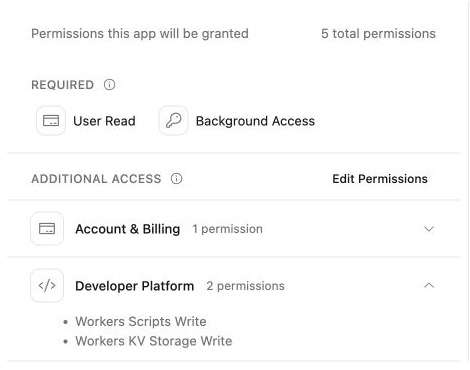
Authorize this VM. In addition to reading your account identity, Workers Scripts Write allows deployment and deletion, and Workers KV Write allows managing this lab's namespace and keys.
npx wrangler login --device --browser=false --scopes account:read user:read workers_scripts:write workers_kv:write
Open the displayed device link in your browser, enter the current code, review the requested permissions and learning account, and authorize Wrangler. Background access may also appear on the consent page. Return to the terminal and wait for login to finish.
Expand Developer Platform on the consent page and compare the requested permissions with this example. Both write permissions are needed for this lab; they cover resource management, not just reading a flag.
npx wrangler whoami --json
Confirm loggedIn: true and the learning account's name, even if only one account is listed. Copy that account's id. Save it in the configuration below, replacing YOUR_ACCOUNT_ID before running the command. The cat here-document writes everything between the two JSON lines into a file; > replaces the file. The unquoted delimiter lets the shell insert $WORKER_NAME.
cat > wrangler.jsonc <<JSON
{
  "name": "$WORKER_NAME",
  "main": "src/index.js",
  "compatibility_date": "2026-07-30",
  "account_id": "YOUR_ACCOUNT_ID",
  "workers_dev": true
}
JSON
Create a namespace in that account. Its title shares the Worker's unique name so you can recognize the pair later. --update-config=false leaves the binding edit visible to you instead of changing the file automatically.
npx wrangler kv namespace create "$WORKER_NAME-flags" --update-config=false
The output includes the new namespace ID. Copy it, then replace YOUR_ACCOUNT_ID and YOUR_NAMESPACE_ID in this complete configuration. The FLAGS binding name is chosen for your code; the ID identifies the real Cloudflare resource.
cat > wrangler.jsonc <<JSON
{
  "name": "$WORKER_NAME",
  "main": "src/index.js",
  "compatibility_date": "2026-07-30",
  "account_id": "YOUR_ACCOUNT_ID",
  "workers_dev": true,
  "kv_namespaces": [
    { "binding": "FLAGS", "id": "YOUR_NAMESPACE_ID" }
  ]
}
JSON
npx wrangler kv namespace list
Find this lab's namespace title and compare its ID with the file. Other namespaces can be present; leave them alone. This configuration records which account and resource later commands should use. A binding is a reference to a namespace, not a copy of its data.
Keep Local and Remote Flags Separate
In this step, you will store different values under the same key and prove that local edits leave cloud data alone. Local means storage inside this LabEx VM. Remote means the namespace in your Cloudflare account. Wrangler uses the binding to identify the store; the explicit --local or --remote option selects where the operation happens.
First leave the public feature disabled:
npx wrangler kv key put banner:new disabled --binding FLAGS --remote
Enable the same feature in the VM's local store:
npx wrangler kv key put banner:new enabled --binding FLAGS --local
Read both values. put writes a key and get retrieves its value. The colon in banner:new is a naming convention that groups related keys; it does not create a directory.
Use --text to decode the stored value as UTF-8 and display it on its own line.
npx wrangler kv key get banner:new --binding FLAGS --local --text
Expect enabled.
npx wrangler kv key get banner:new --binding FLAGS --remote --text
Expect disabled. If you accidentally changed the remote value, repeat its put command with disabled, then read it again. Do not infer the target from the project folder alone.
Now practice removing a retired flag. These commands affect only the disposable remote namespace bound as FLAGS.
npx wrangler kv key put banner:old retired --binding FLAGS --remote
npx wrangler kv key list --binding FLAGS --remote
The list contains names such as banner:new and banner:old, rather than their stored values. Use get when you need a value.
npx wrangler kv key delete banner:old --binding FLAGS --remote
npx wrangler kv key list --binding FLAGS --remote
npx wrangler kv key list --binding FLAGS --local
Both lists should now contain only banner:new. Read the two values again if you need to confirm that they still differ. Deleting a key removes one entry; deleting a namespace later will remove the whole container.
KV is eventually consistent: a change can take time to become visible to reads in other locations. A Worker may temporarily see an earlier value, including a previously missing key. Do not repeatedly overwrite a value to force it to appear. These harmless display flags tolerate that delay; they would be unsuitable for an immediate access-revocation decision. You will explore the behavior in a later lab. See how KV works for the storage model.
Read a Flag from a Local Worker
In this step, you will make application behavior depend on the stored setting. The Worker reads env.FLAGS, where env contains the configured resource bindings. get() is asynchronous, so await waits for its value before you decide what to return.
Write the handler. The quoted JS delimiter preserves JavaScript exactly, without shell variable expansion.
cat > src/index.js <<'JS'
export default {
  async fetch(request, env) {
    if (new URL(request.url).pathname !== "/banner") {
      return new Response("Not found", { status: 404 });
    }
    const value = await env.FLAGS.get("banner:new");
    return Response.json({
      feature: "new-banner",
      enabled: value === "enabled"
    });
  }
};
JS
A missing key returns null. Comparing specifically with "enabled" means a missing or unexpected value keeps this optional banner off. That is a small safe default: the application remains usable when the setting has not been supplied. It does not hide connection failures, which are different from a missing key.
Start local development. --local runs the Worker in this VM with local bindings. > local.log 2>&1 sends output and errors to the log; & lets the terminal accept more commands. $! is the background process ID, saved here so you can stop this process later.
npx wrangler dev --local --ip 0.0.0.0 --port 8080 > local.log 2>&1 &
DEV_PID=$!
cat local.log
Wait for the ready message on port 8080. If startup is still in progress, read the log again before proceeding.
curl -i http://127.0.0.1:8080/banner
curl -i shows the response headers and body. Expect HTTP 200, a JSON content type, and:
{"feature":"new-banner","enabled":true}
The true value came from the local KV store. You did not copy the remote disabled value into the VM by running the development server. Keep the server running for the next comparison.
Deploy and Compare the Public Response
In this step, you will publish the same code and see it read the cloud namespace. Deployment uploads the Worker and its binding configuration; it does not upload your local KV entries.
npx wrangler deploy
Read the deployment output. Confirm the Worker name, the FLAGS binding, and the public workers.dev address. Save the actual address below, replacing the example before running it. A shell variable avoids retyping a long URL.
WORKER_URL="https://YOUR_WORKER.YOUR_SUBDOMAIN.workers.dev"
curl -i "$WORKER_URL/banner"
Expect HTTP 200 and:
{"feature":"new-banner","enabled":false}
The cloud setting is disabled, so the public response is false. If the new hostname is not reachable yet, wait briefly and retry. If the response reflects an older value, verify the remote key once and allow time for KV visibility rather than rapidly rewriting it. A network error is not a successful test.
curl -i http://127.0.0.1:8080/banner
The local response is still true. You have one handler and two separate data stores: local development reads the VM's data, while the deployed Worker reads the namespace identified by the binding.
In the Cloudflare Dashboard, select the same learning account and open Storage & databases → Workers KV. Find the namespace whose name matches this lab and inspect its keys. Confirm that only banner:new remains, with the remote value disabled. Next open Workers & Pages, select this lab's Worker, and inspect its Bindings view. Compare the FLAGS binding with the namespace you just inspected. These are read-only checkpoints: the terminal remains the place where you make changes.
The namespace opens on Metrics. Select KV Pairs to inspect the actual entries; usage counters can lag behind writes. If the new Worker is missing from Workers & Pages, click Refresh. In Bindings, scroll down to the table to compare the binding name with its namespace.
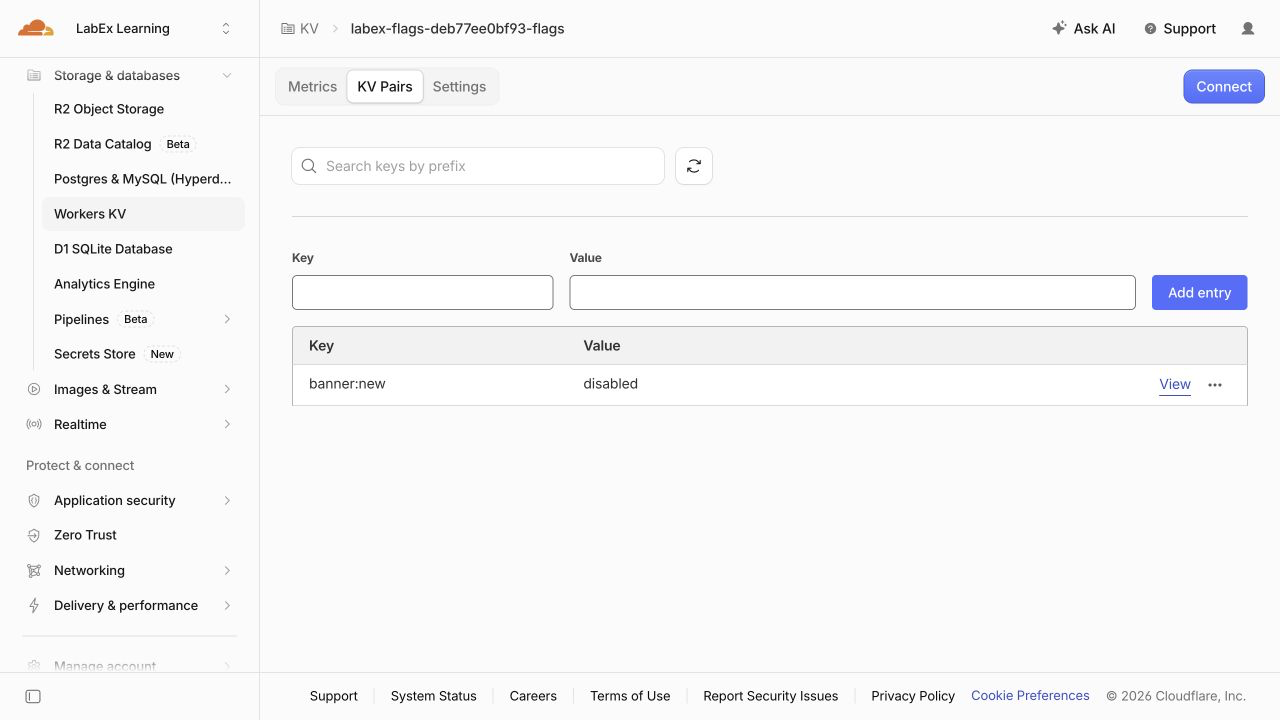
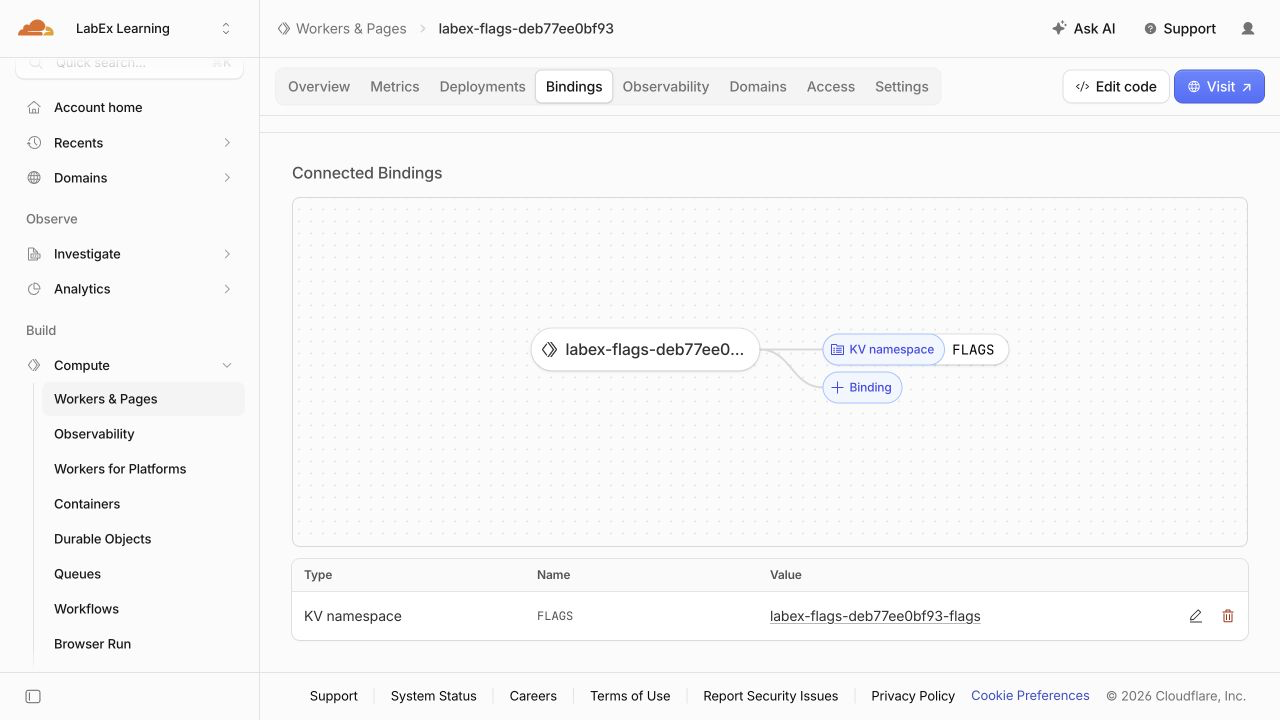
Your generated name, namespace ID and public subdomain differ from examples. Seeing a namespace in the Dashboard confirms where it lives; the successful HTTP response confirms that the application can use it.
Delete the Disposable Cloud Resources
In this step, you will remove both resources while Wrangler is still authorized. A namespace can outlive its Worker, so deleting the application alone does not clean up its data.
Stop the local development process started in this terminal:
kill "$DEV_PID"
Inspect your saved resource references before deleting anything:
cat wrangler.jsonc
Confirm the labex-flags-... Worker name and the FLAGS namespace ID. Delete the Worker selected by this configuration:
npx wrangler delete
If prompted, check that the displayed name matches this lab and confirm with y. Then delete only the namespace referenced by FLAGS:
npx wrangler kv namespace delete --binding FLAGS
Review the namespace in any confirmation prompt before accepting. Keep wrangler.jsonc intact so the independent check can identify the resources that should be absent.
npx wrangler kv namespace list
This lab's namespace should be absent; unrelated namespaces should remain. Refresh the Dashboard lists to confirm the lab's Worker and namespace have disappeared. A failed request or an expired login does not prove deletion. Run this step's check before logging out so it can inspect an authorized inventory.
End the VM Authorization
In this step, you will disconnect Wrangler after the cleanup check has passed. Logging out ends this VM's saved Wrangler authorization; it does not delete cloud resources or sign you out of your ordinary Dashboard browser session.
npx wrangler logout
npx wrangler whoami --json
Confirm that the structured result reports "loggedIn": false. This unauthenticated command may finish with a nonzero exit status, which is expected here. If there is only a connection error and no explicit authentication state, retry when the connection works.
The remaining local files and local KV state belong to this disposable VM. They are separate from the cloud resources you already deleted. You can now finish the lab.
Summary
You created an isolated KV namespace, connected it through a binding, and used explicit local and remote commands to write, read, list and delete keys. Your Worker read the same key from separate stores: the local banner was enabled while the public banner stayed disabled. You also used a safe default for a missing flag and learned why KV updates should not be treated as an immediate global switch.
Finally, you verified the public response, removed the Worker and namespace while authorized, and logged out of Wrangler. Next, you will use structured JSON values to serve non-sensitive account preferences.