Introduction
An AI application needs two different kinds of traffic protection. A rate limit counts requests in a time window and stops a sudden burst before it reaches the model. A spend limit tracks estimated model cost over a longer window and protects a budget. One controls how often callers can send work; the other controls how much that work may cost.
You will create one disposable authenticated AI Gateway. It will allow only two requests in a short sliding window, so three small requests can demonstrate a 429 Too Many Requests response without generating wasteful model traffic. After the window clears, you will prove that normal inference recovers. You will also add a five-dollar daily spend rule scoped to Workers AI and the selected model. You will read the stored rule back instead of spending money to exhaust it.
If you entered this course directly, first complete Connect LabEx to Your Cloudflare Account. It introduces the LabEx terminal, Wrangler device authorization and account ID. Complete Route Inference Through a Gateway first as well, because this lab reuses its separate gateway and upstream authorization boundaries.
The lab uses the Cloudflare-hosted @cf/meta/llama-3.3-70b-instruct-fp8-fast model with Standard Workers AI billing. Workers Paid, Unified Billing and external provider credentials are not required. Only three tiny requests should reach the model. Stop instead of repeatedly retrying if the shared daily Workers AI allocation is unavailable.
Setup installs Node.js 22.22.0 and project-local Wrangler 4.132.0 in /home/labex/project/ai-gateway-limits. It prepares independent read-only checks, but it does not authorize Wrangler, create a gateway, create a token or send model traffic. LabEx destroys the VM after the lab; you will still delete the cloud gateway and token because destroying a VM cannot remove remote resources.
Authorize the VM and Name the Experiment
In this step, you will connect the fresh VM to your learning account and record unique names for the resources you own.
Each LabEx lab starts in a fresh VM. Authorizing this VM lets Wrangler call Workers AI in your learning account; it does not create a gateway yet.
Enter the prepared project, confirm the pinned CLI and start device authorization:
cd /home/labex/project/ai-gateway-limits
npx wrangler --version
npx wrangler login --device --browser=false --scopes account:read user:read ai:write
Open the displayed link, enter its code and authorize the intended learning account. Then inspect structured identity data:
npx wrangler whoami --json
Expect Wrangler 4.132.0 and loggedIn: true. Replace YOUR_ACCOUNT_ID with the actual 32-character ID shown for the intended account:
GATEWAY_ID="labex-c09-g04-$(openssl rand -hex 6)"
TOKEN_NAME="$GATEWAY_ID-token"
cat > .labex/state.json <<JSON
{
  "accountId": "YOUR_ACCOUNT_ID",
  "gatewayId": "$GATEWAY_ID",
  "tokenName": "$TOKEN_NAME"
}
JSON
cat .labex/state.json
These identifiers are not secrets. Saving them makes every later read and cleanup target only this lab's disposable resources.
Create a Gateway with a Short Request Limit
In this step, you will configure a gateway-wide request counter that can safely demonstrate burst protection.
A request rate limit is a counter in a time window. This lab uses a sliding window: at any moment, AI Gateway looks back over the previous 20 seconds. After two requests in that span, another request is rejected with HTTP 429 before it reaches Workers AI.
Open the Cloudflare Dashboard and choose AI → AI Gateway → Create a custom gateway. Use the saved gatewayId. Keep Collect Logs and Authenticated Gateway enabled. Turn on Rate Limit Requests, choose Change, and set:
- limit:
2requests; - interval:
20seconds; - technique:
sliding.
Keep caching and retries off. Keep Workers AI billing on Standard, then create the gateway. Creating the request policy first gives you a stable resource before you add the separate cost policy.
Add a Scoped Spend Limit and Read It Back
In this step, you will add a cost budget to the same gateway and limit exactly which requests belong to it.
A spend limit is a budget, not a request counter. AI Gateway estimates each completed request's cost from model pricing and usage, then adds it to matching rules. The estimate is eventually consistent, so concurrent traffic can briefly exceed a budget. Rate limiting remains useful even when a spend rule exists.
Open the new gateway's Settings tab. Enable Spend Limits, choose Add rule, and configure one rule:
- cost limit:
$5; - window:
1 day; - technique:
Sliding; - provider filter:
workers-ai; - model filter:
meta/llama-3.3-70b-instruct-fp8-fast.
Save the rule, then review both controls. The model field uses author/model form because the provider is already selected separately; the later inference URL still uses the full Workers AI name beginning with @cf/.
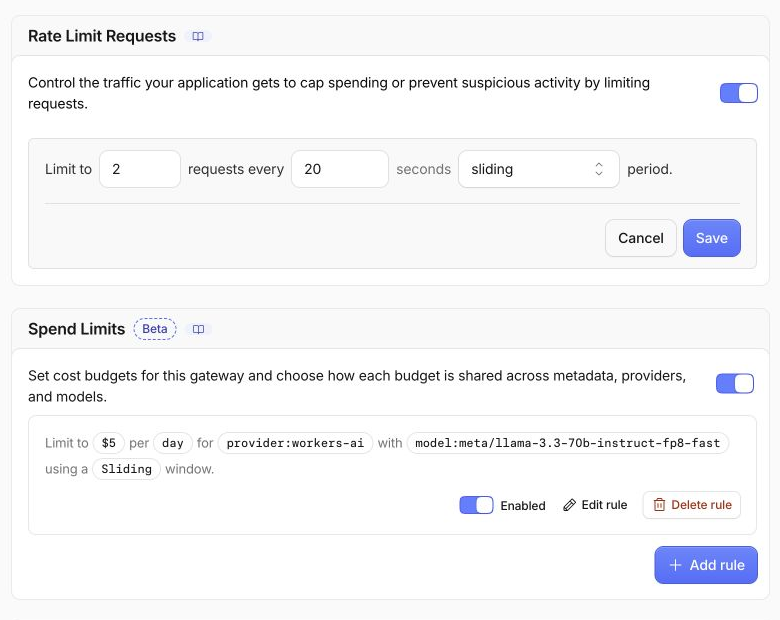
The provider and model filters make this a narrow rule instead of one shared budget for unrelated gateway traffic. Five dollars is deliberately high for this tiny exercise: you will verify the policy without trying to exhaust it.
Open My Profile → API Tokens, choose Create Token → Create Custom Token, and use the saved tokenName. Add two account permissions, AI Gateway — Edit and AI Gateway — Run, then include only the intended learning account. Edit lets the lab read and later delete its exact gateway; Run authenticates inference traffic. Wrangler supplies the separate upstream Workers AI credential.
After reviewing the summary, create the token. Cloudflare shows it once inside a verification command. Copy only the token value after Bearer, not the surrounding curl command, and store it with hidden input:
bash -c '
while :; do
  read -ersp "Paste the AI Gateway token: " GATEWAY_TOKEN
  printf "\n"
  [ -n "$GATEWAY_TOKEN" ] && break
  printf "Token cannot be empty; paste it again.\n" >&2
done
umask 077
printf "%s" "$GATEWAY_TOKEN" > .labex/gateway-token
unset GATEWAY_TOKEN
chmod 600 .labex/gateway-token
'
Read back the important nonsecret fields through the management API:
ACCOUNT_ID=$(node -p 'JSON.parse(require("fs").readFileSync(".labex/state.json")).accountId')
GATEWAY_ID=$(node -p 'JSON.parse(require("fs").readFileSync(".labex/state.json")).gatewayId')
GATEWAY_TOKEN=$(cat .labex/gateway-token)
curl --http1.1 -fsS \
  -H "Authorization: Bearer $GATEWAY_TOKEN" \
  "https://api.cloudflare.com/client/v4/accounts/$ACCOUNT_ID/ai-gateway/gateways/$GATEWAY_ID" \
  > .labex/gateway.json
unset GATEWAY_TOKEN
node - <<'NODE'
const b=require('./.labex/gateway.json'), g=b.result||{}, spend=g.spend_limits||{};
console.log(JSON.stringify({
  success:b.success,
  id:g.id,
  rate:{limit:g.rate_limiting_limit,interval:g.rate_limiting_interval,technique:g.rate_limiting_technique},
  spend_limits:{enabled:spend.enabled,rules:spend.rules}
},null,2));
NODE
Expect a two-request, 20-second sliding rate rule and one enabled five-dollar daily cost rule with the provider and model filters. This readback proves configuration; it does not claim the budget was consumed.
Observe Request Rejection with Three Calls
In this step, you will use three small requests to observe the request-count policy without creating a large burst.
Now you will send three sequential, tiny requests. The first two are allowed. The third should receive 429 and never reach the model. This is safer and cheaper than generating a large traffic burst.
Save this VM's short-lived Wrangler token privately for upstream Workers AI authorization:
umask 077
npx wrangler auth token --json \
  | node -e 'let s="";process.stdin.on("data",d=>s+=d).on("end",()=>process.stdout.write(JSON.parse(s).token))' \
  > .labex/upstream-token
chmod 600 .labex/upstream-token
Send the three calls. Each carries synthetic metadata so the requests are easy to recognize in logs; the spend rule itself matches them through the Workers AI provider and model filters:
ACCOUNT_ID=$(node -p 'JSON.parse(require("fs").readFileSync(".labex/state.json")).accountId')
GATEWAY_ID=$(node -p 'JSON.parse(require("fs").readFileSync(".labex/state.json")).gatewayId')
MODEL='@cf/meta/llama-3.3-70b-instruct-fp8-fast'
GATEWAY_TOKEN=$(cat .labex/gateway-token)
UPSTREAM_TOKEN=$(cat .labex/upstream-token)
for NUMBER in 1 2 3; do
  METADATA=$(printf '{"lab":"g04-limits","request":"burst-%s","synthetic":true}' "$NUMBER")
  STATUS=$(curl --http1.1 -sS \
    -o ".labex/burst-$NUMBER-response.json" -w '%{http_code}' \
    -H "cf-aig-authorization: Bearer $GATEWAY_TOKEN" \
    -H "Authorization: Bearer $UPSTREAM_TOKEN" \
    -H "cf-aig-metadata: $METADATA" \
    -H 'Content-Type: application/json' \
    --data "{\"prompt\":\"Reply with the number $NUMBER.\",\"max_tokens\":4}" \
    "https://gateway.ai.cloudflare.com/v1/$ACCOUNT_ID/$GATEWAY_ID/workers-ai/$MODEL")
  printf '%s\n' "$STATUS" | tee ".labex/burst-$NUMBER-status.txt"
done
unset GATEWAY_TOKEN UPSTREAM_TOKEN METADATA
Expect:
200
200
429
The 429 is a successful protection result. It means the request stopped at the gateway, so it did not consume another model inference or move the spend counter.
Wait for the Sliding Window to Recover
In this step, you will wait for the short window to clear and prove that the gateway allows normal inference again.
A rate limit should protect bursts without permanently disabling the application. Wait slightly longer than the 20-second window, then send one more tiny request:
sleep 22
ACCOUNT_ID=$(node -p 'JSON.parse(require("fs").readFileSync(".labex/state.json")).accountId')
GATEWAY_ID=$(node -p 'JSON.parse(require("fs").readFileSync(".labex/state.json")).gatewayId')
MODEL='@cf/meta/llama-3.3-70b-instruct-fp8-fast'
GATEWAY_TOKEN=$(cat .labex/gateway-token)
UPSTREAM_TOKEN=$(cat .labex/upstream-token)
STATUS=$(curl --http1.1 -sS \
  -o .labex/recovery-response.json -w '%{http_code}' \
  -H "cf-aig-authorization: Bearer $GATEWAY_TOKEN" \
  -H "Authorization: Bearer $UPSTREAM_TOKEN" \
  -H 'cf-aig-metadata: {"lab":"g04-limits","request":"recovery","synthetic":true}' \
  -H 'Content-Type: application/json' \
  --data '{"prompt":"Reply only with recovered.","max_tokens":4}' \
  "https://gateway.ai.cloudflare.com/v1/$ACCOUNT_ID/$GATEWAY_ID/workers-ai/$MODEL")
unset GATEWAY_TOKEN UPSTREAM_TOKEN
printf '%s\n' "$STATUS" | tee .labex/recovery-status.txt
node -e 'const b=require("./.labex/recovery-response.json"); console.log(b.result?.response ?? b.result)'
Expect HTTP 200 and a short generated response. Recovery proves that the 429 came from the configured time window rather than bad credentials or a broken model.
Connect the Policy to Dashboard Evidence
In this step, you will connect the API and HTTP results to the controls and logs visible in the Dashboard.
Return to AI → AI Gateway, select the saved gateway and open Settings. Confirm the rate limit still shows two requests, 20 seconds and sliding enforcement. In Spend Limits, inspect the single rule and check its five-dollar cost, one-day sliding window and provider and model filters.
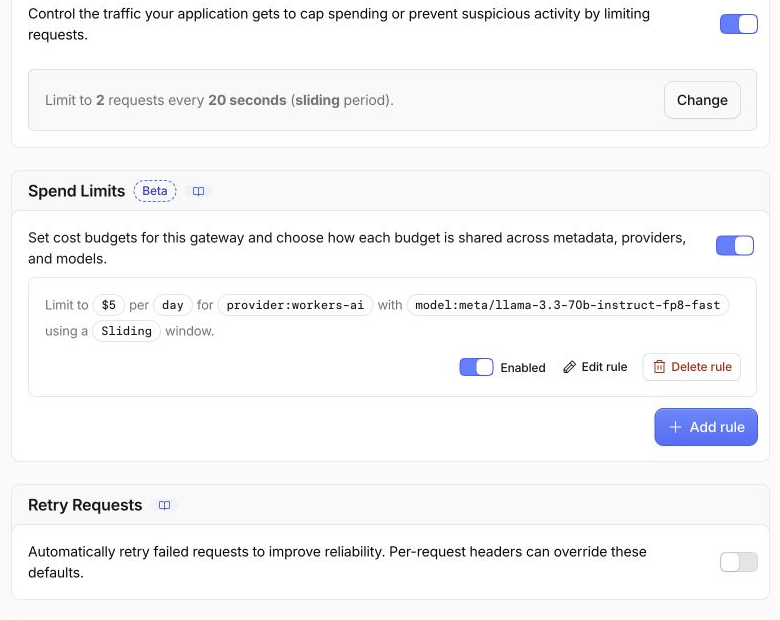
Then open Logs. The two initial successes and the recovered request should appear after normal log propagation. The rejected third request may be represented differently because it stopped before provider inference; the saved HTTP status is the authoritative rate-limit evidence.
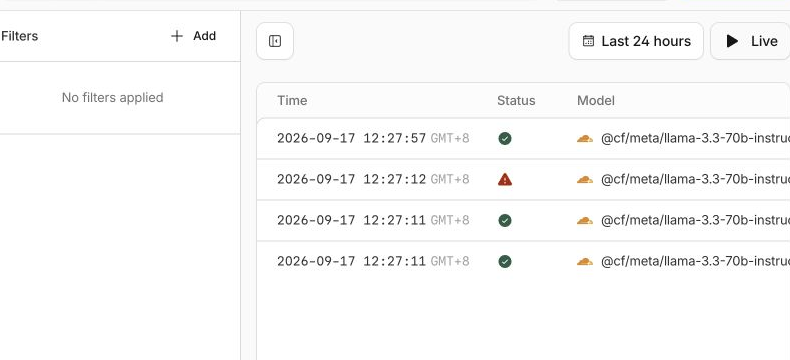
Notice what is not required: you do not spend five dollars, reduce the rule to a dangerously tiny value or loop until a cost rejection appears. The management API readback proves the spend policy's scope, while the three-call experiment separately proves request-count enforcement.
Delete the Disposable Gateway
In this step, you will remove only the gateway named in the lab inventory and prove its absence while authorization remains available.
Delete the gateway while the management token can still prove that the exact resource is gone:
ACCOUNT_ID=$(node -p 'JSON.parse(require("fs").readFileSync(".labex/state.json")).accountId')
GATEWAY_ID=$(node -p 'JSON.parse(require("fs").readFileSync(".labex/state.json")).gatewayId')
GATEWAY_TOKEN=$(cat .labex/gateway-token)
curl --http1.1 -fsS -X DELETE \
  -H "Authorization: Bearer $GATEWAY_TOKEN" \
  "https://api.cloudflare.com/client/v4/accounts/$ACCOUNT_ID/ai-gateway/gateways/$GATEWAY_ID" \
  | node -e 'let s="";process.stdin.on("data",d=>s+=d).on("end",()=>{const b=JSON.parse(s);if(!b.success)process.exit(1);console.log("gateway deletion accepted")})'
unset GATEWAY_TOKEN

GATEWAY_TOKEN=$(cat .labex/gateway-token)
curl --http1.1 -fsS \
  -H "Authorization: Bearer $GATEWAY_TOKEN" \
  "https://api.cloudflare.com/client/v4/accounts/$ACCOUNT_ID/ai-gateway/gateways" \
  > .labex/gateways-after-delete.json
unset GATEWAY_TOKEN
node -e 'const b=require("./.labex/gateways-after-delete.json"),id=process.argv[1],found=(b.result||[]).some(g=>g.id===id);console.log("gateway absent:",!found);if(found)process.exit(1)' "$GATEWAY_ID"
Expect gateway absent: true. An authenticated inventory distinguishes real deletion from a network failure or a page you can no longer access.
Revoke the Token and Log Out
In this step, you will revoke the remaining Dashboard token, erase both VM copies and disconnect Wrangler.
In the Cloudflare Dashboard, open My Profile → API Tokens. Find the exact saved tokenName, open Actions, choose Delete, inspect the confirmation and delete only that token. It is safe to revoke now because the gateway deletion is already proved.
Erase both temporary token copies and disconnect Wrangler:
shred -u .labex/gateway-token .labex/upstream-token
npx wrangler logout
npx wrangler whoami --json || true
test ! -e .labex/gateway-token -a ! -e .labex/upstream-token \
  && echo "local token files removed"
Expect loggedIn: false and local token files removed. The Dashboard session is separate and remains signed in. LabEx destroys this temporary VM when the lab ends instead of preserving it.
Summary
You applied two complementary AI Gateway controls. A two-request sliding window rejected the third low-volume request with HTTP 429, then automatically allowed traffic after the window cleared. A separate five-dollar daily spend rule was scoped to Workers AI and one model, and its stored configuration was verified without wasting model usage.
The next lab uses another gateway reliability control: a bounded fallback. You will route one controlled primary-model failure to a compatible second model, while a healthy primary request still completes on its first step.