Introduction
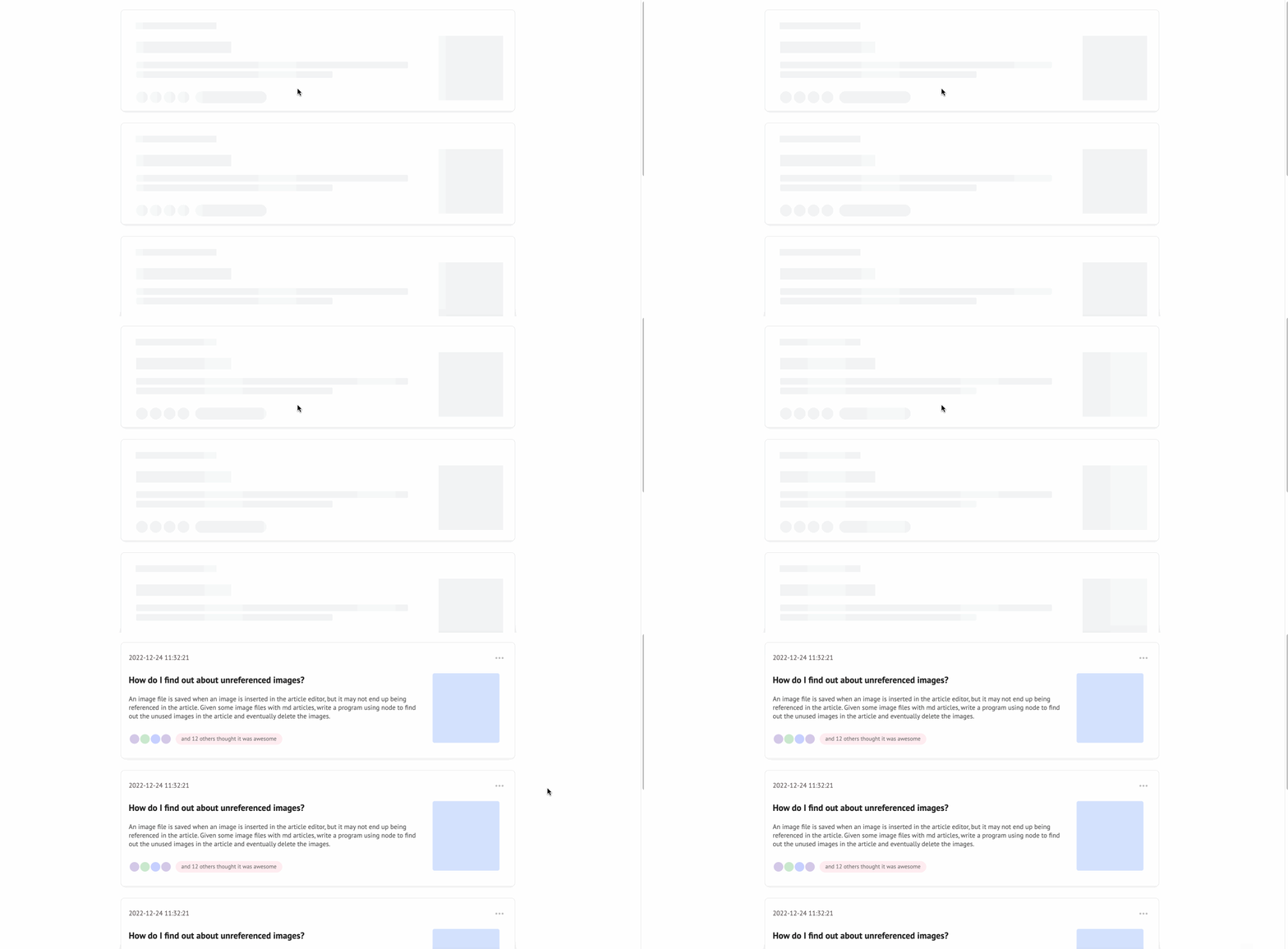
In this project, you will learn how to create a flexible skeleton screen component using Vue.js. A skeleton screen is a UI pattern that displays a simplified version of the user interface before the actual content is loaded, providing a better user experience compared to traditional loading indicators.
👀 Preview
🎯 Tasks
In this project, you will learn:
- How to use Vue.js to create a reusable skeleton screen component
- How to implement the structure of the skeleton screen based on the provided data
- How to apply flashing animation to the skeleton screen elements
🏆 Achievements
After completing this project, you will be able to:
- Create a flexible skeleton screen component using Vue.js
- Apply dynamic styles and classes to the skeleton screen elements
- Implement a flashing animation effect for the skeleton screen
Set Up the Project Structure
In this step, you will set up the project files and structure. Follow the steps below to complete this step:
Open the project folder. The directory structure is as follows:
├── components
│   ├── List
│   │   ├── content.js
│   │   └── index.js
│   └── Skeleton
│       ├── index.js
│       └── item.js
├── css
│   └── style.css
├── index.html
└── lib
    └── vue.min.js
Among them:
index.htmlis the main page.components/listis the provided list component.components/Skeletonis the skeleton screen component.libis the folder that stores the project dependencies.cssis the folder that stores the project styles.
Click on Go Live button in the bottom right corner of WebIDE, to run the project.
Next, open "Web 8080" on the top of the VM and refresh it manually and you will see the page.
Create the Skeleton Screen Component
In this step, you will learn how to use the data paragraph passed from index.html and combine the knowledge of Vue recursive components to complete the writing of the skeleton screen component.
- Open the
components/Skeleton/item.jsfile. - In the
ItemTemplatevariable, add the following code:
let ItemTemplate = ``;
// TODO
ItemTemplate += `
<div :class="'ske-'+paragraph.type+'-container'">
  <div v-for="item in arrIs(paragraph)" :class="classIs(item)" :style="styleIs(item)" >
    <item :paragraph="item" :active="active"></item>
  </div>
</div>
`;
This code will create the structure of the skeleton screen based on the paragraph data.
- In the
Vue.component("item", {...})section, implement the following methods:
data() {
  return {
    typeList: ["rect", "circle"],
    classPrefix: "ske ske-",
    activeClass: " ske-ani"
  };
},
methods: {
  arrIs(obj) {
    if (obj?.rows) return obj.rows;
    else if (obj?.cols) return obj.cols;
    else return [];
  },
  classIs(obj) {
    if (this.typeList.includes(obj.type)) {
      return (
        this.classPrefix + obj.type + (this.active ? this.activeClass : "")
      );
    } else {
      return this.classPrefix + obj.type;
    }
  },
  styleIs(obj) {
    if (obj?.style && obj?.rowStyle) return { ...obj.style, ...obj.rowStyle };
    else if (obj?.style) return obj.style;
    else if (obj?.rowStyle) return obj.rowStyle;
    else if (obj?.colStyle) return obj.colStyle;
    else return {};
  }
}
The arrIs method determines whether to use the rows or cols property of the paragraph object to render the nested components. The classIs method determines the CSS class to apply to the skeleton screen element based on the type property. The styleIs method determines the styles to apply to the skeleton screen element based on the style, rowStyle, and colStyle properties.
- Save the
item.jsfile.
The effect after completion is as follows:
Summary
Congratulations! You have completed this project. You can practice more labs in LabEx to improve your skills.