Introduction
A reporting application needs a separate label in each Region. You will inspect a prepared eastern setting, create its western counterpart, and compare their resource identities.
Complete Get Started with AWS on LabEx first. You will use its Terminal, AWS CLI, identity, parameter, and AWS View basics here. This lab starts independently: the tools and connection are ready, and no previous files, resources, or credentials are reused.
Parameter Store holds named settings. Your /labex/onboarding/service-label will be a plain String, not a secret. Each region already contains an unrelated /labex/reference/team parameter; preserve it. AWS View shows the same resources you query through the CLI.
Certification Relevance
| Certification | Exam task | Practice |
|---|---|---|
| Cloud Practitioner (CLF-C02) | Task 3.2 | Regions, regional resource scope, and resource identity. |
| Solutions Architect – Associate (SAA-C03) | Task 1.1 | Regions, regional resource scope, and resource identity. |
Lab Overview
Observe a Regional Resource
In this step, you will locate a prepared setting and see that it is not automatically available in another Region.
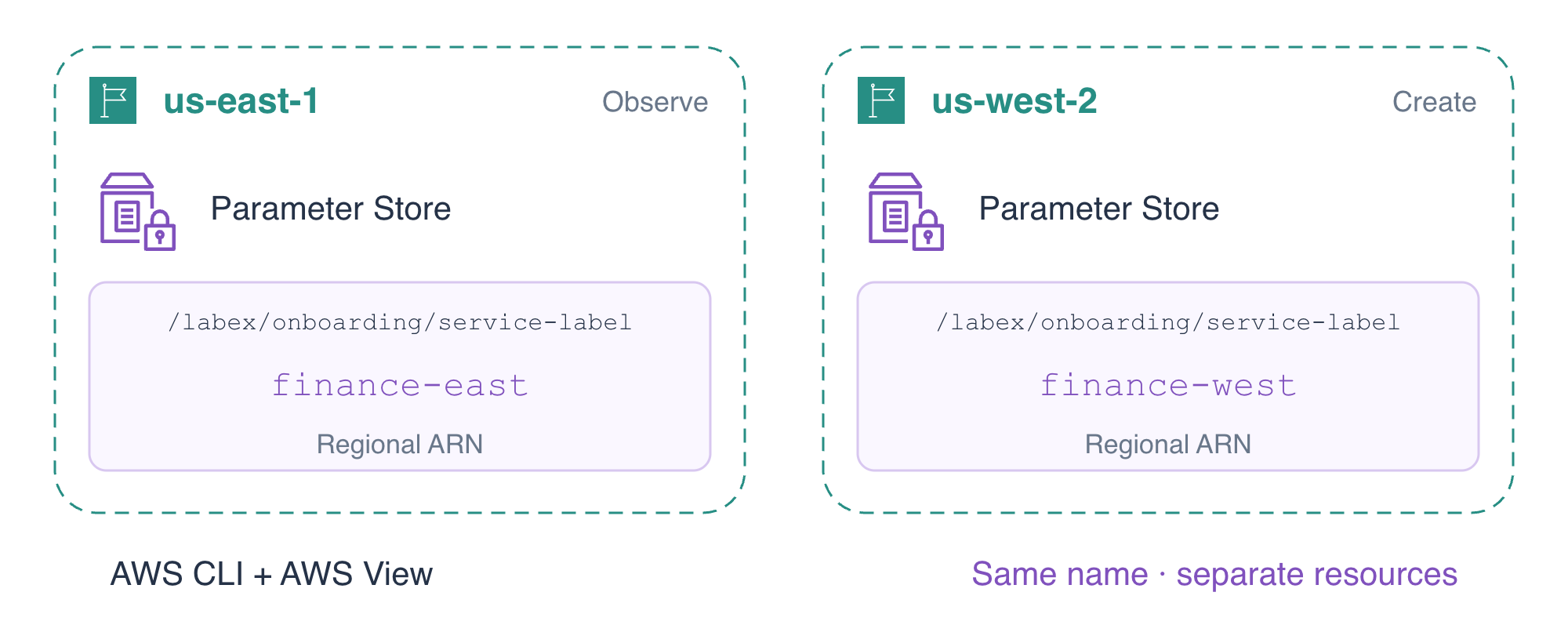
In the previous lab, every request used one location. A team may run applications near users in different parts of the world, so you need to choose which location a command affects. An AWS Region is a geographic area where services run. us-east-1 is the code for US East (N. Virginia); us-west-2 is US West (Oregon). The --region option chooses where this request acts. The prepared eastern setting is in us-east-1.
Read the prepared eastern setting:
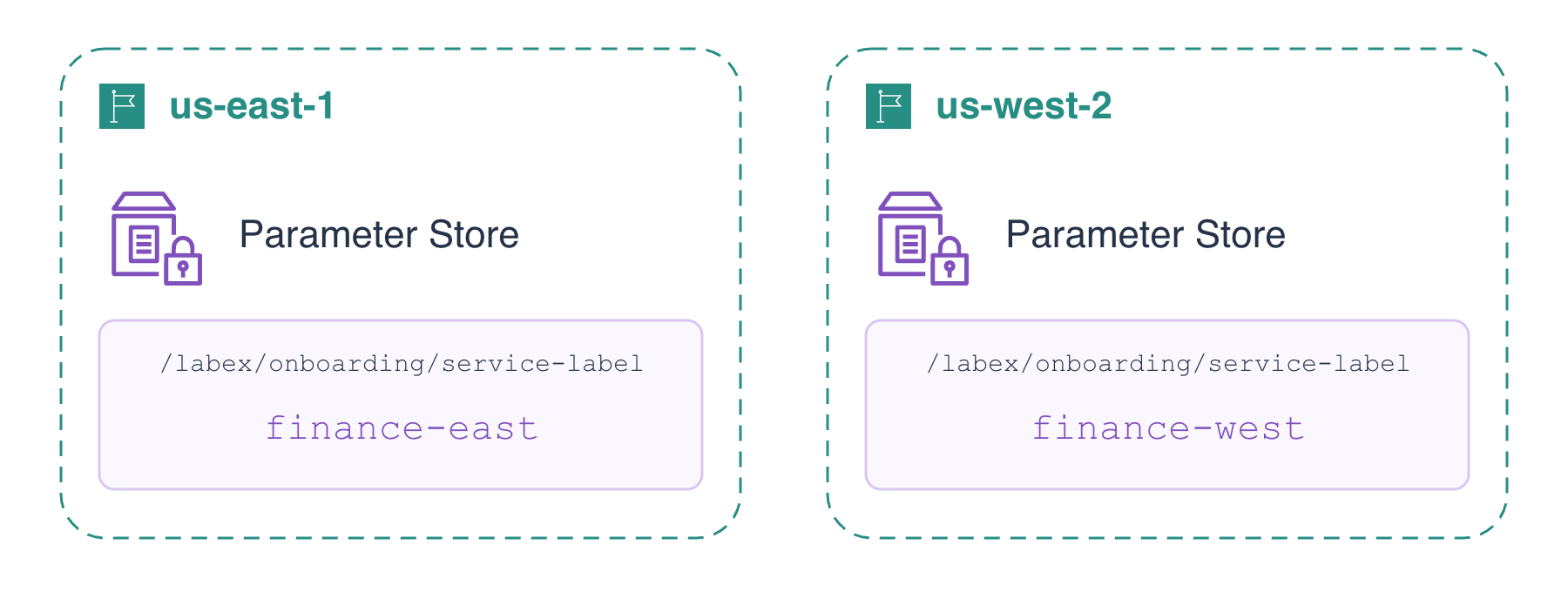
aws ssm get-parameter --name /labex/onboarding/service-label --region us-east-1
The value is finance-east, Version 1. In AWS View, it appears in us-east-1. Check the western inventory:
aws ssm describe-parameters --region us-west-2
Only /labex/reference/team appears in the west. The eastern setting has not been copied there. Next, you will use the creation command you already know to prepare the western configuration.
Create the Same Name in Another Region
In this step, you will create the same parameter name in a second Region and observe that the two resources remain independent.
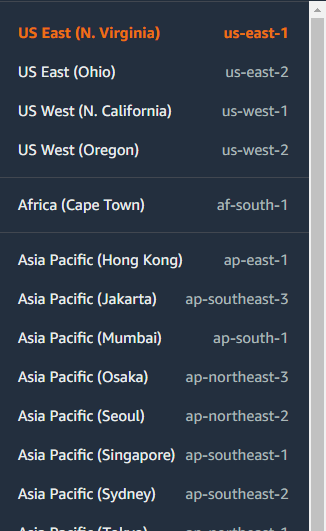
In the official Console, the Region menu chooses which location you view. Its names and codes correspond to the CLI's --region option:
Now create the western application's label. This uses the same name as before but a different --region and value:
aws ssm put-parameter \
  --name /labex/onboarding/service-label \
  --type String \
  --value finance-west \
  --region us-west-2
The response again contains "Version": 1. This is a new resource in the west, not version 2 of the eastern resource.
Read each stored value. get-parameter asks the service for a named resource:
aws ssm get-parameter --name /labex/onboarding/service-label --region us-east-1
aws ssm get-parameter --name /labex/onboarding/service-label --region us-west-2
Both responses contain a Parameter object with Name, Type, Value, Version, and ARN. Compare the values: east returns finance-east, west returns finance-west. The name is the same. An ARN is a full resource identifier; for now, notice us-east-1 in one and us-west-2 in the other. The next step explains the remaining parts. AWS View shows the two separate region cards. A resource appearing in one Region does not mean it exists in another.
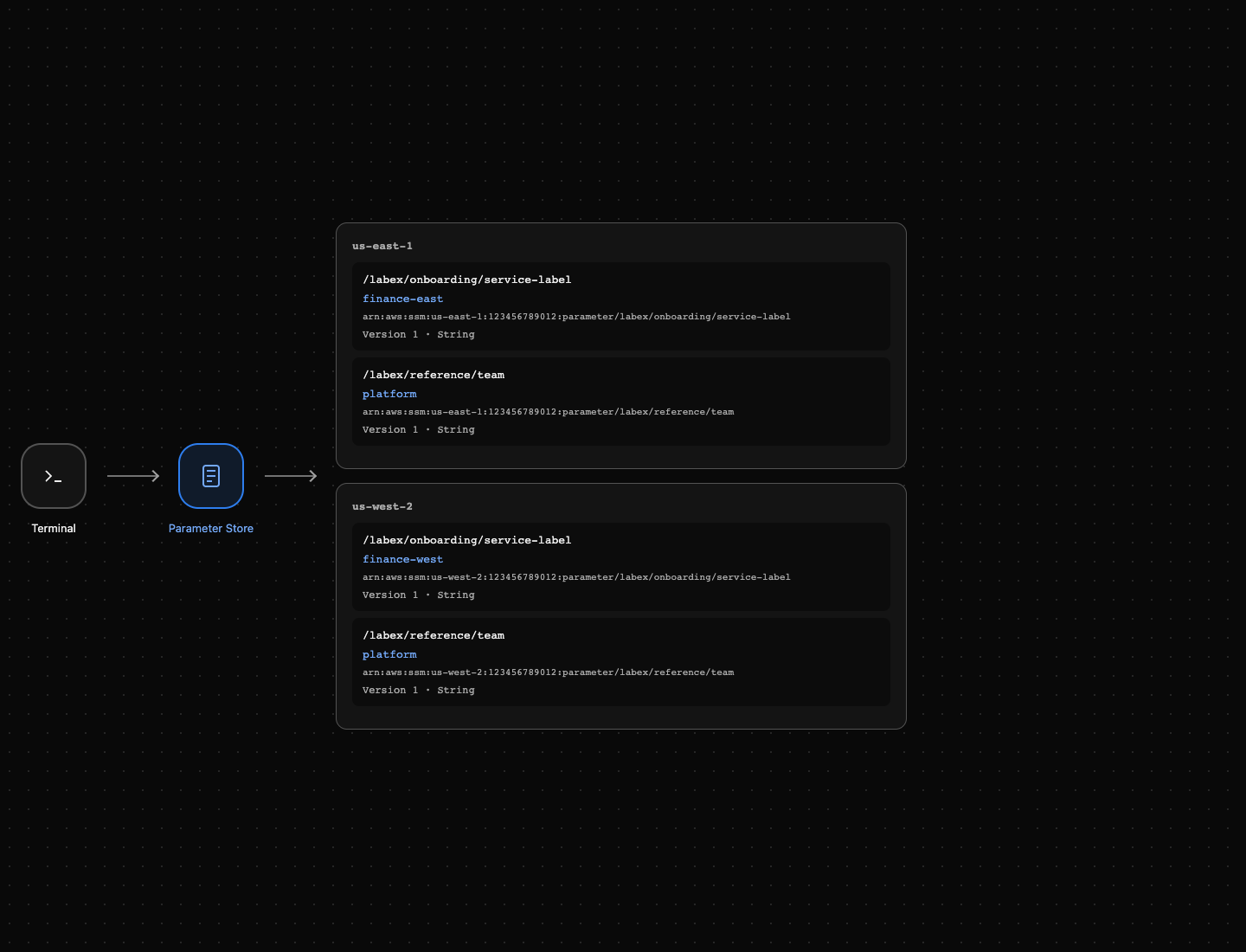
This example shows the eastern and western resources together. Account identifiers and values are examples; use the actual fields returned by your queries.
Compare the Two Resource Identities
In this step, you will use each ARN to distinguish the two same-named settings.
An Amazon Resource Name (ARN) identifies a resource. In AWS View, find the ARN under your eastern setting. For this parameter it looks like:
arn:aws:ssm:us-east-1:ACCOUNT_ID:parameter/labex/onboarding/service-label
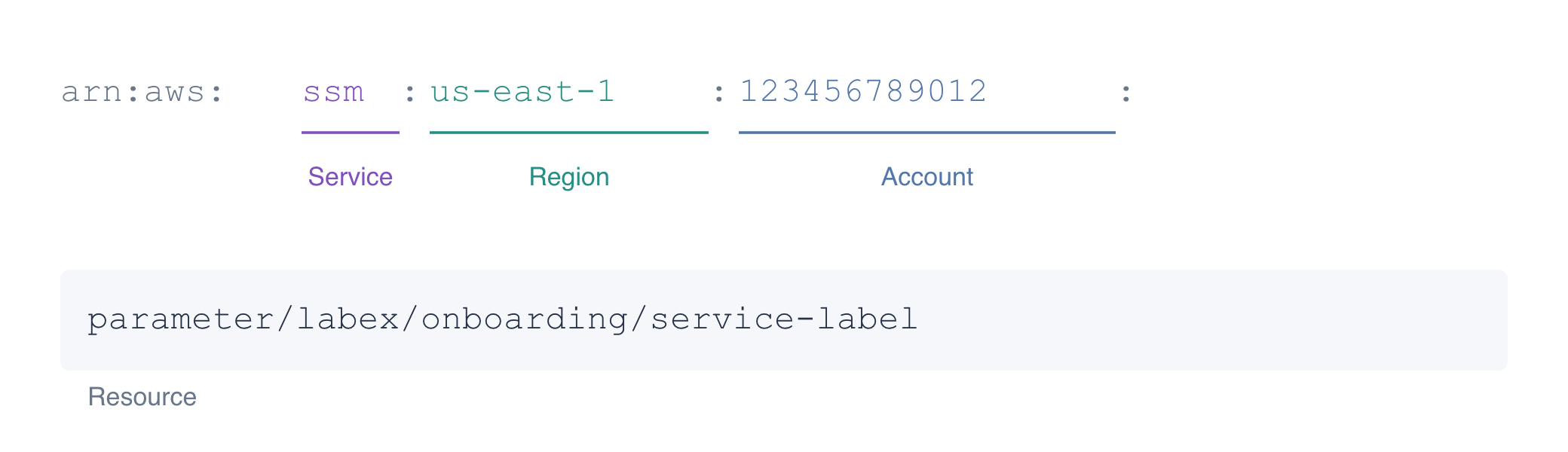
For now, find the service (ssm), region (us-east-1), account ID, and parameter name. Compare the western ARN: its region is different even though the name is the same. The caller ARN you saw in the preparation lab identifies a user; this ARN identifies a configuration resource. You do not need to memorize ARN formats.
aws ssm get-parameter --name /labex/onboarding/service-label --region us-east-1
aws ssm get-parameter --name /labex/onboarding/service-label --region us-west-2
Read both settings once more and compare their Region, account and resource-name fields. Their names and accounts match, but their Regions and ARNs differ. Each value belongs to its own regional resource. No update or deletion is needed here. Next, learn to find one setting in a larger inventory.
Summary
You located a regional setting, created the same name in another Region, and compared their values and ARNs. A familiar name alone is not enough to identify a resource. Next, find the right settings in a mixed resource inventory.
For further reading, see the AWS reference on ARN fields and service-specific resource identities.