



LabEx Team Quick Start Guide
1. Introduction to LabEx Team
Dive into LabEx Team — our premium offering designed especially for businesses and educational entities. By integrating 'Learn by Doing' and 'Skill Tree Based Learning', LabEx Team introduces tools like team management and learning progress tracking, paving the way for effective team learning.
This guide will walk team admins through the essentials: setting up a vibrant learning community, designating skill trees, and keeping an eye on individual progress.
2. Key Concepts
LabEx Team Admin & Member: The Admin oversees team learning management, while Members are learners added to the team.
Group: A Group organizes Members into specific cohorts, such as 'Dev Team' or 'Test Team', for targeted learning and easy management.
Lab: The fundamental learning unit, each Lab addresses particular Skills and falls under the corresponding Skill Tree. By actively engaging in Labs on the LabEx platform, learners can acquire and master these Skills.
Skills: Specific competencies that users aim to master within a Skill Tree. By completing labs, members acquire these skills, marking their progression through the Skill Tree.
Skill Tree: A structured learning pathway comprised of various Skills in a specific domain. By adding a Skill Tree to LabEx Team and assigning it to a Group, you guide the learning journey of Members within that Group.
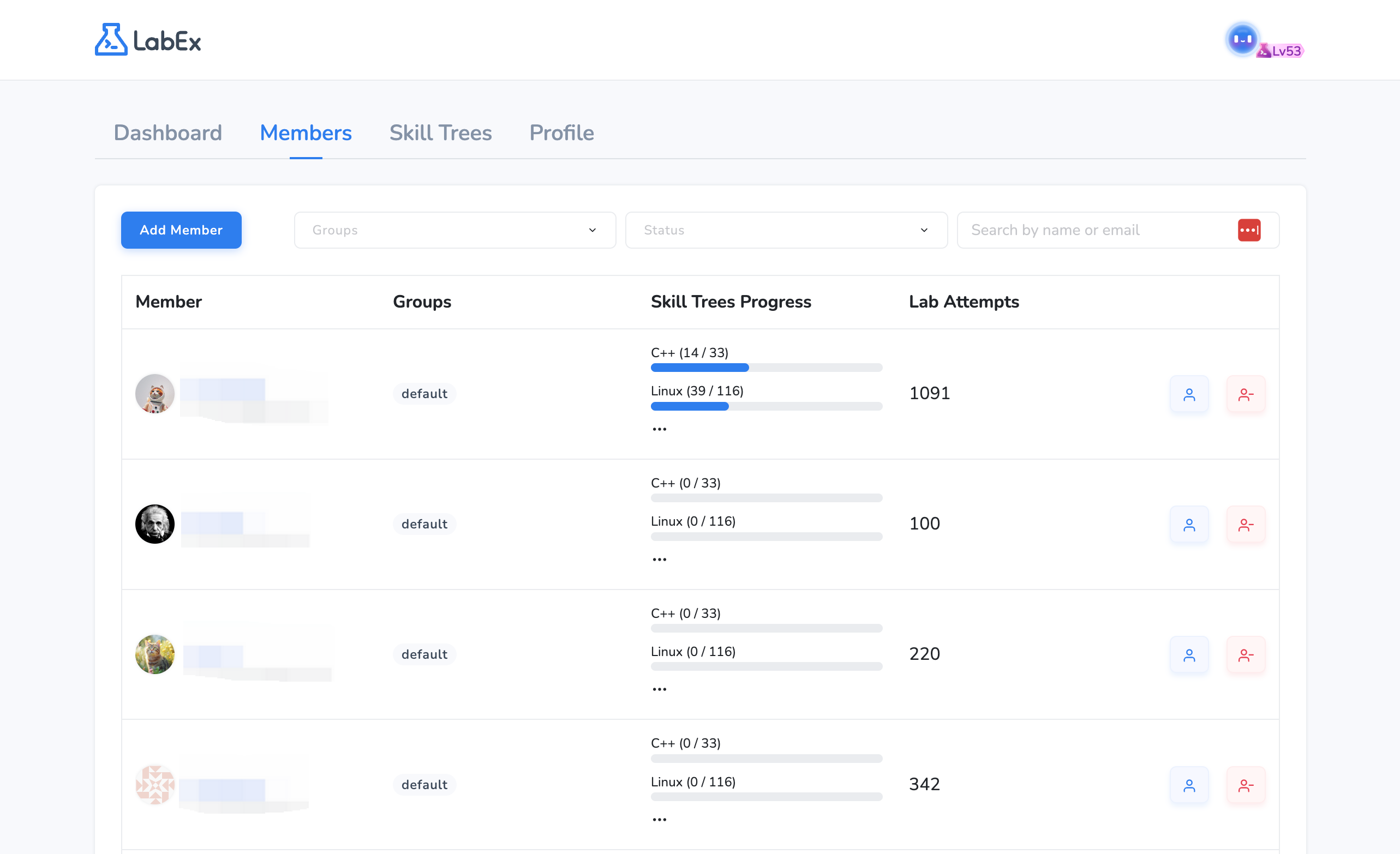
3. Inviting Members
To start:
- Enter the emails to invite prospective members.
- Assign them to a particular group.
- If needed, resend the invitation or remove members.
On the member's side:
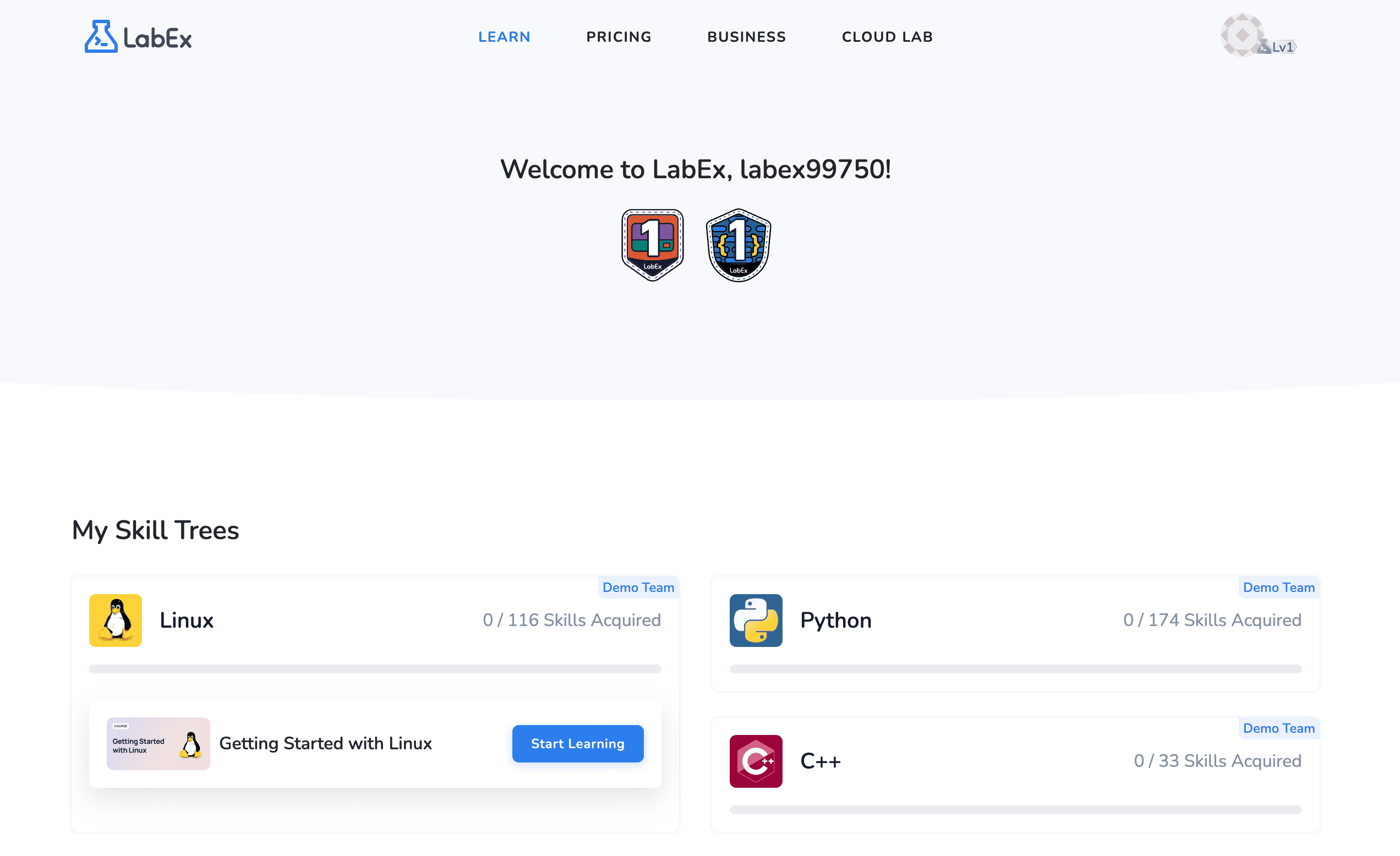
- They will receive an invitation email.
- Upon registration or login to LabEx, an invitation prompt will be displayed.
- After accepting, they can view the Skill Trees associated with LabEx Team in 'My Learning' page.
4. Configuring Skill Trees for Groups
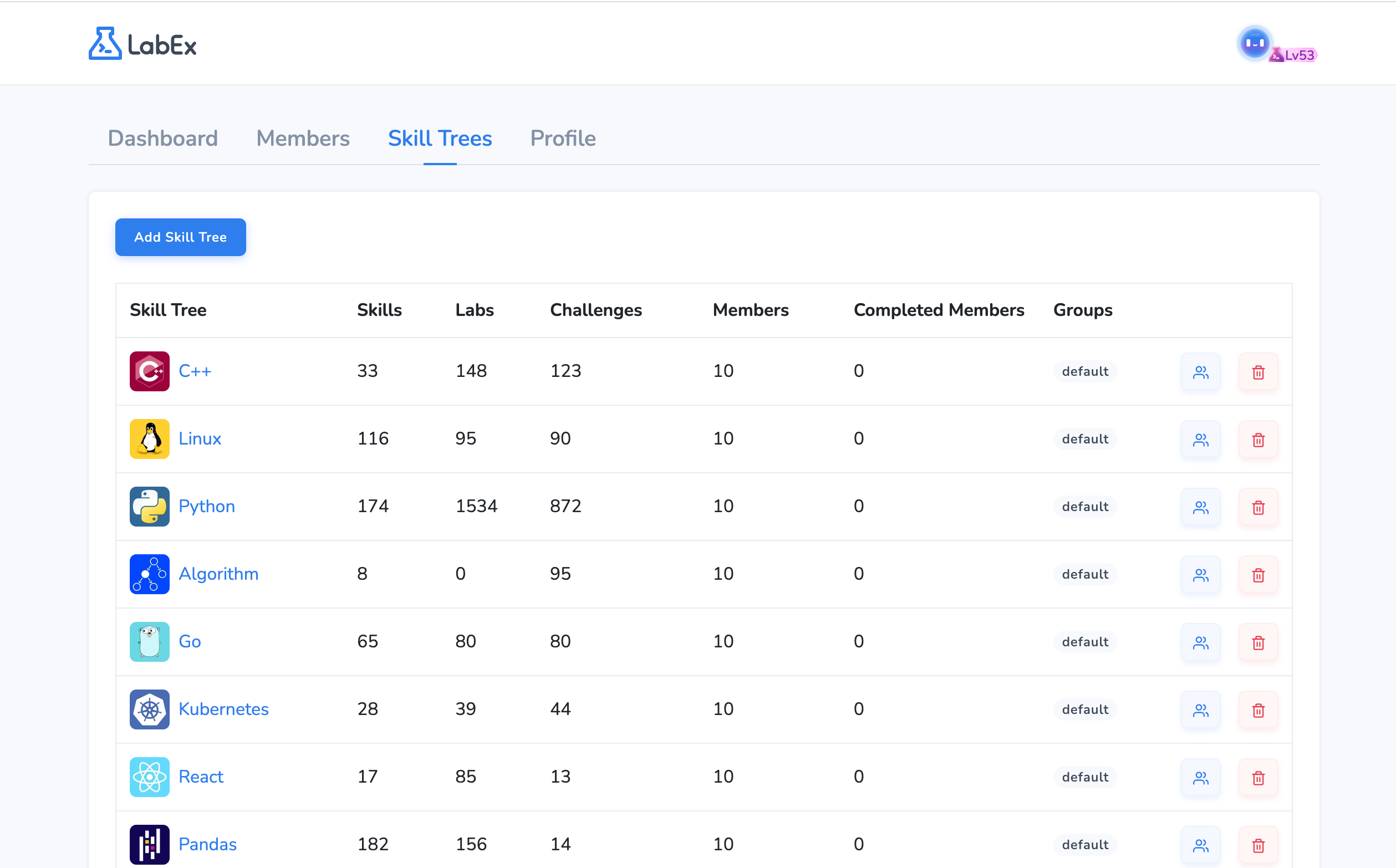
Steps:
- Firstly, add the desired Skill Tree from the 20 options available on LabEx.
- Allocate this Skill Tree to the chosen groups. All existing and future members of these group will then embark on this learning journey.
- Click the "View Group & Members" button after each row in the Skill Tree list allows you to view the learning progress of each member in that Skill Tree.
5. Tracking Learning Data
There are two main areas:
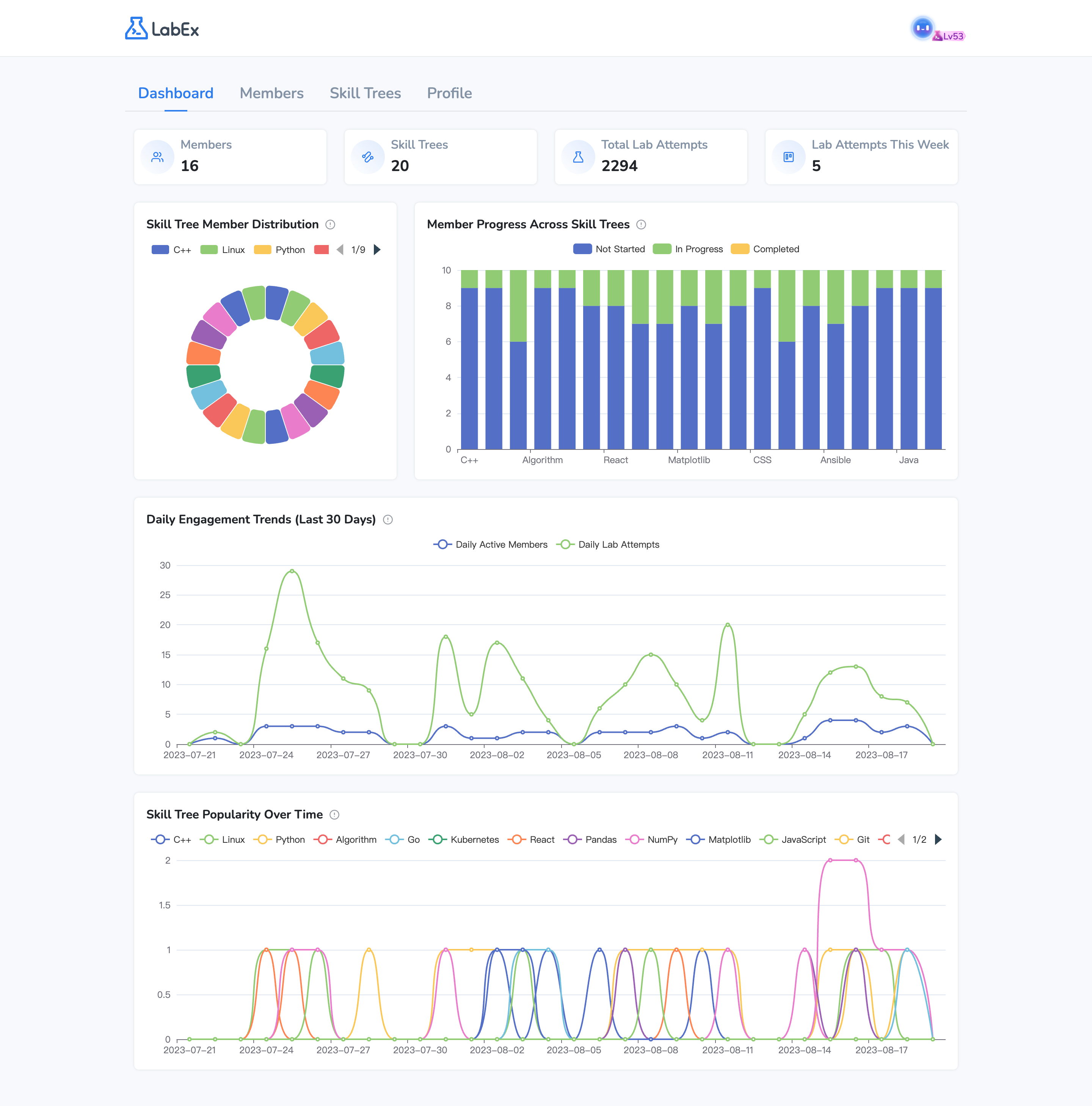
- Team Dashboard:
- Overview stats: Members count, Skill Trees, Total Lab Attempts, Lab Attempts This Week.
- Charts: Skill Tree Member Distribution (Pie Chart), Member Progress Across Skill Trees (Column Chart), Daily Engagement Trends (Last 30 Days - Curve Chart), Skill Tree Popularity Over Time (Curve Chart).
- Members Section:
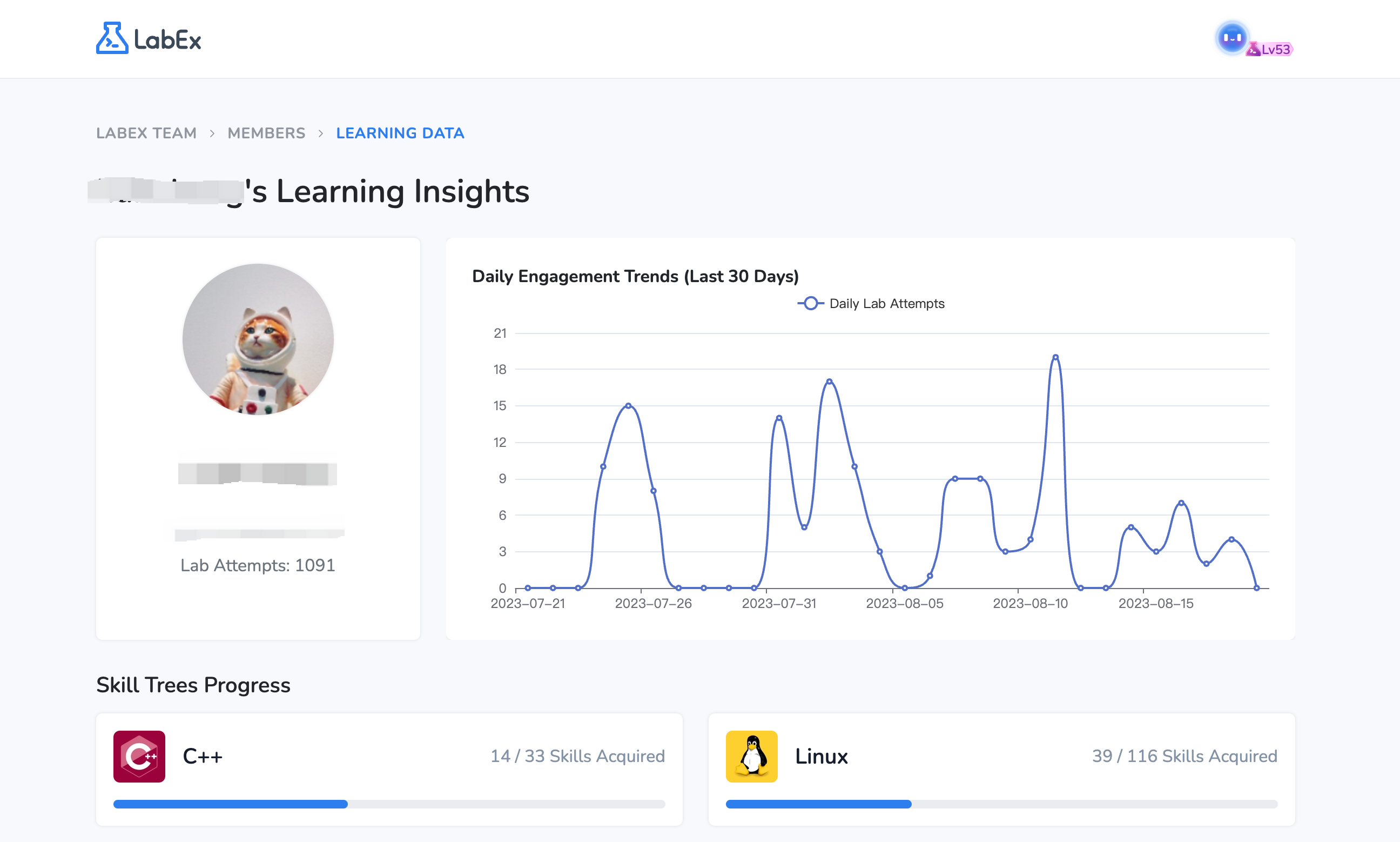
- View individual learning data, including Total Lab Attempts.
- Graphs: Daily Engagement Trends (Last 30 Days), Progress in each Skill Tree.
6. Setting Up Team Basic Information
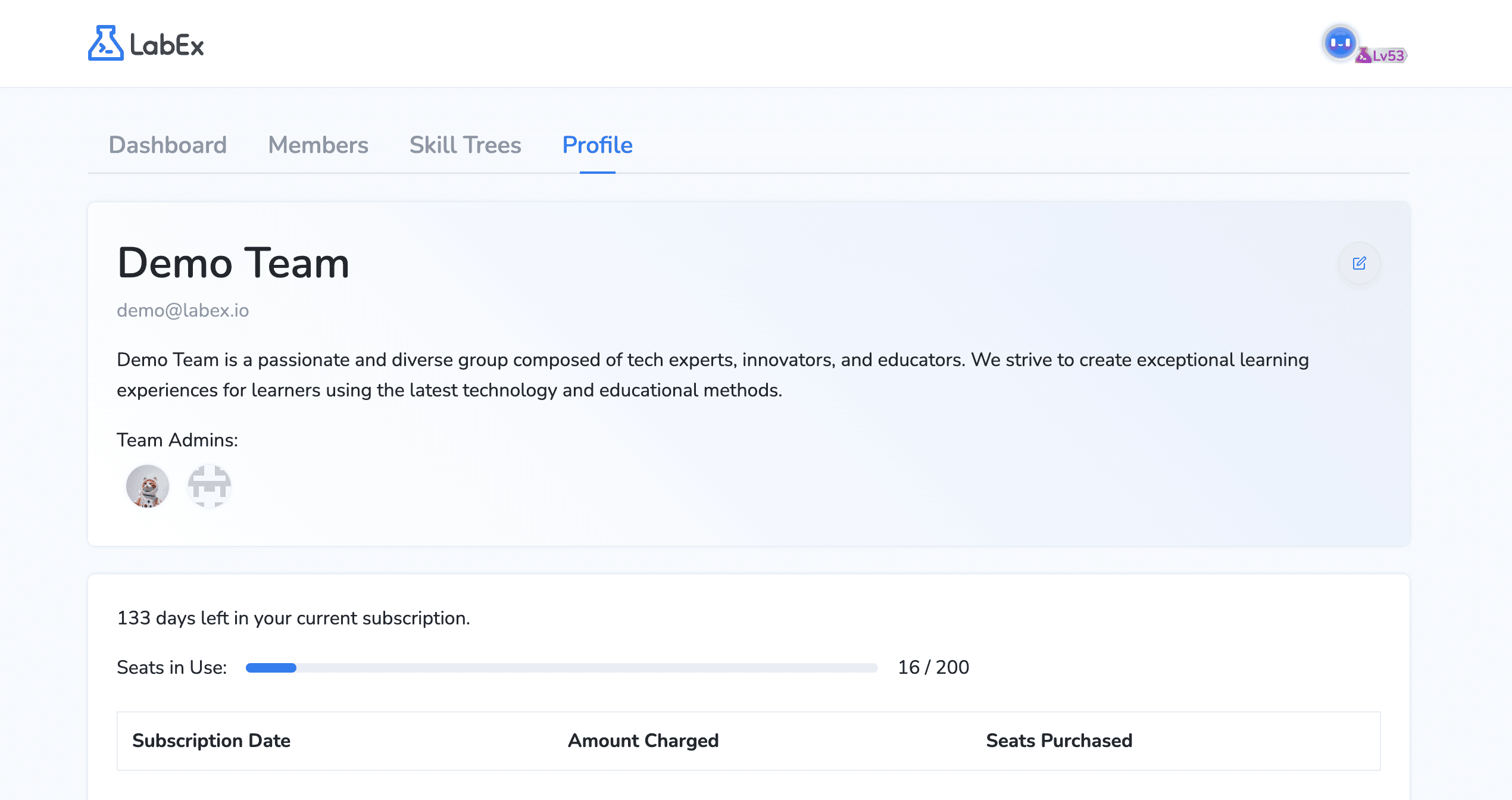
In the 'Profile' section:
- Update your team's name and description.
- Set the invoice email.
- Check the number of seats in use and available.
- View billing history.
Discover the full potential of LabEx Team by visiting our introduction page. If you're ready to see how it can transform your organization's learning experience, jump into a free trial today. Happy learning!
