




はじめに
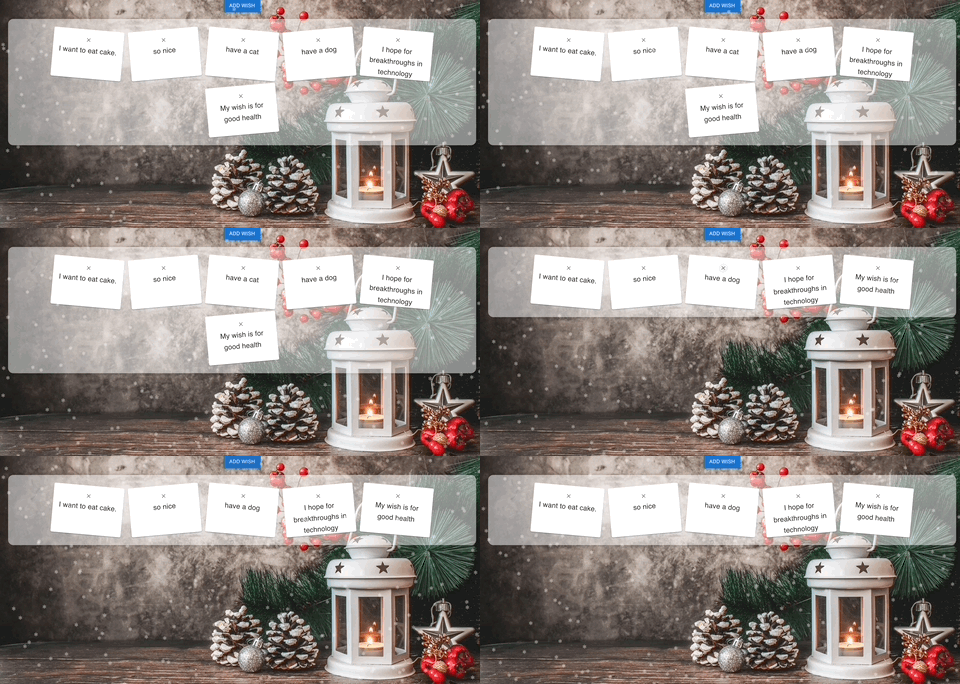
このプロジェクトでは、React を使って祝祭的なクリスマスの願いリスト作成 Web アプリケーションを構築する方法を学びます。このアプリは、美しいフルスクリーンのクリスマステーマの背景と魅力的な降雪アニメーションを備え、ホリデーの雰囲気を演出します。ユーザーは半透明の願いの壁に願いを追加でき、各願いははがきのように表示されます。フロントエンドには React を、スタイリングとアニメーションには CSS を使用します。
注:このプロジェクトは主に Material UI と React を使って構築されています。
👀 プレビュー
🎯 タスク
このプロジェクトで学ぶことは以下の通りです。
- React プロジェクトをセットアップして依存関係をインストールする方法
- React で機能コンポーネントを作成する方法
- useState などの React フックを使ってコンポーネント内の状態を管理する方法
- 親コンポーネントと子コンポーネントの間で props を使ってデータを渡す方法
- React でのフォーム送信を処理する方法
- CSS を使って React アプリケーションをスタイリッシングする方法
- React と CSS を使って視覚的に魅力的でインタラクティブな Web アプリケーションを構築する方法
🏆 成果
このプロジェクトを完了すると、以下のことができるようになります。
- React プロジェクトをセットアップして必要な依存関係をインストールする
- React で機能コンポーネントを作成し、フックを使ってそれらの状態を管理する
- props を使って親コンポーネントと子コンポーネントの間でデータを渡す
- React アプリケーションでのフォーム送信を処理する
- CSS を使って React アプリケーションをスタイリングし、視覚的に魅力的でインタラクティブなユーザーインターフェイスを作成する
- React と CSS を使って完全な Web アプリケーションを構築し、クリスマステーマの背景、降雪アニメーション、願いリストの壁などの機能を組み込む
依存関係をインストールする
React プロジェクトのファイルは既にあなたの環境にあります。
- 依存関係をインストールする:
npm install
- 必要なディレクトリとファイルを作成する:
mkdir src/components
touch src/components/{AddWishForm.js,WishList.js,Postcard.js,Snowflakes.js}
touch src/components/{Snowflakes.css,Postcard.css,WishList.css}
雪片コンポーネントをセットアップする
降雪アニメーションを表示するための降雪コンポーネントを作成します。
src/components/Snowflakes.jsファイルに以下のコードを記述します。
// Snowflakes.js - CSS を使って降雪を作成する
import React from "react";
import "./Snowflakes.css";

const Snowflakes = () => {
  // 降雪を表す div 要素の配列を作成する
  const snowflakes = Array.from({ length: 200 }).map((_, index) => (
    <div
      key={index}
      className="snowflake"
      style={{
        left: `${Math.random() * 100}vw`,
        animationDuration: `${Math.random() * 3 + 2}s`,
        animationDelay: `${Math.random() * 5}s`
      }}
    >
      ❅
    </div>
  ));

  return <div className="snow-container">{snowflakes}</div>;
};

export default Snowflakes;
src/components/Snowflakes.cssファイルに以下のコードを記述します。
/* Snowflakes.css - 降雪のためのスタイル */
.snow-container {
  position: absolute;
  top: 0;
  left: 0;
  width: 100%;
  height: 100%;
  overflow: hidden;
  z-index: 1;
  pointer-events: none;
}

.snowflake {
  position: absolute;
  top: -2vh;
  color: #fff;
  font-size: 1em;
  opacity: 0.8;
  user-select: none;
  pointer-events: none;
  /* クリックイベントを通過させる */
}

@keyframes snowfall {
  0% {
    transform: translateY(0);
  }

  100% {
    transform: translateY(100vh);
  }
}

.snowflake {
  animation: snowfall linear infinite;
}
願いを追加するフォームコンポーネントを作成する
このコンポーネントは、ユーザーが自分たちの願いを入力できるようにします。
src/components/AddWishForm.jsファイルに以下のコードを記述します。
// AddWishForm.js - 新しい願いを追加するためのフォームコンポーネント
import React, { useState } from "react";
import { TextField, Button, Box } from "@mui/material";

function AddWishForm({ onAddWish }) {
  const [wish, setWish] = useState("");

  const handleSubmit = (event) => {
    event.preventDefault();
    onAddWish(wish);
    setWish("");
  };

  return (
    <Box
      component="form"
      onSubmit={handleSubmit}
      sx={{
        mt: 2,
        display: "flex",
        alignItems: "center",
        justifyContent: "center"
      }}
    >
      <TextField
        label="Your Wish"
        variant="outlined"
        value={wish}
        onChange={(e) => setWish(e.target.value)}
        sx={{ mr: 2 }}
      />
      <Button variant="contained" color="secondary" type="submit">
        Submit Wish
      </Button>
    </Box>
  );
}

export default AddWishForm;
願いリストとはがきコンポーネントを実装する
追加された願いを半透明の願いの壁にはがきのスタイルで表示します。
src/components/WishList.jsファイルに以下のコードを記述します。
// WishList.js - 願いの壁に願いを表示するコンポーネント
import React from "react";
import Postcard from "./Postcard";
import "./WishList.css";

function WishList({ wishes, onRemoveWish }) {
  return (
    <div className="wish-wall">
      {wishes.map((wish, index) => (
        <Postcard key={index} wish={wish} onRemoveWish={onRemoveWish} />
      ))}
    </div>
  );
}

export default WishList;
src/components/Postcard.jsファイルに以下のコードを記述します。
// Postcard.js - 各願いをはがきとして表示する
import React from "react";
import { Card, CardContent, Typography, IconButton } from "@mui/material";
import CloseIcon from "@mui/icons-material/Close";
import "./Postcard.css";

function Postcard({ wish, onRemoveWish }) {
  return (
    <Card className="postcard">
      <CardContent>
        <IconButton
          className="delete-button"
          onClick={() => onRemoveWish(wish)}
          size="small"
        >
          <CloseIcon fontSize="inherit" />
        </IconButton>
        <Typography variant="h6" component="div">
          {wish}
        </Typography>
      </CardContent>
    </Card>
  );
}

export default Postcard;
アプリケーションにスタイルを適用する
あなたのアプリケーションが望ましい見た目と感触になるようにします。
src/App.cssファイルに以下のコードを記述します。
/* App.css - グローバルなスタイル、背景画像も含む */
.App {
  color: #fff;
  font-family: "Your-Christmas-Theme-Font", sans-serif;
}
.app-container {
  margin-top: -4vh;
  position: relative;
  z-index: 2;
  background: url("./tijana-drndarski-1L4q_S1atmc-unsplash.jpg") no-repeat
    center center;
  background-size: cover;
  min-height: 100vh;
  min-width: 200vh;
  color: #fff;
}
src/components/Postcard.cssファイルに以下のコードを記述します。
.postcard {
  width: 200px;
  height: 140px;
  margin: 10px;
  box-shadow: 3px 3px 5px rgba(0, 0, 0, 0.2);
  transform: rotate(-5deg);
}

.postcard:nth-child(odd) {
  transform: rotate(5deg);
}

.delete-button {
  position: absolute;
  top: 0;
  right: 0;
}
src/components/WishList.cssファイルに以下のコードを記述します。
.wish-wall {
  display: flex;
  flex-wrap: wrap;
  justify-content: center;
  padding: 20px;
  background-color: rgba(255, 255, 255, 0.5);
  border-radius: 15px;
  box-shadow: 0px 0px 10px rgba(0, 0, 0, 0.2);
  margin-top: 20px;
}
アプリコンポーネントを組み立てる
メインのアプリケーションコンポーネントを組み立てます。
src/App.jsファイルに以下のコードを記述します。
// App.js - メインのアプリケーションコンポーネント
import React, { useState } from "react";
import AddWishForm from "./components/AddWishForm";
import WishList from "./components/WishList";
import Snowflakes from "./components/Snowflakes";
import { Container, Button, Box } from "@mui/material";
import "./App.css";

function App() {
  const [wishes, setWishes] = useState([]);
  const [showForm, setShowForm] = useState(false);

  const handleAddWish = (newWish) => {
    setWishes([...wishes, newWish]);
    setShowForm(false);
  };

  const handleRemoveWish = (wish) => {
    setWishes(wishes.filter((item) => item !== wish));
  };

  return (
    <Container maxWidth="md" className="app-container">
      <Snowflakes />
      <Box sx={{ my: 4, textAlign: "center" }}>
        <Button
          variant="contained"
          color="primary"
          onClick={() => setShowForm(!showForm)}
        >
          {showForm ? "Close" : "Add Wish"}
        </Button>
        {showForm && <AddWishForm onAddWish={handleAddWish} />}
        <WishList wishes={wishes} onRemoveWish={handleRemoveWish} />
      </Box>
    </Container>
  );
}

export default App;
プロジェクトを実行する
最後に、あなたのクリスマス願いリストビルダーが動作するのを見る時が来ました。
npm start
このコマンドで、既定のウェブブラウザでアプリケーションが起動します。降り続く雪片、半透明の願いの壁、そしてはがきスタイルの願いが表示されるクリスマステーマの願いリストアプリが見えるはずです。
まとめ
このプロジェクトでは、React を使ってクリスマス願いリストビルダーを成功裏に作成しました。フルスクリーンの祝祭的な背景、魅力的な降雪エフェクト、そして半透明の願いの壁が備えており、ユーザーははがきとして願いを追加したり表示したりすることができます。このプロジェクトは、React と CSS のスキルを向上させるだけでなく、楽しくインタラクティブなウェブアプリケーションでホリデームードを演出します。