



What is LabEx
LabEx is a platform that provides a virtual environment for you to learn and practice coding. It is a place where you can learn to code and get creative with your code simultaneously.
We use a simple formula to explain LabEx:
$$\mathrm{LabEx}=\mathrm{Lab}+\mathrm{AI}+\mathrm{VM}$$
Lab
Labs are themed content that typically involve multiple steps, each of which includes checks to ensure the accuracy of your actions.
Most labs involve following steps, but some parts (called Challenges) only provide a goal and require independent problem-solving.
AI
Our AI study assistant named Labby will help you learn to code. During each step, Labby will provide guidance and prompts, as well as code checking. You just need to follow Labby.
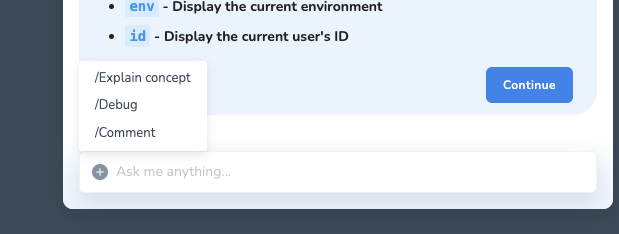
Labby also provides code debugging, concept explanations, and other functions. You can interrupt it at any time.
VM
VM stands for Virtual Machine. It allows you to experience hands-on operations, get creative, and try the code out.
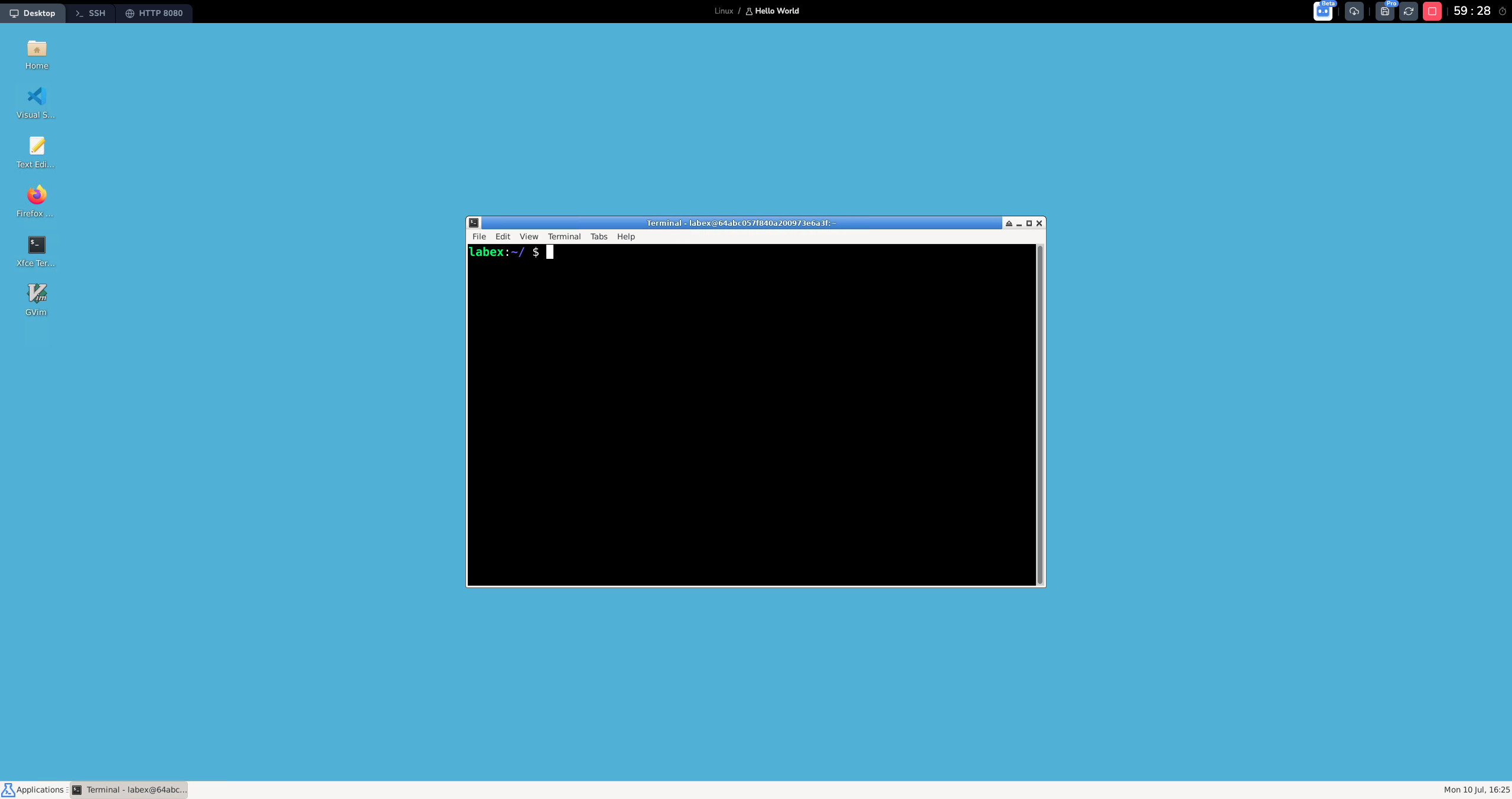
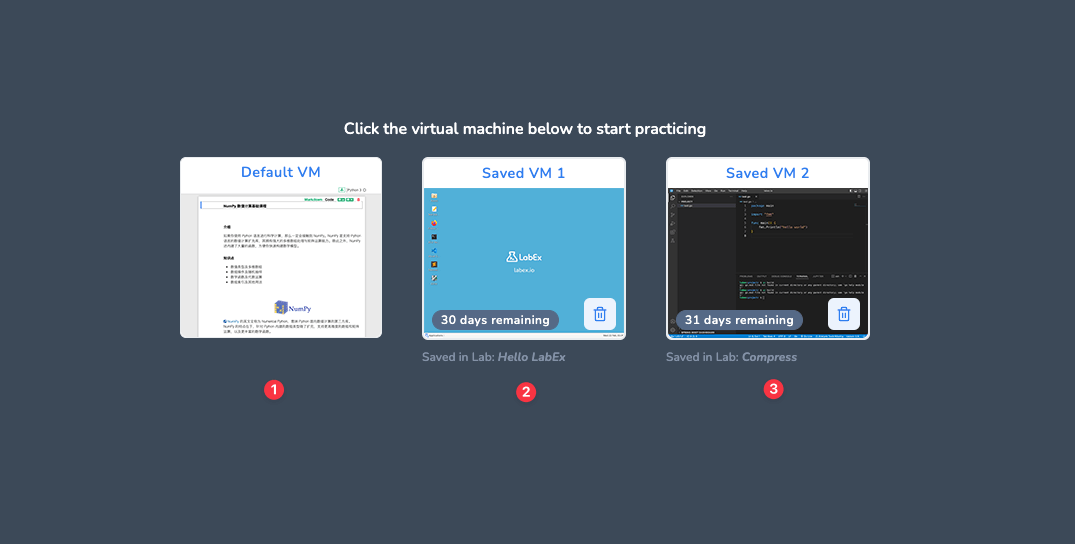
LabEx's virtual environment can be divided into Desktop, VS Code and Jupyter Notebook.
- Desktop: A Linux desktop environment. You can use it to run Linux commands and programs.
- VS Code: A code editor. You can use it to write and run code.
- Jupyter Notebook: A web-based interactive computational environment for creating Jupyter notebook documents. It is widely used in data science and machine learning. You can use it to run Python code, R code, and other languages.
VM and Lab are closely integrated to ensure a good learning experience. All environments are based on the Linux operating system. In most cases, LabEx will choose the most suitable environment for you. But you can also switch between them by clicking the tabs on the top left corner.
VM Interface
It is straightforward in terms of how to use the site. Just choose a lab you're interested in, click Start, wait a couple of seconds, and voila, there you go!
You'll enter the lab environment upon clicking on Default VM.
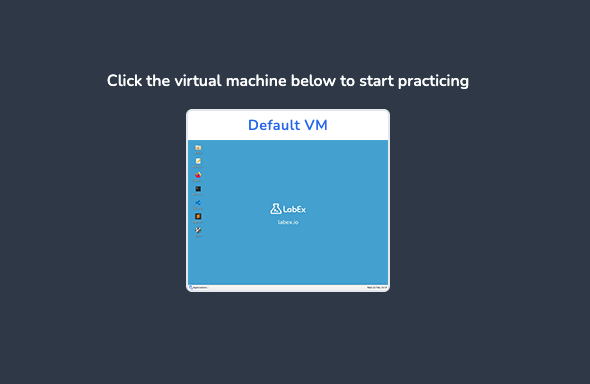
The system will automatically create a virtual desktop for you. It takes a couple of seconds to load, so please be patient.
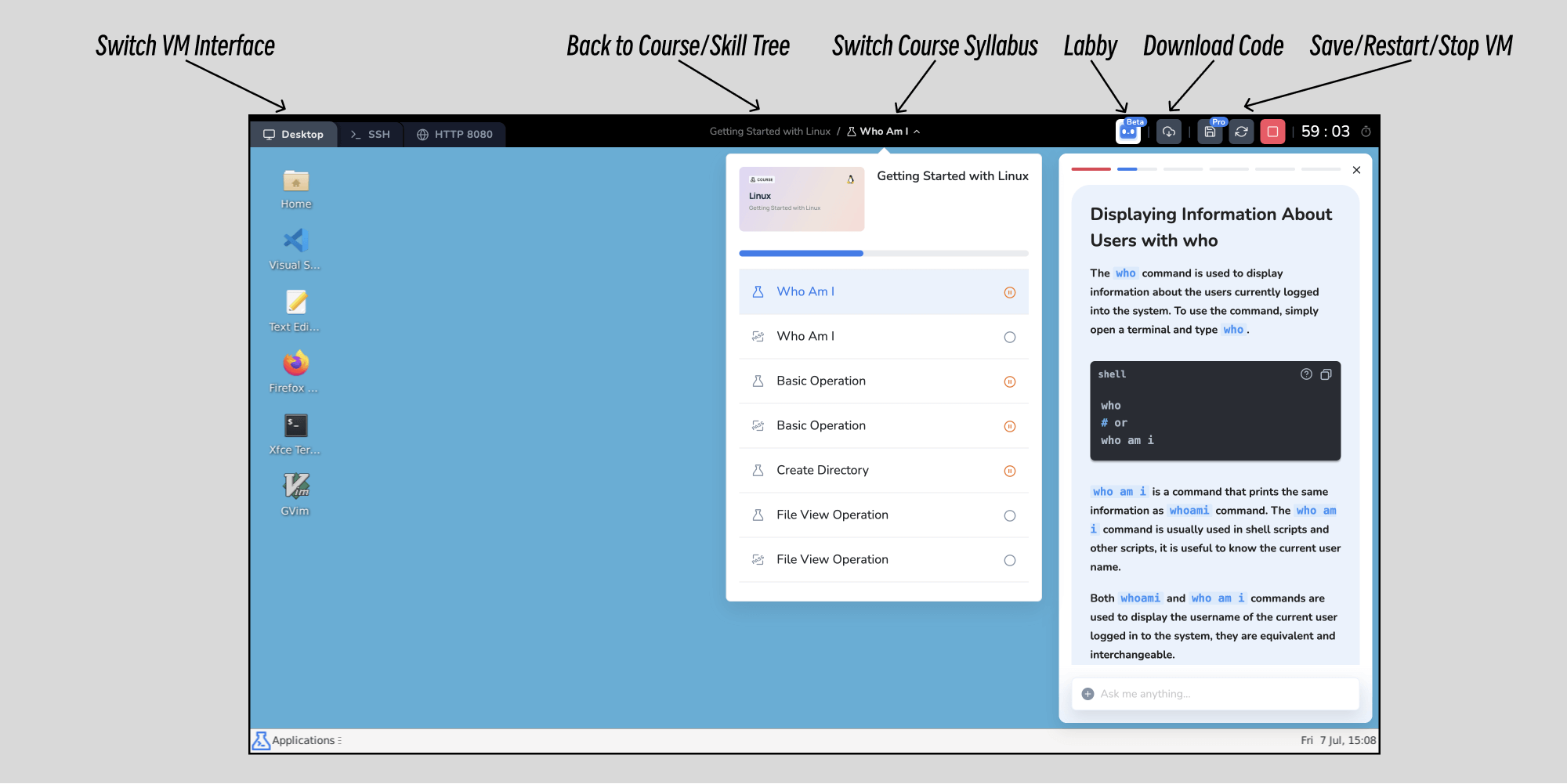
Some tools you may want to know:
- Download: download the code you wrote in the virtual desktop to your local computer.
- Save VM: save the current VM environment. You can load it later.
- Restart VM: restart the current virtual desktop.
- Stop VM: stop the current virtual desktop. The system will delete the current environment when you leave.
- Extend: extend the current lab session for another hour.
Labby
Labby primarily provides the following functions:
- Code debugging: Labby will help you debug your code.
- Concept explanation: Labby will explain the concept to you.
When using debug, you can directly paste the error message of the code. If Labby cannot answer accurately, you can provide some hints before the error message. You can even paste the complete code to Labby. For example:
/Debug This is the code:

<PASTE CODE>

This is the error message:

<PASTE ERROR MESSAGE>

Please help me debug.
If you have any questions, suggestions, or feedback, you can leave a comment using /Comment command. The comment will be sent to the LabEx team.
Learning by Skill Tree
Systematic and personalized learning is the key to learning. LabEx provides Skill Trees for users to learn systematically and efficiently.
Skill Tree is LabEx's resource skeleton, linking different challenges and labs. Skill Tree is officially defined based on the technical direction, and We will keep up to date with the latest Skill Tree.
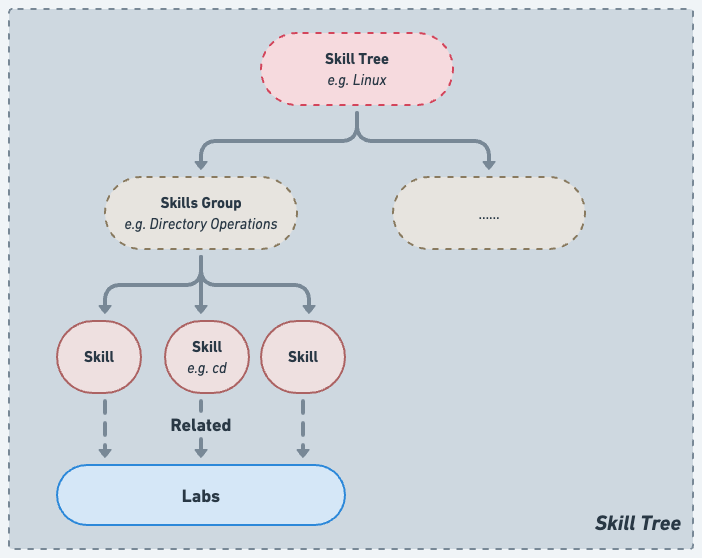
When you join a skill tree and learn labs and challenges, the associated skill points will be illuminated.
Featured Courses
Each Skill Tree has a Featured Courses section, which is a recommended course for this Skill Tree. Featured courses are usually the most basic courses in this direction, and they are also the most important courses. We recommend that you complete the Featured Courses first.
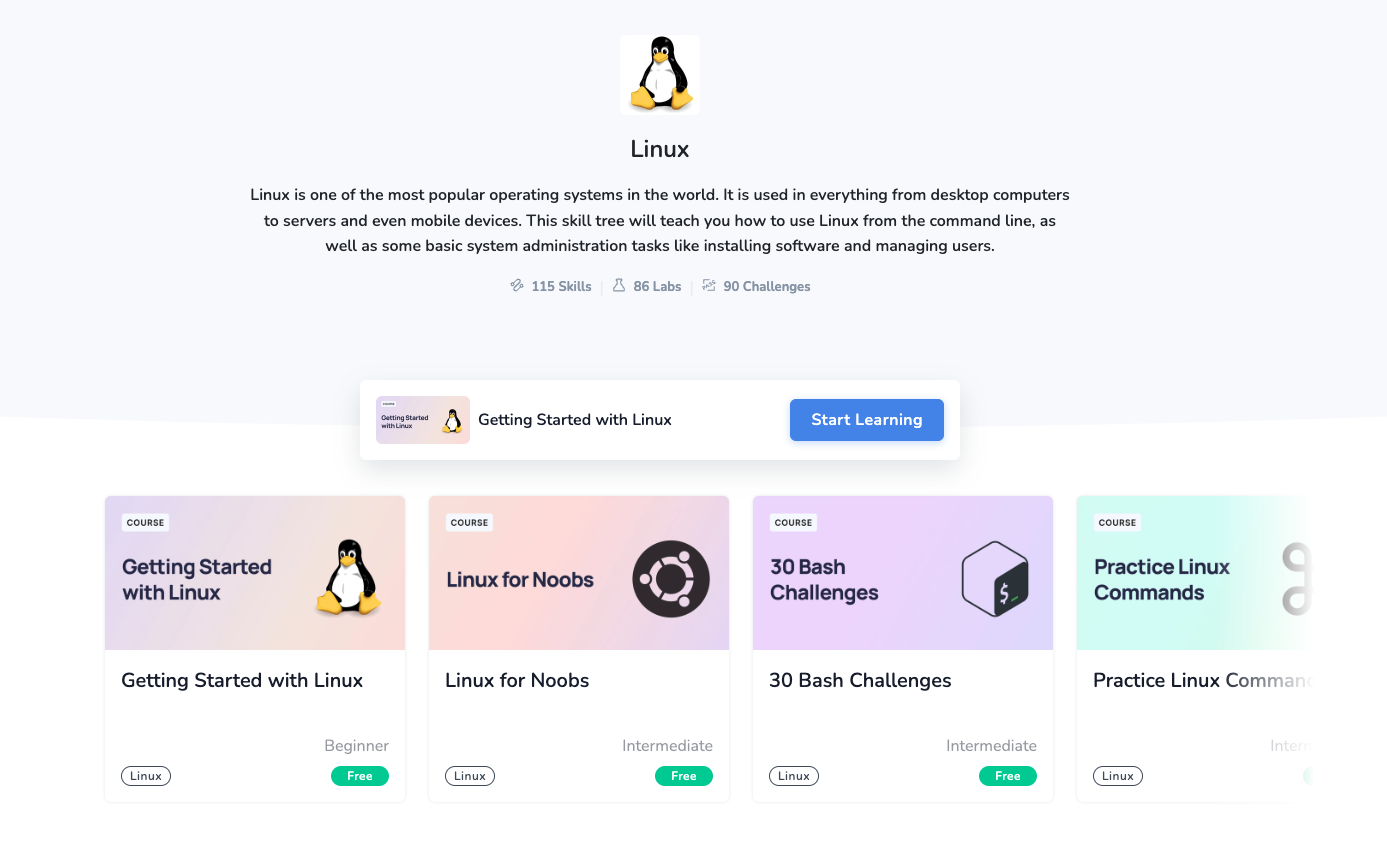
Free Learning Mode
All the labs and challenges associated with Skill Tree will be presented below the featured courses. You can choose to learn any skill points according to your own needs.
When you finish learning a lab or challenge, the corresponding skill points will be illuminated.
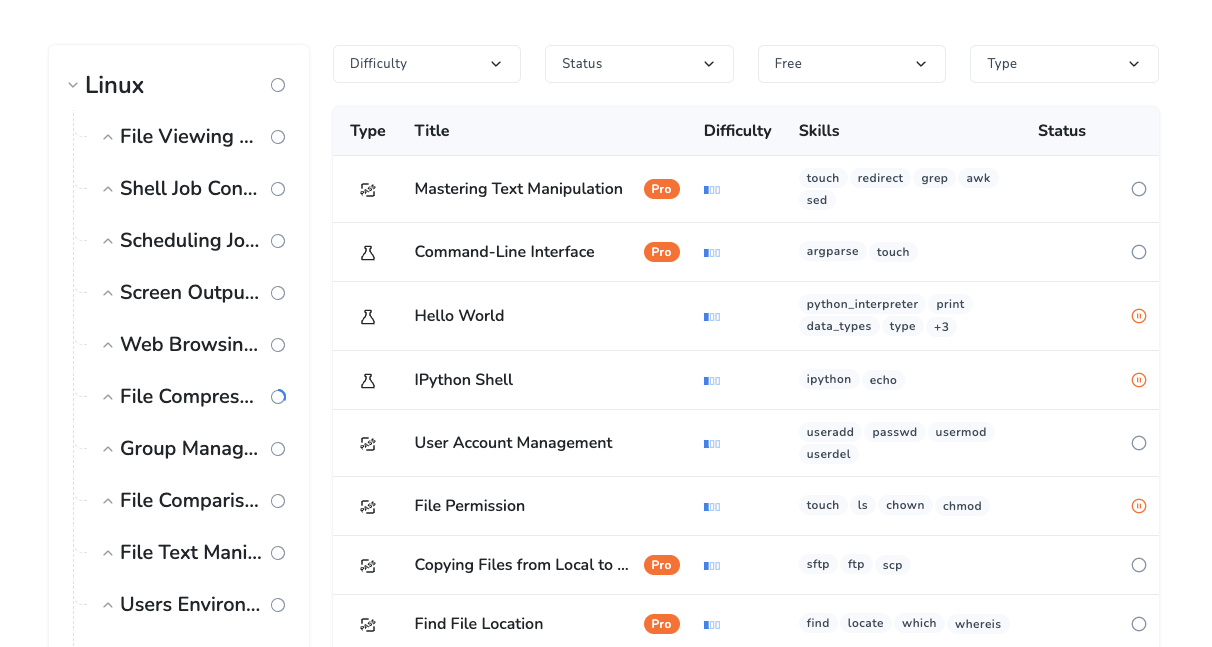
When you light up the complete skill tree, it means that you are already very familiar with this direction.
