

How to Customize the Omarchy Bar: Layout, Widgets, and Settings
Move the Omarchy bar, rearrange its sections, enable built-in widgets, and understand what changes when your shell.json becomes the source of truth.
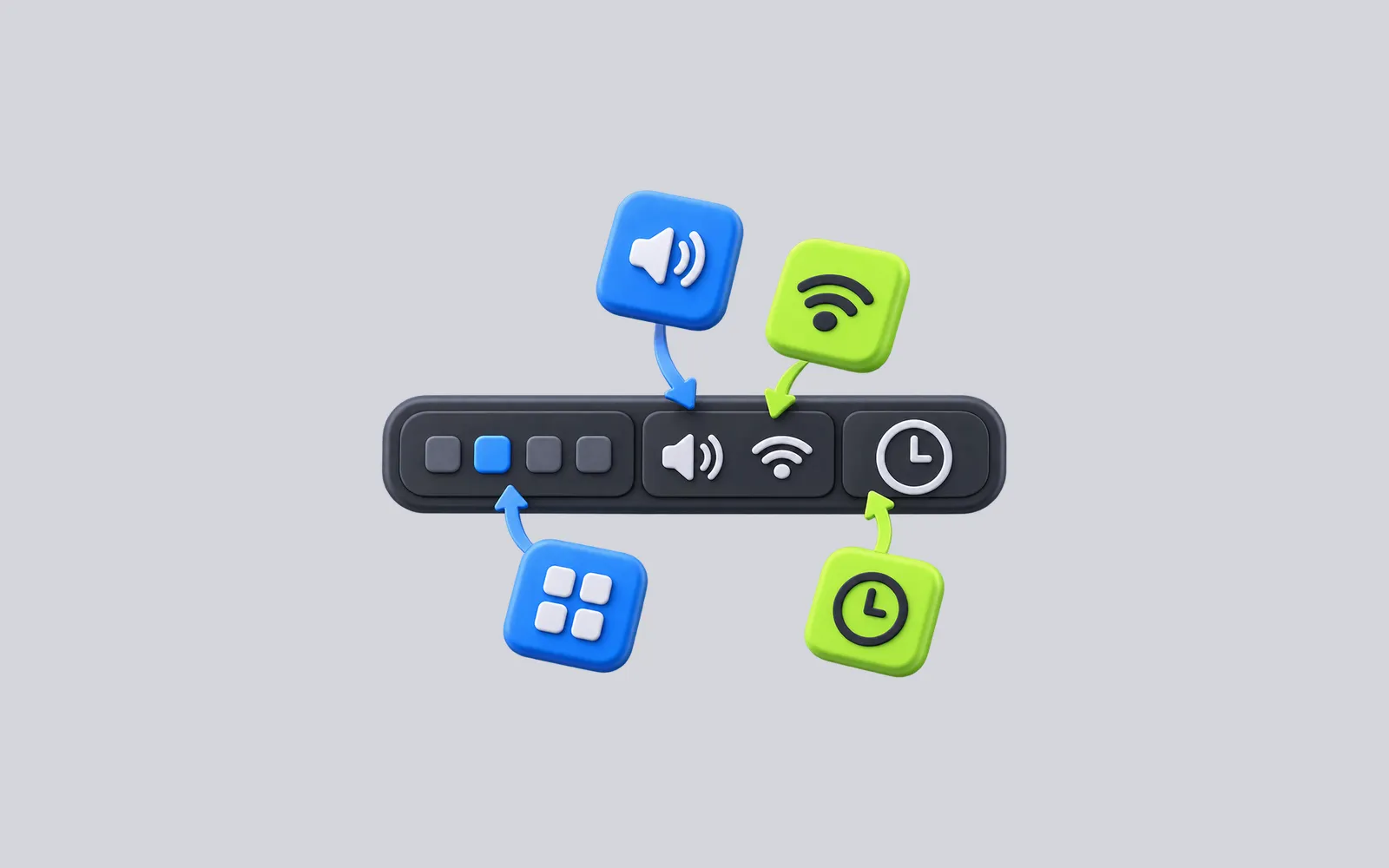
The Omarchy bar can be moved to another screen edge, made transparent, and rearranged without editing a file. Once you do customize it, however, your own shell.json becomes the layout Omarchy reads. That second part matters: a future release can add a new default widget without automatically inserting it into a layout you already own.
This guide follows the current Omarchy top bar manual as checked on September 29, 2026. It covers the Quickshell-based Omarchy bar and its built-in widgets. An older Waybar configuration is a different system.
Start with the bar you already have
The default bar has left, center, and right sections. Workspaces sit on the left; status, clock, and weather occupy the center; tray and system controls sit on the right. Some items appear only when relevant. An update badge, for example, waits for an available Omarchy update, and a keyboard-layout indicator needs more than one configured layout.
Before adding anything, try the existing controls. The clock opens a calendar on left-click and cycles its label on right-click. Audio opens a panel, while scrolling over it adjusts volume. Display offers brightness and monitor controls. The manual’s interaction table is useful because several widgets have distinct right-click, middle-click, and scroll actions.
If the bar is absent, press Super + Shift + Space. That toggles its visibility; it does not stop the shell or remove your widgets.
Move and rearrange it without a config file
Drag an empty area near the bar’s center toward a screen edge. Omarchy can place the bar on the top, bottom, left, or right; a vertical bar uses compact versions of widgets. A double left-click on that empty area toggles transparency. Individual widgets can be dragged to change their order or moved between the three sections. The same position and transparency choices are in Style → Menu Bar.
There are also terminal commands for repeatable changes:
omarchy bar position bottom
omarchy bar transparent toggle
omarchy bar move omarchy.clock --section center --index 0
The last command uses a plugin ID, not the word displayed on screen. Run omarchy plugin list to see the IDs on your system before moving a different widget. The shell plugin manual says the list also identifies which plugins are enabled and whether they are first-party or third-party.
Enable a built-in widget, then decide whether it earns its space
Not every built-in widget is on the bar initially. The top bar manual names media and microphone as examples that are available but off by default. To add media to the center and remove weather from your layout:
omarchy plugin enable omarchy.media --section center
omarchy plugin disable omarchy.weather
These are separate decisions. Enabling media adds a visible now-playing control when a compatible player provides information. Disabling weather removes a status you may not need. You can reach plugin enable and disable pickers through Setup → Plugins as well.
For third-party choices, start with the Omarchy bar widget guide. A plugin from a Git repository runs code inside your user session, so read its repository and requirements before installing it. Adding a widget to the bar does not make an external service, backup destination, or account work by itself.
Edit one setting and inspect the saved layout
The bar command can change a widget setting directly. For example, the official guide uses this clock format:
omarchy bar set omarchy.clock format "HH:mm"Omarchy stores bar position, transparency, and the three layout arrays under bar in ~/.config/omarchy/shell.json. A trimmed layout looks like this:
{
  "version": 1,
  "bar": {
    "position": "bottom",
    "transparent": false,
    "centerAnchor": "omarchy.clock",
    "layout": {
      "left": [{ "id": "omarchy.menu" }, { "id": "omarchy.workspaces" }],
      "center": [{ "id": "omarchy.clock", "format": "HH:mm" }],
      "right": [{ "id": "omarchy.audio" }, { "id": "omarchy.power" }]
    }
  }
}
This is an illustrative subset of the structure in the official configuration example, not a full default file to paste over your own. Each layout entry holds the widget ID and any settings inline. centerAnchor pins the named center widget to the screen’s actual midpoint; an empty value centers the group instead.
The file has an important ownership rule. Before any customization, the shell can use Omarchy’s shipped default. Once you move a widget, use omarchy bar, or edit shell.json, your file is canonical; new default widgets are not merged into it automatically. Keep a copy if you edit it directly. To return to the current shipped layout, use omarchy bar defaults, knowing that this resets your custom bar arrangement.
Keep the change you can explain
Try one change at a time: move the bar, place a widget where you expect to look for it, then use the desktop for a day. If the result is worse, reverse that specific move or restore the shipped layout. The useful configuration is the one that makes a needed state easy to find without turning the bar into a row of permanent distractions.
References
- Omarchy’s top bar manual documents bar interactions, layout commands, built-in widgets, and the
shell.jsonownership rule. - Omarchy’s shell plugin manual documents plugin IDs, enable and disable actions, and the trust boundary for third-party code.
- Omarchy’s dotfiles manual distinguishes user configuration in
~/.configfrom package files under/usr/share/omarchy.