

The 10 Most Useful Omarchy Bar Widgets
Ten Omarchy bar widgets for backups, notifications, system activity, development work, and more—with the setup requirements and limits that matter before you install them.
The Omarchy bar already handles workspaces, weather, network connections, audio, power, and other everyday controls. A third-party widget earns its space when it answers a question the built-in bar cannot: Did last night’s backup run? Which process is using the network? Is a Cloudflare Tunnel down?
These ten picks are organized by the job they do, not by download counts. They are third-party bar widgets for the Quickshell-based Omarchy shell, rather than replacements for the entire bar or old Waybar configurations. The selection is based on the projects’ source repositories and documented behavior checked on September 29, 2026. Their live behavior and performance have not been independently tested on an Omarchy machine, so check the linked repository and current requirements before installing.
| If you need to… | Start with |
|---|---|
| Manage a growing plugin collection | Omaplug |
| Recover a notification you missed | Notification Center |
| Know whether your files were backed up | Time Machine |
| Keep a focus session visible | Pomodoro |
| See which process is using your connection | Network Throughput |
| Inspect CPU, memory, and processes | Omarchy System Monitor |
| Track PRs and CI without another browser tab | Omarchy GitHub |
| Watch a Cloudflare zone and its services | Cloudflarechy |
| Restore a monitor layout when you dock | hyprmoncfg |
| Mount and eject removable drives | Drive Bay |
1. Omaplug: manage the plugins you actually installed
Once a few plugins are on the bar, the maintenance task becomes finding which ones are enabled, which have updates, and where each one came from. Omaplug puts that inventory in a bar panel. Its documented controls include enabling and disabling plugins, reviewing available updates, opening source repositories, and arranging bar widgets. That makes it useful after you begin customizing Omarchy; installing it for a single widget adds another component to maintain.
The project’s update screen distinguishes a marketplace-verified snapshot from upstream changes that have not been checked. That is a useful distinction, but a badge is not a review of all code a plugin may run. Omarchy’s plugin manual explains that third-party plugins run in the user’s shell process.
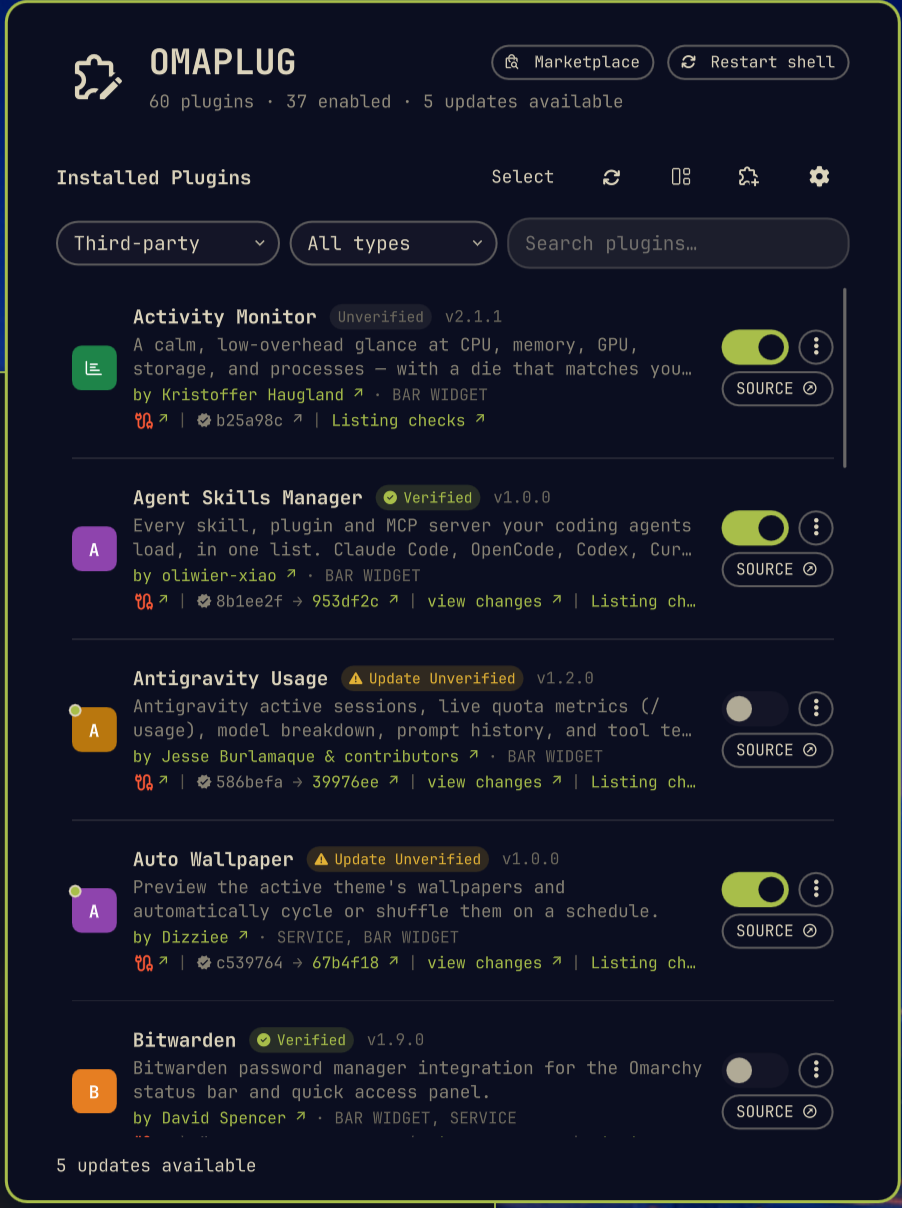
Screenshot from the Omaplug repository; it shows the plugin inventory and update indicators.
2. Notification Center: find the alert that disappeared
Omarchy can show a notification and let it vanish. Notification Center adds a bell and a searchable history so an alert can still be read later. The maintainer documents a retention limit, unread indicator choices, and local storage for notification text and images.
That storage is also the reason to set a retention period deliberately. Notifications can contain chat messages or one-time codes; the repository says the archive remains on disk after removing the plugin unless you delete it separately. This widget fits someone who often needs to retrieve an alert, rather than someone who wants notifications to disappear for good.
3. Time Machine: make backup status visible
Time Machine uses restic for scheduled backups and keeps the last backup status in the bar. Its panel lists destinations and snapshots and offers a restore browser. The bar’s quiet state is the point: you need the warning when a backup stops happening, not a constantly changing counter.
It requires restic, a configured destination, and an encryption password. The maintainer calls out one essential recovery step: keep that password somewhere outside the machine being backed up. A status icon confirms only what the plugin reports; a real backup plan also needs an occasional restore check.
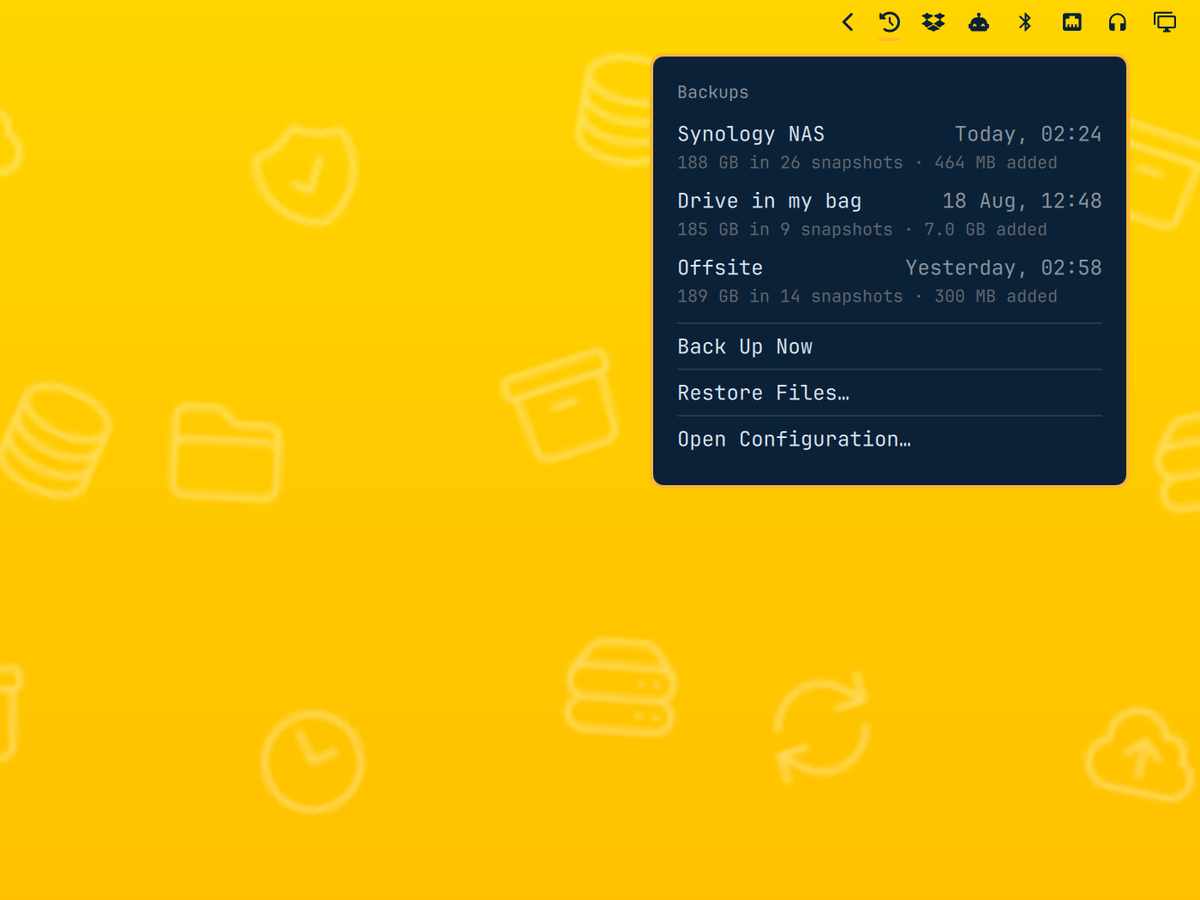
Screenshot from the Time Machine repository; the panel makes backup recency visible.
4. Pomodoro: keep the current focus block in sight
The Pomodoro widget places the current work or break countdown in the bar. Its panel offers duration presets, pause and skip controls, and options for Do Not Disturb, sounds, and a full-screen break view. The repository says its timer state survives shell restarts and suspend.
This is useful if a timer should remain visible across workspaces. If you already use a dedicated timer that you reliably notice, another bar timer may simply compete for attention. The chime depends on the available audio command and sound theme; the project documents how to turn sound off.
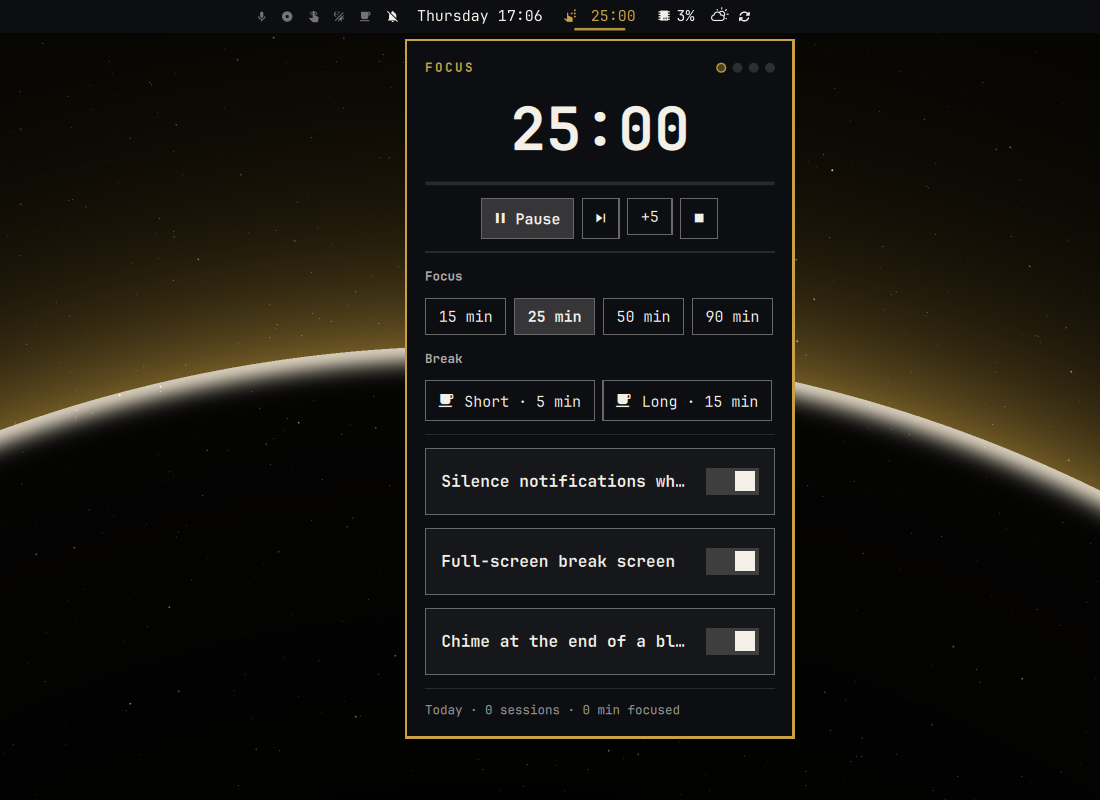
Screenshot from the Pomodoro repository; it shows the controls behind the bar countdown.
5. Network Throughput: distinguish a busy link from a busy app
Omarchy’s built-in network widget helps manage a connection. Network Throughput instead displays upload and download rates and opens a panel of recent processes. That answers a different question when a connection feels slow: is traffic moving, and which visible process may be responsible?
The attribution has an important boundary. The widget reads interface counters for total traffic, but uses TCP socket data to associate some traffic with processes. It puts the remainder under Other traffic, including traffic it cannot safely assign. Read that row as an honest limitation, not as an unnamed culprit.
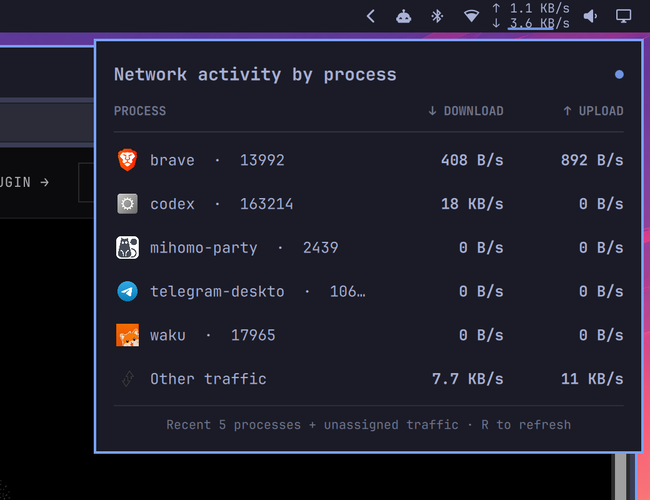
Screenshot from the Network Throughput repository; unassigned traffic is shown separately.
6. Omarchy System Monitor: inspect resource use without opening a full monitor
Omarchy System Monitor puts a configurable CPU, memory, network, load, or uptime readout in the bar. Its panel adds performance history, a process table, and hardware details; a larger task-manager window is available when the small panel is not enough.
The value is quick inspection, not replacing every diagnostic command. Some readings depend on optional tools: the repository lists lm-sensors for temperature and fan data and nvidia-smi for NVIDIA GPU details. A machine without those tools should not be expected to show those measurements. This is the one system-monitoring pick here; several other plugins cover much the same ground.
7. Omarchy GitHub: put review work and CI in one place
Omarchy GitHub surfaces GitHub notifications, review requests, your pull requests, assigned issues, and selected Actions activity from a bar panel. For someone working across repositories, that is more actionable than a generic unread count: the panel can identify a failed run or a PR waiting for review.
The widget uses the existing GitHub CLI login. Its documented setup requires gh authentication and appropriate scopes for notifications and private repository data. It is a poor fit if you do not want GitHub account activity continuously present on your desktop; the browser and gh remain sufficient for occasional checks.
8. Cloudflarechy: notice a Cloudflare problem before opening the dashboard
Cloudflarechy is a particularly focused pick for people who operate a site on Cloudflare. It shows zone traffic and cache information, Workers and Tunnel status, and changes its bar mark when a monitored condition needs attention. The maintainer’s examples include a down or degraded Tunnel, an elevated 5xx rate, and Development Mode or Under Attack Mode left on.
The setup has two paths. An existing Wrangler login provides a read-only view; an API token can unlock actions if it has the required permissions. The repository documents the scopes separately and says the token is stored locally with restricted file permissions. This is not a general-purpose network widget, and the bar signal is only as fresh as its configured poll interval. If you do not manage a Cloudflare zone, there is nothing for it to watch.
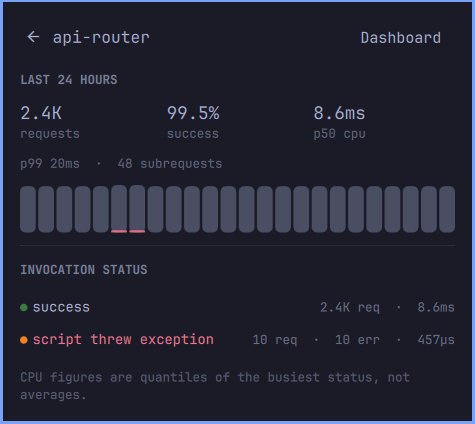
Maintainer-provided Cloudflarechy demo screenshot; its repository says demo images use mock data rather than a real account.
9. hyprmoncfg: get the right monitor layout when you reconnect
hyprmoncfg’s Omarchy widget brings saved multi-monitor profiles into a bar panel. The documented workflow is to arrange screens once, save profiles for places such as a desk and a projector, then apply the matching layout when monitors are connected or a laptop lid changes state. Its visual editor also exposes per-display position, scale, and other settings.
The plugin depends on the separate hyprmoncfg package and service; adding the widget alone does not provide automatic monitor management. It is most useful for someone who repeatedly docks and undocks, not for a single fixed display.
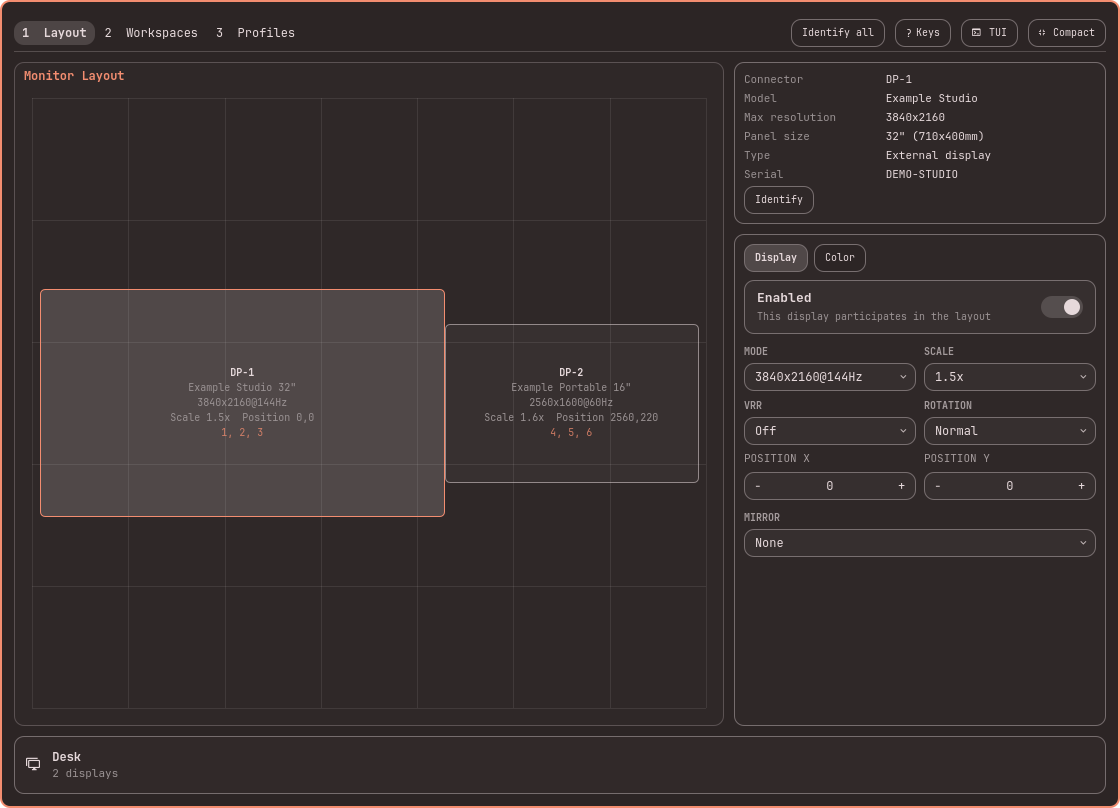
Screenshot from the hyprmoncfg Omarchy repository; the example layout shows the settings the panel can change.
10. Drive Bay: handle removable storage from the bar
Drive Bay shows removable drives, available space, and mount or unmount actions through a compact bar panel. This is a small task, but one that otherwise sends you to a file manager or a terminal each time you attach a USB drive.
The project intentionally leaves locked LUKS volumes inert until they are unlocked elsewhere, and it excludes internal system disks. Those boundaries keep the widget focused on removable media. If you rarely attach external storage, it has little reason to occupy a permanent slot.
Add only the widgets that answer your questions
Start with the official bar guide to see what your current layout already does. For a third-party project, read its repository and requirements before running omarchy plugin add; installation clones the current repository revision, and plugins run with your user-level access inside Omarchy’s shell. Then enable one widget, check that it answers the question you installed it for, and remove it if it does not.
The ten choices are deliberately varied. A backup status, a focus timer, and a Cloudflare alert serve different people. The useful bar is the one that makes the few states you act on visible, while leaving everything else out of the way.
References
- Omarchy’s top bar manual documents the built-in widgets, layout controls, and
shell.jsonbehavior. - Omarchy’s shell plugin manual explains plugin kinds, installation, updates, and the trust boundary for third-party code.
- Omarchy 4 release notes establish the move from Waybar to the Quickshell-based bar covered here.