

Docker Image vs Container: Why Rebuilding Doesn't Update Your App
Rebuild a Docker image, inspect two container versions, and see why restart keeps the old app. Follow a tested experiment with commands, screenshots, and cleanup.
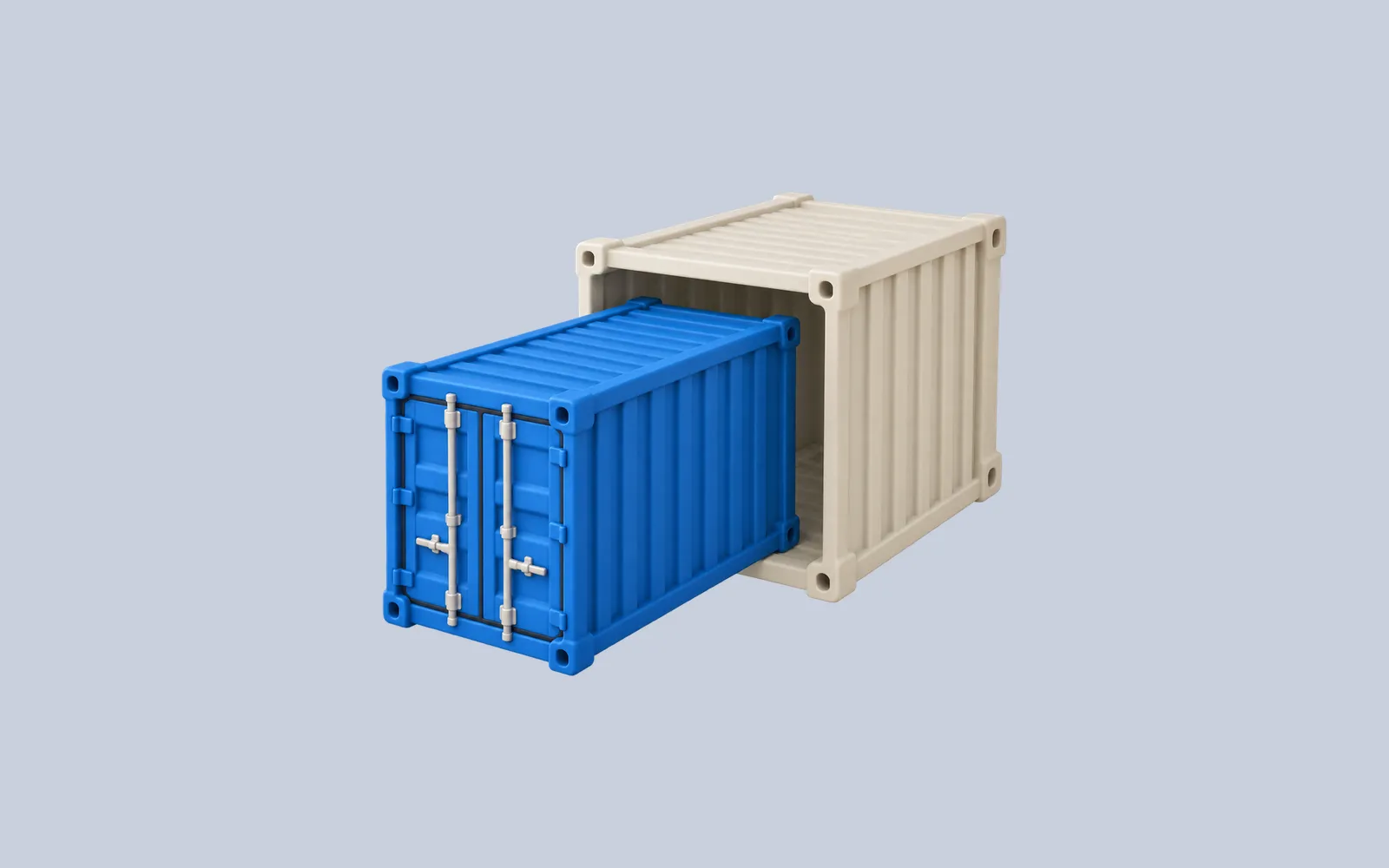
You edit a page, run docker build, restart the container, and refresh the browser. The old page is still there. Before disabling every cache, check whether the container is using the image you just built.
An image is the packaged filesystem and configuration used to create containers. A container is an instance created from an image, with its own runtime configuration and writable layer. Rebuilding a tag does not replace an existing container’s image. Restarting that container starts the same instance again.
This distinction becomes easier to remember when two containers answer with different application versions while using the same original tag name. The following experiment produces exactly that result.
Three identities to keep separate
| Object | Example | What a rebuild changes |
|---|---|---|
| Image tag | version-demo:current |
The tag can point to a newly built image |
| Image ID | A sha256:… identifier |
Changed image contents produce a different image identity |
| Container | version-old |
An existing container keeps the image selected when it was created |
Docker describes images as immutable, layered packages in What is an image?. A movable tag is a convenient reference to such a package; it does not make every instance created through that reference change retroactively.
Imagine a recipe revision and two prepared meals. Changing the recipe affects the next meal you make. Reheating yesterday’s meal does not apply today’s recipe. The analogy stops at the lifecycle: containers also have processes, network configuration, writable files, and mounts that you should inspect directly.
Prepare a tiny versioned web page
Use a Linux shell with Docker daemon access and curl. We tested this walkthrough in a LabEx Ubuntu 22.04 instance VM running Docker Engine 20.10.21 on September 7, 2026. The base image is python:3.12-alpine; that tag can receive updates, so your image IDs will differ.
Ports 8080 and 8081 must be available. Run the curl commands in the same VM or machine as the Docker host. The examples publish to its loopback address, so a laptop browser cannot automatically access a remote VM through the laptop’s own localhost.
Create a new directory:
mkdir docker-version-demo
cd docker-version-demo
Create index.html:
<!doctype html>
<html lang="en">
  <meta charset="utf-8" /><title>Container version check</title
  ><style>
    body {
      font: 24px/1.6 system-ui;
      margin: 12vh auto;
      max-width: 760px;
      padding: 32px;
      background: #f0f6fa;
      color: #18334a;
    }
    h1 {
      font-size: 56px;
    }
  </style>
  <p>CONTAINER VERSION CHECK</p>
  <h1>Application version: v1</h1>
  <p>This response comes from the files packaged in this container's image.</p>
</html>
Create Dockerfile in the same directory:
FROM python:3.12-alpine
WORKDIR /site
COPY index.html .
EXPOSE 8000
CMD ["python", "-u", "-m", "http.server", "8000", "--bind", "0.0.0.0"]
COPY puts the page into the image at build time. There is no bind mount replacing /site, which keeps this experiment focused on image identity. The Python server is a small demonstration server, not a production hosting recommendation; see its official documentation.
Build version 1 and create a container:
docker build -t version-demo:current .
docker run -d --name version-old \
  -p 127.0.0.1:8080:8000 version-demo:current
curl --retry 5 --retry-all-errors --retry-delay 1 -fsS \
  http://127.0.0.1:8080 | grep -o 'Application version: v[12]'
The response should contain Application version: v1. A detached container can be created before its server is ready; the bounded retries handle that brief startup interval. --retry-all-errors requires curl 7.71.0 or newer. We use it only for these read-only requests, not as a blanket retry policy for writes.
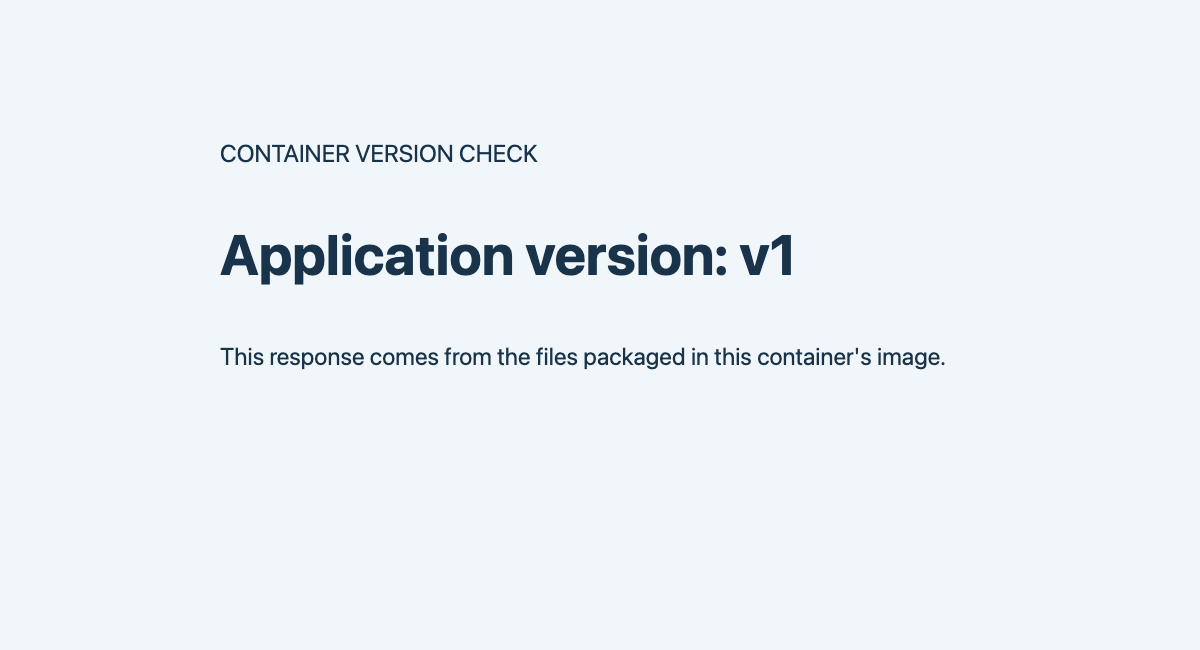
The actual page from the first image. For browser capture, we launched a separate preview container from that image through a LabEx VM web interface; the terminal comparison below uses the loopback mappings shown in the commands.
Rebuild the tag, then restart the old container
Change the version marker in index.html from v1 to v2. In the tested Linux environment, this command makes the edit:
sed -i 's/version: v1/version: v2/' index.html
docker build -t version-demo:current .
Now inspect the tag and the existing container:
docker image inspect version-demo:current --format '{{.Id}}'
docker inspect version-old --format '{{.Image}}'
The two IDs should differ. The tag identifies the newly built image; version-old records the earlier image. Docker’s image inspect and container inspect commands let you ask these separate questions without inferring the answer from a browser cache.
Restart the original container:
docker restart version-old
curl --retry 5 --retry-all-errors --retry-delay 1 -fsS \
  http://127.0.0.1:8080 | grep -o 'Application version: v[12]'
It still returns v1. The restart command operates on existing containers. It does not rebuild an image or create a replacement container from the tag’s new target.
This is also why a different container ID matters more than a successful restart message when checking whether a replacement happened. A process restart and a container replacement are different events.
Create a second container from the updated tag
Leave the old container running and use a different host port for the second one:
docker run -d --name version-new \
  -p 127.0.0.1:8081:8000 version-demo:current
curl --retry 5 --retry-all-errors --retry-delay 1 -fsS \
  http://127.0.0.1:8081 | grep -o 'Application version: v[12]'
docker inspect version-old version-new --format '{{.Name}} {{.Image}}'
The new endpoint returns v2. Both containers originally used the textual reference version-demo:current, but that reference resolved to different images at their creation times.

Image identity explains the two responses. Exact hashes are specific to this build; the old/new relationship is the expected result.
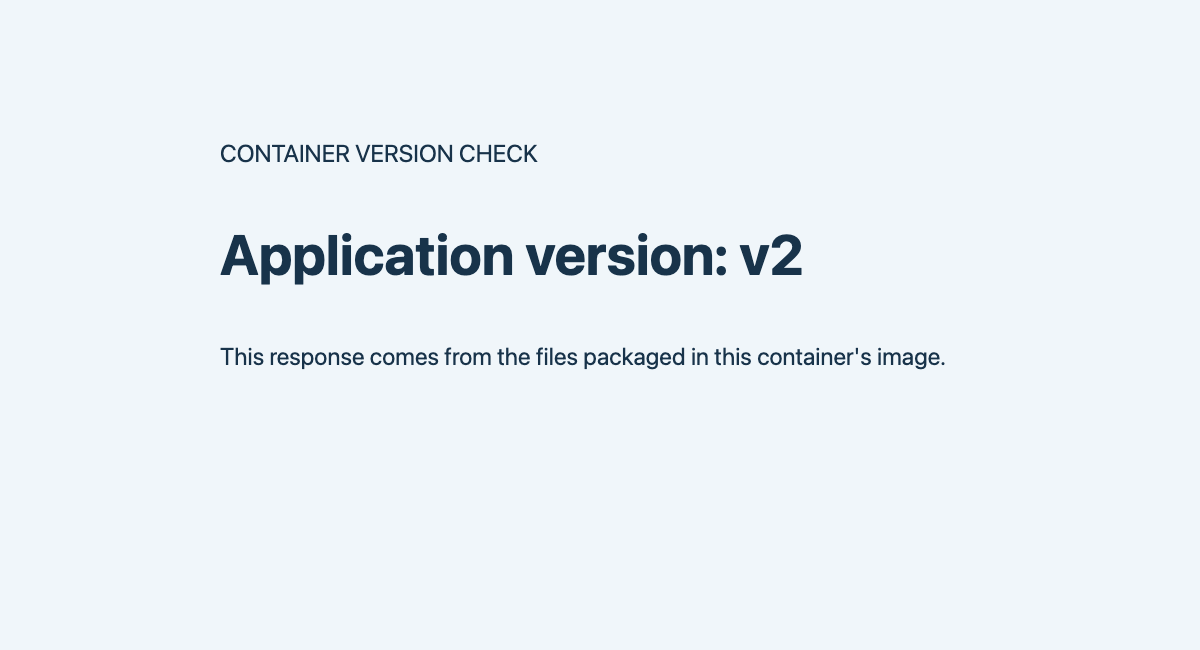
The second image contains the edited page. As with the first screenshot, a separate VM preview container made the page available to the capture browser.
You now have an observation that a cache-only explanation cannot account for: inspection itself shows that the two containers use different images. The HTTP responses agree with that evidence.
Replace the original instance deliberately
For this disposable demo, replace the original container using the updated tag:
docker stop version-old
docker rm version-old
docker run -d --name version-old \
  -p 127.0.0.1:8080:8000 version-demo:current
curl --retry 5 --retry-all-errors --retry-delay 1 -fsS \
  http://127.0.0.1:8080 | grep -o 'Application version: v[12]'
Port 8080 now returns v2. We reused the name, but this is a new container. Removing the previous instance first also releases its name and host port.
This replacement has a gap while the old service stops and the new one starts. It is not a zero-downtime deployment pattern. Real applications also need their environment variables, mounts, network attachments, restart policy, and other runtime settings reproduced. Writing down a repeatable configuration is safer than trying to remember the original docker run arguments.
Before deleting an application container, identify its data location. Removing a container removes its writable layer; a separately managed volume has a different lifecycle. The volume versus bind mount experiment tests those cases directly. This page deliberately stores only disposable application files in its image and creates no user data.
If a new container still shows old content
Do not assume every stale page has this cause. Use the evidence to narrow the next check:
| Observation | Next check | Why it matters |
|---|---|---|
| New container still has the old image ID | Inspect the exact image reference used to create it | You may have rebuilt a different tag |
| Build completes but intended file never changes | Check the build directory, COPY source, and .dockerignore |
The edited file may not enter the build context |
Correct image, unexpected files at /site |
Inspect .Mounts |
A mount can hide files packaged in the image |
| Correct response from curl, old page in browser | Check the browser URL and cache behavior | The client may request another endpoint or retain content |
| Pull succeeds, running app stays unchanged | Inspect the existing container’s image ID | Pulling also does not replace existing containers |
| Request never reaches the application | Inspect port mappings, server binding, and logs | Image freshness cannot fix a missing network path |
Using --no-cache for every build does not address a container that was never replaced. First establish whether the intended file entered a new image and whether the serving container uses that image. Docker’s build context documentation explains which files a build can access.
For the last row, use the EXPOSE versus publish walkthrough. For guided image-building practice, Custom Docker Images builds and modifies a small web-server image in the LabEx Docker course.
Remove the demo resources
After comparing both endpoints:
docker rm -f version-old version-new
docker image rm version-demo:current
The earlier untagged image may remain locally. If you want to remove it, use the specific old image ID recorded during inspection after confirming that no remaining container needs it. There is no reason to run a machine-wide prune for this exercise. The two local source files can remain as a small rebuild test.
For a final check, change the page to a third version and predict the behavior before running any commands: which operation creates a new image, which operation creates a new container, and which operation only restarts a process? Verify those predictions with image IDs and a response from the intended endpoint.
References
- Docker: What is an image? — immutable image packages and layers.
- Docker image inspect — inspect the image a tag currently identifies.
- Docker container inspect — inspect the image attached to an existing instance.
- Docker container restart — restart existing containers.
- Docker build context — files available to
COPYand the build. - Python 3.12 http.server — the demonstration server and its limitations.
- curl retry-all-errors — the bounded startup retry option.
- LabEx: Custom Docker Images — guided practice building and modifying an image.