介绍
这个名为「jQuery 翻转拼图游戏」的项目提供了一个网页开发的实践经验,重点在于 JavaScript、jQuery 和 Bootstrap。它涉及 JavaScript 中的面向对象编程,并解决了网页开发中「this」绑定的常见问题。该游戏使用 jQuery 和 Bootstrap 3 来实现用户界面。虽然熟悉 Bootstrap 会有帮助,但项目的核心逻辑是用 jQuery 和 JavaScript 构建的。
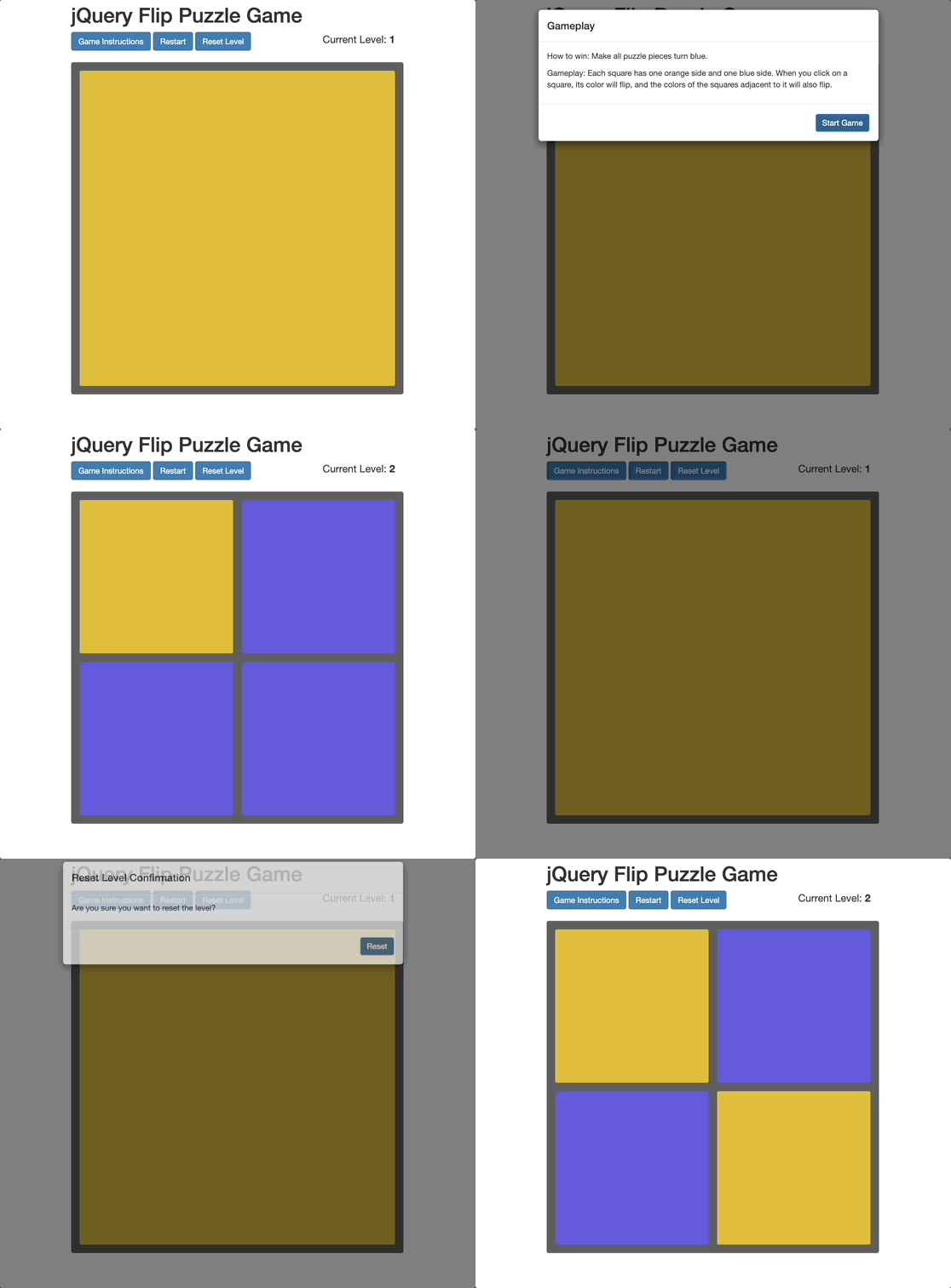
在游戏中,玩家从一组橙色方块组成的网格开始。每个方块有一面是橙色,另一面是蓝色。当玩家点击一个方块时,它的颜色会翻转,相邻方块的颜色也会改变。目标是将所有方块都变成蓝色以完成游戏。
👀 预览
🎯 任务
在这个项目中,你将学习:
- 如何在 JavaScript 中实现面向对象编程并解决「this」绑定问题。
- 如何使用 jQuery 和 JavaScript 构建游戏的核心逻辑。
- 如何创建一个交互式拼图游戏,玩家通过翻转方块颜色来获胜。
🏆 成果
完成这个项目后,你将能够:
- 在 JavaScript 中应用面向对象编程原则。
- 在 JavaScript 中处理「this」绑定以进行事件处理和对象方法调用。
- 使用 jQuery 开发交互式网页游戏。
- 利用 Bootstrap 3 创建视觉上吸引人且用户友好的界面。
基本 HTML 结构
根据预览图像,创建一个初步的网页布局。在 Bootstrap 中,有一个类似于 alert 弹出窗口的 Modal 对话框,并且 Modal 的样式相比之下更美观。
我们需要将 Bootstrap 的 CSS 样式、我们的自定义 CSS 样式、jQuery 文件、Bootstrap JavaScript 文件以及游戏的主 JavaScript 文件包含到项目中。在 HTML 页面的头部标签中编写以下代码:
<head>
  <meta charset="utf-8" />
  <title>蓝色拼图</title>
  <!-- 包含 Bootstrap CSS -->
  <link
    rel="stylesheet"
    href="https://cdn.jsdelivr.net/npm/bootstrap@3.3.7/dist/css/bootstrap.min.css"
  />
  <!-- 包含自定义 CSS -->
  <link rel="stylesheet" href="style.css" />

  <!-- 包含 jQuery 和 Bootstrap JavaScript -->
  <script src="https://cdn.bootcss.com/jquery/3.3.1/jquery.min.js"></script>
  <script src="https://cdn.jsdelivr.net/npm/bootstrap@3.3.7/dist/js/bootstrap.min.js"></script>
  <!-- 包含游戏主 JavaScript -->
  <script src="game.js"></script>
</head>
游戏区域设置
为了设置游戏区域,包括游戏重置按钮和其他功能按钮,将以下代码插入到 body 标签中:
<div class="container">
  <div class="heading">
    <h1 class="title">jQuery 翻转拼图游戏</h1>
    <div class="scoresContainer">
      <!-- 显示当前游戏关卡 -->
      <div class="currLevel">当前关卡:<b>1</b></div>
    </div>
  </div>
  <div class="aboveGame">
    <!-- 游戏按钮 -->
    <a
      class="instruct btn btn-primary"
      data-toggle="modal"
      data-target="#instructions"
      >游戏说明</a
    >
    <a
      class="newgame btn btn-primary"
      data-toggle="modal"
      data-target="#newGame"
      >重新开始</a
    >
    <a
      class="reset btn btn-primary"
      data-toggle="modal"
      data-target="#restartLevel"
      >重置关卡</a
    >
  </div>
  <div class="board">
    <!-- 游戏区域 -->
    <div class="gamerow">
      <div class="gamesquare coord0q0"></div>
    </div>
  </div>
</div>
游戏玩法弹出窗口布局
编辑与「编辑游戏说明」按钮对应的弹出框内容。在游戏区域代码下方编写以下代码:
<!-- 游戏玩法模态框 -->
<div
  class="modal fade"
  id="instructions"
  tabindex="-1"
  role="dialog"
  aria-hidden="true"
>
  <div class="modal-dialog">
    <div class="modal-content">
      <div class="modal-header">
        <h4 class="modal-title">游戏玩法</h4>
      </div>
      <div class="modal-body">
        <p>获胜方法:使所有拼图块变为蓝色。</p>
        <p>
          游戏玩法:每个方块有一面橙色和一面蓝色。当你点击一个方块时,它的颜色会翻转,并且与之相邻的方块颜色也会翻转。
        </p>
      </div>
      <div class="modal-footer">
        <button type="button" class="btn btn-primary" data-dismiss="modal">
          开始游戏
        </button>
      </div>
    </div>
  </div>
</div>
新游戏模态框的布局
编辑与「重新开始」按钮对应的模态框内容。在游戏逻辑代码下方编写以下代码:
<!-- 新游戏模态框 -->
<div
  class="modal fade"
  id="newGame"
  tabindex="-1"
  role="dialog"
  aria-hidden="true"
>
  <div class="modal-dialog">
    <div class="modal-content">
      <div class="modal-header">
        <h4 class="modal-title">重新开始</h4>
      </div>
      <div class="modal-body">
        <p>你确定要重新开始吗?</p>
      </div>
      <div class="modal-footer">
        <button
          type="button"
          class="btn btn-primary"
          id="newGameConfirm"
          data-dismiss="modal"
        >
          开始游戏
        </button>
      </div>
    </div>
  </div>
</div>
重置关卡确认模态框布局
修改与「重置关卡」按钮对应的弹出框内容。在「重置关卡」代码下方添加以下代码:
<!-- 重置关卡确认模态框 -->
<div
  class="modal fade"
  id="restartLevel"
  tabindex="-1"
  role="dialog"
  aria-hidden="true"
>
  <div class="modal-dialog">
    <div class="modal-content">
      <div class="modal-header">
        <h4 class="modal-title">重置关卡确认</h4>
      </div>
      <div class="modal-body">
        <p>你确定要重置关卡吗?</p>
      </div>
      <div class="modal-footer">
        <button
          type="button"
          class="btn btn-primary"
          id="resetLevelConfirm"
          data-dismiss="modal"
        >
          重置
        </button>
      </div>
    </div>
  </div>
</div>
CSS 样式
该游戏的 CSS 样式相对简单。style.css 中的代码如下所示:
.container {
  width: 600px;
  margin: 0 auto;
}

/* 游戏关卡 */
.scoresContainer {
  float: right;
  text-align: right;
  font-size: 18px;
}

/* 游戏按钮 */
.aboveGame:after {
  display: block;
  margin: 20px 0;
  content: "";
  clear: both;
}

/* 游戏区域 */
.board {
  position: absolute;
  background-color: #5f5f5f;
  border-radius: 4px;
}

.gamesquare {
  float: left;
  margin-right: 15px;
  border-radius: 3px;
}
设置游戏场景
游戏面板中的方块存储为二维数组,其中每个元素的值为 0(设置为橙色)或 1(设置为蓝色)。初始时,所有值都设置为 0。当点击一个方块时,其颜色会翻转,同时确定相邻方块的坐标以翻转它们的颜色,并且还要更改二维数组中的值。当数组中的所有值都变为 1(即所有方块都为蓝色)时,游戏完成。
主要逻辑:
- 游戏场景大小、难度级别与方块大小和数量之间的关系。
- 点击一个方块并更改相邻方块的状态。
- 检查所有方块状态是否为
1。
function SetStyle() {}
SetStyle.prototype.setGridSize = function (level) {
  var margin = this.getMargin(level);
  var res = ($(".container").width() - margin * level) / level;

  // 设置方块的大小和间距
  $(".gamesquare").css("margin-right", margin);
  $(".gamesquare").css("width", res);
  $(".gamesquare").css("height", res);

  // 设置每行的高度、右边距和下边距
  $(".gamerow").css("height", res);
  $(".gamerow").css("margin-right", margin * -1);
  $(".gamerow").css("margin-bottom", margin);

  // 设置游戏区域的内边距
  $(".board").css("padding", margin);
  $(".board").css("padding-bottom", 0);
};
SetStyle.prototype.getMargin = function (level) {
  if (level <= 6) return 15;
  if (level > 15) return 5;
  return 20 - level;
};
创建游戏构造函数
// 游戏构造函数
function Game() {
  // 游戏关卡
  this.level = 1;
  // 创建用于控制游戏的对象
  this.gb;
  this.sh = new SetStyle();
}
游戏构造函数旨在创建游戏实例,这些实例具有用于跟踪游戏状态的属性以及用于处理诸如开始游戏、更新其状态和渲染视觉效果等游戏功能的方法。然而,目前尚未提供这些功能的实际逻辑(在 start、update 和 render 方法内部),并且为未来的实现设置了占位符。
设置游戏详情
在 Game 类的原型方法中设置游戏细节:
// Game 类的原型方法,控制具体的游戏逻辑,确保重置 'this' 引用
Game.prototype = {
  processClick: function (w, h) {
    this.gb.processClick(w, h);
    this.updateCounts();
    if (this.gb.isGameWin()) {
      this.gameEnd();
    }
  },
  // 开始游戏
  beginGame: function () {
    this.setupLevel();
  },
  // 游戏结束
  gameEnd: function () {
    this.level++;
    this.resetGame();
  },
  // 重置游戏,使用 bind 重定向 'this'
  resetGame: function () {
    $("#levelDescriptor").html("Enter Level " + this.level);
    setTimeout(
      function () {
        this.setupLevel(); // 当 'this' 未重置时,它指向 window 对象
      }.bind(this),
      500
    ); // 使用 bind 将 'this' 从 window 重定向到实例
  },
  // 设置难度级别
  setupLevel: function () {
    this.gb = new GameBoard(this.level, this.level);
    $(".board").html(""); // 清除游戏棋盘
    this.gb.populate(); // 将所有方块重置为橙色
    this.gb.renderBoard(); // 渲染游戏棋盘并创建方块
    this.sh.setGridSize(this.level); // 控制游戏区域中方块的大小
    this.updateCounts(); // 更新当前关卡显示
    this.applyBindings(); // 翻转点击方块周围的方块颜色
  },
  // 更新当前关卡显示
  updateCounts: function () {
    $(".currLevel").html("Current Level: <b>" + this.level + "</b>");
  },
  applyBindings: function () {
    var that = this; // 在 DOM 事件回调之前将 'this' 保存为变量以便于引用
    $(".gamesquare").click(function () {
      // 获取点击方块的位置
      var cname = $(this).attr("class").split(" ")[1];
      var coord = cname.substring(5).split("q");
      var height = parseInt(coord[1]);
      var width = parseInt(coord[0]);
      that.processClick(width, height);
    });
  },
  onNewGameClick: function () {
    this.level = 1;
    this.setupLevel();
  }
};
这段代码通过添加原型方法扩展了 Game 构造函数的功能。这些方法定义了主要的游戏逻辑和交互。
设置方块的坐标
这段代码定义了一个名为 GameBoard 的构造函数,用于创建游戏棋盘对象。
// xPos、yPos 是方块的坐标
function GameBoard(xPos, yPos) {
  // 游戏棋盘
  // 方块坐标
  this.high = yPos - 1; // 索引从 0 开始
  this.wide = xPos - 1; // 索引从 0 开始
  this.count = 0;
  // 水平坐标是 wide,垂直坐标是 high
  //    [0][0] |  [0][1]
  //  - - - - - - - - - - - -
  //    [1][0] |  |[1][1]

  // 创建一个方块的二维数组
  this.board = new Array(xPos);
  for (var i = 0; i <= this.wide; i++) {
    this.board[i] = new Array(yPos);
  }
}
设置游戏规则
你提供的代码片段通过添加原型方法扩展了 GameBoard 构造函数的功能,这些原型方法定义了核心游戏规则和渲染逻辑。
// 游戏规则的实现
GameBoard.prototype = {
  renderBoard: function () {
    var htmlString = ""; // 游戏方块的结构
    for (var j = 0; j <= this.high; j++) {
      htmlString += "<div class='gamerow'>";
      for (var i = 0; i <= this.wide; i++) {
        htmlString += "<div class='gamesquare coord" + i + "q" + j + "'></div>";
      }
      htmlString += "</div>";
    }
    $(".board").html(htmlString);

    for (var i = 0; i <= this.wide; i++) {
      for (var j = 0; j <= this.high; j++) {
        this.processClickView(i, j);
      }
    }
  },
  processClick: function (w, h) {
    //
    // 翻转点击方块周围方块的颜色
    //

    // 找到需要翻转的周围方块
    var lowx = w - 1;
    var highx = w + 1;
    var lowy = h - 1;
    var highy = h + 1;

    // 检查点击的方块是否为边缘方块
    if (w == 0) lowx = 0;
    if (w == this.wide) highx = this.wide;
    if (h == 0) lowy = 0;
    if (h == this.high) highy = this.high;

    // 翻转点击方块的垂直相邻方块
    for (var i = lowy; i <= highy; i++) {
      if (this.board[w][i] == 0) {
        this.board[w][i] = 1;
        this.count++;
      } else {
        this.board[w][i] = 0;
        this.count--;
      }
      this.processClickView(w, i);
    }

    // 翻转点击方块的水平相邻方块
    for (var i = lowx; i <= highx; i++) {
      if (i == w) continue;
      if (this.board[i][h] == 0) {
        this.board[i][h] = 1;
        this.count++;
      } else {
        this.board[i][h] = 0;
        this.count--;
      }
      this.processClickView(i, h);
    }
  },
  // 翻转一个方块的颜色
  processClickView: function (w, h) {
    var coord = ".coord" + w + "q" + h;
    if (this.board[w][h] == 0) {
      $(coord).css("background-color", "#e8BB39");
    } else {
      $(coord).css("background-color", "#6060e0");
    }
  },

  // 将所有方块重置为橙色
  populate: function () {
    for (var i = 0; i <= this.wide; i++) {
      for (var j = 0; j <= this.high; j++) {
        this.board[i][j] = 0;
      }
    }
  },

  // 游戏胜利条件
  isGameWin: function () {
    return this.count == (this.wide + 1) * (this.high + 1);
  }
};
初始化游戏
这段代码在文档准备好时设置游戏。它初始化游戏,开始第一关,还为重置当前关卡或开始新游戏设置了事件监听器。
// 初始化游戏
$(document).ready(function () {
  // 创建游戏
  var game = new Game();
  // 开始游戏
  game.beginGame();

  // 重置关卡方块
  $("#resetLevelConfirm").click(function () {
    game.setupLevel();
  });

  // 开始新游戏
  $("#newGameConfirm").click(function () {
    game.onNewGameClick();
  });
});
运行应用程序
- 在网页浏览器中打开
index.html。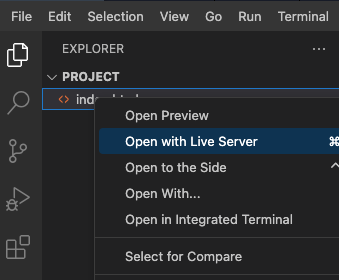
- 页面效果如下:
总结
从这款游戏的开发过程中,我们遇到了:
- JavaScript 中的面向对象方法
- JavaScript 内部的 this 引用和重定向
- 如何使用 jQuery 操作 DOM
- 矩阵关系问题
实际上我们并不需要实现这个逻辑,但我们需要学习这种思维方式。要解决一个问题,首先需要分析问题,理清其中涉及的逻辑关系。这才是解决问题的关键。