

Best Online Linux Terminals in 2026: Real Environments Compared
Compare LabEx with browser terminals from major cloud platforms and popular direct alternatives, including real Linux access, sudo, persistence, and learning support.
Running ls in a browser does not prove that Linux is running behind the prompt.
Some online terminals connect to an Ubuntu virtual machine. Some start a short-lived container. Others implement familiar commands in JavaScript without a Linux kernel, package database, service manager, or real process table. All three can draw a convincing prompt; only the first two execute commands on Linux.
That difference determines what you can practise. A command simulator may be enough to learn what cd does. Installing packages, managing users, inspecting processes, starting services, and diagnosing a changed system require a real Linux environment.
For learning Linux rather than administering a particular cloud account, LabEx Online Linux Terminal is the strongest option in this comparison. It provides an Ubuntu VM with sudo, several interfaces around the same system, guided labs, state checks, challenges, and contextual help. The terminal is also one entry point into a broader sandbox catalog and native LabEx apps for iPhone and Mac. Google Cloud Shell, AWS CloudShell, Azure Cloud Shell, GitHub Codespaces, and CoCalc are useful real environments built for different jobs. Coddy and WebTerm show why “runs in a browser” is not a sufficiently precise category.
What is actually running behind the prompt?
| Execution model | What runs | Practical consequence | Example |
|---|---|---|---|
| Command simulator | Selected commands and a virtual file tree implemented in browser code | Useful for syntax practice, but there is no Linux kernel or arbitrary system software | WebTerm |
| Stateless Linux runner | A fresh server-side Linux container for each submission | Real Bash output, but files and directory changes disappear between runs | Coddy |
| Stateful hosted Linux | A remote Linux userspace retained for a session or project | Real files, processes, and packages within the service’s permissions | AWS CloudShell, Azure Cloud Shell, CoCalc |
| Virtual machine | A complete Linux guest operating system provisioned on a server | Suitable for users, permissions, packages, processes, services, and networking | LabEx, Google Cloud Shell |
| Dev container on a VM | A project-specific container backed by a hosted VM | A repeatable development workspace tied to repository files and tools | GitHub Codespaces |
A real system gives diagnostic commands real state to inspect:
uname -a
cat /etc/os-release
id
ps aux
ip addr
A simulator can return prepared text for some of these commands. It cannot expose an arbitrary package, daemon, kernel interface, or distribution-specific configuration that its developers did not implement.
Online Linux terminal comparison
The table focuses on the details that change what a learner can do. Startup speed is not scored because it varies with region, browser state, service capacity, and whether a remote environment is already warm. Product behaviour was checked against first-party documentation on August 19, 2026.
| Platform | Backing environment | State | Elevated access | Learning support | Best fit |
|---|---|---|---|---|---|
| LabEx | Ubuntu VM plus Linux and tool sandboxes | Retained within the active lab workflow | Main Ubuntu VM: sudo for labex |
Guided labs, checks, challenges, and contextual help | Learning Linux in a complete system |
| CoCalc | Hosted Linux project | Persistent project files and snapshots | No root | Course-oriented collaboration and shared terminals | Collaborative classes and computational work |
| Coddy | Fresh Linux container per Run | Stateless between submissions | Not intended for system administration | Command examples and related guides | Testing one Bash block without an account |
| WebTerm | Browser command simulator | Reset on page reload | Simulated commands only | Interactive command and Git tutorials | Learning basic syntax without an account |
| Google Cloud Shell | Debian-based VM with containerised workspace | 5 GB persistent $HOME; session VM is temporary |
Full root privileges and sudo |
Product documentation | Google Cloud operations |
| AWS CloudShell | Amazon Linux 2023 compute environment | 1 GB persistent $HOME per Region in public environments |
Root inside the container and sudo |
AWS tutorials | AWS operations |
| Azure Cloud Shell | Microsoft-managed Linux container | Optional Azure Files mount; otherwise ephemeral | No sudo |
Azure training material | Azure CLI or PowerShell operations |
| GitHub Codespaces | Dev container on a dedicated Linux VM | Project workspace persists with the codespace | Root inside the dev container | Repository documentation and configuration | Cloud software development |
Why LabEx ranks first for learning Linux
The LabEx Online Linux Terminal opens into an Ubuntu virtual machine rather than a fixed command simulator. The current VM documentation specifies Ubuntu 22.04, a labex user with sudo privileges, and three interfaces connected to the same environment:
- Terminal for direct command-line work;
- WebIDE for editing files in a VS Code-like interface;
- Desktop for graphical applications and visual file operations.
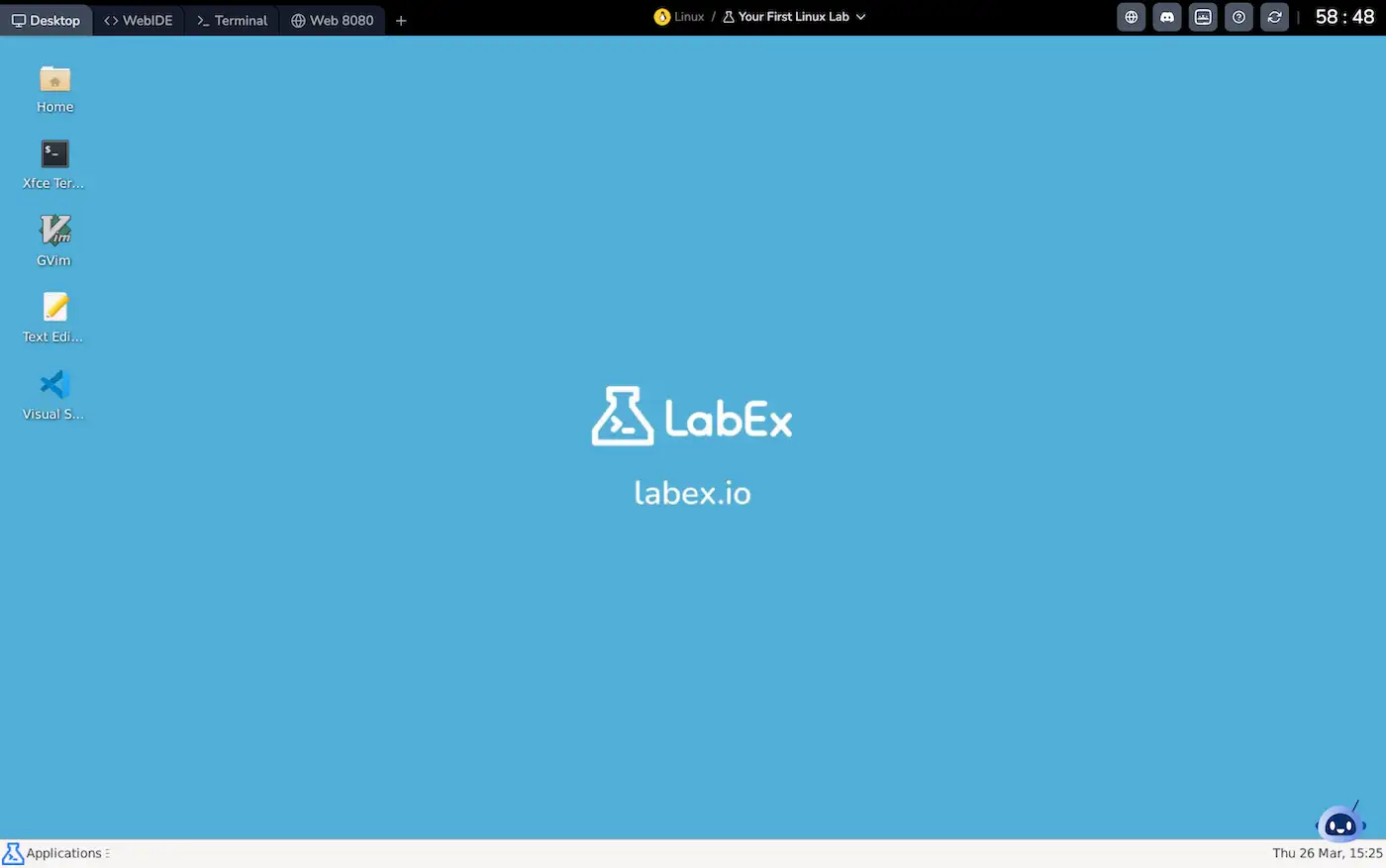
Terminal, WebIDE, Desktop, and web preview expose different views of the same Linux environment. Screenshot from the Online Linux Terminal.
The shared VM matters more than the number of tabs. Create a file in the terminal and the WebIDE can edit that same file. Start a web service and the preview can open it. Change permissions and the next command sees the changed modes. The learner is operating one system whose state continues across actions.
LabEx also gives that system a learning loop. Your First Linux Lab introduces the environment through commands and step checks. In Guided Labs, verification tests whether the VM reached the required state. The Labby documentation describes debugging and concept clarification inside the active lab workflow.
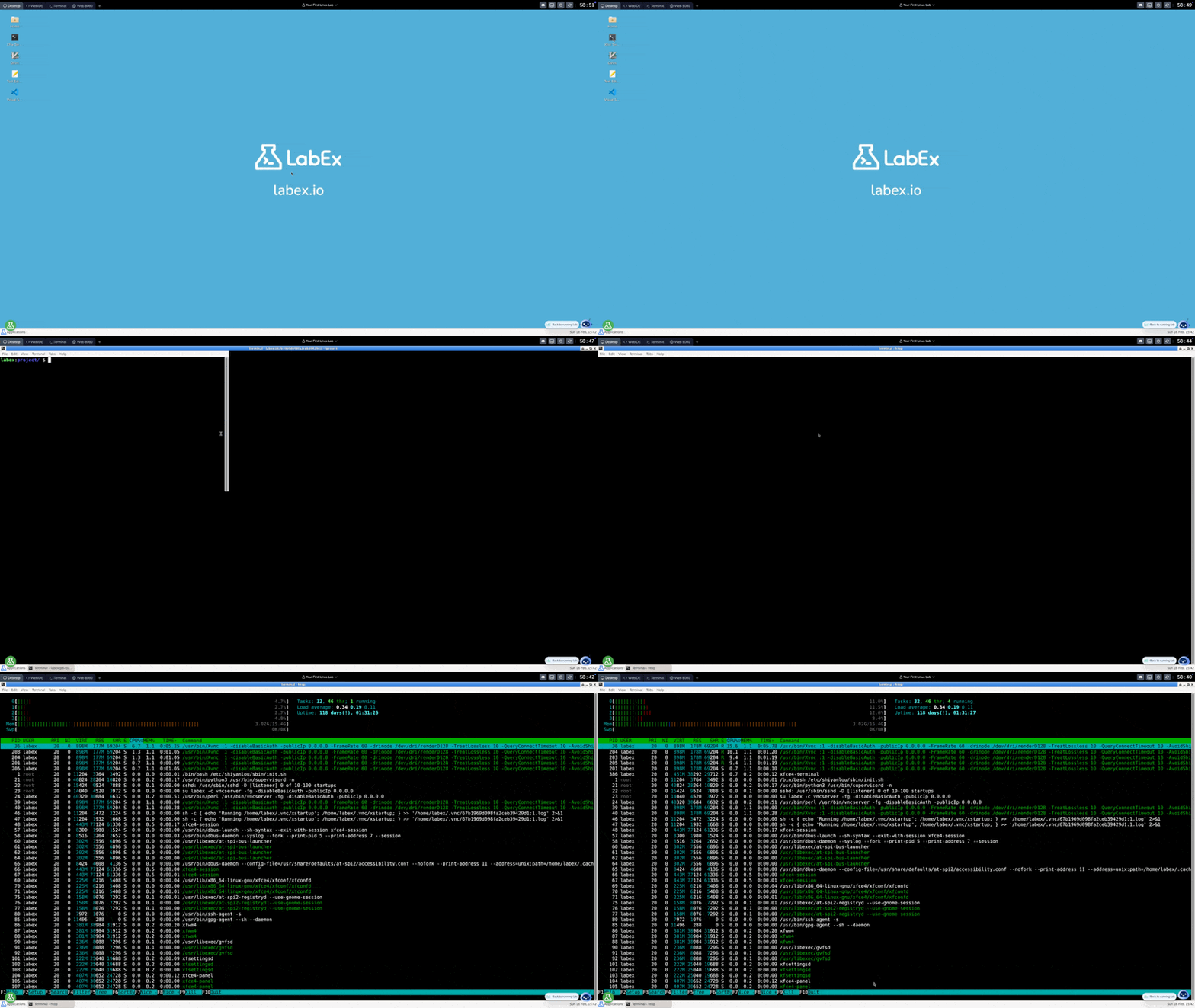
The interface can change while the current lab environment remains in place.
That produces a concrete progression:
- Read the task beside a prepared Linux system.
- Run commands and inspect their effects.
- Check whether the required state exists.
- Diagnose a failed check and retry.
- Move to a Challenge that states the objective with less procedural guidance.
The Linux learning path continues from command-line basics into shell scripting, system administration, security, projects, and challenges. A blank cloud shell can run many of the same commands; it does not supply this sequence or check what the learner changed.
Beyond one Ubuntu VM: LabEx Playgrounds
The main Online Linux Terminal uses Ubuntu, but LabEx is not limited to one distribution or one terminal configuration. The LabEx Playgrounds catalog currently lists 52 browser-based sandbox environments.
The Linux section includes Ubuntu, Ubuntu Desktop, Debian, Alpine, CentOS, RHEL, Fedora, Arch Linux, and openSUSE. Other categories provide prepared environments for tools and workloads such as Kali Linux, Docker, Kubernetes, Ansible, databases, programming languages, and AI coding agents. This lets a learner move from a general Linux terminal into an environment chosen for the next task without configuring it locally.
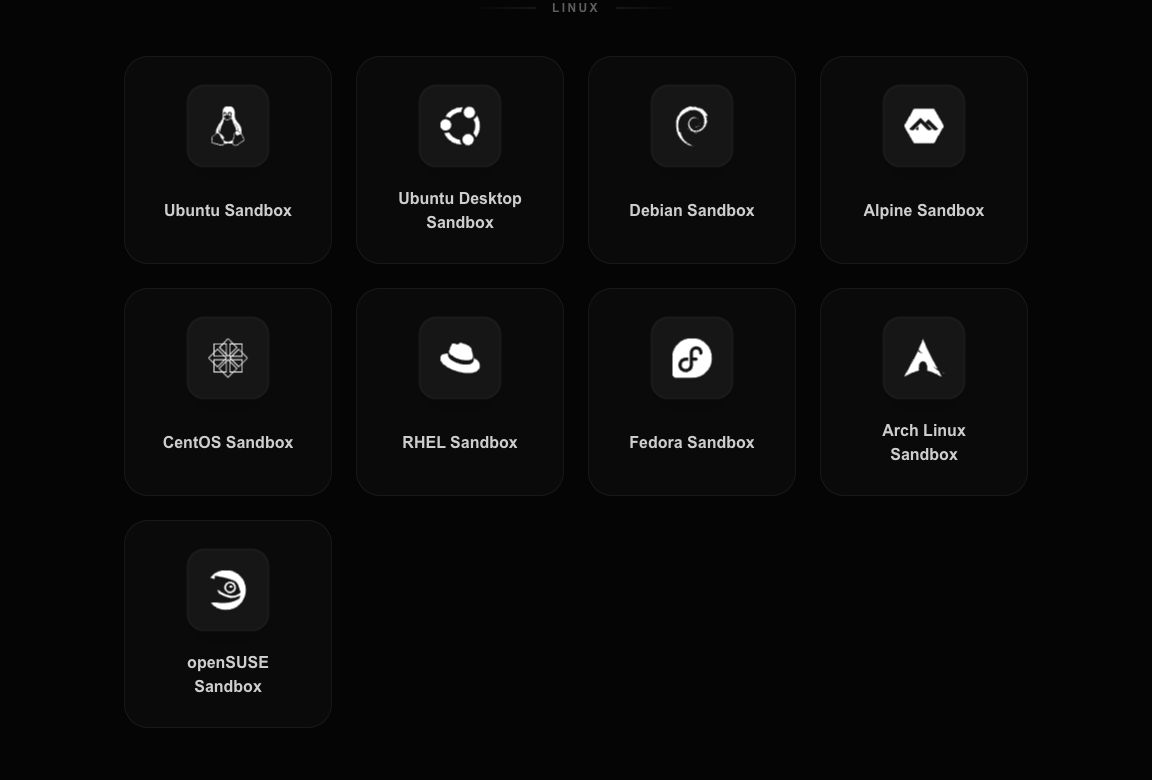
The Linux section of LabEx Playgrounds provides several distributions rather than a single Ubuntu entry point.
The useful distinction is between the environment and the lesson layered around it. A Playground supplies a prepared sandbox for open exploration. A Guided Lab adds instructions and checks. A Challenge states the objective with less procedural help. The learner can therefore choose both the Linux environment and the amount of guidance required.
Use the online Linux terminal in the iOS and macOS apps
The browser is not the only client. LabEx also provides native apps for iPhone and Mac. The LabEx App VM documentation says the app attaches a remote VM to the current lab, while instructions, Labby, and checks remain in the learning interface.
On iPhone, the VM opens in a sheet that can move between medium and large heights. The sheet shows setup progress and remaining session time, then provides terminal actions, interface switching, VM controls, and exposed ports. This makes it possible to start or resume terminal-based lab work from iOS without turning the phone into the machine running Linux.
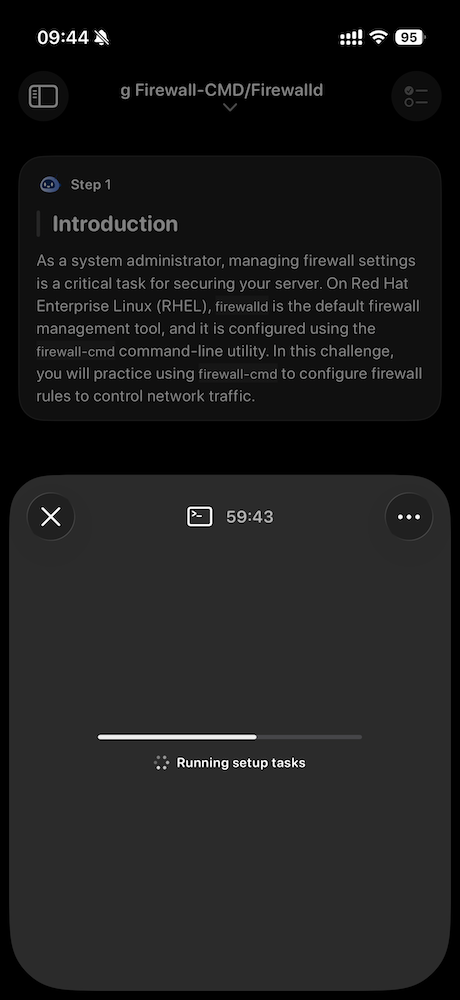
The iPhone app keeps the lab instructions visible while the remote Linux environment starts.
On macOS, the terminal is embedded in a wider learning workspace. Terminals and exposed ports appear in the sidebar, while the current instructions, assistant, and verification result can remain visible beside the shell. The same split that matters in the browser remains intact: Linux runs in the remote environment; the app provides a native interface to operate it.
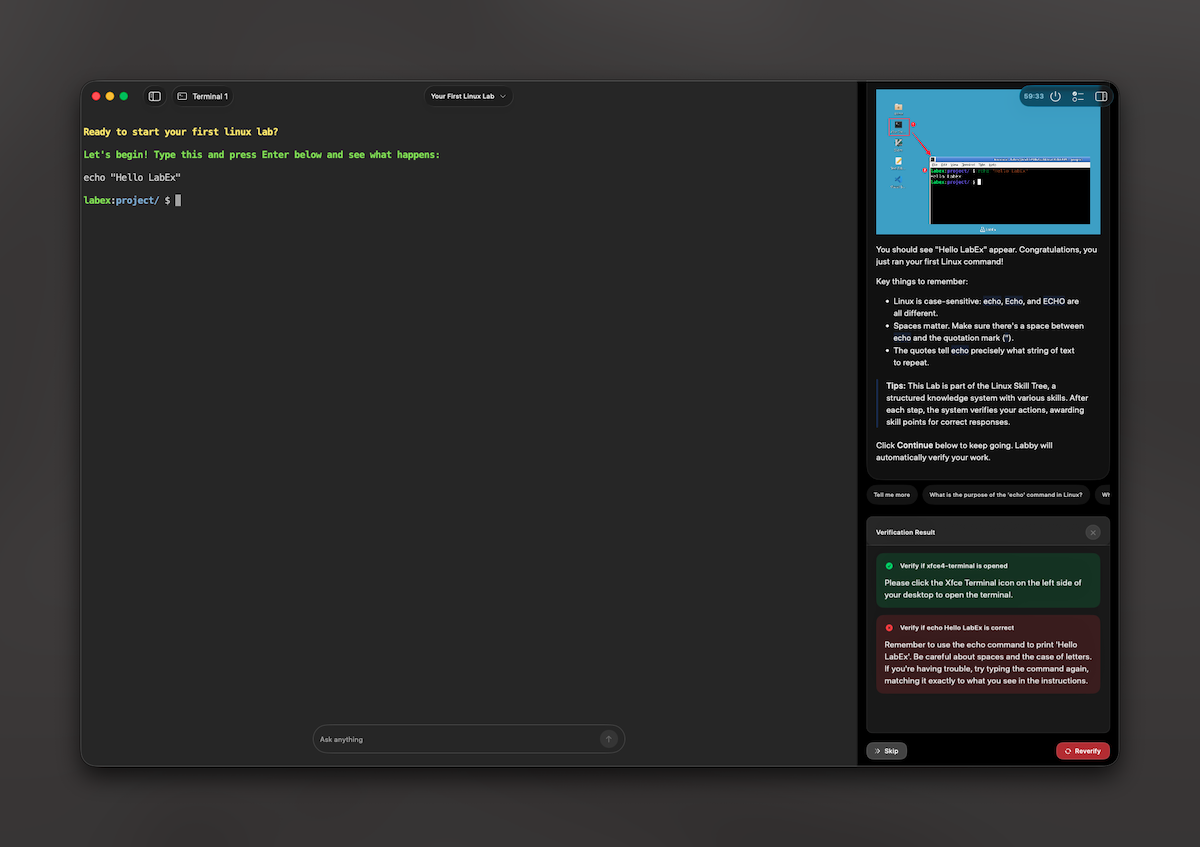
The macOS app places the real terminal beside the current lab context and verification controls.
LabEx adds more structure than a one-box runner, so it is not the quickest choice for checking whether one pipeline parses. It fits when the next question is “Did I change the Linux system correctly?” rather than only “Did this command produce output?”
How the other real Linux environments differ
CoCalc: persistent Linux projects and collaboration
CoCalc’s online Linux terminal runs remotely and keeps project files with snapshots. Its distinguishing feature is real-time collaboration: several users can open a synchronized terminal and work beside a chat panel. That is useful for teaching a class or sharing computational work.
CoCalc documents two boundaries that matter here. Users do not receive root access, and outbound internet access in a free project requires a license. It provides a real, persistent Linux project, but it is organised around collaboration and a broad scientific software stack rather than a checked Linux learning path.
Google and AWS Cloud Shell: real Linux for cloud operations
Google Cloud Shell provisions a temporary Compute Engine VM running Debian-based Linux. The default workspace is a container on that VM. Users have sudo, while a 5 GB persistent $HOME survives after the session VM is discarded.
AWS CloudShell provides an Amazon Linux 2023 compute environment with AWS credentials from the current console session. AWS documents 1 vCPU, 2 GiB of RAM, sudo, root access inside the container, and 1 GB of persistent home storage per Region for public environments.
Both are capable Linux shells. Their pre-authenticated cloud context is an advantage when the task is gcloud or AWS CLI work. For a Linux beginner, that same context introduces projects, IAM, Regions, quotas, and cloud-resource permissions that are unrelated to learning chmod, package management, or service diagnosis.
GitHub Codespaces: a terminal inside a development workspace
GitHub Codespaces assigns a dedicated Linux VM, clones a repository into /workspaces, and creates a Docker development container. It combines the terminal with browser-based VS Code, port forwarding, repository settings, and repeatable devcontainer.json configuration. Root access is available inside the dev container.
That makes Codespaces the better choice when the repository and editor are part of the task. It is a larger conceptual starting point for command-line practice: the user may encounter repository ownership, machine sizes, containers, ports, commits, and usage accounting before those concepts belong in the lesson.
Azure Cloud Shell: convenient, but deliberately restricted
Azure Cloud Shell offers Bash or PowerShell with Azure tools already configured. Sessions time out after 20 minutes of inactivity. Persistent files require an Azure Files mount; without one, the session is ephemeral.
Microsoft documents the user as unprivileged: sudo and other elevated commands are unavailable. That boundary is reasonable for a managed Azure console, but it prevents system-administration exercises that install protected packages, create users, modify system configuration, or manage services as root.
Where instant runners and simulators fit
Coddy executes real Bash and GNU tools in a server-side Linux container without requiring an account. Every Run starts in a fresh /home, so a pipeline or multi-line script works, but a standalone cd, created file, or environment variable cannot affect the next submission. It is useful when the whole task fits in one command block.
WebTerm Free Play takes the browser-only approach. Its virtual file tree, pipes, redirection, Git workflows, and implemented commands support basic practice without registration. WebTerm also states that it is a simulator rather than a virtual machine. Reloading resets the environment, and there is no Linux backend on which to install an arbitrary package or inspect a real service.
These tools are not defective versions of a VM. They solve smaller problems with less startup and account friction. The mistake is treating their terminal-shaped interfaces as evidence that they can reproduce system administration on Linux.
Choose by the task behind the terminal
- Use LabEx to learn Linux through real remote environments, checked tasks, and progressively reduced guidance, with additional Playgrounds and native iPhone and Mac access when the workflow needs them.
- Use CoCalc when several people need a persistent shared terminal or a broad computational software stack.
- Use Coddy to test one self-contained Bash block without creating an account.
- Use WebTerm for browser-only command syntax and Git tutorials, with the simulator boundary in mind.
- Use Google Cloud Shell, AWS CloudShell, or Azure Cloud Shell to operate resources in the matching cloud account.
- Use GitHub Codespaces when a repository, editor, dev container, and terminal should form one development workspace.
For a first session on an actual Linux system, open Your First Linux Lab. Run whoami, uname -a, ps aux, and cat /etc/os-release; then make a change and use the lab check to verify the resulting state.
References
- LabEx Online Linux Terminal, Virtual Machine documentation, and Labby documentation — environment model, interfaces, privileges, checks, and contextual help.
- LabEx Playgrounds — current Linux distributions and the broader catalog of sandbox environments.
- LabEx App overview and VM and terminal documentation — supported Apple platforms, remote VM controls, terminals, forwarded ports, and learning layout.
- CoCalc Online Linux Terminal — remote Linux environment, collaboration, persistence, root, and network boundaries.
- Coddy Online Linux Terminal — server-side Linux execution and stateless runs.
- WebTerm Free Play — simulator model, implemented workflows, and reset behaviour.
- Google Cloud Shell architecture — VM, container, privileges, lifecycle, and persistent storage.
- AWS CloudShell overview, environment specification, and security FAQ — Linux image, resources, storage, and root boundary.
- Azure Cloud Shell features and FAQ — persistence choices, timeout, and privilege restrictions.
- GitHub Codespaces technical overview — VM and dev-container model, repository lifecycle, interfaces, and privileges.