소개
이 프로젝트에서는 Python 과 Pygame 라이브러리를 사용하여 스도쿠 게임을 만들 것입니다. 게임은 지정된 난이도의 스도쿠 그리드를 생성하고, 플레이어가 빈 셀에 숫자를 채워 퍼즐을 풀 수 있도록 합니다. 게임은 난이도 선택, 선택된 셀 강조 표시, 그리드 완성 여부 확인과 같은 기능을 제공합니다.
👀 미리보기
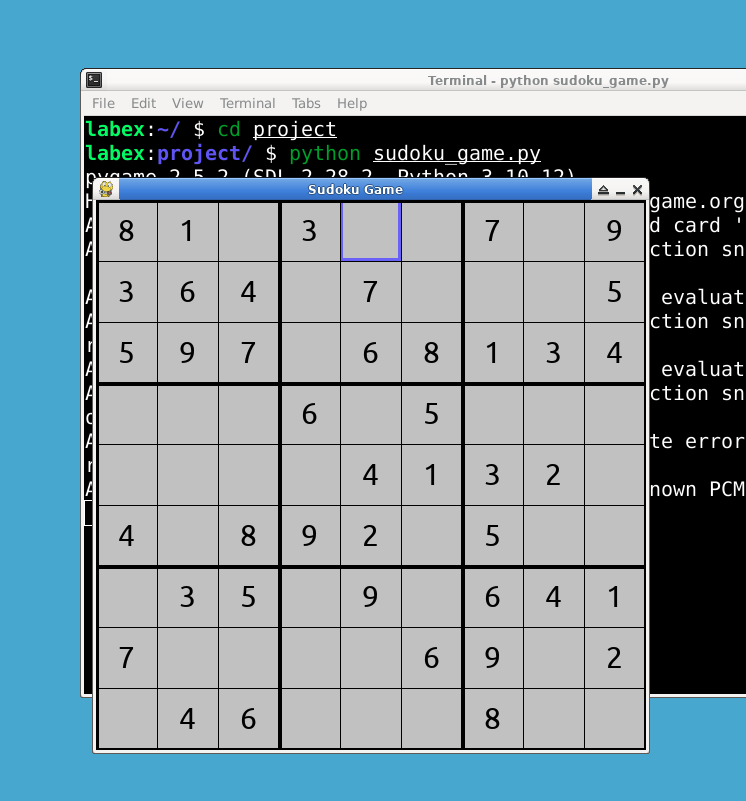
🎯 과제
이 프로젝트에서 다음을 배우게 됩니다:
- 필요한 라이브러리를 가져오는 방법
- PyGame 을 초기화하는 방법
- 색상을 정의하는 방법
- 게임 창의 치수와 제목을 설정하는 방법
- 게임 창을 만드는 방법
- 글꼴을 로드하는 방법
- 스도쿠 그리드를 생성하는 방법
- 백트래킹 알고리즘을 사용하여 스도쿠 그리드를 푸는 방법
- 난이도에 따라 그리드에서 숫자를 제거하는 방법
- 게임 창에 스도쿠 그리드를 그리는 방법
- 그리드가 완전히 채워졌는지 확인하는 방법
- 마우스 위치 아래의 셀 좌표를 얻는 방법
- 난이도 레벨을 선택하는 방법
- 메인 게임 루프를 구현하는 방법
🏆 성과
이 프로젝트를 완료하면 다음을 수행할 수 있습니다:
- Python 에서 게임 개발을 위해 Pygame 라이브러리를 사용합니다.
- 지정된 난이도의 스도쿠 그리드를 생성합니다.
- 백트래킹 알고리즘을 사용하여 스도쿠 그리드를 풉니다.
- Pygame 에서 마우스 및 키보드 이벤트를 처리합니다.
- 게임 창에 도형과 텍스트를 그립니다.
- Pygame 에서 메인 게임 루프를 구현합니다.
프로젝트 파일 생성
시작하려면 sudoku_game.py라는 파일을 생성하고 선호하는 텍스트 편집기 또는 통합 개발 환경 (IDE) 에서 엽니다.
cd ~/project
touch sudoku_game.py
필요한 라이브러리 가져오기
파일 시작 부분에서 필요한 라이브러리를 가져옵니다. 이 게임에는 pygame 및 random 라이브러리가 필요합니다.
import pygame
import random
pip 명령을 사용하여 pygame 라이브러리를 설치합니다.
sudo pip install pygame
PyGame 초기화
게임 창을 설정하기 위해 Pygame 라이브러리를 초기화합니다.
pygame.init()
색상 정의
게임에서 사용할 색상을 정의합니다. 색상에 대해 RGB 형식을 사용합니다.
BLACK = (0, 0, 0)
WHITE = (255, 255, 255)
GRAY = (200, 200, 200)
BLUE = (0, 0, 255)
LIGHT_BLUE = (100, 100, 255)
게임 창 크기 및 제목 설정
게임 창의 크기를 설정하고 게임의 제목을 설정합니다.
WINDOW_SIZE = (550, 550)
CELL_SIZE = WINDOW_SIZE[0] // 9

pygame.display.set_caption("Sudoku Game")
게임 창 생성
지정된 크기를 사용하여 게임 창을 생성합니다.
screen = pygame.display.set_mode(WINDOW_SIZE)
폰트 로드
게임 화면에 숫자를 표시하기 위해 폰트를 로드해야 합니다. 큰 숫자와 작은 숫자를 위해 두 개의 폰트를 로드합니다.
font_large = pygame.font.SysFont("calibri", 50)
font_small = pygame.font.SysFont("calibri", 30)
스도쿠 그리드 생성
지정된 난이도 레벨의 새로운 스도쿠 그리드를 생성하는 함수 generate_sudoku(difficulty)를 만듭니다. 이 함수는 생성된 그리드를 반환해야 합니다.
def generate_sudoku(difficulty):
    ## Function code goes here
    pass
대각선 서브 그리드 채우기
generate_sudoku 함수 내에서, 그리드의 대각선 서브그리드를 무작위 숫자로 채웁니다. 이렇게 하면 각 서브그리드가 1 부터 9 까지의 숫자를 중복 없이 포함하도록 보장합니다.
## Fill diagonal subgrids
for i in range(0, 9, 3):
    nums = random.sample(range(1, 10), 3)
    for j in range(3):
        grid[i + j][i + j] = nums[j]
스도쿠 그리드 풀기
백트래킹 알고리즘 (backtracking algorithm) 을 사용하여 스도쿠 그리드를 푸는 함수 solve_sudoku(grid)를 만듭니다. 이 함수는 그리드를 풀 수 있으면 True를, 그렇지 않으면 False를 반환해야 합니다.
def solve_sudoku(grid):
    ## Function code goes here
    pass
빈 칸 찾기
solve_sudoku 함수 내에서, 그리드에서 다음 빈 셀의 좌표를 반환하는 헬퍼 함수 find_empty_cell(grid)를 만듭니다. 빈 셀이 없으면 None을 반환합니다.
def find_empty_cell(grid):
    for row in range(9):
        for col in range(9):
            if grid[row][col] == 0:
                return (row, col)

    return None
유효한 수 움직임 확인
solve_sudoku 함수 내에서, 셀에 숫자를 배치하는 것이 유효한 이동인지 확인하는 헬퍼 함수 is_valid_move(grid, row, col, num)을 만듭니다. 이 함수는 이동이 유효하면 True를, 그렇지 않으면 False를 반환해야 합니다.
def is_valid_move(grid, row, col, num):
    ## Function code goes here
    pass
스도쿠 격자 풀기 (계속)
solve_sudoku 함수 내에서, 헬퍼 함수 find_empty_cell과 is_valid_move를 사용하여 백트래킹 알고리즘을 구현합니다. 솔루션을 찾으면 True를 반환합니다. 현재 숫자가 유효하지 않은 솔루션으로 이어진다면, 현재 셀을 0 으로 설정하여 백트래킹합니다.
## Try filling the empty cell with numbers from 1 to 9
for num in range(1, 10):
    if is_valid_move(grid, row, col, num):
        grid[row][col] = num

        if solve_sudoku(grid):
            return True

        ## If the current number leads to an invalid solution, backtrack
        grid[row][col] = 0

return False
난이도 기반 숫자 제거
generate_sudoku 함수 내에서, 지정된 난이도 레벨에 따라 그리드에서 숫자를 제거합니다. 난이도 레벨은 다음과 같습니다: 1 (쉬움), 2 (중간), 3 (어려움). 제거할 숫자의 수는 num_to_remove = 45 + 10 * difficulty로 계산됩니다.
## Remove numbers based on difficulty level
num_to_remove = 45 + 10 * difficulty
for _ in range(num_to_remove):
    row = random.randint(0, 8)
    col = random.randint(0, 8)
    grid[row][col] = 0

return grid
격자 그리기
게임 창에 스도쿠 그리드를 그리는 함수 draw_grid(grid, selected_cell)을 만듭니다. 이 함수는 셀, 숫자, 선택된 셀 하이라이트를 그리는 역할을 해야 합니다.
def draw_grid(grid, selected_cell):
    ## Function code goes here
    pass
셀 채우기 및 숫자 그리기
draw_grid 함수 내에서, 그리드를 반복하고 Pygame 함수 pygame.draw.rect 및 screen.blit을 사용하여 셀과 숫자를 그립니다.
## Draw the cells
for row in range(9):
    for col in range(9):
        cell_rect = pygame.Rect(
            col * CELL_SIZE, row * CELL_SIZE, CELL_SIZE, CELL_SIZE
        )
        pygame.draw.rect(screen, GRAY, cell_rect)

        ## Draw the numbers
        if grid[row][col] != 0:
            number = font_small.render(str(grid[row][col]), True, BLACK)
            text_rect = number.get_rect(
                center=(
                    col * CELL_SIZE + CELL_SIZE // 2,
                    row * CELL_SIZE + CELL_SIZE // 2,
                )
            )
            screen.blit(number, text_rect)
선택된 셀 강조 표시
draw_grid 함수 내에서, selected_cell이 None이 아닌 경우 pygame.draw.rect 함수를 사용하여 선택된 셀을 하이라이트합니다.
## Highlight the selected cell
if (row, col) == selected_cell:
    pygame.draw.rect(screen, LIGHT_BLUE, cell_rect, 3)
격자선 그리기
draw_grid 함수 내에서, pygame.draw.line 함수를 사용하여 그리드를 생성하기 위한 선을 그립니다.
## Draw the lines
for i in range(10):
    if i % 3 == 0:
        thickness = 4
    else:
        thickness = 1

    pygame.draw.line(
        screen,
        BLACK,
        (0, i * CELL_SIZE),
        (WINDOW_SIZE[0], i * CELL_SIZE),
        thickness,
    )
    pygame.draw.line(
        screen,
        BLACK,
        (i * CELL_SIZE, 0),
        (i * CELL_SIZE, WINDOW_SIZE[1]),
        thickness,
    )
화면 업데이트
draw_grid 함수 내에서, pygame.display.update 함수를 사용하여 디스플레이를 업데이트합니다.
pygame.display.update()
격자 채워짐 확인
Sudoku 그리드가 완전히 채워졌는지 확인하는 함수 is_grid_full(grid)를 생성합니다. 이는 그리드를 반복하고 모든 셀에 0 이 포함되어 있는지 확인하여 수행할 수 있습니다.
def is_grid_full(grid):
    ## Function code goes here
    pass
마우스 아래 셀 가져오기
마우스 위치 아래의 셀 좌표를 반환하는 함수 get_cell_under_mouse(pos)를 생성합니다. 이는 마우스 위치를 셀 크기로 나누어 계산할 수 있습니다.
def get_cell_under_mouse(pos):
    ## Function code goes here
    pass
난이도 선택
게임을 시작하기 전에 플레이어가 난이도를 선택할 수 있도록 하는 함수 select_difficulty()를 생성합니다. 이 함수는 난이도 옵션을 표시하고 선택된 난이도를 반환해야 합니다.
def select_difficulty():
    ## Function code goes here
    pass
난이도 선택 구현
select_difficulty 함수 내에서 Pygame 함수 pygame.mouse.get_pos 및 pygame.event.get을 사용하여 난이도 선택 로직을 구현합니다.
## Display difficulty selection text
title_text = font_large.render("Select Difficulty", True, BLACK)
screen.blit(title_text, (110, 200))

## Display difficulty options
option_y = 300
for difficulty, label in difficulties.items():
    option_text = font_small.render(f"{difficulty}. {label}", True, BLACK)
    text_rect = option_text.get_rect(center=(WINDOW_SIZE[0] // 2, option_y))
    screen.blit(option_text, text_rect)
    option_y += 70

pygame.display.update()

## Wait for difficulty selection
difficulty_selected = False
difficulty = 1

while not difficulty_selected:
    for event in pygame.event.get():
        if event.type == pygame.QUIT:
            pygame.quit()
            return
        elif event.type == pygame.MOUSEBUTTONDOWN:
            if event.button == 1:  ## Left mouse button
                pos = pygame.mouse.get_pos()
                if 180 <= pos[0] <= 380:
                    if 300 <= pos[1] <= 350:
                        difficulty = 1
                        difficulty_selected = True
                    elif 370 <= pos[1] <= 420:
                        difficulty = 2
                        difficulty_selected = True
                    elif 440 <= pos[1] <= 490:
                        difficulty = 3
                        difficulty_selected = True

return difficulty
메인 게임 루프
main() 함수를 정의하여 메인 게임 루프를 생성합니다.
def main():
    ## Function code goes here
    pass
난이도 선택 및 그리드 생성
main 함수 내에서 select_difficulty()를 호출하여 난이도 레벨을 선택하고, 난이도가 None인 경우 반환합니다. 그런 다음, generate_sudoku(difficulty)를 호출하여 선택된 난이도 레벨을 사용하여 스도쿠 그리드를 생성합니다.
## Select the difficulty level
difficulty = select_difficulty()
if difficulty is None:
    return

## Generate a new Sudoku grid
grid = generate_sudoku(difficulty)
게임 루프 변수
main 함수 내에서 게임 루프 변수 selected_cell과 running을 생성합니다. selected_cell을 None으로, running을 True로 설정합니다.
selected_cell = None
running = True
키 반복 활성화
main 함수 내에서 pygame.key.set_repeat 함수를 사용하여 키 반복을 활성화합니다. 셀을 채우는 것을 플레이어가 더 쉽게 할 수 있도록 지연 시간 (delay) 과 간격 (interval) 을 100 밀리초로 설정합니다.
## Enable key repeat
pygame.key.set_repeat(100, 100)
이벤트 처리
게임 루프 내에서 pygame.event.get 함수를 사용하여 이벤트를 처리합니다. 종료 이벤트 (quit events), 마우스 버튼 이벤트 (mouse button events) 및 키 이벤트 (key events) 를 확인합니다.
for event in pygame.event.get():
    if event.type == pygame.QUIT:
        running = False
    elif event.type == pygame.MOUSEBUTTONDOWN:
        ## Handle mouse button events
        pass
    elif event.type == pygame.KEYDOWN:
        ## Handle key events
        pass
마우스 버튼 이벤트 처리
마우스 버튼 이벤트에 대한 이벤트 처리 내에서 왼쪽 마우스 버튼이 클릭되었는지 또는 오른쪽 마우스 버튼이 클릭되었는지 확인합니다.
if event.button == 1:  ## Left mouse button
    ## Handle left mouse button click
    pass
elif event.button == 3:  ## Right mouse button
    ## Handle right mouse button click
    pass
마우스 왼쪽 버튼 클릭 처리
왼쪽 마우스 버튼 클릭 처리 내에서 get_cell_under_mouse(pos)를 호출하여 마우스 위치 아래의 셀 좌표를 가져옵니다.
## Get the cell under the mouse position
pos = pygame.mouse.get_pos()
row, col = get_cell_under_mouse(pos)
마우스 왼쪽 버튼 클릭 처리 (계속)
왼쪽 마우스 버튼 클릭 처리 내에서 grid[row][col] == 0을 확인하여 셀이 비어있는 경우 해당 셀을 선택합니다.
## Select the cell if it's empty
if grid[row][col] == 0:
    selected_cell = (row, col)
마우스 오른쪽 버튼 클릭 처리
오른쪽 마우스 버튼 클릭 처리 내에서 selected_cell이 None이 아니고 grid[selected_cell[0]][selected_cell[1]] == 0을 확인하여 비어있는 경우 선택된 셀을 지웁니다.
if selected_cell:
    ## Clear the selected cell if it's empty
    if grid[selected_cell[0]][selected_cell[1]] == 0:
        grid[selected_cell[0]][selected_cell[1]] = 0
키 이벤트 처리
키 이벤트 처리를 위한 이벤트 처리 내에서 어떤 숫자 키가 눌렸는지 확인하고, 그에 따라 선택된 셀의 값을 설정합니다.
if selected_cell:
    ## Get the key pressed
    if event.key == pygame.K_1:
        grid[selected_cell[0]][selected_cell[1]] = 1
    elif event.key == pygame.K_2:
        grid[selected_cell[0]][selected_cell[1]] = 2
    elif event.key == pygame.K_3:
        grid[selected_cell[0]][selected_cell[1]] = 3
    elif event.key == pygame.K_4:
        grid[selected_cell[0]][selected_cell[1]] = 4
    elif event.key == pygame.K_5:
        grid[selected_cell[0]][selected_cell[1]] = 5
    elif event.key == pygame.K_6:
        grid[selected_cell[0]][selected_cell[1]] = 6
    elif event.key == pygame.K_7:
        grid[selected_cell[0]][selected_cell[1]] = 7
    elif event.key == pygame.K_8:
        grid[selected_cell[0]][selected_cell[1]] = 8
    elif event.key == pygame.K_9:
        grid[selected_cell[0]][selected_cell[1]] = 9
그리드 그리기 및 완료 확인
게임 루프 내에서 draw_grid(grid, selected_cell)을 호출하여 그리드를 그립니다. 그런 다음 is_grid_full(grid)를 호출하여 그리드가 완료되었는지 확인합니다.
## Draw the grid
draw_grid(grid, selected_cell)

## Check if the grid is complete
if is_grid_full(grid):
    print("Congratulations! You solved the Sudoku puzzle.")
디스플레이 업데이트 및 종료
게임 루프가 끝난 후, pygame.display.update 함수를 사용하여 디스플레이를 업데이트하고 pygame.quit()을 사용하여 게임을 종료합니다.
## Update the display
pygame.display.update()

## Quit the game
pygame.quit()
게임 실행
마지막으로, 현재 파일이 프로그램의 주 진입점인지 확인하는 조건을 추가합니다. 그렇다면 main() 함수를 호출하여 게임을 실행합니다.
if __name__ == "__main__":
    main()
python 명령어를 사용하여 게임을 실행합니다.
python sudoku_game.py
요약
축하합니다! Python 과 Pygame 라이브러리를 사용하여 Sudoku 게임을 성공적으로 만들었습니다. 이 게임을 통해 플레이어는 난이도를 선택하고, 빈 셀에 숫자를 채우고, 그리드가 완성되었는지 확인할 수 있습니다. Sudoku 퍼즐을 즐겁게 플레이하고 풀어보세요!