소개
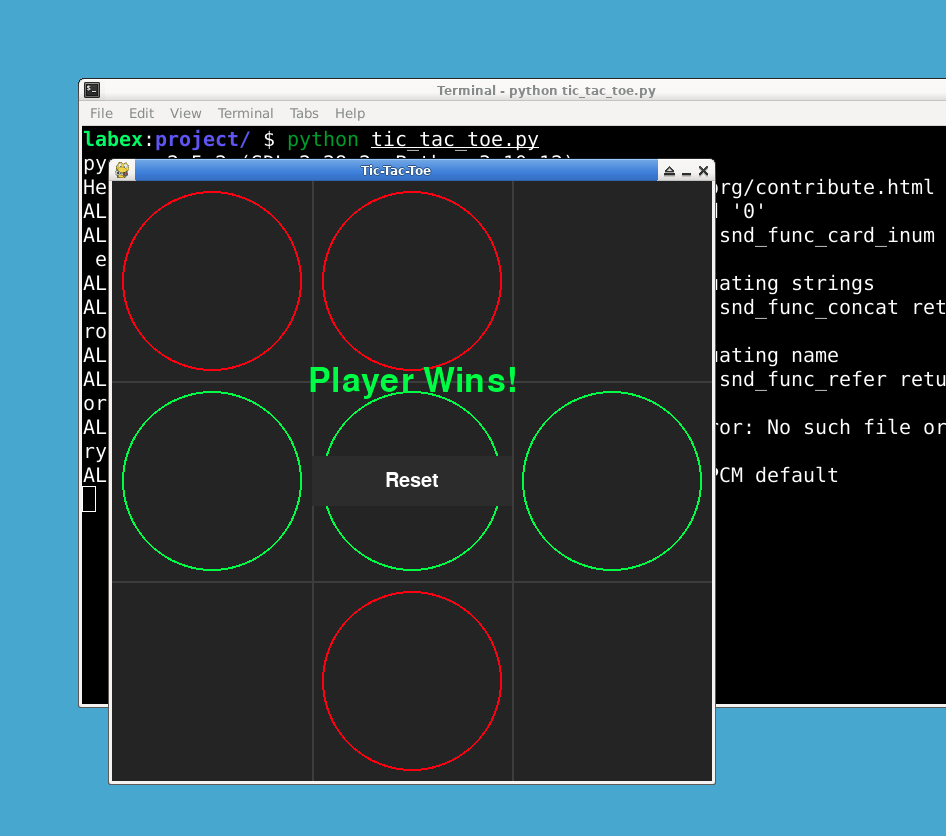
이 프로젝트는 Pygame 을 사용하여 틱택토 (Tic-Tac-Toe) 게임을 만드는 단계를 안내합니다. 틱택토는 두 명의 플레이어가 가로, 세로 또는 대각선으로 자신의 기호 3 개를 먼저 일렬로 만드는 것을 목표로 하는 게임입니다. 이 프로젝트에서는 게임 창 설정, 게임 보드 그리기, 플레이어 및 AI 의 움직임 처리, 승자 결정 방법을 배우게 됩니다. 이 프로젝트를 완료하면 AI 상대와 대결할 수 있는 완전한 기능의 틱택토 게임을 갖게 됩니다.
👀 미리보기
🎯 과제
이 프로젝트에서 다음을 배우게 됩니다:
- 프로젝트 파일을 생성하고 필요한 라이브러리를 가져오는 방법
- PyGame 을 초기화하고 게임 창을 설정하는 방법
- 기호, 색상 및 게임 상태를 정의하는 방법
- 버튼 속성을 정의하고 헬퍼 함수를 만드는 방법
- 메인 게임 루프를 생성하고 헬퍼 함수를 구현하는 방법
- 메인 게임 루프 내의 나머지 코드를 채우는 방법
🏆 성과
이 프로젝트를 완료하면 다음을 수행할 수 있습니다:
- Pygame 을 사용하여 그래픽 게임을 생성
- Pygame 을 사용하여 창에 그래픽을 그리기
- 사용자 입력을 처리하고 게임 상태를 업데이트
- 승리 조건을 확인하는 등 게임 로직 구현
- 게임을 계속 실행하기 위한 게임 루프 생성
프로젝트 파일 생성
시작하려면 tic_tac_toe.py라는 새 파일을 생성합니다. 선호하는 텍스트 편집기에서 파일을 엽니다.
cd ~/project
touch tic_tac_toe.py
필요한 라이브러리 가져오기
tic_tac_toe.py에서 필요한 라이브러리인 pygame과 random을 가져옵니다. 이 라이브러리는 각각 게임 그래픽을 처리하고 무작위 AI 움직임을 생성하는 데 사용됩니다.
import pygame
import random
다음 명령을 사용하여 pygame 라이브러리를 설치합니다:
sudo pip install pygame
PyGame 초기화 및 게임 창 설정
tic_tac_toe.py에서 pygame.init()을 사용하여 PyGame 을 초기화합니다. 그런 다음, 윈도우 너비와 높이, 배경색, 선 색상 및 셀 크기를 정의하여 게임 윈도우를 설정합니다. 또한 지정된 너비와 높이로 PyGame 윈도우를 생성하고 윈도우 캡션을 설정합니다.
pygame.init()

WIDTH = 600
HEIGHT = 600
BACKGROUND_COLOR = (40, 40, 40)
LINE_COLOR = (70, 70, 70)
CELL_SIZE = WIDTH // 3

win = pygame.display.set_mode((WIDTH, HEIGHT))
pygame.display.set_caption("Tic-Tac-Toe")
기호 및 색상 정의
tic_tac_toe.py에서 플레이어와 AI 에 대한 기호와 색상을 정의합니다. 이러한 기호와 색상은 게임 보드에 플레이어와 AI 의 움직임을 그리는 데 사용됩니다.
PLAYER_SYMBOL = "X"
AI_SYMBOL = "O"
PLAYER_COLOR = (0, 255, 0)
AI_COLOR = (255, 0, 0)
EMPTY_COLOR = (0, 0, 0)
게임 상태 정의
tic_tac_toe.py에서 초기 게임 상태를 정의합니다. 여기에는 게임 보드, 현재 턴 ("player" 또는 "ai"), 게임 종료 여부를 나타내는 플래그, 그리고 게임의 승자가 포함됩니다.
board = [["" for _ in range(3)] for _ in range(3)]
turn = "player"
game_over = False
winner = None
버튼 속성 정의
tic_tac_toe.py에서 리셋 버튼의 속성을 정의합니다. 여기에는 버튼 너비, 높이, 색상, 텍스트 색상 및 글꼴 크기가 포함됩니다. 또한, pygame.Rect 클래스를 사용하여 버튼의 위치와 크기를 나타내는 reset_button_rect 객체를 생성합니다.
BUTTON_WIDTH = 200
BUTTON_HEIGHT = 50
BUTTON_COLOR = (50, 50, 50)
BUTTON_TEXT_COLOR = (255, 255, 255)
BUTTON_FONT = pygame.font.Font(None, 30)

reset_button_rect = pygame.Rect(
    (WIDTH - BUTTON_WIDTH) // 2,
    (HEIGHT - BUTTON_HEIGHT) // 2,
    BUTTON_WIDTH,
    BUTTON_HEIGHT,
)
헬퍼 함수 생성
tic_tac_toe.py에서 게임 전반에 걸쳐 사용될 몇 가지 헬퍼 함수를 정의합니다.
draw_board(): 이 함수는 게임 보드를 창에 그립니다.draw_symbols(): 이 함수는 플레이어와 AI 기호를 게임 보드에 그립니다.is_board_full(): 이 함수는 게임 보드가 가득 찼는지 확인합니다.is_winner(): 이 함수는 플레이어가 승리했는지 확인합니다.make_move(): 이 함수는 게임 보드에서 수를 둡니다.player_move(): 이 함수는 플레이어의 수를 처리합니다.ai_move(): 이 함수는 AI 의 수를 처리합니다.check_game_over(): 이 함수는 게임이 종료되었는지 확인합니다.draw_winner(): 이 함수는 승리 메시지를 창에 그립니다.draw_reset_button(): 이 함수는 리셋 버튼을 창에 그립니다.reset_game(): 이 함수는 게임 상태를 재설정합니다.
## Helper functions
def draw_board():
    ## Draw the game board
    pass

def draw_symbols():
    ## Draw the player and AI symbols on the game board
    pass

def is_board_full():
    ## Check if the game board is full
    pass

def is_winner(symbol):
    ## Check if a player has won the game
    pass

def make_move(x, y, symbol):
    ## Make a move on the game board
    pass

def player_move():
    ## Handle the player's move
    pass

def ai_move():
    ## Handle the AI's move
    pass

def check_game_over():
    ## Check if the game is over
    pass

def draw_winner():
    ## Draw the winner message on the window
    pass

def draw_reset_button():
    ## Draw the reset button on the window
    pass

def reset_game():
    ## Reset the game state
    pass
메인 게임 루프 생성
tic_tac_toe.py에서 while 루프를 사용하여 메인 게임 루프를 생성합니다. 이 루프는 사용자가 게임 창을 닫을 때까지 실행됩니다. 게임 루프 내부에서 사용자의 입력 이벤트를 처리하고 그에 따라 게임 상태를 업데이트합니다.
## Main game loop
running = True
while running:
    for event in pygame.event.get():
        if event.type == pygame.QUIT:
            running = False
        elif event.type == pygame.MOUSEBUTTONDOWN:
            if reset_button_rect.collidepoint(event.pos):
                reset_game()
            elif not game_over and turn == "player":
                player_move()

    if not game_over and turn == "ai":
        ai_move()
        check_game_over()

    draw_board()
    draw_symbols()

    if game_over:
        draw_winner()
        draw_reset_button()

    pygame.display.flip()

## Quit the game
pygame.quit()
헬퍼 함수 구현
이제 앞에서 정의한 헬퍼 함수를 구현해 보겠습니다. draw_board() 함수를 완성하는 것으로 시작합니다. 이 함수는 pygame.draw.line() 함수를 사용하여 수직선과 수평선을 그림으로써 게임 보드를 창에 그립니다.
## Helper functions
def draw_board():
    win.fill(BACKGROUND_COLOR)

    ## Draw vertical lines
    for x in range(1, 3):
        pygame.draw.line(
            win, LINE_COLOR, (CELL_SIZE * x, 0), (CELL_SIZE * x, HEIGHT), 2
        )

    ## Draw horizontal lines
    for y in range(1, 3):
        pygame.draw.line(win, LINE_COLOR, (0, CELL_SIZE * y), (WIDTH, CELL_SIZE * y), 2)
나머지 헬퍼 함수 구현
다음으로, 나머지 헬퍼 함수를 구현합니다: draw_symbols(), is_board_full(), is_winner(), make_move(), player_move(), ai_move(), check_game_over(), draw_winner(), draw_reset_button(), 그리고 reset_game().
## Helper functions
def draw_symbols():
    for x in range(3):
        for y in range(3):
            symbol = board[x][y]
            if symbol == PLAYER_SYMBOL:
                color = PLAYER_COLOR
            elif symbol == AI_SYMBOL:
                color = AI_COLOR
            else:
                color = EMPTY_COLOR
            if symbol != "":
                pygame.draw.circle(
                    win,
                    color,
                    (x * CELL_SIZE + CELL_SIZE // 2, y * CELL_SIZE + CELL_SIZE // 2),
                    CELL_SIZE // 2 - 10,
                    2,
                )

def is_board_full():
    for row in board:
        if "" in row:
            return False
    return True

def is_winner(symbol):
    for row in board:
        if all(cell == symbol for cell in row):
            return True
    for col in range(3):
        if all(board[row][col] == symbol for row in range(3)):
            return True
    if all(board[i][i] == symbol for i in range(3)):
        return True
    if all(board[i][2 - i] == symbol for i in range(3)):
        return True
    return False

def make_move(x, y, symbol):
    if board[x][y] == "":
        board[x][y] = symbol
        return True
    return False

def player_move():
    global turn
    mouse_pos = pygame.mouse.get_pos()
    cell_x = mouse_pos[0] // CELL_SIZE
    cell_y = mouse_pos[1] // CELL_SIZE

    if make_move(cell_x, cell_y, PLAYER_SYMBOL):
        turn = "ai"

def ai_move():
    global turn
    empty_cells = []
    for x in range(3):
        for y in range(3):
            if board[x][y] == "":
                empty_cells.append((x, y))

    if empty_cells:
        x, y = random.choice(empty_cells)
        make_move(x, y, AI_SYMBOL)

    turn = "player"

def check_game_over():
    global game_over, winner
    if is_winner(PLAYER_SYMBOL):
        game_over = True
        return "player"
    elif is_winner(AI_SYMBOL):
        game_over = True
        return "ai"
    elif is_board_full():
        game_over = True
        return "tie"
    return None

def draw_winner():
    font = pygame.font.Font(None, 50)
    if winner == "player":
        text = font.render("Player Wins!", True, PLAYER_COLOR)
    elif winner == "ai":
        text = font.render("AI Wins!", True, AI_COLOR)
    else:
        text = font.render("It's a Tie!", True, (255, 255, 255))
    text_rect = text.get_rect(center=(WIDTH // 2, HEIGHT // 3))
    win.blit(text, text_rect)

def draw_reset_button():
    pygame.draw.rect(win, BUTTON_COLOR, reset_button_rect)
    button_text = BUTTON_FONT.render("Reset", True, BUTTON_TEXT_COLOR)
    button_text_rect = button_text.get_rect(center=reset_button_rect.center)
    win.blit(button_text, button_text_rect)

def reset_game():
    global board, turn, game_over, winner
    board = [["" for _ in range(3)] for _ in range(3)]
    turn = "player"
    game_over = False
    winner = None
위 코드에서 draw_symbols() 함수는 보드에 기호를 그립니다. is_board_full() 함수는 보드가 가득 찼는지 확인합니다. is_winner() 함수는 주어진 기호가 승리했는지 확인합니다. make_move() 함수는 보드에 수를 놓습니다. player_move() 함수는 플레이어의 수를 처리합니다. ai_move() 함수는 AI 의 수를 처리합니다. check_game_over() 함수는 게임이 종료되었는지 확인합니다. draw_winner() 함수는 승자 메시지를 그립니다. draw_reset_button() 함수는 리셋 버튼을 그립니다. reset_game() 함수는 게임을 리셋합니다.
나머지 코드 채우기
마지막으로, 메인 게임 루프 내의 나머지 코드를 채워 적절한 위치에서 헬퍼 함수를 호출합니다. 여기에는 게임 보드와 기호를 그리기 위해 draw_board() 및 draw_symbols() 함수를 호출하고, 게임이 종료되었는지 확인하기 위해 check_game_over() 함수를 호출하며, 승자 메시지와 리셋 버튼을 각각 그리기 위해 draw_winner() 및 draw_reset_button() 함수를 호출하는 것이 포함됩니다.
## Main game loop
running = True
while running:
    for event in pygame.event.get():
        if event.type == pygame.QUIT:
            running = False
        elif event.type == pygame.MOUSEBUTTONDOWN:
            if reset_button_rect.collidepoint(event.pos):
                reset_game()
            elif not game_over and turn == "player":
                player_move()

    if not game_over and turn == "ai":
        ai_move()
        winner = check_game_over()

    draw_board()
    draw_symbols()

    if game_over:
        draw_winner()
        draw_reset_button()

    pygame.display.flip()

## Quit the game
pygame.quit()
다음 명령을 사용하여 게임을 실행합니다:
python tic_tac_toe.py
요약
축하합니다! Pygame 을 사용하여 틱택토 게임을 성공적으로 만들었습니다. 이 프로젝트에서 게임 창을 설정하고, 게임 보드를 그리고, 플레이어와 AI 의 수를 처리하고, 승자를 결정하는 방법을 배웠습니다. 또한 코드를 단순화하고 모듈식으로 만들기 위해 헬퍼 함수를 구현하는 방법도 배웠습니다.