소개
이 프로젝트에서는 휴대폰 번호 인증 코드를 사용하여 계정 인증 기능을 구현하는 방법을 배우게 됩니다. 이 기능은 오늘날 많은 플랫폼에서 로그인 시 사용자에게 추가적인 보안 계층과 편의성을 제공하기 위해 널리 사용됩니다.
👀 미리보기
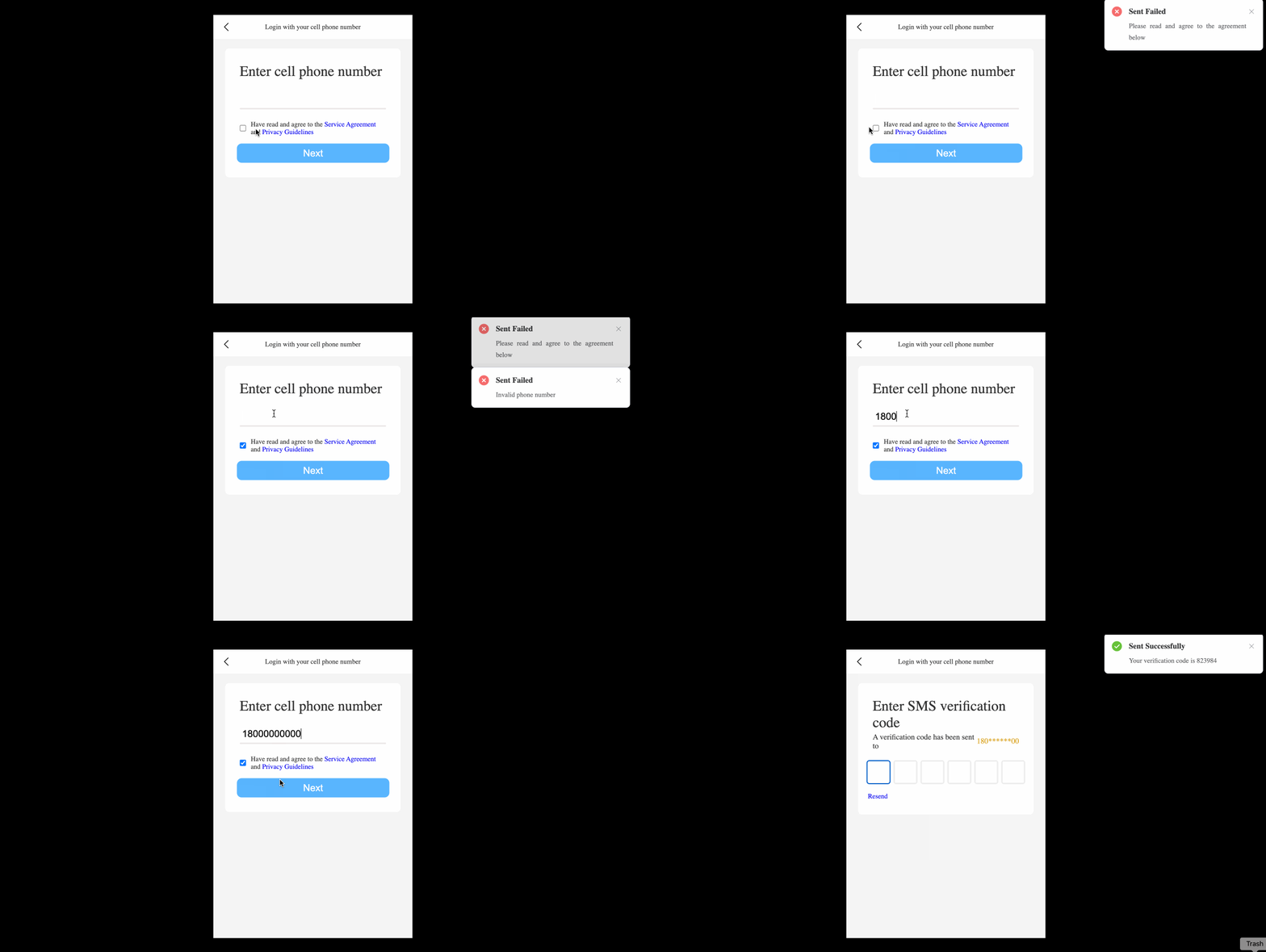
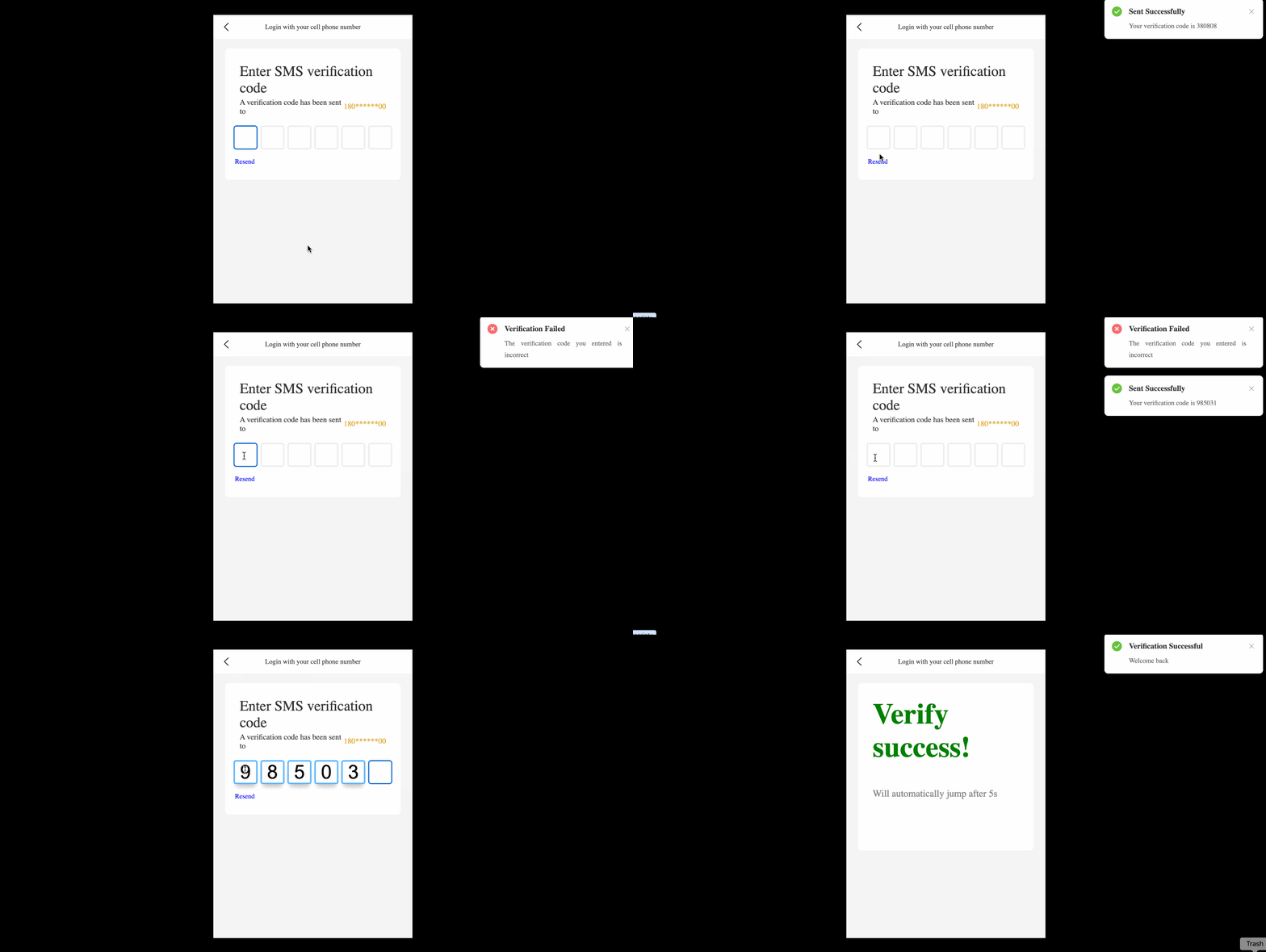
🎯 과제
이 프로젝트에서는 다음을 배우게 됩니다:
- 인증 코드를 전송하는 기능 구현 방법
- 입력된 인증 코드를 확인하는 기능 구현 방법
- Element Plus 에서
Notification컴포넌트 사용법 이해
🏆 성과
이 프로젝트를 완료하면 다음을 수행할 수 있습니다:
- 사용자 입력 처리 및 유효성 검사
- 동적 인증 코드 생성 및 관리
Notification컴포넌트를 사용하여 성공 및 오류 메시지 표시- Vue.js 및 Pinia 를 사용하여 컴포넌트 전환 및 상태 관리 구현
프로젝트 구조 설정
이 단계에서는 프로젝트 구조를 설정하는 방법을 배우게 됩니다. 이 단계를 완료하려면 아래 단계를 따르세요:
이 프로젝트의 프로젝트 폴더를 엽니다. 디렉토리 구조는 다음과 같습니다:
├── css
│   ├── element-plus@2.3.7
│   │   ├── index.css
│   │   └── index.full.js
│   └── index.css
├── images
│   └── arrow.png
├── index.html
└── js
    ├── index.mjs
    ├── pinia.esm-browser.js
    ├── vue3.global.js
    └── vue.esm-browser.prod.js
그 중:
css는 페이지에서 참조하는 스타일을 저장하는 폴더입니다.images는 페이지에서 참조하는 이미지를 저장하는 폴더입니다.js는 페이지에서 참조하는 JavaScript 파일을 저장하는 폴더입니다.index.html은 완성해야 하는 파일입니다.
WebIDE 의 오른쪽 하단 모서리에 있는 Go Live 버튼을 클릭하여 프로젝트를 실행합니다.
다음으로, VM 상단의 "Web 8080"을 열고 수동으로 새로 고치면 페이지가 표시됩니다.
변수 및 함수 제공
이 단계에서는 후속 단계에 필요한 변수와 함수를 가져옵니다.
- 제공된 프로젝트에서
index.html파일을 엽니다. const { createApp, reactive, toRefs } = Vue;를 찾고, 후속 사용을 위해 다음 코드를 추가합니다.
const { createApp, reactive, toRefs, provide, inject, ref, watch } = Vue;
const { createApp, reactive, toRefs, provide, inject, ref, watch } = Vue; 3. 첫 번째 // TODO를 찾고 다음 코드를 추가합니다:
const app = createApp({
  setup() {
    let data = reactive({
      showName: "phone"
    });
    // TODO
    const code = ref([]);
    const phoneVal = ref("");
    const createCode = function () {
      let res = "";
      function* _create() {
        let count = 0;
        while (++count <= 6) {
          yield Math.floor(Math.random() * 10);
        }
      }
      for (const iterator of _create()) {
        res += iterator;
      }
      return res;
    };
    const handlePhone = (num) => {
      let res = "";
      for (let idx in num) {
        if (idx > 2 && idx < num.length - 2) {
          res += "*";
        } else {
          res += num[idx];
        }
      }
      return res;
    };
    provide("code", code);
    provide("phoneVal", phoneVal);
    provide("createCode", createCode);
    provide("data", data);
    provide("handlePhone", handlePhone);
    return {
      ...toRefs(data)
    };
  }
});
위 코드에서 createCode() 함수는 6 자리 CAPTCHA 를 생성하고, handlePhone() 함수는 전화번호를 간단하게 암호화합니다.
인증 코드 전송 기능 구현
이 단계에서는 인증 코드 전송 기능을 구현하는 방법을 배우게 됩니다. 아래 단계를 따라 이 단계를 완료하세요:
- 제공된 프로젝트에서
index.html파일을 엽니다. <template id="phone">섹션에 바인딩 이벤트를 추가합니다:
<!-- phone -->
<template id="phone">
  <div>
    <ul class="phone">
      <span>Enter cell phone number</span>
      <li>
        <input type="text" v-model="phoneVal" autofocus id="numberInput" />
      </li>
      <li>
        <input type="checkbox" v-model="isSure" name="" id="checkbox" />
        <span
          >Have read and agree to the
          <a href="javascript:;">Service Agreement</a>
          and
          <a href="javascript:;">Privacy Guidelines</a>
        </span>
      </li>
      <button id="btn" @click="nextStep">Next</button>
    </ul>
  </div>
</template>
<!-- phone -->
phone컴포넌트의setup()함수에서 필요한 변수와 함수를 주입합니다:
app.component("phone", {
  template: "#phone",
  setup() {
    // TODO
    let isSure = ref("");
    let phoneVal = inject("phoneVal");
    let code = inject("code");
    let createCode = inject("createCode");
    let data = inject("data");
    return {};
  }
});
- 전화번호의 유효성을 확인하는
verifyPhone()함수를 구현합니다:
function verifyPhone(num) {
  if (num.length != 11) return false;
  return num[0] == 1 && num[1] == 8;
}
next버튼 클릭을 처리하는nextStep()함수를 구현합니다.phone컴포넌트의 전체 코드는 다음과 같습니다:
app.component("phone", {
  template: "#phone",
  setup() {
    // TODO
    let isSure = ref("");
    let phoneVal = inject("phoneVal");
    let code = inject("code");
    let createCode = inject("createCode");
    let data = inject("data");

    function verifyPhone(num) {
      if (num.length != 11) return false;
      return num[0] == 1 && num[1] == 8;
    }

    return {
      isSure,
      phoneVal,
      nextStep() {
        if (!isSure.value)
          return ElNotification({
            title: "Sent Failed",
            message: "Please read and agree to the agreement below",
            type: "error"
          });
        if (!verifyPhone(phoneVal.value))
          return ElNotification({
            title: "Sent Failed",
            message: "Invalid phone number",
            type: "error"
          });
        code.value = createCode();
        ElNotification({
          title: "Sent Successfully",
          message: "Your verification code is " + code.value,
          type: "success"
        });
        data.showName = "check";
      }
    };
  }
});
이 함수에서는 먼저 사용자가 약관에 동의했는지 확인합니다. 그렇지 않은 경우 오류 알림을 표시합니다. 그런 다음 verifyPhone() 함수를 사용하여 전화번호의 유효성을 확인합니다. 전화번호가 유효하지 않으면 오류 알림을 표시합니다. 두 조건이 모두 충족되면 createCode() 함수를 사용하여 무작위 6 자리 인증 코드를 생성하고, 성공 알림을 표시하고, 컴포넌트를 check 컴포넌트로 전환합니다.
입력된 인증 코드 검증 기능 구현
이 단계에서는 입력된 인증 코드를 확인하는 기능을 구현하는 방법을 배우게 됩니다. 아래 단계를 따라 이 단계를 완료하세요:
- 제공된 프로젝트에서
index.html파일을 엽니다. <template id="check">섹션에 바인딩 이벤트를 추가합니다:
<!-- check -->
<template id="check">
  <ul class="number">
    <span>Enter SMS verification code</span>
    <li class="hassend">
      A verification code has been sent to
      <i>{{handlePhoneVal}}</i>
    </li>
    <li class="code-container">
      <input type="number" class="code" min="0" max="9" required />
      <input type="number" class="code" min="0" max="9" required />
      <input type="number" class="code" min="0" max="9" required />
      <input type="number" class="code" min="0" max="9" required />
      <input type="number" class="code" min="0" max="9" required />
      <input type="number" class="code" min="0" max="9" required />
    </li>
    <a href="javascript:;" id="resend" @click="resentCode">Resend</a>
  </ul>
</template>
<!-- check -->
check컴포넌트에서 필요한 변수와 함수를 추가합니다:
app.component("check", {
  template: "#check",
  setup() {
    // TODO
    let phoneVal = inject("phoneVal"),
      handlePhoneVal = inject("handlePhone")(phoneVal.value),
      data = inject("data"),
      code = inject("code"),
      createCode = inject("createCode"),
      rVal = "";

    return {};
  }
});
- 인증 코드 입력을 처리하는 로직을 구현합니다:
setTimeout(() => {
  let oCodeIptList = [...document.getElementsByClassName("code")];

  oCodeIptList[0].focus();

  oCodeIptList.map((item) => {
    item.oninput = function () {
      if (item.value) {
        item?.nextElementSibling && item?.nextElementSibling.focus();
      } else {
        item?.previousElementSibling && item?.previousElementSibling.focus();
      }
      rVal = (oCodeIptList.map((item) => item.value) + "").replaceAll(",", "");
      trackVal(rVal);
    };
  });
  function trackVal(val) {
    if (val.length >= 6) {
      if (val == code.value) {
        ElNotification({
          title: "Verification Successful",
          message: "Welcome back",
          type: "success"
        });
        data.showName = "success";
      } else {
        ElNotification({
          title: "Verification Failed",
          message: "The verification code you entered is incorrect",
          type: "error"
        });
        [...document.getElementsByClassName("code")].map(
          (item) => (item.value = "")
        );
        [...document.getElementsByClassName("code")][0].focus();
      }
    }
  }
});
이 코드에서는 먼저 인증 코드의 첫 번째 입력 필드에 포커스를 맞춥니다. 그런 다음 각 입력 필드에 oninput 이벤트 핸들러를 추가합니다. 사용자가 값을 입력하면 커서가 자동으로 다음 입력 필드로 이동합니다. 사용자가 값을 삭제하면 커서가 자동으로 이전 입력 필드로 이동합니다.
또한 입력된 인증 코드를 확인하는 trackVal() 함수를 구현합니다. 입력이 6 자리이고 생성된 인증 코드와 일치하면 성공 알림을 표시하고 컴포넌트를 success 컴포넌트로 전환합니다. 입력이 잘못된 경우 입력 필드를 지우고 오류 알림을 표시합니다.
- 인증 코드를 다시 보내는
resentCode()함수를 구현합니다.check컴포넌트의 전체 코드는 다음과 같습니다:
app.component("check", {
  template: "#check",
  setup() {
    // TODO
    let phoneVal = inject("phoneVal"),
      handlePhoneVal = inject("handlePhone")(phoneVal.value),
      data = inject("data"),
      code = inject("code"),
      createCode = inject("createCode"),
      rVal = "";
    setTimeout(() => {
      let oCodeIptList = [...document.getElementsByClassName("code")];

      oCodeIptList[0].focus();

      oCodeIptList.map((item) => {
        item.oninput = function () {
          if (item.value) {
            item?.nextElementSibling && item?.nextElementSibling.focus();
          } else {
            item?.previousElementSibling &&
              item?.previousElementSibling.focus();
          }
          rVal = (oCodeIptList.map((item) => item.value) + "").replaceAll(
            ",",
            ""
          );
          trackVal(rVal);
        };
      });
      function trackVal(val) {
        if (val.length >= 6) {
          if (val == code.value) {
            ElNotification({
              title: "Verification Successful",
              message: "Welcome back",
              type: "success"
            });
            data.showName = "success";
          } else {
            ElNotification({
              title: "Verification Failed",
              message: "The verification code you entered is incorrect",
              type: "error"
            });
            [...document.getElementsByClassName("code")].map(
              (item) => (item.value = "")
            );
            [...document.getElementsByClassName("code")][0].focus();
          }
        }
      }
    });

    return {
      handlePhoneVal,
      resentCode() {
        code.value = createCode();
        ElNotification({
          title: "Sent Successfully",
          message: "Your verification code is " + code.value,
          type: "success"
        });
      }
    };
  }
});
이 함수는 새로운 인증 코드를 생성하고 성공 알림을 표시합니다.
이제 완료되었습니다! 휴대폰 번호 인증 코드를 사용하여 계정 인증 기능 구현을 완료했습니다.
최종 결과는 다음과 같습니다:
요약
축하합니다! 이 프로젝트를 완료했습니다. LabEx 에서 더 많은 랩을 연습하여 기술을 향상시킬 수 있습니다.