소개
이 "jQuery Flip Puzzle Game" 프로젝트는 JavaScript, jQuery, 그리고 Bootstrap 에 초점을 맞춰 웹 개발에 대한 실질적인 경험을 제공합니다. JavaScript 에서의 객체 지향 프로그래밍을 포함하며, 웹 개발 맥락에서 흔히 발생하는 "this" 바인딩 문제를 다룹니다. 이 게임은 사용자 인터페이스를 위해 jQuery 와 Bootstrap 3 을 사용하여 구현되었습니다. Bootstrap 에 대한 지식이 있으면 도움이 되지만, 프로젝트의 핵심 로직은 jQuery 와 JavaScript 로 구축되었습니다.
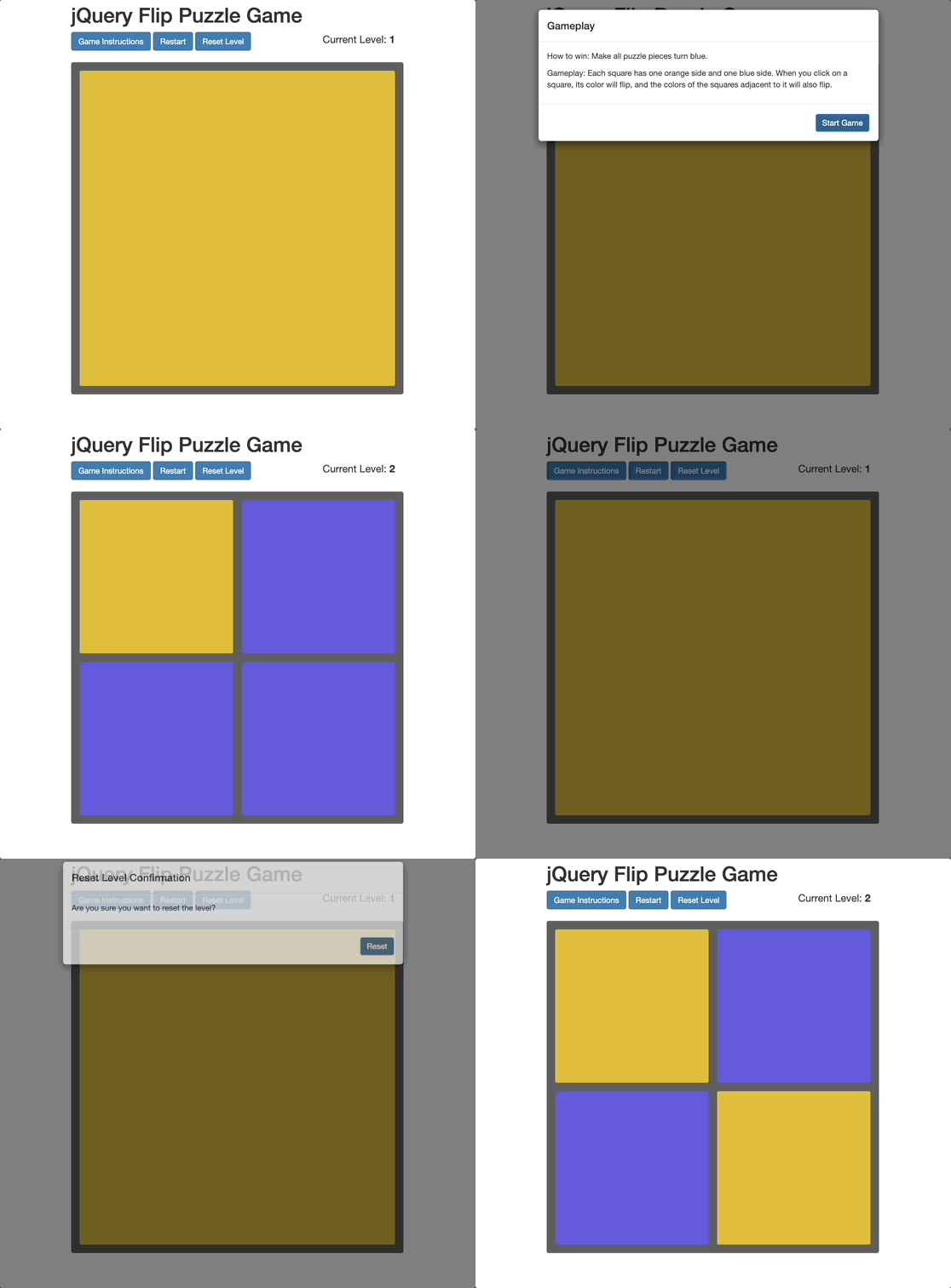
게임에서 플레이어는 주황색 블록 격자로 시작합니다. 각 블록은 주황색 면과 파란색 면을 가지고 있습니다. 플레이어가 블록을 클릭하면 색상이 뒤집히고, 인접한 블록의 색상도 변경됩니다. 목표는 모든 블록을 파란색으로 바꿔 게임을 완료하는 것입니다.
👀 미리보기
🎯 과제
이 프로젝트를 통해 다음을 배우게 됩니다:
- JavaScript 에서 객체 지향 프로그래밍을 구현하고 "this" 바인딩 문제를 해결하는 방법.
- jQuery 와 JavaScript 를 사용하여 핵심 게임 로직을 구축하는 방법.
- 플레이어가 블록 색상을 뒤집어 승리하는 인터랙티브 퍼즐 게임을 만드는 방법.
🏆 성과
이 프로젝트를 완료하면 다음을 수행할 수 있습니다:
- JavaScript 에서 객체 지향 프로그래밍 원칙을 적용할 수 있습니다.
- 이벤트 처리 및 객체 메서드에 대한 JavaScript 의 "this" 바인딩을 처리할 수 있습니다.
- jQuery 를 사용하여 인터랙티브 웹 게임을 개발할 수 있습니다.
- Bootstrap 3 을 활용하여 시각적으로 매력적이고 사용자 친화적인 인터페이스를 만들 수 있습니다.
기본 HTML 구조
미리보기 이미지에 따라, 예비 웹페이지 레이아웃이 생성됩니다. Bootstrap 에는 alert 팝업 창과 유사한 Modal 대화 상자가 있으며, Modal의 스타일이 비교적 더 미학적입니다.
Bootstrap 의 CSS 스타일, 사용자 정의 CSS 스타일, jQuery 파일, Bootstrap JavaScript 파일, 그리고 게임의 메인 JavaScript 파일을 프로젝트에 포함해야 합니다. HTML 페이지의 head 태그에 다음 코드를 작성합니다:
<head>
  <meta charset="utf-8" />
  <title>Blue Puzzle</title>
  <!-- Include Bootstrap CSS -->
  <link
    rel="stylesheet"
    href="https://cdn.jsdelivr.net/npm/bootstrap@3.3.7/dist/css/bootstrap.min.css"
  />
  <!-- Include custom CSS -->
  <link rel="stylesheet" href="style.css" />

  <!-- Include jQuery and Bootstrap JavaScript -->
  <script src="https://cdn.bootcss.com/jquery/3.3.1/jquery.min.js"></script>
  <script src="https://cdn.jsdelivr.net/npm/bootstrap@3.3.7/dist/js/bootstrap.min.js"></script>
  <!-- Include game main JavaScript -->
  <script src="game.js"></script>
</head>
게임 영역 설정
게임 재설정 및 기타 기능을 위한 버튼을 포함하여 게임 영역을 설정하려면, 다음 코드를 body 태그 안에 삽입합니다:
<div class="container">
  <div class="heading">
    <h1 class="title">jQuery Flip Puzzle Game</h1>
    <div class="scoresContainer">
      <!-- Display current game level -->
      <div class="currLevel">Current level: <b>1</b></div>
    </div>
  </div>
  <div class="aboveGame">
    <!-- Game buttons -->
    <a
      class="instruct btn btn-primary"
      data-toggle="modal"
      data-target="#instructions"
      >Game Instructions</a
    >
    <a
      class="newgame btn btn-primary"
      data-toggle="modal"
      data-target="#newGame"
      >Restart</a
    >
    <a
      class="reset btn btn-primary"
      data-toggle="modal"
      data-target="#restartLevel"
      >Reset Level</a
    >
  </div>
  <div class="board">
    <!-- Game area -->
    <div class="gamerow">
      <div class="gamesquare coord0q0"></div>
    </div>
  </div>
</div>
게임 플레이 팝업 레이아웃
"게임 설명 편집" 버튼에 해당하는 팝업의 내용을 편집합니다. 게임 영역 코드 아래에 다음 코드를 작성합니다:
<!-- Gameplay Modal -->
<div
  class="modal fade"
  id="instructions"
  tabindex="-1"
  role="dialog"
  aria-hidden="true"
>
  <div class="modal-dialog">
    <div class="modal-content">
      <div class="modal-header">
        <h4 class="modal-title">Gameplay</h4>
      </div>
      <div class="modal-body">
        <p>How to win: Make all puzzle pieces turn blue.</p>
        <p>
          Gameplay: Each square has one orange side and one blue side. When you
          click on a square, its color will flip, and the colors of the squares
          adjacent to it will also flip.
        </p>
      </div>
      <div class="modal-footer">
        <button type="button" class="btn btn-primary" data-dismiss="modal">
          Start Game
        </button>
      </div>
    </div>
  </div>
</div>
새 게임 모달 레이아웃
"Restart" 버튼에 해당하는 모달의 내용을 편집합니다. 게임 로직 코드 아래에 다음 코드를 작성합니다:
<!-- New Game modal -->
<div
  class="modal fade"
  id="newGame"
  tabindex="-1"
  role="dialog"
  aria-hidden="true"
>
  <div class="modal-dialog">
    <div class="modal-content">
      <div class="modal-header">
        <h4 class="modal-title">Restart</h4>
      </div>
      <div class="modal-body">
        <p>Are you sure you want to restart?</p>
      </div>
      <div class="modal-footer">
        <button
          type="button"
          class="btn btn-primary"
          id="newGameConfirm"
          data-dismiss="modal"
        >
          Start Game
        </button>
      </div>
    </div>
  </div>
</div>
레벨 초기화 확인 모달 레이아웃
"Reset Level" 버튼에 해당하는 팝업의 내용을 수정합니다. "Restart Level" 코드 아래에 다음 코드를 추가합니다:
<!-- Reset Level Confirmation Modal -->
<div
  class="modal fade"
  id="restartLevel"
  tabindex="-1"
  role="dialog"
  aria-hidden="true"
>
  <div class="modal-dialog">
    <div class="modal-content">
      <div class="modal-header">
        <h4 class="modal-title">Reset Level Confirmation</h4>
      </div>
      <div class="modal-body">
        <p>Are you sure you want to reset the level?</p>
      </div>
      <div class="modal-footer">
        <button
          type="button"
          class="btn btn-primary"
          id="resetLevelConfirm"
          data-dismiss="modal"
        >
          Reset
        </button>
      </div>
    </div>
  </div>
</div>
CSS 스타일
게임의 CSS 스타일은 비교적 간단합니다. style.css의 코드는 다음과 같습니다:
.container {
  width: 600px;
  margin: 0 auto;
}

/* Game level */
.scoresContainer {
  float: right;
  text-align: right;
  font-size: 18px;
}

/* Game buttons */
.aboveGame:after {
  display: block;
  margin: 20px 0;
  content: "";
  clear: both;
}

/* Game area */
.board {
  position: absolute;
  background-color: #5f5f5f;
  border-radius: 4px;
}

.gamesquare {
  float: left;
  margin-right: 15px;
  border-radius: 3px;
}
게임 씬 설정
게임 패널의 타일은 2 차원 배열로 저장되며, 각 요소는 0 (주황색으로 설정) 또는 1 (파란색으로 설정) 의 값을 갖습니다. 초기에는 모든 값이 0으로 설정됩니다. 타일을 클릭하면 해당 색상이 반전되고, 인접한 타일의 좌표가 결정되어 해당 색상도 반전되며, 2 차원 배열의 값도 변경됩니다. 게임은 배열의 모든 값이 1이 되면 완료됩니다 (즉, 모든 타일이 파란색이 됨).
주요 로직:
게임 장면 크기, 난이도 레벨, 타일의 크기 및 개수 간의 관계.
타일을 클릭하고 인접한 타일의 상태를 변경합니다.
모든 타일 상태가
1인지 확인합니다.
function SetStyle() {}
SetStyle.prototype.setGridSize = function (level) {
  var margin = this.getMargin(level);
  var res = ($(".container").width() - margin * level) / level;

  // Set the size and spacing of the tiles
  $(".gamesquare").css("margin-right", margin);
  $(".gamesquare").css("width", res);
  $(".gamesquare").css("height", res);

  // Set the height, right margin, and bottom margin of each row
  $(".gamerow").css("height", res);
  $(".gamerow").css("margin-right", margin * -1);
  $(".gamerow").css("margin-bottom", margin);

  // Set the padding of the game area
  $(".board").css("padding", margin);
  $(".board").css("padding-bottom", 0);
};
SetStyle.prototype.getMargin = function (level) {
  if (level <= 6) return 15;
  if (level > 15) return 5;
  return 20 - level;
};
게임 생성자 생성
// Game constructor
function Game() {
  // Game level
  this.level = 1;
  // Create objects for controlling the game
  this.gb;
  this.sh = new SetStyle();
}
Game 생성자는 게임의 상태를 추적하는 속성과 게임 시작, 상태 업데이트, 시각적 렌더링과 같은 게임 기능을 처리하는 메서드를 사용하여 게임 인스턴스를 생성하기 위한 것입니다. 그러나 이러한 기능 (start, update, render 메서드 내부) 에 대한 실제 로직은 현재 제공되지 않으며, 향후 구현을 위해 자리 표시자가 있습니다.
게임 세부 설정
Game 클래스의 프로토타입 메서드에서 게임 세부 정보를 설정합니다.
// Prototype method of the Game class, controlling the specific game logic, make sure to reset the 'this' reference
Game.prototype = {
  processClick: function (w, h) {
    this.gb.processClick(w, h);
    this.updateCounts();
    if (this.gb.isGameWin()) {
      this.gameEnd();
    }
  },
  // Start the game
  beginGame: function () {
    this.setupLevel();
  },
  // Game end
  gameEnd: function () {
    this.level++;
    this.resetGame();
  },
  // Reset the game, redirect 'this' using bind
  resetGame: function () {
    $("#levelDescriptor").html("Enter Level " + this.level);
    setTimeout(
      function () {
        this.setupLevel(); // When 'this' is not reset, it refers to the window object
      }.bind(this),
      500
    ); // Use bind to redirect 'this' from window to the instance
  },
  // Set the difficulty level
  setupLevel: function () {
    this.gb = new GameBoard(this.level, this.level);
    $(".board").html(""); // Clear game board
    this.gb.populate(); // Reset all tiles to orange color
    this.gb.renderBoard(); // Render game board and create tiles
    this.sh.setGridSize(this.level); // Control tile size in game area
    this.updateCounts(); // Update current level display
    this.applyBindings(); // Flip the colors of tiles around the clicked tile
  },
  // Update current level display
  updateCounts: function () {
    $(".currLevel").html("Current Level: <b>" + this.level + "</b>");
  },
  applyBindings: function () {
    var that = this; // Save 'this' as a variable before the DOM event callback for easy reference
    $(".gamesquare").click(function () {
      // Get the position of the clicked tile
      var cname = $(this).attr("class").split(" ")[1];
      var coord = cname.substring(5).split("q");
      var height = parseInt(coord[1]);
      var width = parseInt(coord[0]);
      that.processClick(width, height);
    });
  },
  onNewGameClick: function () {
    this.level = 1;
    this.setupLevel();
  }
};
이 코드는 프로토타입 메서드를 추가하여 Game 생성자의 기능을 확장합니다. 이러한 메서드는 주요 게임 로직과 상호 작용을 정의합니다.
블록 좌표 설정
이 코드는 게임 보드 객체를 생성하는 데 사용되는 GameBoard 라는 생성자 함수를 정의합니다.
// xPos, yPos are the coordinates of the block
function GameBoard(xPos, yPos) {
  // Game board
  // Tile coordinates
  this.high = yPos - 1; // Index starts from 0
  this.wide = xPos - 1; // Index starts from 0
  this.count = 0;
  // The horizontal coordinate is wide, and the vertical coordinate is high
  //    [0][0] |  [0][1]
  //  - - - - - - - - - - - -
  //    [1][0] |  |[1][1]

  // Create a two-dimensional array of tiles
  this.board = new Array(xPos);
  for (var i = 0; i <= this.wide; i++) {
    this.board[i] = new Array(yPos);
  }
}
게임 규칙 설정
제공된 코드 조각은 핵심 게임 규칙과 렌더링 로직을 정의하는 프로토타입 메서드를 추가하여 GameBoard 생성자의 기능을 확장합니다.
// Implementation of game rules
GameBoard.prototype = {
  renderBoard: function () {
    var htmlString = ""; // Structure of game squares
    for (var j = 0; j <= this.high; j++) {
      htmlString += "<div class='gamerow'>";
      for (var i = 0; i <= this.wide; i++) {
        htmlString += "<div class='gamesquare coord" + i + "q" + j + "'></div>";
      }
      htmlString += "</div>";
    }
    $(".board").html(htmlString);

    for (var i = 0; i <= this.wide; i++) {
      for (var j = 0; j <= this.high; j++) {
        this.processClickView(i, j);
      }
    }
  },
  processClick: function (w, h) {
    //
    // Flip the colors of the blocks surrounding the clicked block
    //

    // Find the surrounding blocks that need to be flipped
    var lowx = w - 1;
    var highx = w + 1;
    var lowy = h - 1;
    var highy = h + 1;

    // Check if the clicked block is an edge block
    if (w == 0) lowx = 0;
    if (w == this.wide) highx = this.wide;
    if (h == 0) lowy = 0;
    if (h == this.high) highy = this.high;

    // Flip the vertically adjacent blocks of the clicked block
    for (var i = lowy; i <= highy; i++) {
      if (this.board[w][i] == 0) {
        this.board[w][i] = 1;
        this.count++;
      } else {
        this.board[w][i] = 0;
        this.count--;
      }
      this.processClickView(w, i);
    }

    // Flip the horizontally adjacent blocks of the clicked block
    for (var i = lowx; i <= highx; i++) {
      if (i == w) continue;
      if (this.board[i][h] == 0) {
        this.board[i][h] = 1;
        this.count++;
      } else {
        this.board[i][h] = 0;
        this.count--;
      }
      this.processClickView(i, h);
    }
  },
  // Flip the color of a block
  processClickView: function (w, h) {
    var coord = ".coord" + w + "q" + h;
    if (this.board[w][h] == 0) {
      $(coord).css("background-color", "#e8BB39");
    } else {
      $(coord).css("background-color", "#6060e0");
    }
  },

  // Reset all blocks to orange color
  populate: function () {
    for (var i = 0; i <= this.wide; i++) {
      for (var j = 0; j <= this.high; j++) {
        this.board[i][j] = 0;
      }
    }
  },

  // Game win condition
  isGameWin: function () {
    return this.count == (this.wide + 1) * (this.high + 1);
  }
};
게임 초기화
이 코드는 문서가 준비되었을 때 게임을 설정합니다. 게임을 초기화하고, 첫 번째 레벨을 시작하며, 현재 레벨을 재설정하거나 새 게임을 시작하기 위한 이벤트 리스너 (event listener) 도 설정합니다.
// Initialize the game
$(document).ready(function () {
  // Create the game
  var game = new Game();
  // Begin the game
  game.beginGame();

  // Reset the level tiles
  $("#resetLevelConfirm").click(function () {
    game.setupLevel();
  });

  // Start a new game
  $("#newGameConfirm").click(function () {
    game.onNewGameClick();
  });
});
앱 실행
- 웹 브라우저에서
index.html을 엽니다.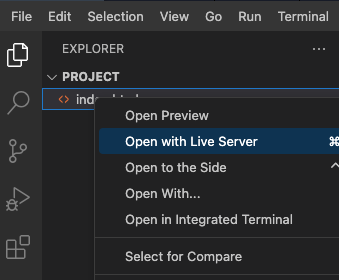
- 페이지의 효과는 다음과 같습니다.
요약
이 게임 개발을 통해 다음과 같은 사항들을 경험했습니다:
- JavaScript 에서의 객체 지향 방식 (Object-oriented methods)
- JavaScript 내부
this참조 및 재지정 - jQuery 를 사용하여 DOM 을 조작하는 방법
- 행렬 관계 문제
실제로 이 로직을 구현할 필요는 없지만, 사고방식을 배울 필요가 있습니다. 문제를 해결하기 위해서는 먼저 문제를 분석하고 관련된 논리적 관계를 명확히 해야 합니다. 그것이 문제 해결의 핵심입니다.