
소개
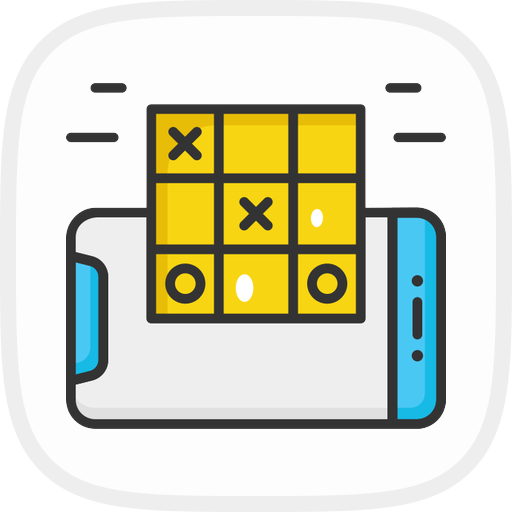
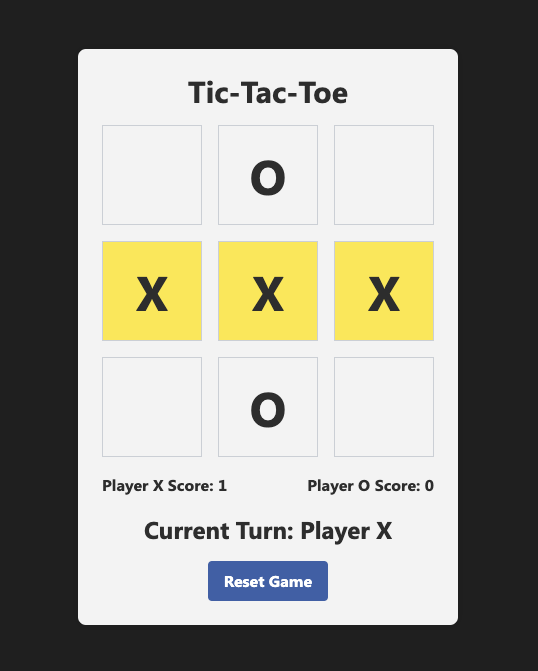
이 프로젝트에서는 HTML, CSS, JavaScript 를 사용하여 틱택토 게임을 만드는 방법을 배웁니다. 틱택토는 3x3 격자판에서 두 명의 플레이어가 번갈아 가며 X 또는 O 를 표시하는 게임입니다. 가로, 세로, 대각선 중 한 줄을 먼저 완성하는 사람이 승리합니다. 필요한 HTML, CSS, JavaScript 파일을 생성하고 단계별로 게임 로직을 구현해 봅니다.
👀 미리보기
🎯 과제
이 프로젝트를 통해 다음 내용을 배웁니다:
- HTML 을 사용하여 틱택토 게임의 기본 구조를 설정하는 방법.
- CSS 스타일을 추가하여 게임 요소의 외관을 정의하는 방법.
- JavaScript 를 사용하여 게임 로직을 구현하는 방법.
- 사용자 상호작용을 처리하고, 승리 또는 무승부를 확인하며, 점수를 업데이트하는 방법.
- 게임 보드를 렌더링하고 턴 표시기를 업데이트하는 방법.
- 플레이어가 게임을 초기화하고 새로운 라운드를 시작할 수 있도록 하는 방법.
🏆 성과
이 프로젝트를 완료하면 다음을 수행할 수 있게 됩니다:
- 웹 애플리케이션을 위한 HTML 파일 구조 설계.
- CSS 클래스를 사용한 요소 스타일링.
- JavaScript 를 이용한 게임 로직 구현.
- 사용자 상호작용 처리 및 UI 업데이트.
- 게임 보드 렌더링 및 턴 표시기 업데이트.
- 이벤트 리스너 생성 및 JavaScript 에서의 이벤트 처리.
HTML 파일 생성
index.html이라는 새 파일을 만들고 다음 코드를 추가합니다.
cd ~/project
touch index.html
이 코드는 틱택토 게임의 기본 구조를 설정합니다.
<!doctype html>
<html lang="en">
  <head>
    <meta charset="UTF-8" />
    <meta name="viewport" content="width=device-width, initial-scale=1.0" />
    <title>Tic-Tac-Toe</title>
    <link
      href="https://cdn.jsdelivr.net/npm/tailwindcss@2.2.19/dist/tailwind.min.css"
      rel="stylesheet"
    />
    <style>
      /* CSS styles for the game */
    </style>
  </head>

  <body>
    <div id="app">
      <h1 class="text-3xl font-bold mb-4 text-gray-900">Tic-Tac-Toe</h1>
      <div id="board" class="grid grid-cols-3 gap-4 mb-4">
        <!-- Game board cells -->
      </div>
      <div id="scoreboard" class="flex justify-between items-center mb-4">
        <!-- Player scores -->
      </div>
      <div
        id="turn-indicator"
        class="text-2xl font-bold mb-4 text-gray-900"
      ></div>
      <button
        id="reset-button"
        class="bg-blue-500 hover:bg-blue-700 text-white font-bold py-2 px-4 rounded"
      >
        Reset Game
      </button>
    </div>

    <script>
      // JavaScript code for the game logic
    </script>
  </body>
</html>
CSS 스타일 추가
HTML 파일의 <head> 섹션 내 <style> 태그 안에 게임에 필요한 CSS 스타일을 추가합니다. 이 스타일들은 게임 보드, 셀, 점수판, 버튼 등 게임 요소의 외관을 정의합니다.
<style>
  .board-cell {
    width: 100px;
    height: 100px;
  }

  body {
    display: flex;
    flex-direction: column;
    align-items: center;
    justify-content: center;
    height: 100vh;
    background-color: #222;
    font-family: "Segoe UI", Tahoma, Geneva, Verdana, sans-serif;
  }

  #app {
    text-align: center;
    background-color: #f5f5f5;
    border-radius: 8px;
    padding: 24px;
    box-shadow: 0 0 10px rgba(0, 0, 0, 0.1);
  }

  h1 {
    font-size: 32px;
    color: #333;
  }

  .text-gray-900 {
    color: #333 !important;
  }

  .text-2xl {
    font-size: 24px;
  }

  .bg-blue-500 {
    background-color: #4267b2;
  }

  .bg-blue-500:hover {
    background-color: #3b5ca0;
  }

  .bg-blue-700 {
    background-color: #385898;
  }

  .text-white {
    color: #fff !important;
  }

  .rounded {
    border-radius: 4px;
  }

  .highlight {
    background-color: #ffed4a;
  }
</style>
프로젝트에 style.css 파일을 따로 만들어 <link> 태그를 사용하여 HTML 파일에 연결할 수도 있습니다.
<link rel="stylesheet" href="style.css" />
원하는 방식을 선택하세요.
게임 로직 JavaScript 코드 추가
HTML 파일 끝부분의 <script> 태그 안에 게임 로직을 처리할 JavaScript 코드를 추가합니다. 이 코드는 게임 상태를 추적하고, 사용자 상호작용을 처리하며, 승리나 무승부를 확인하고, 점수를 업데이트하며, 게임 보드를 렌더링합니다.
<script>
  // Game logic code
</script>
게임 변수 초기화
JavaScript 코드 시작 부분에 필요한 변수들을 선언합니다. 이 변수들은 게임 상태, 플레이어 점수 및 기타 관련 정보를 저장합니다.
// Game logic
const board = ["", "", "", "", "", "", "", "", ""];
let currentPlayer = "X";
let gameEnded = false;
let playerXScore = 0;
let playerOScore = 0;
let winningCells = [];
셀 클릭 처리
게임 보드의 셀을 클릭했을 때 호출될 handleCellClick 함수를 만듭니다. 이 함수는 보드 업데이트, 승리 확인, 점수 업데이트, 현재 플레이어 변경 등 핵심 게임 로직을 처리합니다.
function handleCellClick(index) {
  if (gameEnded || board[index] !== "") return;
  board[index] = currentPlayer;
  renderBoard();

  if (checkWin()) {
    updateScore();
    highlightWinningCells();
    alert(`Player ${currentPlayer} wins!`);
    gameEnded = true;
  } else if (board.every((cell) => cell !== "")) {
    alert("It's a tie!");
    gameEnded = true;
  } else {
    currentPlayer = currentPlayer === "X" ? "O" : "X";
    updateTurnIndicator();
  }
}
승리 확인
게임 보드에서 승리 조건이 충족되었는지 확인하는 checkWin 함수를 만듭니다. 이 함수는 보드 배열의 값과 승리 조합을 비교하여 플레이어가 승리했는지 판단합니다.
function checkWin() {
  const winningCombinations = [
    [0, 1, 2],
    [3, 4, 5],
    [6, 7, 8],
    [0, 3, 6],
    [1, 4, 7],
    [2, 5, 8],
    [0, 4, 8],
    [2, 4, 6]
  ];

  for (let i = 0; i < winningCombinations.length; i++) {
    const [a, b, c] = winningCombinations[i];
    if (board[a] !== "" && board[a] === board[b] && board[a] === board[c]) {
      winningCells = [a, b, c];
      return true;
    }
  }
  return false;
}
게임 초기화
게임 상태를 초기값으로 되돌리는 resetGame 함수를 만듭니다. 이 함수는 리셋 버튼을 클릭했을 때 호출되며, 보드를 비우고, 현재 플레이어를 초기화하고, 승리 셀을 지우고, 턴 표시기를 업데이트하며, 보드를 다시 렌더링합니다.
function resetGame() {
  board.fill("");
  currentPlayer = "X";
  gameEnded = false;
  winningCells = [];
  updateTurnIndicator();
  renderBoard();
}
플레이어 점수 업데이트
플레이어의 점수를 업데이트하는 updateScore 함수를 만듭니다. 이 함수는 플레이어가 게임에서 승리했을 때 호출됩니다. 해당 플레이어의 점수를 증가시키고 페이지의 점수 표시를 업데이트합니다.
function updateScore() {
  if (currentPlayer === "X") {
    playerXScore++;
    document.getElementById("player-x-score").textContent = playerXScore;
  } else {
    playerOScore++;
    document.getElementById("player-o-score").textContent = playerOScore;
  }
}
턴 표시기 업데이트
현재 플레이어의 턴을 보여주기 위해 페이지의 턴 표시기를 업데이트하는 updateTurnIndicator 함수를 만듭니다.
function updateTurnIndicator() {
  const turnIndicator = document.getElementById("turn-indicator");
  turnIndicator.textContent = `Current Turn: Player ${currentPlayer}`;
}
승리 셀 강조
게임 보드에서 승리한 셀에 강조 클래스를 추가하는 highlightWinningCells 함수를 만듭니다. 이 함수는 플레이어가 게임에서 승리했을 때 호출됩니다.
function highlightWinningCells() {
  const cells = document.querySelectorAll(".board-cell");
  cells.forEach((cell, index) => {
    if (winningCells.includes(index)) {
      cell.classList.add("highlight");
    }
  });
}
게임 보드 렌더링
board 배열의 현재 상태에 따라 페이지의 게임 보드를 업데이트하는 renderBoard 함수를 만듭니다. 이 함수는 각 플레이어의 이동 후 시각적 요소를 업데이트하기 위해 호출됩니다.
function renderBoard() {
  const cells = document.querySelectorAll(".board-cell");
  cells.forEach((cell, index) => {
    cell.textContent = board[index];
    cell.classList.remove("highlight");
  });
}
이벤트 리스너 추가
게임 보드 셀과 리셋 버튼에 이벤트 리스너를 추가합니다. 이 이벤트 리스너들은 이벤트가 발생할 때 해당 함수를 호출합니다.
// Event listeners
const cells = document.querySelectorAll(".board-cell");
cells.forEach((cell, index) => {
  cell.addEventListener("click", () => handleCellClick(index));
});

const resetButton = document.getElementById("reset-button");
resetButton.addEventListener("click", resetGame);
초기 렌더링
JavaScript 코드 끝에 초기 렌더링을 위한 코드를 추가합니다. 이 코드는 게임의 초기 상태를 설정하고, 턴 표시기를 업데이트하며, 게임 보드를 렌더링합니다.
// Initial render
updateTurnIndicator();
renderBoard();
프로젝트 실행
이제 프로젝트를 실행하고 틱택토 게임을 즐길 수 있습니다!
WebIDE 오른쪽 하단에 있는 Go Live 버튼을 클릭하여 프로젝트를 실행하세요.
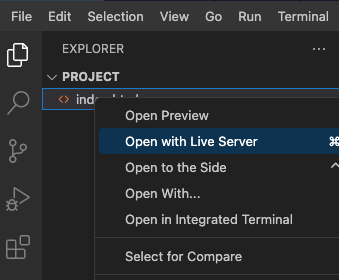
그러면 Web 8080 탭에서 프로젝트가 열립니다.
셀을 클릭하여 이동하고, 리셋 버튼을 클릭하여 새 게임을 시작하세요.
요약
축하합니다! HTML, CSS, JavaScript 를 사용하여 틱택토 게임을 성공적으로 만들었습니다. 이 프로젝트에서는 HTML 파일 생성, CSS 스타일 추가, 게임 로직 구현, 사용자 상호작용 처리를 다루었습니다. 이 게임은 두 명의 플레이어가 번갈아 가며 플레이하고, 승리나 무승부를 확인하며, 점수를 업데이트하고, 승리한 셀을 강조 표시합니다. 이제 프로젝트를 실행하고 틱택토 게임을 즐겨보세요!