介绍
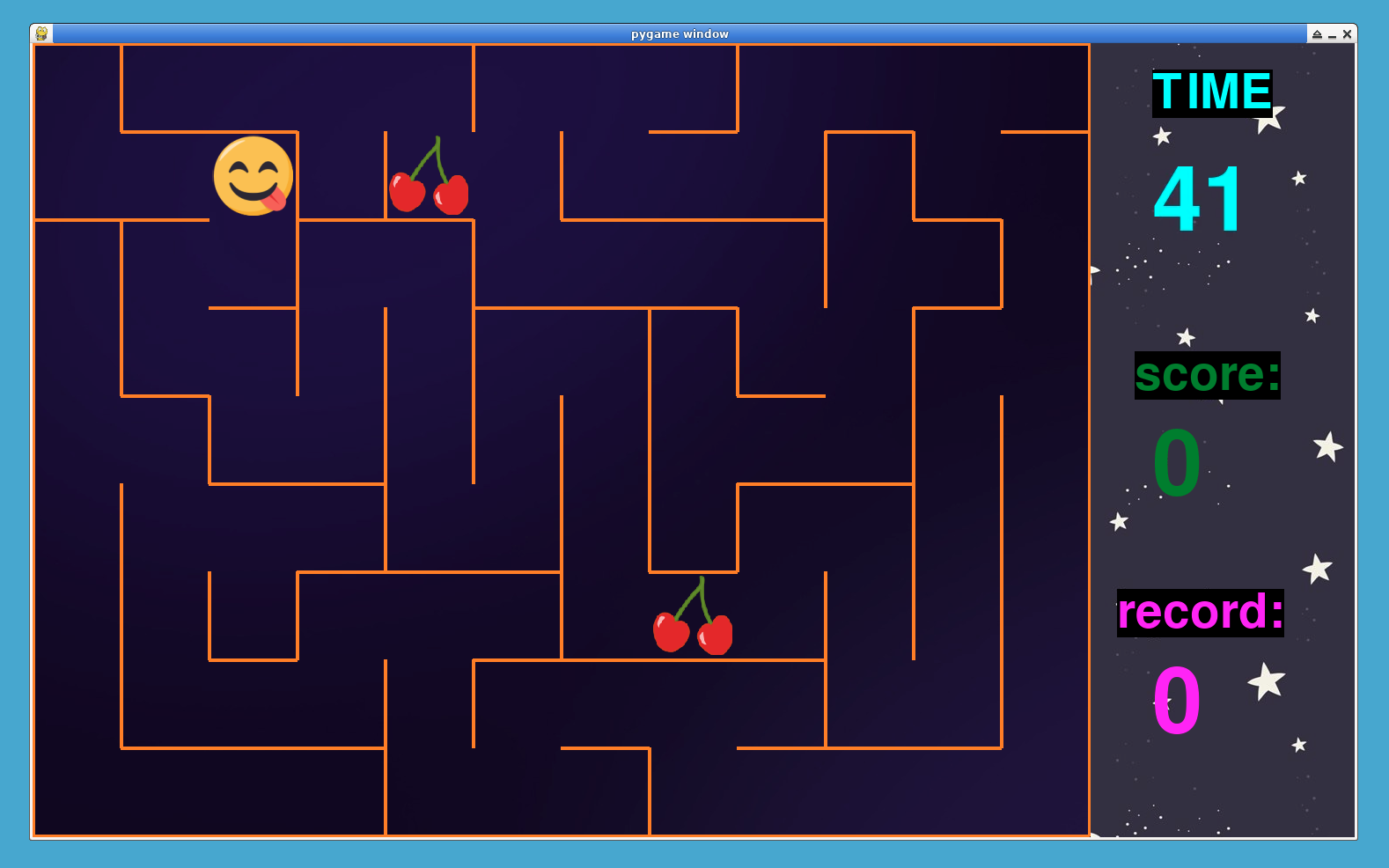
在这个项目中,我们将使用 Python 中的 Pygame 库创建一个迷宫游戏。游戏要求玩家在迷宫中导航,收集食物并避开墙壁。我们将把开发过程分成多个步骤,以便于理解和跟进。
👀 预览
🎯 任务
在这个项目中,你将学习:
- 如何使用 Pygame 设置游戏环境
- 如何使用单元格和墙壁创建迷宫
- 如何为玩家添加食物以供收集
- 如何实现玩家移动和碰撞检测
- 如何处理游戏逻辑,包括计分和游戏结束条件
- 如何跟踪玩家记录
- 如何在屏幕上显示游戏统计信息,如时间、分数和记录
🏆 成果
完成这个项目后,你将能够:
- 使用 Pygame 库进行游戏开发
- 应用面向对象编程概念创建游戏元素
- 展示用于生成迷宫的算法思维和问题解决技巧
- 处理事件处理和玩家输入
- 在游戏环境中实现碰撞检测和移动机制
- 管理文件处理以存储和检索游戏记录
- 在屏幕上显示游戏统计信息和信息
设置环境
首先,我们将为迷宫游戏创建项目文件。
cd ~/project
touch maze.py
sudo pip install pygame
在这一步中,我们将设置 Pygame 环境并定义常量。
import pygame
from random import choice, randrange

## 屏幕尺寸和图块大小的常量
RES = WIDTH, HEIGHT = 1202, 902
TILE = 100
cols, rows = WIDTH // TILE, HEIGHT // TILE

## 其余代码将放在这里...
在这一步中:
- 我们导入必要的库(Pygame 和 random)。
- 我们定义屏幕尺寸和图块大小的常量。
- 初始化 Pygame 并设置游戏窗口。
- 我们加载游戏的背景图像。
创建单元格类
在这一步中,我们将定义 Cell 类来表示迷宫中的单元格。
## 定义一个类来表示迷宫中的单元格
class Cell:
    def __init__(self, x, y):
        self.x, self.y = x, y
        ## 墙壁表示单元格的边界
        self.walls = {"top": True, "right": True, "bottom": True, "left": True}
        self.visited = False
        self.thickness = 4

    ## 绘制单元格的墙壁
    def draw(self, sc):
        x, y = self.x * TILE, self.y * TILE
        if self.walls["top"]:
            pygame.draw.line(
                sc, pygame.Color("darkorange"), (x, y), (x + TILE, y), self.thickness
            )
        if self.walls["right"]:
            pygame.draw.line(
                sc,
                pygame.Color("darkorange"),
                (x + TILE, y),
                (x + TILE, y + TILE),
                self.thickness,
            )
        if self.walls["bottom"]:
            pygame.draw.line(
                sc,
                pygame.Color("darkorange"),
                (x + TILE, y + TILE),
                (x, y + TILE),
                self.thickness,
            )
        if self.walls["left"]:
            pygame.draw.line(
                sc, pygame.Color("darkorange"), (x, y + TILE), (x, y), self.thickness
            )

    ## 获取表示单元格每面墙的矩形
    def get_rects(self):
        rects = []
        x, y = self.x * TILE, self.y * TILE
        if self.walls["top"]:
            rects.append(pygame.Rect((x, y), (TILE, self.thickness)))
        if self.walls["right"]:
            rects.append(pygame.Rect((x + TILE, y), (self.thickness, TILE)))
        if self.walls["bottom"]:
            rects.append(pygame.Rect((x, y + TILE), (TILE, self.thickness)))
        if self.walls["left"]:
            rects.append(pygame.Rect((x, y), (self.thickness, TILE)))
        return rects

    ## 检查是否存在相邻单元格
    def check_cell(self, x, y):
        find_index = lambda x, y: x + y * cols
        if x < 0 or x > cols - 1 or y < 0 or y > rows - 1:
            return False
        return self.grid_cells[find_index(x, y)]

    ## 获取未被访问的相邻单元格
    def check_neighbors(self, grid_cells):
        self.grid_cells = grid_cells
        neighbors = []
        top = self.check_cell(self.x, self.y - 1)
        right = self.check_cell(self.x + 1, self.y)
        bottom = self.check_cell(self.x, self.y + 1)
        left = self.check_cell(self.x - 1, self.y)
        if top and not top.visited:
            neighbors.append(top)
        if right and not right.visited:
            neighbors.append(right)
        if bottom and not bottom.visited:
            neighbors.append(bottom)
        if left and not left.visited:
            neighbors.append(left)
        return choice(neighbors) if neighbors else False

## 其余代码将放在这里...
在这一步中:
- 我们定义了
Cell类及其用于绘制墙壁和检查邻居的属性和方法。
移除墙壁并生成迷宫
在这一步中,我们将创建用于移除墙壁和生成迷宫的函数。
## 移除两个相邻单元格之间墙壁的函数
def remove_walls(current, next):
    dx = current.x - next.x
    if dx == 1:
        current.walls["left"] = False
        next.walls["right"] = False
    elif dx == -1:
        current.walls["right"] = False
        next.walls["left"] = False
    dy = current.y - next.y
    if dy == 1:
        current.walls["top"] = False
        next.walls["bottom"] = False
    elif dy == -1:
        current.walls["bottom"] = False
        next.walls["top"] = False


## 生成迷宫的函数
def generate_maze():
    grid_cells = [Cell(col, row) for row in range(rows) for col in range(cols)]
    current_cell = grid_cells[0]
    array = []
    break_count = 1

    while break_count!= len(grid_cells):
        current_cell.visited = True
        next_cell = current_cell.check_neighbors(grid_cells)
        if next_cell:
            next_cell.visited = True
            break_count += 1
            array.append(current_cell)
            remove_walls(current_cell, next_cell)
            current_cell = next_cell
        elif array:
            current_cell = array.pop()
    return grid_cells

## 其余代码将放在这里...
在这一步中:
- 我们定义了
remove_walls函数来移除相邻单元格之间的墙壁。 - 我们创建了
generate_maze函数,使用深度优先搜索算法生成迷宫。
向游戏中添加食物
在这一步中,我们将创建一个 Food 类,以便向游戏中添加食物物品。
## 表示游戏中食物的类
class Food:
    def __init__(self):
        ## 加载食物图像
        self.img = pygame.image.load("img/food.png").convert_alpha()
        self.img = pygame.transform.scale(self.img, (TILE - 10, TILE - 10))
        self.rect = self.img.get_rect()
        self.set_pos()

    ## 随机设置食物的位置
    def set_pos(self):
        self.rect.topleft = randrange(cols) * TILE + 5, randrange(rows) * TILE + 5

    ## 在屏幕上绘制食物
    def draw(self):
        game_surface.blit(self.img, self.rect)

## 其余代码将放在这里...
在这一步中:
- 我们定义了
Food类,该类具有设置食物位置和绘制食物物品的方法。
玩家移动与碰撞检测
在这一步中,我们将设置玩家控制、移动和碰撞检测。
## 检查玩家是否与墙壁发生碰撞
def is_collide(x, y):
    tmp_rect = player_rect.move(x, y)
    if tmp_rect.collidelist(walls_collide_list) == -1:
        return False
    return True

## 其余代码将放在这里...
在这一步中:
- 我们定义了
is_collide函数来检查玩家是否与墙壁发生碰撞。
游戏玩法与计分
在这一步中,我们将实现游戏玩法逻辑,包括吃食物和计分。
## 检查玩家是否吃到了任何食物
def eat_food():
    for food in food_list:
        if player_rect.collidepoint(food.rect.center):
            food.set_pos()
            return True
    return False


## 检查游戏是否结束(时间用完)
def is_game_over():
    global time, score, record, FPS
    if time < 0:
        pygame.time.wait(700)
        player_rect.center = TILE // 2, TILE // 2
        [food.set_pos() for food in food_list]
        set_record(record, score)
        record = get_record()
        time, score, FPS = 60, 0, 60

## 其余代码将放在这里...
在这一步中:
- 我们定义了
eat_food函数来检查玩家是否吃到了任何食物。 - 我们创建了
is_game_over函数来检查当时间用完时游戏是否结束。
处理记录
在这一步中,我们将为游戏实现记录保存功能。
## 从文件中获取当前记录的函数
def get_record():
    try:
        with open("record") as f:
            return f.readline()
    except FileNotFoundError:
        with open("record", "w") as f:
            f.write("0")
            return "0"

## 在文件中设置并更新记录的函数
def set_record(record, score):
    rec = max(int(record), score)
    with open("record", "w") as f:
        f.write(str(rec))

## 其余代码将放在这里...
在这一步中:
- 我们定义了从文件中检索当前记录并对其进行更新的函数。
游戏初始化
在这一步中,我们将执行游戏初始化任务。
## 初始化 Pygame 并设置游戏窗口
FPS = 60
pygame.init()
game_surface = pygame.Surface(RES)
surface = pygame.display.set_mode((WIDTH + 300, HEIGHT))
clock = pygame.time.Clock()

## 加载背景图像
bg_game = pygame.image.load("img/bg_1.jpg").convert()
bg = pygame.image.load("img/bg_main.jpg").convert()

## 生成迷宫
maze = generate_maze()

## 玩家设置
player_speed = 5
player_img = pygame.image.load("img/0.png").convert_alpha()
player_img = pygame.transform.scale(
    player_img, (TILE - 2 * maze[0].thickness, TILE - 2 * maze[0].thickness)
)
player_rect = player_img.get_rect()
player_rect.center = TILE // 2, TILE // 2
directions = {
    "a": (-player_speed, 0),
    "d": (player_speed, 0),
    "w": (0, -player_speed),
    "s": (0, player_speed),
}
keys = {"a": pygame.K_LEFT, "d": pygame.K_RIGHT, "w": pygame.K_UP, "s": pygame.K_DOWN}
direction = (0, 0)

## 食物设置
food_list = [Food() for i in range(3)]

## 创建一个表示墙壁的矩形列表,用于碰撞检测
walls_collide_list = sum([cell.get_rects() for cell in maze], [])

## 定时器、分数和记录
pygame.time.set_timer(pygame.USEREVENT, 1000)
time = 60
score = 0
record = get_record()

## 字体
font = pygame.font.SysFont("Impact", 150)
text_font = pygame.font.SysFont("Impact", 80)

## 其余代码将放在这里...
在这一步中:
- 我们执行各种初始化任务,包括设置 Pygame、加载图像、生成迷宫以及初始化与玩家和食物相关的变量。
主游戏循环
在这一步中,我们将设置主游戏循环并显示游戏元素。
## 主游戏循环
while True:
    ## 绘制背景图像
    surface.blit(bg, (WIDTH, 0))
    surface.blit(game_surface, (0, 0))
    game_surface.blit(bg_game, (0, 0))

    for event in pygame.event.get():
        if event.type == pygame.QUIT:
            exit()
        if event.type == pygame.USEREVENT:
            time -= 1

    ## 处理玩家控制和移动
    pressed_key = pygame.key.get_pressed()
    for key, key_value in keys.items():
        if pressed_key[key_value] and not is_collide(*directions[key]):
            direction = directions[key]
            break
    if not is_collide(*direction):
        player_rect.move_ip(direction)

    ## 绘制迷宫
    [cell.draw(game_surface) for cell in maze]

    ## 游戏玩法:检查玩家是否吃到食物以及游戏是否结束
    if eat_food():
        FPS += 10
        score += 1
    is_game_over()

    ## 绘制玩家
    game_surface.blit(player_img, player_rect)

    ## 绘制食物物品
    [food.draw() for food in food_list]

    ## 其余代码将放在这里...
在这一步中:
- 我们设置了主游戏循环,该循环处理事件、玩家移动和游戏渲染。
显示游戏统计信息
在这一步中,我们将在屏幕上显示游戏统计信息。
    ## 绘制游戏统计信息
    surface.blit(
        text_font.render("TIME", True, pygame.Color("cyan"), True), (WIDTH + 70, 30)
    )
    surface.blit(font.render(f"{time}", True, pygame.Color("cyan")), (WIDTH + 70, 130))
    surface.blit(
        text_font.render("score:", True, pygame.Color("forestgreen"), True),
        (WIDTH + 50, 350),
    )
    surface.blit(
        font.render(f"{score}", True, pygame.Color("forestgreen")), (WIDTH + 70, 430)
    )
    surface.blit(
        text_font.render("record:", True, pygame.Color("magenta"), True),
        (WIDTH + 30, 620),
    )
    surface.blit(
        font.render(f"{record}", True, pygame.Color("magenta")), (WIDTH + 70, 700)
    )

    pygame.display.flip()
    clock.tick(FPS)
在这一步中:
- 我们使用字体来显示与游戏相关的信息,如时间、分数和记录。
- 我们使用
blit()方法在屏幕上绘制文本。 - 我们使用
flip()方法更新显示。
运行游戏
既然我们已经完成了所有步骤,我们可以使用以下命令运行迷宫游戏:
cd ~/project
python maze.py
总结
在这个项目中,我们将使用 Pygame 构建迷宫游戏的过程分解为十个清晰且易于管理的步骤。你将学习如何设置游戏环境、创建迷宫单元格、生成迷宫、处理玩家移动和碰撞检测、实现游戏玩法和计分、管理记录等等。通过遵循这些步骤,你将能够用 Python 创建一个功能齐全的迷宫游戏。