
Introdução
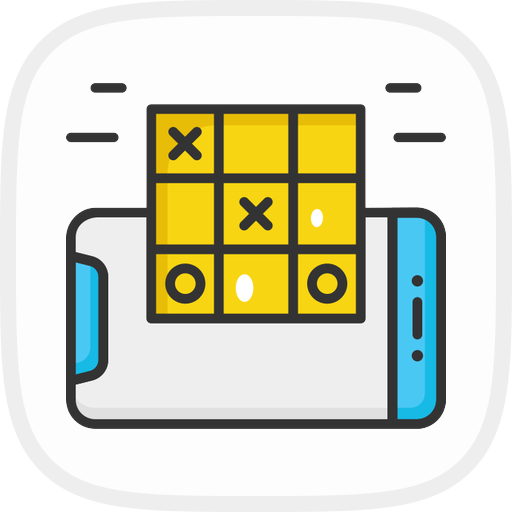
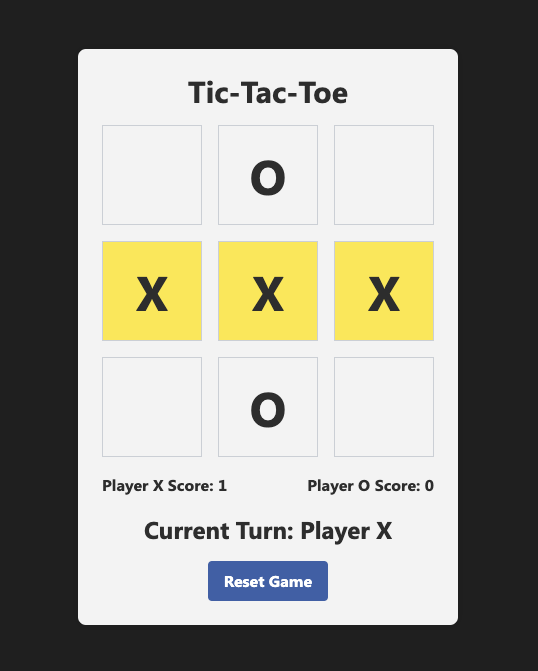
Neste projeto, você aprenderá a criar um jogo da velha usando HTML, CSS e JavaScript. O jogo da velha é um jogo para dois jogadores onde eles se revezam marcando X ou O em uma grade 3x3. O objetivo é conseguir três marcas em uma linha, seja horizontal, vertical ou diagonalmente. Você criará os arquivos HTML, CSS e JavaScript necessários e implementará a lógica do jogo passo a passo.
👀 Prévia
🎯 Tarefas
Neste projeto, você aprenderá:
- Como configurar a estrutura básica do jogo da velha usando HTML.
- Como adicionar estilos CSS para definir a aparência dos elementos do jogo.
- Como implementar a lógica do jogo usando JavaScript.
- Como gerenciar as interações do usuário, verificar vitórias ou empates e atualizar as pontuações.
- Como renderizar o tabuleiro do jogo e atualizar o indicador de turno.
- Como permitir que os jogadores reiniciem o jogo e comecem uma nova rodada.
🏆 Conquistas
Após concluir este projeto, você será capaz de:
- Estruturar um arquivo HTML para uma aplicação web.
- Estilizar elementos usando classes CSS.
- Implementar a lógica de um jogo usando JavaScript.
- Gerenciar interações do usuário e atualizar a interface (UI) de acordo.
- Renderizar o tabuleiro do jogo e atualizar o indicador de turno.
- Criar ouvintes de eventos (event listeners) e manipular eventos em JavaScript.
Criar o arquivo HTML
Crie um novo arquivo chamado index.html e adicione o seguinte código a ele.
cd ~/project
touch index.html
Este código configura a estrutura básica do jogo da velha.
<!doctype html>
<html lang="en">
  <head>
    <meta charset="UTF-8" />
    <meta name="viewport" content="width=device-width, initial-scale=1.0" />
    <title>Tic-Tac-Toe</title>
    <link
      href="https://cdn.jsdelivr.net/npm/tailwindcss@2.2.19/dist/tailwind.min.css"
      rel="stylesheet"
    />
    <style>
      /* CSS styles for the game */
    </style>
  </head>

  <body>
    <div id="app">
      <h1 class="text-3xl font-bold mb-4 text-gray-900">Tic-Tac-Toe</h1>
      <div id="board" class="grid grid-cols-3 gap-4 mb-4">
        <!-- Game board cells -->
      </div>
      <div id="scoreboard" class="flex justify-between items-center mb-4">
        <!-- Player scores -->
      </div>
      <div
        id="turn-indicator"
        class="text-2xl font-bold mb-4 text-gray-900"
      ></div>
      <button
        id="reset-button"
        class="bg-blue-500 hover:bg-blue-700 text-white font-bold py-2 px-4 rounded"
      >
        Reset Game
      </button>
    </div>

    <script>
      // JavaScript code for the game logic
    </script>
  </body>
</html>
Adicionar estilos CSS
Dentro da tag <style> na seção <head> do arquivo HTML, adicione os estilos CSS necessários para o jogo. Esses estilos definem a aparência dos elementos do jogo, como o tabuleiro, as células, as pontuações e os botões.
<style>
  .board-cell {
    width: 100px;
    height: 100px;
  }

  body {
    display: flex;
    flex-direction: column;
    align-items: center;
    justify-content: center;
    height: 100vh;
    background-color: #222;
    font-family: "Segoe UI", Tahoma, Geneva, Verdana, sans-serif;
  }

  #app {
    text-align: center;
    background-color: #f5f5f5;
    border-radius: 8px;
    padding: 24px;
    box-shadow: 0 0 10px rgba(0, 0, 0, 0.1);
  }

  h1 {
    font-size: 32px;
    color: #333;
  }

  .text-gray-900 {
    color: #333 !important;
  }

  .text-2xl {
    font-size: 24px;
  }

  .bg-blue-500 {
    background-color: #4267b2;
  }

  .bg-blue-500:hover {
    background-color: #3b5ca0;
  }

  .bg-blue-700 {
    background-color: #385898;
  }

  .text-white {
    color: #fff !important;
  }

  .rounded {
    border-radius: 4px;
  }

  .highlight {
    background-color: #ffed4a;
  }
</style>
Você também pode adicionar um arquivo style.css ao projeto e vinculá-lo ao arquivo HTML usando a tag <link>.
<link rel="stylesheet" href="style.css" />
Escolha o método que preferir.
Adicionar o código JavaScript da lógica do jogo
Dentro da tag <script> no final do arquivo HTML, adicione o código JavaScript que gerencia a lógica do jogo. Este código rastreia o estado do jogo, gerencia as interações do usuário, verifica vitórias ou empates, atualiza as pontuações e renderiza o tabuleiro.
<script>
  // Game logic code
</script>
Inicializar variáveis do jogo
Declare as variáveis necessárias no início do código JavaScript. Essas variáveis armazenarão o estado do jogo, as pontuações dos jogadores e outras informações relevantes.
// Game logic
const board = ["", "", "", "", "", "", "", "", ""];
let currentPlayer = "X";
let gameEnded = false;
let playerXScore = 0;
let playerOScore = 0;
let winningCells = [];
Gerenciar o clique na célula
Crie uma função chamada handleCellClick que será chamada quando uma célula do tabuleiro for clicada. Esta função gerenciará a lógica principal do jogo, como atualizar o tabuleiro, verificar se houve vitória, atualizar as pontuações e alternar o jogador atual.
function handleCellClick(index) {
  if (gameEnded || board[index] !== "") return;
  board[index] = currentPlayer;
  renderBoard();

  if (checkWin()) {
    updateScore();
    highlightWinningCells();
    alert(`Player ${currentPlayer} wins!`);
    gameEnded = true;
  } else if (board.every((cell) => cell !== "")) {
    alert("It's a tie!");
    gameEnded = true;
  } else {
    currentPlayer = currentPlayer === "X" ? "O" : "X";
    updateTurnIndicator();
  }
}
Verificar vitória
Crie uma função chamada checkWin que verifica se existe uma condição de vitória no tabuleiro. Esta função compara os valores no array board com as combinações vencedoras para determinar se um jogador ganhou o jogo.
function checkWin() {
  const winningCombinations = [
    [0, 1, 2],
    [3, 4, 5],
    [6, 7, 8],
    [0, 3, 6],
    [1, 4, 7],
    [2, 5, 8],
    [0, 4, 8],
    [2, 4, 6]
  ];

  for (let i = 0; i < winningCombinations.length; i++) {
    const [a, b, c] = winningCombinations[i];
    if (board[a] !== "" && board[a] === board[b] && board[a] === board[c]) {
      winningCells = [a, b, c];
      return true;
    }
  }
  return false;
}
Reiniciar o jogo
Crie uma função chamada resetGame que redefine o estado do jogo para seus valores iniciais. Esta função é chamada quando o botão de reset é clicado; ela limpa o tabuleiro, redefine o jogador atual, limpa as células vencedoras, atualiza o indicador de turno e renderiza o tabuleiro.
function resetGame() {
  board.fill("");
  currentPlayer = "X";
  gameEnded = false;
  winningCells = [];
  updateTurnIndicator();
  renderBoard();
}
Atualizar pontuações dos jogadores
Crie uma função chamada updateScore que atualiza as pontuações dos jogadores. Esta função é chamada quando um jogador vence uma partida. Ela incrementa a pontuação do jogador correspondente e atualiza a exibição da pontuação na página.
function updateScore() {
  if (currentPlayer === "X") {
    playerXScore++;
    document.getElementById("player-x-score").textContent = playerXScore;
  } else {
    playerOScore++;
    document.getElementById("player-o-score").textContent = playerOScore;
  }
}
Atualizar indicador de turno
Crie uma função chamada updateTurnIndicator que atualiza o indicador de turno na página para mostrar de quem é a vez de jogar.
function updateTurnIndicator() {
  const turnIndicator = document.getElementById("turn-indicator");
  turnIndicator.textContent = `Current Turn: Player ${currentPlayer}`;
}
Destacar células vencedoras
Crie uma função chamada highlightWinningCells que adiciona uma classe de destaque às células vencedoras no tabuleiro. Esta função é chamada quando um jogador vence o jogo.
function highlightWinningCells() {
  const cells = document.querySelectorAll(".board-cell");
  cells.forEach((cell, index) => {
    if (winningCells.includes(index)) {
      cell.classList.add("highlight");
    }
  });
}
Renderizar o tabuleiro
Crie uma função chamada renderBoard que atualiza o tabuleiro na página de acordo com o estado atual do array board. Esta função é chamada após a jogada de cada jogador para atualizar o visual.
function renderBoard() {
  const cells = document.querySelectorAll(".board-cell");
  cells.forEach((cell, index) => {
    cell.textContent = board[index];
    cell.classList.remove("highlight");
  });
}
Adicionar ouvintes de eventos
Adicione ouvintes de eventos (event listeners) às células do tabuleiro e ao botão de reset. Esses ouvintes chamam as funções correspondentes quando os eventos ocorrem.
// Event listeners
const cells = document.querySelectorAll(".board-cell");
cells.forEach((cell, index) => {
  cell.addEventListener("click", () => handleCellClick(index));
});

const resetButton = document.getElementById("reset-button");
resetButton.addEventListener("click", resetGame);
Renderização inicial
No final do código JavaScript, adicione o código para a renderização inicial. Este código configura o estado inicial do jogo, atualiza o indicador de turno e renderiza o tabuleiro.
// Initial render
updateTurnIndicator();
renderBoard();
Executar o projeto
Agora você pode executar o projeto e jogar o jogo da velha!
Clique no botão Go Live no canto inferior direito do WebIDE para executar o projeto.
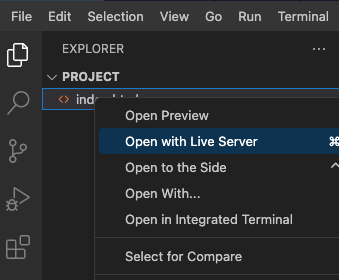
Isso abrirá o projeto na aba Web 8080.
Clique nas células para fazer suas jogadas e clique no botão de reset para começar um novo jogo.
Resumo
Parabéns! Você criou com sucesso um jogo da velha usando HTML, CSS e JavaScript. O projeto cobriu a criação do arquivo HTML, a adição de estilos CSS, a implementação da lógica do jogo e o gerenciamento das interações do usuário. O jogo permite que dois jogadores se revezem, verifica vitórias ou empates, atualiza pontuações e destaca as células vencedoras. Agora você pode executar o projeto e se divertir jogando!