When you work inside a repository, git status tells you what Git sees in the working tree and what you have selected to save next. Use the empty journey-git repository from the previous lesson.
Git · Lesson 2
git status
Learn to identify untracked, staged, and modified files with git status.
Finding a New File
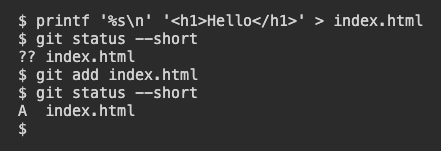
Create a small page, then use the short output format to keep the example compact.
$ printf '%s\n' '<h1>Hello</h1>' > index.html
$ git status --short
Here > writes to the named file and replaces its contents if it already exists. For a new file, the short status line is ?? index.html. Git calls it untracked. The file exists, but Git has yet to select it for a saved snapshot.
Git prints two question marks next to a new file. What does that say about the file?
Looking at Staged Changes
Run git add to select the current contents of the file for the next saved snapshot, called a commit. The staging area is that selection. The abbreviated status now shows an A in the first column for the addition waiting to be saved.
$ git add index.html
$ git status --short
After git add, where is the selected version of index.html?
Checking Two Kinds of Change
Short status has two columns before the filename. Read the first for staged changes and the second for changes you made since staging. For example, AM index.html means Git has staged a new file and you have since modified your working copy. If you prefer headings, plain git status lists the details in groups.
You see AM beside index.html. What should you check before the next commit?
Lesson complete
You finished git status
You can now check which changes Git would save next.
Recognize a new untracked file.
Stage a file with git add.
Read staged and working-tree changes separately.
Keep your learning progress
Create a free account to save this lesson and continue learning on any device.
Create a free account