A change that has already been shared can still be undone. Use git revert to apply the opposite change as a new commit. The history then shows both the original change and the decision to undo it.
Git · Lesson 8
git revert
Learn how git revert records an undo operation without rewriting the original commit.
Finding the Change to Undo
In the practice repository, main contains the homepage and health page commits. Use short history to confirm the newest entry. The identifiers below are illustrative.
$ git log --oneline
3ab4501 Add a health page
a12c345 Set the homepage heading
HEAD refers to the commit you currently have checked out. Check that it is the change you intend to undo. Check git status for a clean working tree before proceeding.
Which change would reverting HEAD undo in this sample?
Recording the Undo
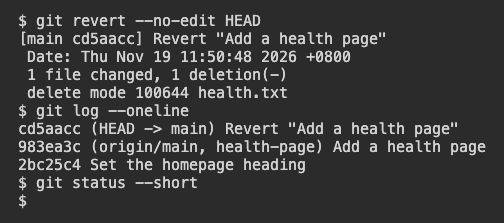
In the clean practice repository, revert the health page commit. This changes the files in your working tree and creates a commit. Use --no-edit to keep Git's proposed revert message.
$ git revert --no-edit HEAD
This example removes the health file because the original commit added it. If newer work changed the same lines, Git can stop and ask for help reconciling the changes. Read status before continuing.
When the sample revert succeeds, which project file change should you observe?
Checking History After the Undo
Run git log --oneline again. Expect a new revert entry above the original health page entry. Check git status --short for remaining local changes. The new commit can be reviewed and shared through the same process as other changes.
What should still appear below the new revert entry?
Leaving Other Work in Place
Suppose the history contains three separate changes. The health file was added first, a typo was fixed in the homepage next, and both were shared. Reverting the identified health-file commit can undo that addition while keeping the unrelated typo fix. Read the history and the affected files before choosing a commit.
Which check shows that the undo kept the intended work?
Lesson complete
You finished git revert
You can now undo a committed change while keeping a trace of both actions.
Identify the exact commit to reverse.
Revert it in a clean working tree.
Verify both entries in the history.
Keep your learning progress
Create a free account to save this lesson and continue learning on any device.
Create a free account