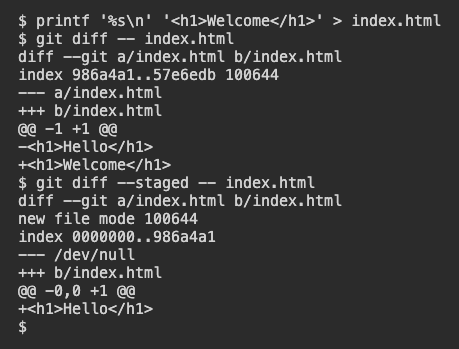
Status shows which files changed. Use git diff to see the lines that changed. In this example, index.html already contains a staged Hello heading from the previous lesson.
Git · Lesson 3
git diff
Learn to compare working-tree and staged versions of a file with git diff.
Comparing a File with Its Staged Copy
Replace the heading in the practice file and compare the working copy with the staged copy.
$ printf '%s\n' '<h1>Welcome</h1>' > index.html
$ git diff -- index.html
The -- separates options from the path you want to inspect. In the output, the line beginning with - is from the earlier copy. The line beginning with + is the replacement. The two lines below are the part of the diff that describes the edit.
-<h1>Hello</h1>
+<h1>Welcome</h1>
Which heading is currently in the working copy?
Comparing the Staging Area with History
Use git diff --staged -- index.html to compare the staged version with the most recent commit. Before a first commit, Git compares against an empty starting point. Here, that output shows the staged Hello heading as an addition. At the same time, plain git diff shows the later Welcome edit.
$ git diff --staged -- index.html
Which command lets you preview the version that would enter a commit right now?
Knowing What an Empty Diff Means
Add the current file again to update the staged copy.
$ git add index.html
$ git diff -- index.html
Plain git diff can now be empty because the working file and staged copy match. Use the staged comparison to see the change that still awaits a commit. Git also leaves untracked files out of these ordinary file comparisons. Check status when you are unsure where a change stands.
Plain git diff is empty immediately after you stage the edit. Where can you still see the change against history?
Lesson complete
You finished git diff
You can now choose a diff that answers the question you have.
Read removed and added lines in a diff.
Compare the working file with the staging area.
Preview the staged changes before a commit.
Keep your learning progress
Create a free account to save this lesson and continue learning on any device.
Create a free account