You have used an existing web server image to start a container. To serve your own page, you can make an image that already contains it. A Dockerfile is a text file with instructions for building that image.
Docker · Lesson 7
Dockerfile
Learn how a Dockerfile turns a page and a base image into a reusable web server image.
Starting with a Base Image
A base image supplies the files and programs you start from. The following Dockerfile begins with the Nginx image, adds a page, and records the command the container should use by default. Keep the Dockerfile and a file named index.html in the same example directory. For the page, a single line such as <h1>Hello from Docker</h1> is enough.
FROM nginx:alpine
COPY index.html /usr/share/nginx/html/index.html
CMD ["nginx", "-g", "daemon off;"]
FROM nginx:alpine starts from the named image, which already provides the Nginx program. Docker uses it while building the new image.
Which line supplies Nginx before your page is added?
Adding a File
COPY reads index.html from the files you give to the build. It writes the page to the path shown on the right, where this version of the Nginx image serves its default page. If you edit the local page later, rebuild the image to include the change.
You changed the heading in your local index.html after the build. How do you include that change in a new image?
Setting the Startup Command
CMD sets the default command for a new container. This example tells Nginx to keep running in the foreground inside the container. Docker can still run the container detached from your terminal when you use docker run -d.
When does the default CMD in the example take effect?
Building and Running
Run the build from the directory that contains both files. The -t option assigns the image reference journey-web:1. The final dot tells Docker to use the current directory as the source of the build files.
$ docker build -t journey-web:1 .
$ docker run -d --name custom-web -p 127.0.0.1:8082:80 journey-web:1
The second command starts a container. If port 8082 is available, a browser on the Docker host can open http://127.0.0.1:8082 to see the custom page.
The build succeeded and you have yet to run the second command. What is ready?
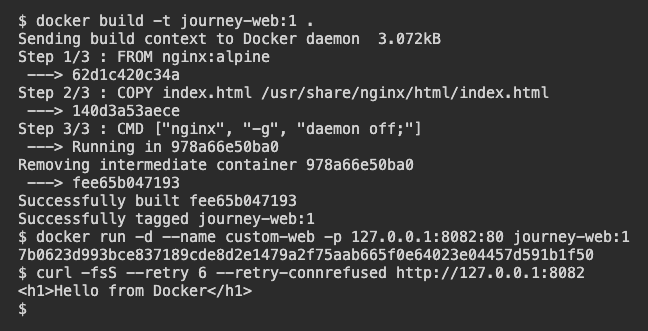
The final request retrieves the page packaged during the build. Build progress and image IDs may look different in your environment.
Lesson complete
You finished Dockerfile
You can now read a small Dockerfile and follow the path from a local page to a running server.
Identify a base image in
FROM.Describe where
COPYreads and writes a file.Recognize
CMDas the container's default startup command.Build an image and then start a container from it.
Keep your learning progress
Create a free account to save this lesson and continue learning on any device.
Create a free account