A workflow result gives you an overall status. To understand a failure, expand the failing job and read its steps in order. A later step can be skipped because an earlier one did not complete successfully.
Continuous Integration · Lesson 5
Workflow Logs
Learn to find a failing workflow step and interpret the first actionable log message.
Finding the First Failure
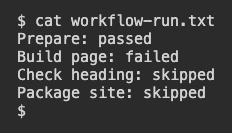
This simulated run shows the state of each step in the page check job.
Prepare: passed
Build page: failed
Check heading: skipped
Package site: skipped
Start with Build page. The skipped checks give no result for the page. Once the failure is fixed, verify the later steps in a new run.
Which step's output should you read first?
Following the Error Message
The failing step shows these lines.
Run cp index.html dist/index.html
cp: cannot create regular file 'dist/index.html': No such file or directory
Process completed with exit code 1.
The message names the destination path. If the parent directory dist is missing, the copy cannot create a file inside it. Check whether an earlier command created that directory before copying. Exit code 1 tells you the command failed. The message gives you the place to look.
Given that dist is missing, which change addresses the reported problem?
Checking a New Run
After fixing the build, compare the new run's revision and step statuses. A successful copy establishes that the output file exists. Read the test and package results before saying the whole process passed. Keep the first useful error with its step name when reporting a problem.
A new run shows Build page passed and Check heading failed. What changed?
Lesson complete
You finished Workflow Logs
You can now read a workflow failure in context.
Locate the first unsuccessful step that ran.
Use the log line to identify what to inspect.
Check the new revision and later steps after a fix.
Keep your learning progress
Create a free account to save this lesson and continue learning on any device.
Create a free account